Overview
The Assign Carriers to Plants feature enables you to configure which transportation carriers are available for each plant location in your concrete management system. This configuration directly impacts which carriers appear in dropdown menus when creating shipments, ensuring only relevant carriers are available for each plant location.
Prerequisites
Before using this feature, ensure you have:
- Administrative or dispatch management permissions
- At least one plant configured in the system
- At least one carrier set up in the system
Accessing the Feature
To navigate to the Assign Carriers to Plants screen:
- Open the Configuration menu from the main navigation
- Select "Dispatch Setup" from the dropdown options
- Click "Assign Carriers to Plants" from the submenu
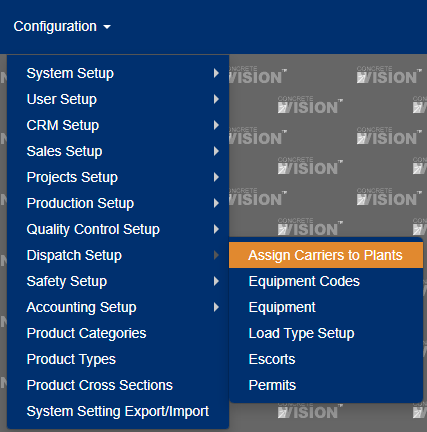
Figure 1
Understanding the Interface
Main Screen Layout
The Assign Carriers to Plants screen displays a comprehensive matrix view that shows:
- Columns: All configured plants in your system
- Rows: All available carriers
- Grid Cells: Assignment status indicators showing which carriers are assigned to which plants
Key Interface Elements
- Edit Icons (Orange box, Figure 2): Located at intersections of carrier rows and plant columns, these allow you to modify assignments
- Export Buttons: Located at the top of the screen for generating reports (Red box, Figure 2)
- Search/Filter Options: Use these to quickly locate specific carriers or plants in large datasets
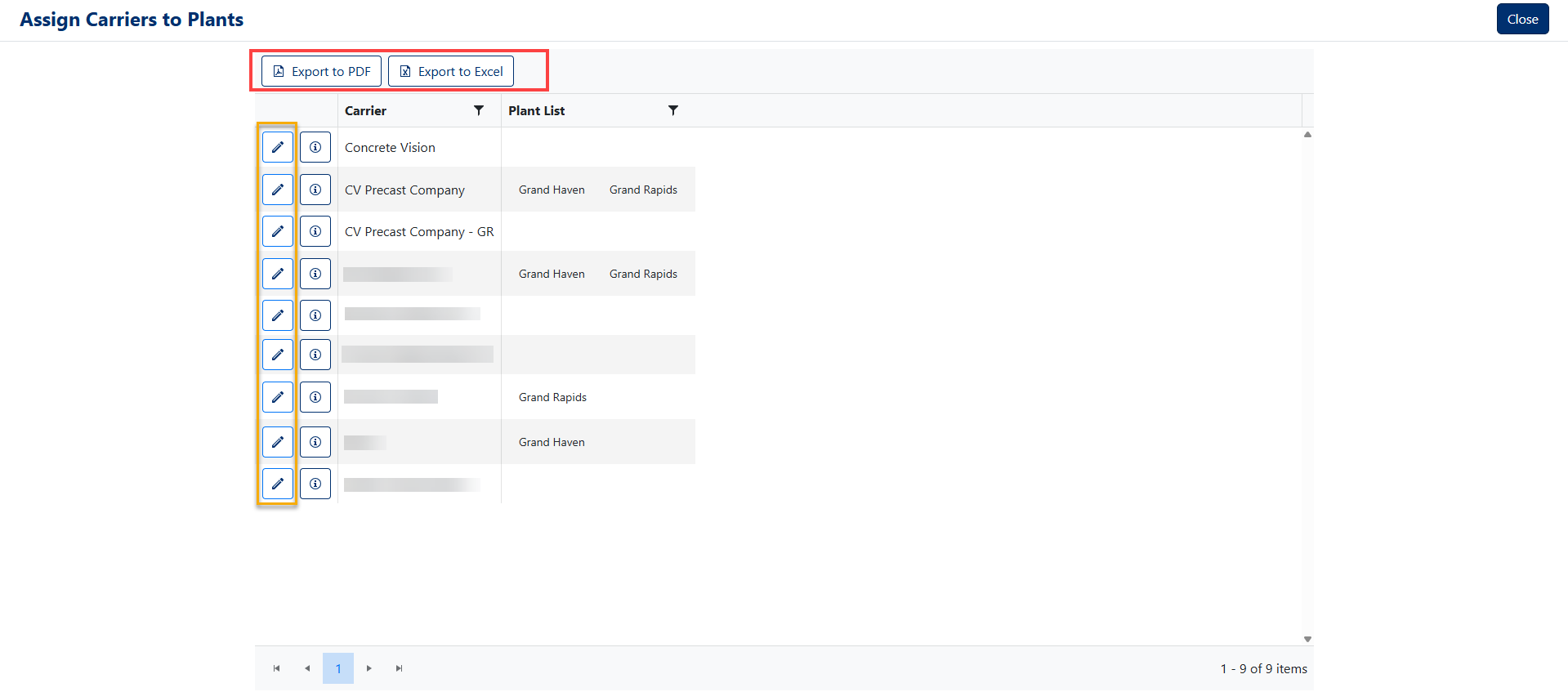
Figure 2
Assigning Carriers to Plants
Step-by-Step Process
Locate the Assignment Cell
- Find the intersection of the carrier (row) and plant (column) you want to modify
- Look for the edit icon (Orange box, Figure 2)
Open the Assignment Modal
- Click the edit icon for the desired carrier-plant combination
- This opens the "Assign Plants To Concrete Vision" dialog box
Select Plants
- Click the Plant List dropdown (Green box, Figure 3)
- Choose one or more plants from the available options
Save Your Changes
- Click the "Save" button (Yellow box, Figure 3) to confirm your selections
- Click "Cancel" if you want to discard changes
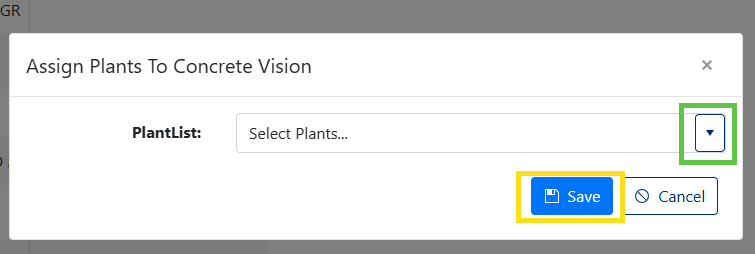
Figure 3
Assignment Rules
Multiple Assignments Supported:
- ✅ One carrier can be assigned to multiple plants
- ✅ Multiple carriers can be assigned to the same plant
- ✅ Changes take effect immediately after saving
Impact on Operations:
- Assigned carriers will appear in carrier selection dropdowns when creating shipments for the associated plant
- Unassigned carriers will not be available for selection at that plant location
Managing Assignments
Removing Assignments
To unassign a carrier from a plant:
- Click the edit icon for the carrier-plant combination (Orange box, Figure 2)
- In the Plant List dropdown, deselect the plant(s) you want to remove (Red box, Figure 4)
- Click "Save" to confirm the changes (Green box, Figure 4)
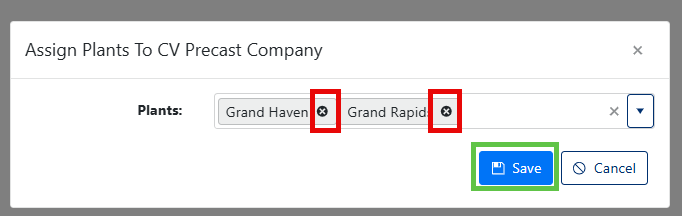
Figure 4
Audit Information
Tracking Changes
Click the info icon (i) next to any assignment to view:
- Who created the record and when
- Who last modified the record and when
- Complete change history for accountability
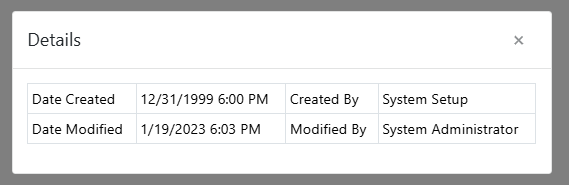
Figure 5
Exporting Assignment Data
Export Options
PDF Export:
- Click the [Export to PDF] button (Red Box, Figure 2)
- Generates a comprehensive report showing all carriers and their assigned plants
- Ideal for printing or sharing with stakeholders who need read-only access
Excel Export:
- Click the [Export to Excel] button (Red Box, Figure 2)
- Creates a spreadsheet with carrier-plant assignment data
- Useful for data analysis, backup purposes, or integration with other systems
Best Practices
Planning Your Assignments
Assess Carrier Capabilities
- Consider vehicle types, capacity limits, and equipment compatibility
- Match specialized carriers with plants that produce specific product types
Geographic Considerations
- Assign carriers based on proximity to plant locations
- Account for delivery radius and typical service areas
Operational Efficiency
- Avoid over-assigning carriers to maintain focused operations
- Ensure adequate carrier coverage for each plant's expected volume
Was this article helpful?
That’s Great!
Thank you for your feedback
Sorry! We couldn't be helpful
Thank you for your feedback
Feedback sent
We appreciate your effort and will try to fix the article