Overview
Sieves are essential tools in the Gradation testing module used to report aggregate distribution by size. This feature allows you to configure various sieve sizes for accurate aggregate testing and quality control.
Accessing Sieves Configuration
Navigate to: Configuration menu > Quality Control Setup > Sieves
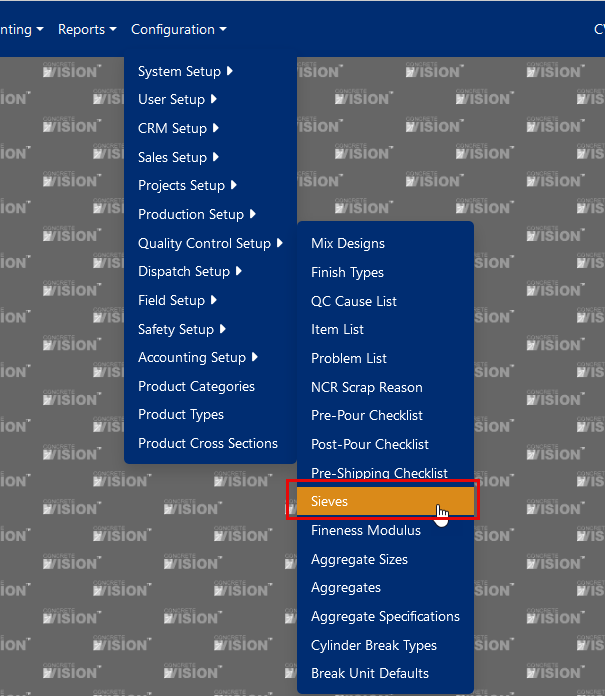
Figure 1
Finding Specific Sieves
You can quickly locate any specific sieve using:
- Sorting: Click on column headers to sort in ascending or descending order
- Filtering: Use the filter boxes at the top of each column to filter by specific criteria
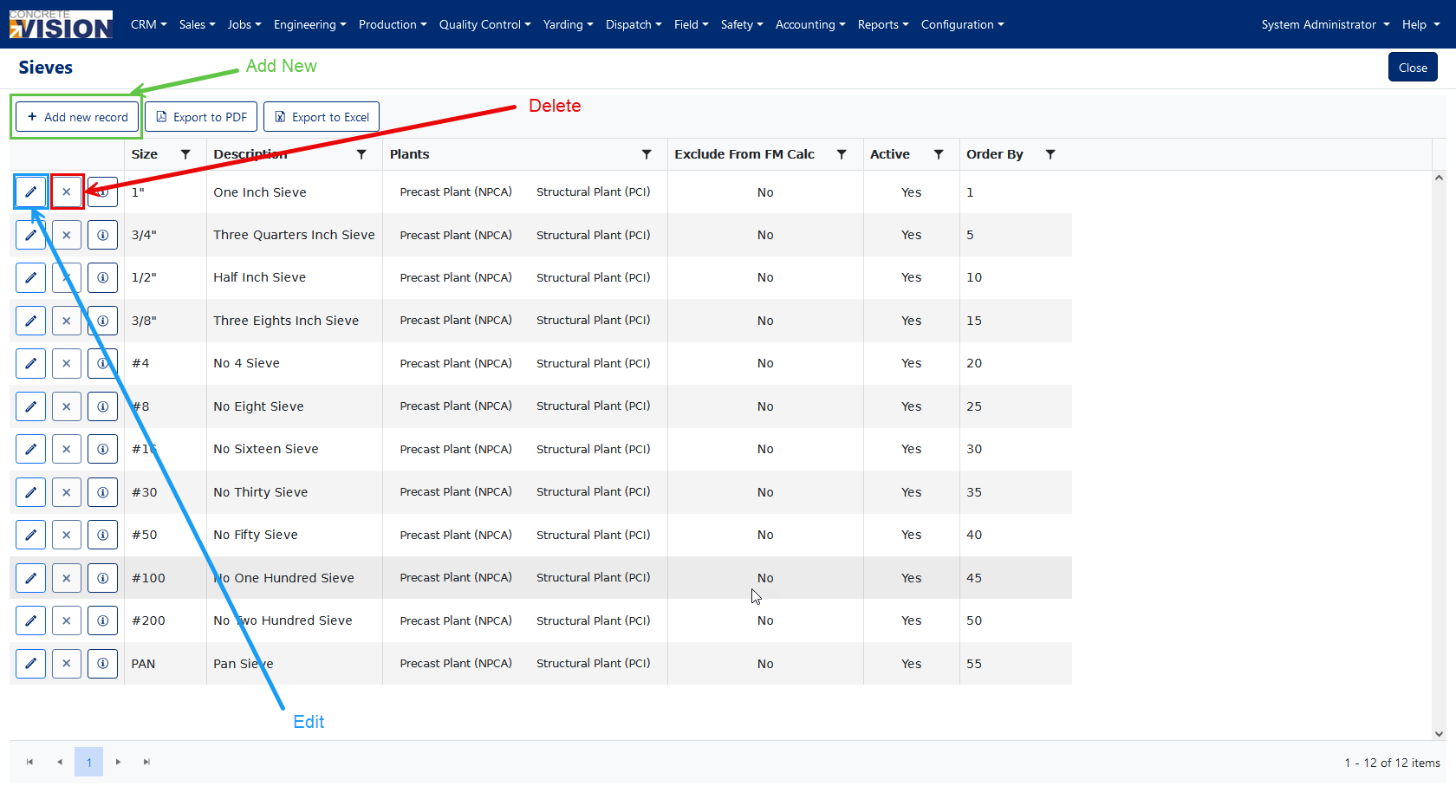
Figure 2
Field Descriptions
| Field | Description |
|---|---|
| Size | The maximum size of aggregate that can exit the sieve (10 characters max) Required |
| Description | Descriptive name for the sieve (50 characters max) Required |
| Exclude from FM Calc | When checked, excludes this sieve from the Fineness Modulus calculation (typically applied to the pan or last tray in the stack) |
| Active | When checked (yes), the sieve will be used in determining if an aggregate passes a test |
| Order By | Numeric value that determines the display order of sieves |
| Plants | Selection of plants that have this size sieve available |
Managing Sieves
Creating a New Sieve
- Click the [+ Add new record] button to open the Add New window (Figure 2 - green outline)
- Enter the required information:
- Size
- Description
- Exclude from FM Calc setting (if applicable)
- Active state
- Order By number
- Plant selection
- Click the [Save] button to create the new sieve (green outline - Figure 3)
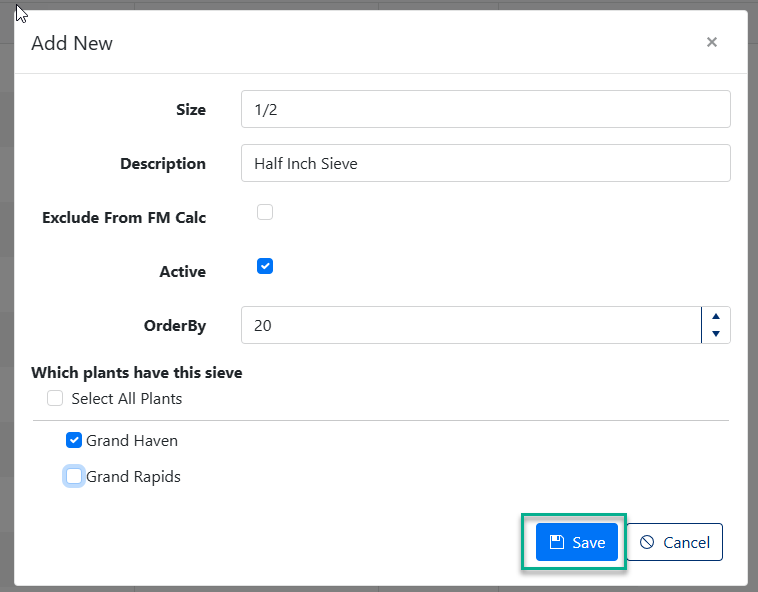
Figure 3
Editing an Existing Sieve
- Click the edit icon (first icon to the left of the sieve record) to open the Edit window (Figure 2 - blue outline)
- Modify any of the following:
- Size
- Description
- Exclude from FM Calc setting
- Active status
- Order By number
- Plant selection
- Click the [Save] button to apply your changes. (Figure 4)
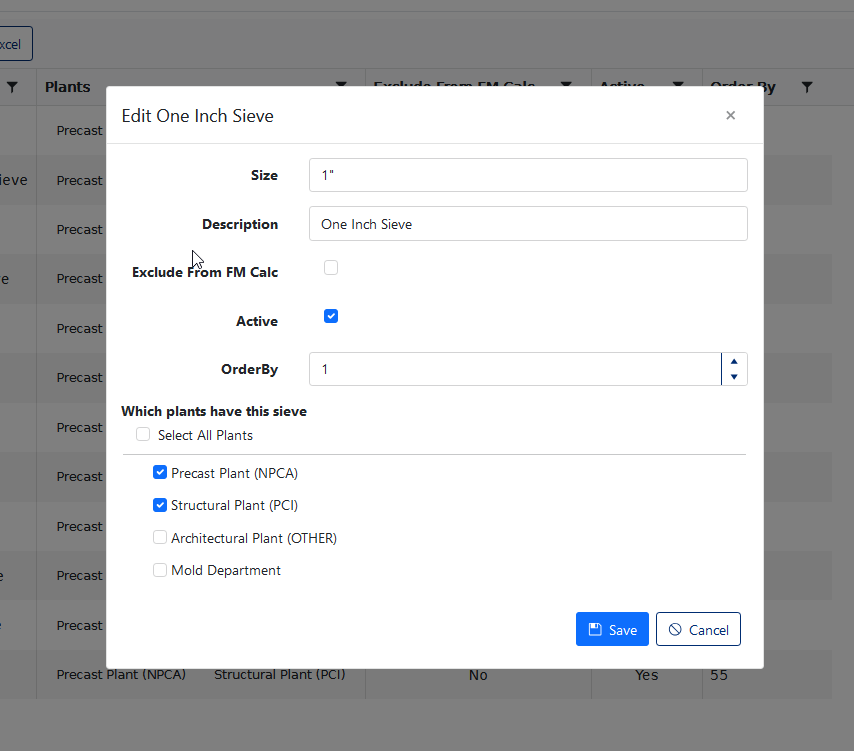
Figure 4
Deleting a Sieve
- Click the [X] button next to the sieve you want to delete (Figure 2 - red outline)
- Confirm deletion in the popup window by clicking [OK] (Figure 5)
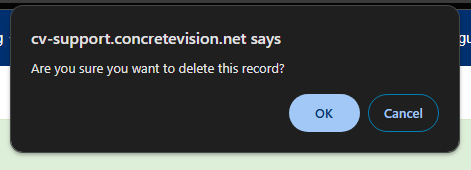
Figure 5
Note: Sieves cannot be deleted if they have been added to an Aggregate Specification. In such cases, the [X] button will be disabled.
Was this article helpful?
That’s Great!
Thank you for your feedback
Sorry! We couldn't be helpful
Thank you for your feedback
Feedback sent
We appreciate your effort and will try to fix the article