Aggregate Sizes are assigned to Aggregates and used in conjunction with Sieves to create an Aggregate Specification.
You can access the Aggregate Sizes page from Configuration > Quality Control Setup > Aggregate Size on the menu. (shown in Figure 1 below)
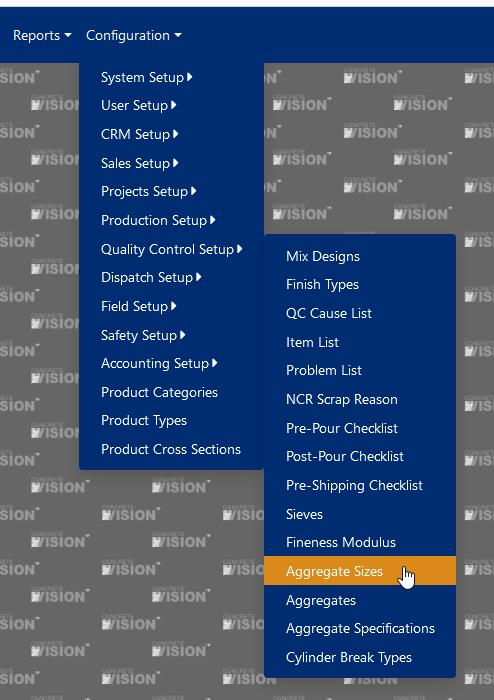
Figure 1
You can add, edit, or delete records on this page.
Click the Add new record button to a new Aggregate Size (green box, Figure 2). Edit a record by clicking the pencil icon button (blue box, Figure 2). Delete a record by clicking the X icon button (red box, Figure 2). If the delete button is disabled, the aggregate size has been assigned to an aggregate or aggregate specification.
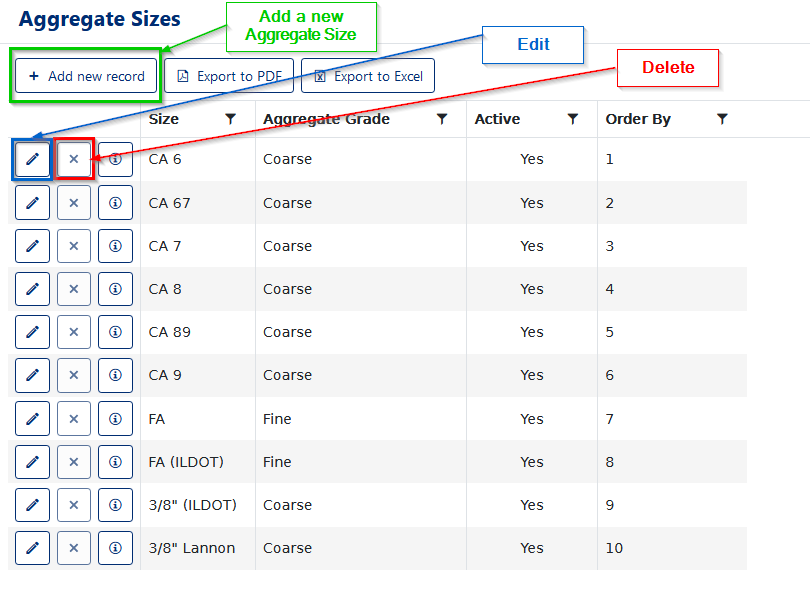
Figure 2
Adding Records
- Click on the [Add new record] (Green Box see Figure 2)
The Add New modal will open (Figure 3)
2. Enter the Size (A text description of the aggregate size. Max length: 32)
3. Enter the Aggregate Grade (Coarse or Fine)
4. Set the Active Status
5. Enter the Order By (the order that Aggregate Size will appear in dropdowns on the Aggregate and Aggregate Specification pages.)
6. Click the [Update] to save this Information.
Editing Records
- Click on the Edit icon (Blue Box see Figure 2)
The Edit modal will open (Figure 3)
2. Enter the Size (A text description of the aggregate size. Max length: 32)
3. Enter the Aggregate Grade (Coarse or Fine)
4. Set the Active Status
5. Enter the Order By (the order that Aggregate Size will appear in dropdowns on the Aggregate and Aggregate Specification pages.)
6. Click the [Update] to save this Information.
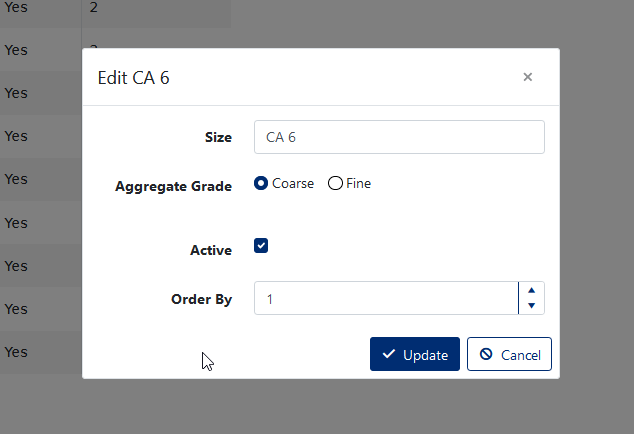
Figure 3
Was this article helpful?
That’s Great!
Thank you for your feedback
Sorry! We couldn't be helpful
Thank you for your feedback
Feedback sent
We appreciate your effort and will try to fix the article