Aggregates screen shows a list of aggregates that are available for testing.
You access the Aggregates page from the Configuration menu > Quality Control Setup > Aggregates (see Figure 1).
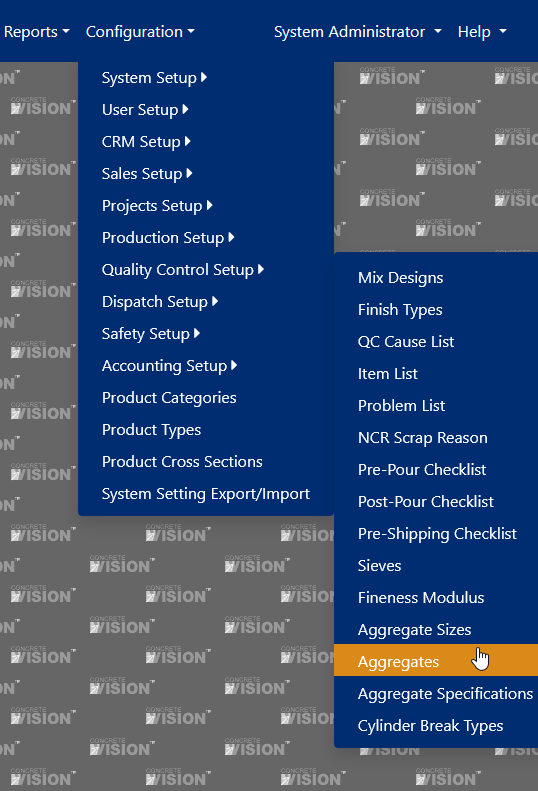
Figure 1
Fields
- Name - 50 characters. (Required)
- Aggregate Size - A dropdown list of sizes. (Required)
- Base Fineness Modulus - Numeric. Only available for Fine Aggregates.
- Order By – Numeric. The order aggregates will appear in dropdown lists. (Required)
- Active - Checked (yes) or unchecked (no).
- Plants - A list of plants. (Required)
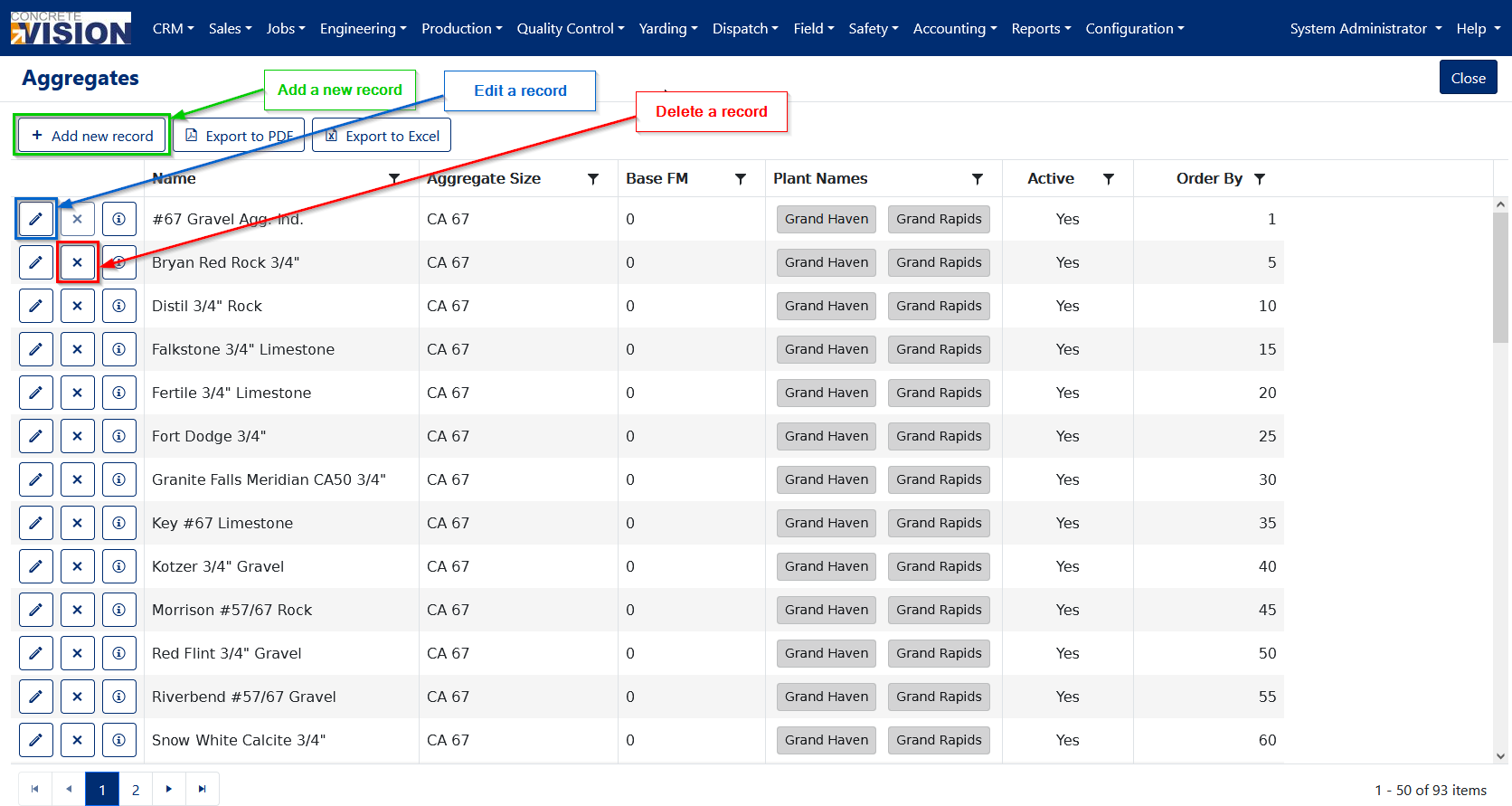
Figure 2
Add New Record
- Click the Add new record button to add a new aggregate (see Green box, Figure 2).
The Add New Modal opens which allows you fill out the form.
- Enter a Descriptive Name for the Aggregate (Required see Figure 3).
- Select the Aggregate Size. (Required)
- Enter the Base Fineness Modulus (displayed as Base FM). This field will only be enabled if a fine aggregate size has been selected.
- The Order By field will default to the next available number but can be changed if necessary. (Required)
- Active is checked by default when adding a new aggregate. If an aggregate is inactive, it will not be displayed when creating an aggregate test.
- Select at least one plant where the aggregate exists. (Required)
- Click the Update button to save the new record.
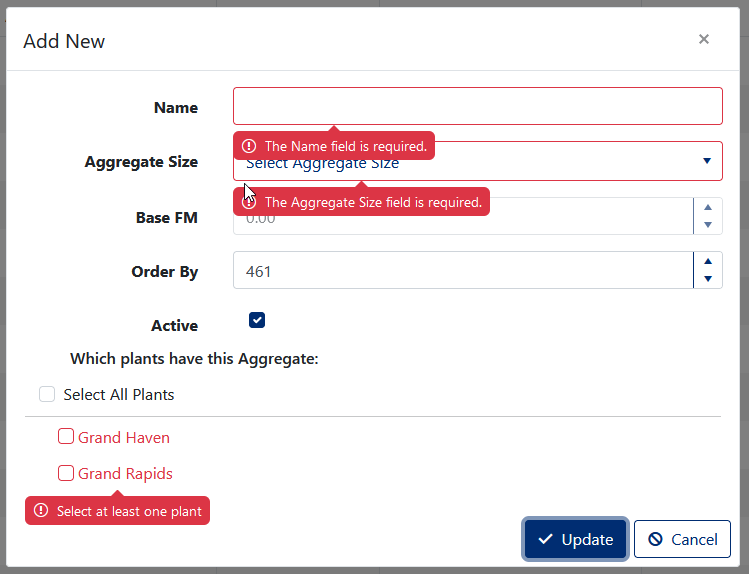
Figure 3
Edit a Record
- Click the Pencil icon button to edit an Aggregate Specification (see Blue box, Figure 2).
- Modify the Name (Required see Figure 4).
- Modify the Aggregate Size. (Required)
- Modify the Base Fineness Modulus (displayed as Base FM). This field will only be enabled if a fine aggregate size has been selected.
- The Order By field will default to the next available number but can be changed if necessary. (Required)
- Uncheck a plant to remove the aggregate from that location or check a plant to add the aggregate to that location. (Required)
- Set the Aggregate as Active (checked) or Inactive (unchecked) (Required).
- Click the Update button to save your changes.
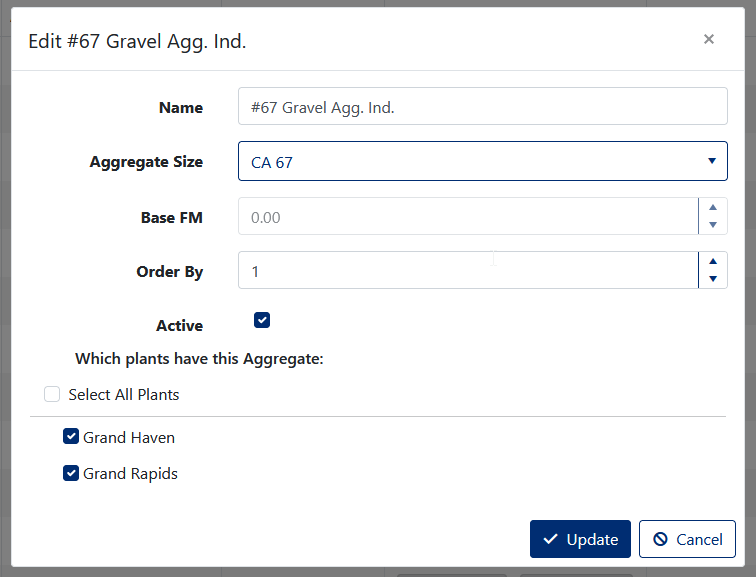
Figure 4
Delete a Record
- Click on the [ X ] delete button (Red box Figure 2) to the left of the corresponding Aggregate.
- This will open a confirmation window where you will be asked "Are you sure you want to delete this record?". Click [OK] to allow the deletion. (see Figure 5)
Note: You can’t delete aggregates that have been used in a test.
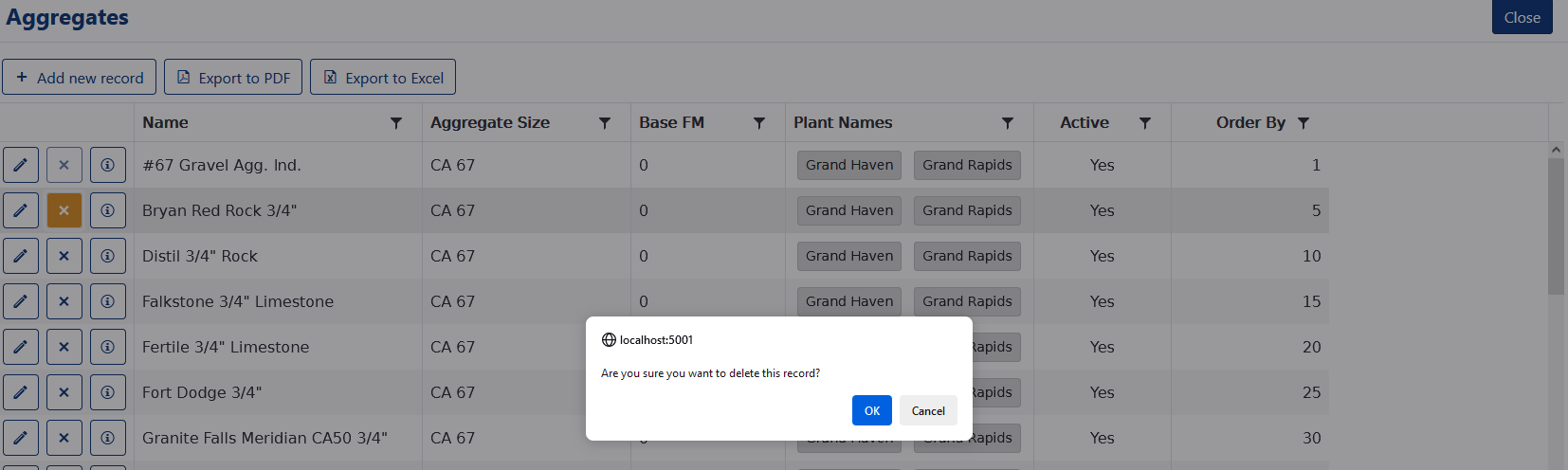
Figure 5
Was this article helpful?
That’s Great!
Thank you for your feedback
Sorry! We couldn't be helpful
Thank you for your feedback
Feedback sent
We appreciate your effort and will try to fix the article