Overview
The Permits screen allows you to manage Load Permits, which define size and weight restrictions for concrete delivery loads. These permits help ensure compliance with transportation regulations by tracking oversize and overweight conditions for loads that exceed standard dimensions.
Accessing the Permits Screen
You can access the Permits screen from the Configuration menu > Dispatch Setup > Permits (see Figure 1).
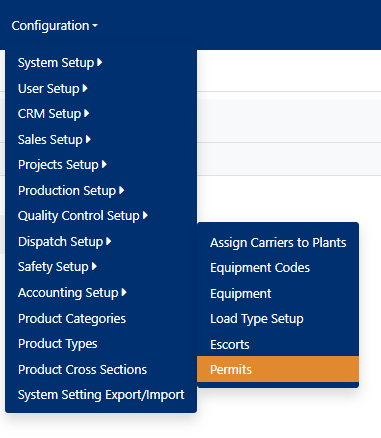
Figure 1
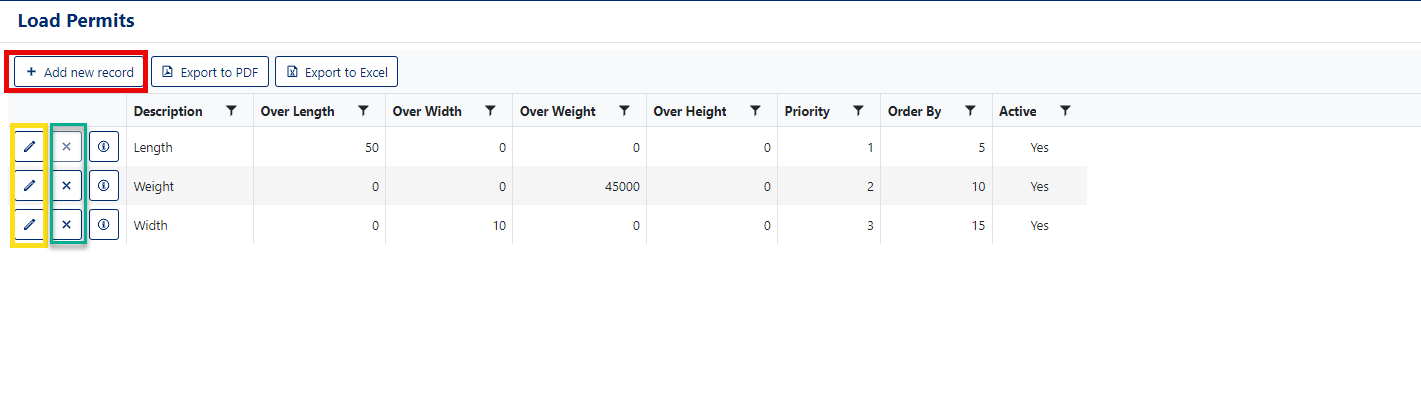
Figure 2
Understanding Permit Fields
| Field | Description | Required | Notes |
|---|---|---|---|
| Description | Descriptive name for the permit type | Yes | Use clear names like "Overweight - 45000 lbs" |
| Over Length | Maximum length allowed beyond standard | No | Measured in feet |
| Over Width | Maximum width allowed beyond standard | No | Measured in feet |
| Over Weight | Maximum weight allowed beyond standard | No | Measured in pounds |
| Over Height | Maximum height allowed beyond standard | No | Measured in feet |
| Priority | Determines permit selection order when multiple apply | No | Lower numbers = higher priority |
| Order By | Display order in permit lists | Yes | Auto-assigned but can be modified |
| Default | Sets this permit as the default selection | No | Only one should be marked as default |
| Active | Enables/disables the permit record | Yes | Checked by default for new permits |
Add New Record
To create a new Load Permit:
- Click the Add new record button (Red box, Figure 2)
- The Add New modal opens with the permit form
- Complete the following fields:
- Description - Enter a descriptive name for the Load Permit (see Figure 3)
- Over Length - Enter the maximum over-length value
- Over Width - Enter the maximum over-width value
- Over Weight - Enter the maximum over-weight value
- Over Height - Enter the maximum over-height value
- Priority - Enter the priority level (lower number = higher priority)
- Order By - This field defaults to the next available number but can be changed if necessary (Required)
- Default - Check this box to set as the default permit
- Active - Checked by default when adding a new Permit
- Click the Save button to save the new record (Purple box in Figure 3)
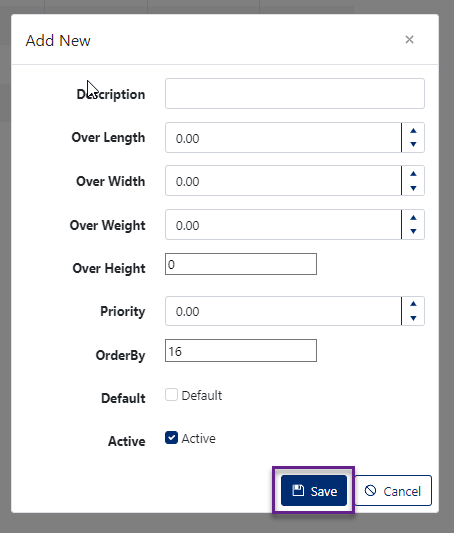
Figure 3
Edit a Record
To modify an existing Load Permit:
- Click the Pencil icon button to edit a Load Permit (Yellow box, Figure 2)
- The Edit modal opens with the current permit information
- Modify any of the following fields as needed (Figure 4):
- Description
- Over Length
- Over Width
- Over Weight
- Over Height
- Priority
- Order By (Required)
- Default status
- Active status (can turn Permit record Inactive)
- Click the Save button to save the changes made to the record (Green box, Figure 4)
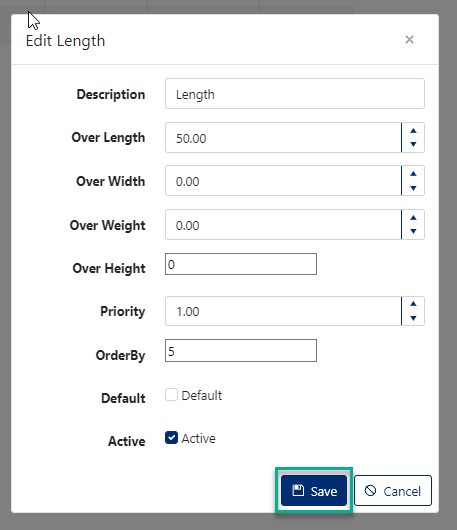
Figure 4
Delete a Permit Record
To remove a Load Permit from the system:
- Click the 'X' button in the corresponding row of the Permit you wish to delete (Green box, Figure 2)
- A confirmation window opens asking: "Are you sure you want to delete this record?" (see Figure 5)
- Click [OK] to confirm the deletion, or [Cancel] to abort
⚠️ Warning: Consider marking permits as Inactive instead of deleting them if they may have been used on historical loads.
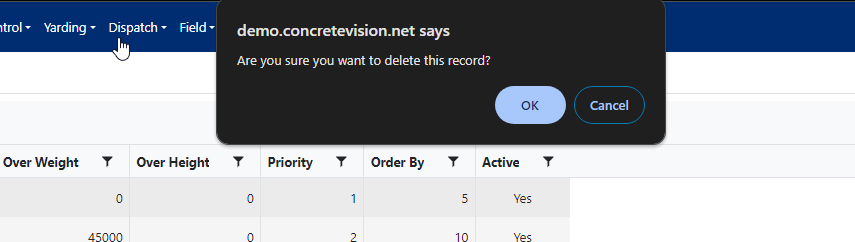
Figure 5
Notes
Data Integrity
- Deleting a permit that's currently assigned to loads may cause data issues
- Consider marking permits as Inactive instead of deleting them
- Changes to permit values don't automatically update existing loads using that permit
Was this article helpful?
That’s Great!
Thank you for your feedback
Sorry! We couldn't be helpful
Thank you for your feedback
Feedback sent
We appreciate your effort and will try to fix the article