Overview
The Loads tab in the Jobs Module:
- displays job-specific load information
- allows updates to the Project Special Instructions included on the Delivery Ticket
Accessing the Loads Tab
Navigate to Jobs > Job Lookup from the main menu (Figure 1).
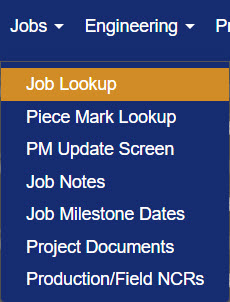
Figure 1
On the Job Search screen (Figure 2), click the Edit icon in the Actions column to the left of the job whose load information you want to view (Yellow box, Figure 2).
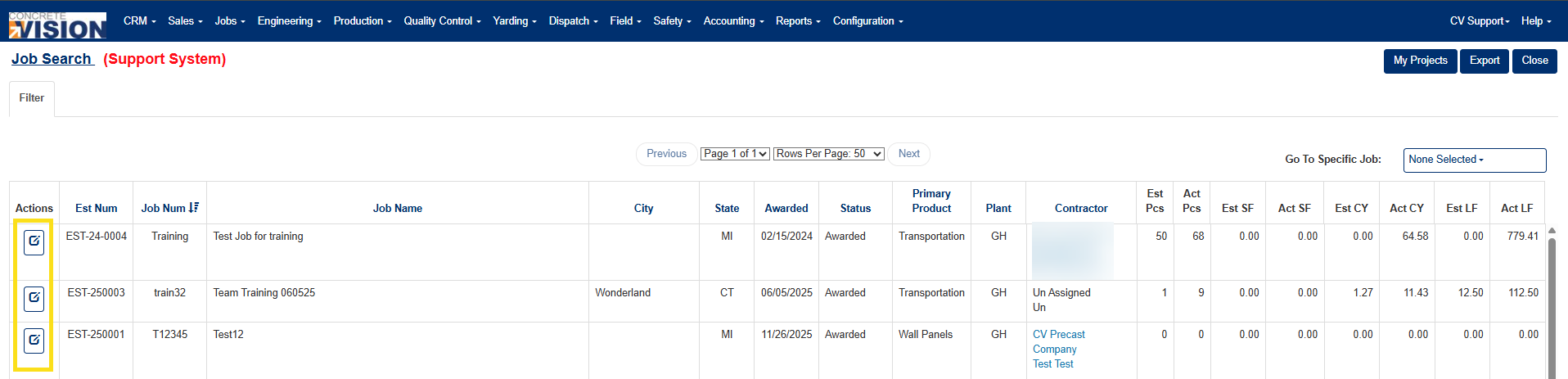
Figure 2
On the Job Information screen, click the Loads tab (Green box, Figure 3) from the tab row at the top of the screen. The Loads tab opens by default, displaying a list of loads for the job with columns for Location, Load No, Load Type, Carrier, Delivery Date, Num Pieces and Total Weight.
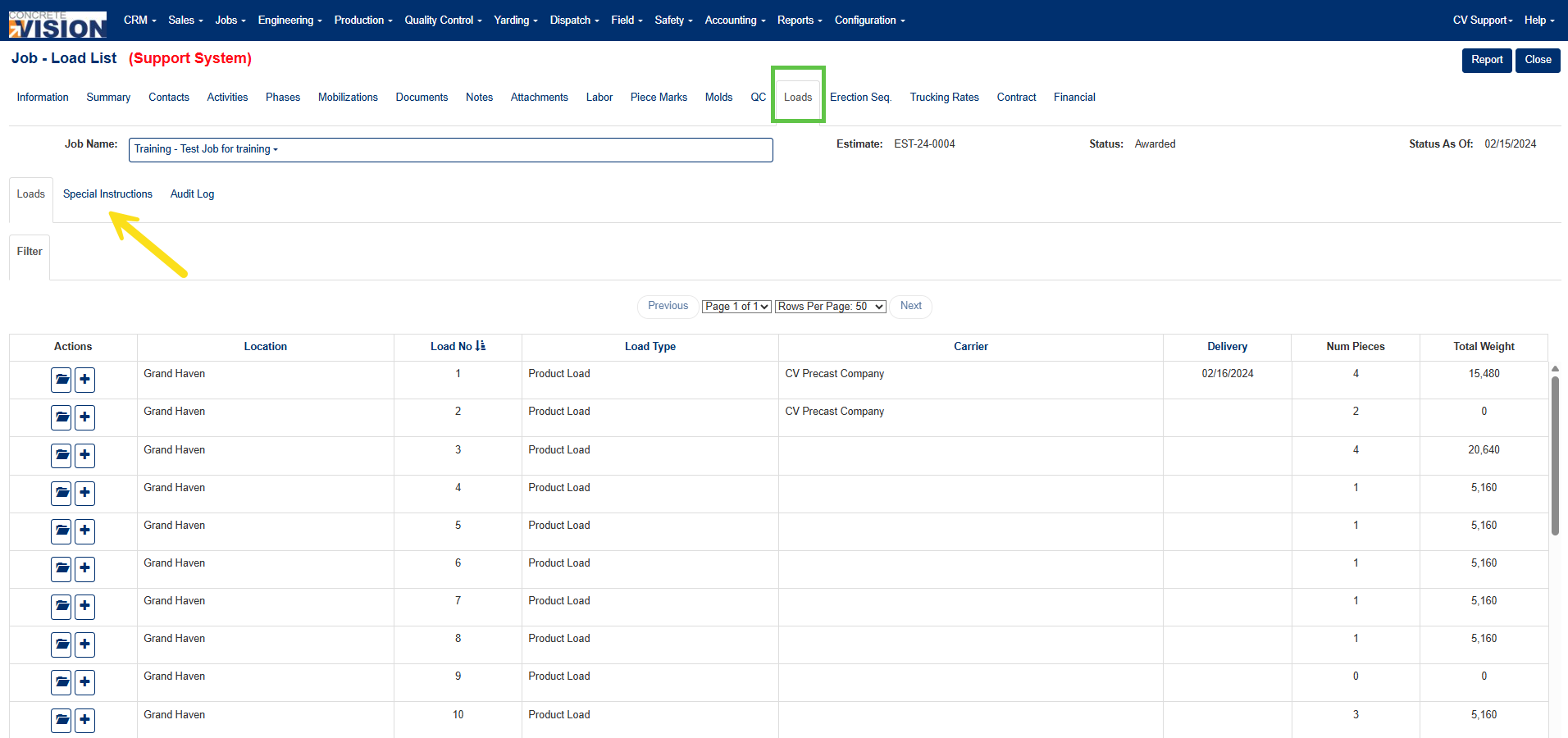
Figure 3
Updating Project's Special Instructions on the Load Slip
Note: Text entered in the Special Instructions text area appears in the Special Instructions section on the Delivery Ticket (Green box, Figure 5).
- Click the Special Instructions tab (Yellow arrow, Figure 3) within the Loads tab area.
- Enter or revise instructions in the text area (Figure 4),
- Click the Save button in the upper right of the screen to save changes, or click Save & Close to save and return to the previous screen (Green box, Figure 4).
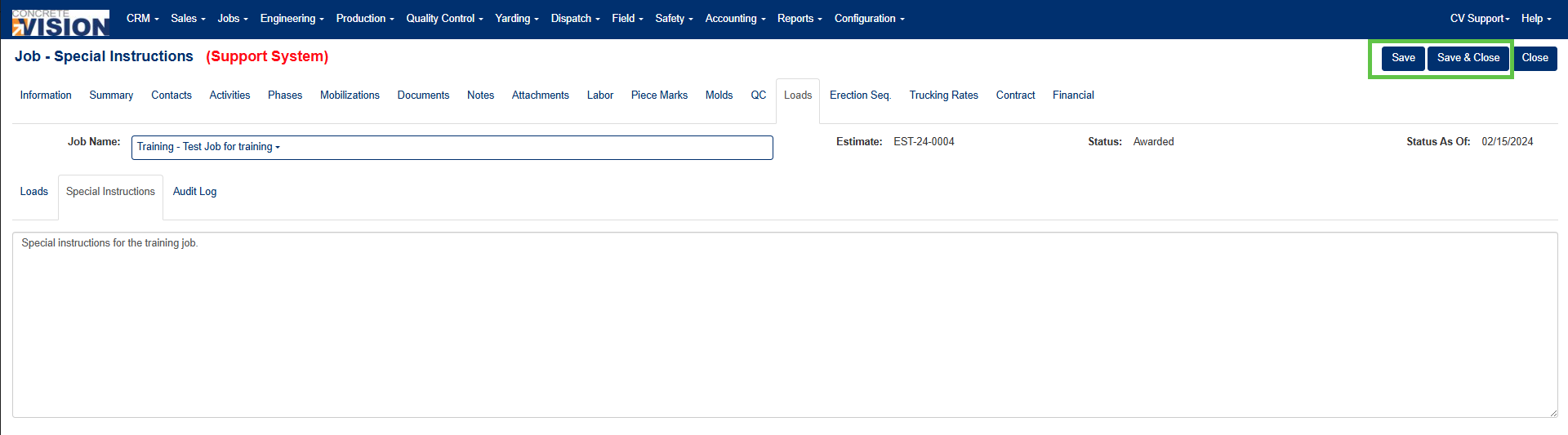
Figure 4
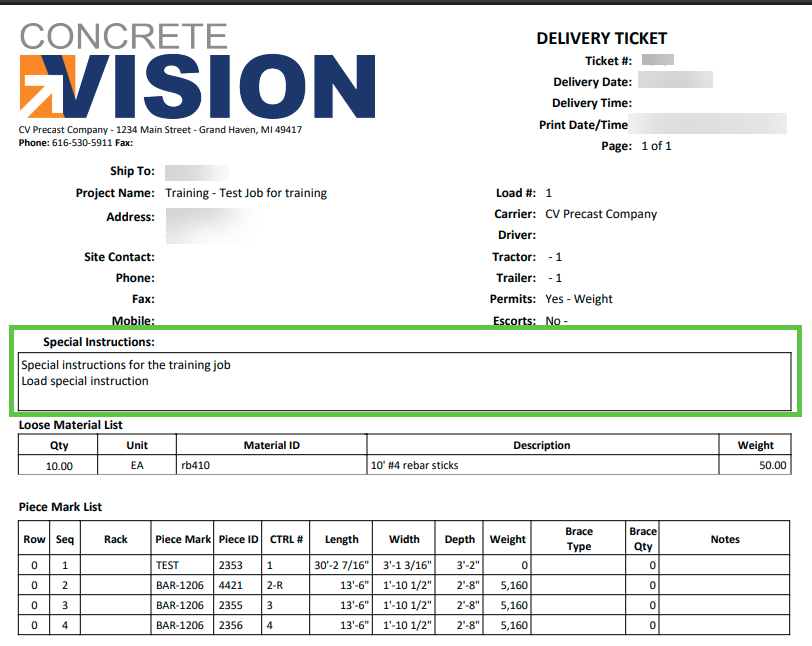
Figure 5
Was this article helpful?
That’s Great!
Thank you for your feedback
Sorry! We couldn't be helpful
Thank you for your feedback
Feedback sent
We appreciate your effort and will try to fix the article