The Pallet tracking module is used to create pallets of pieces. You will be able to group pieces into pallets by selecting the pieces using a search and select tool. Making it possible to transfer the pallet and its pieces directly to a load for dispatch.
To access the Mobile Pallet Tracking screen, use the Yarding section of the mobile main menu at the top of the screen, then click on Pallet Tracking (see Figure 1 below).
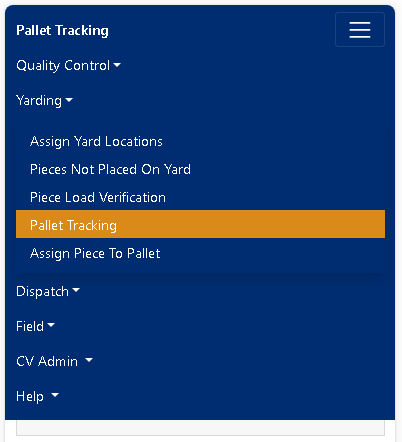 Figure 1
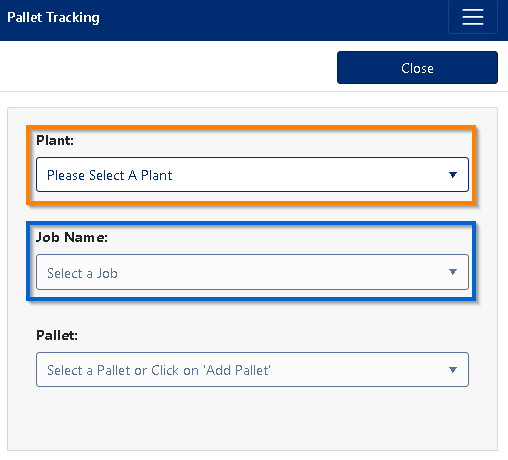
Figure 2
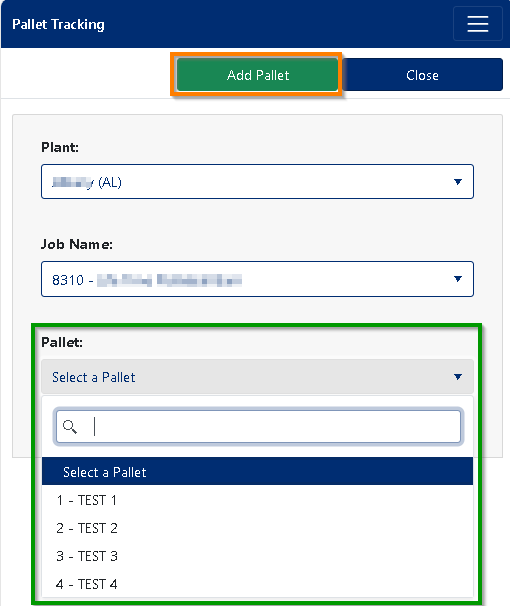
Figure 3
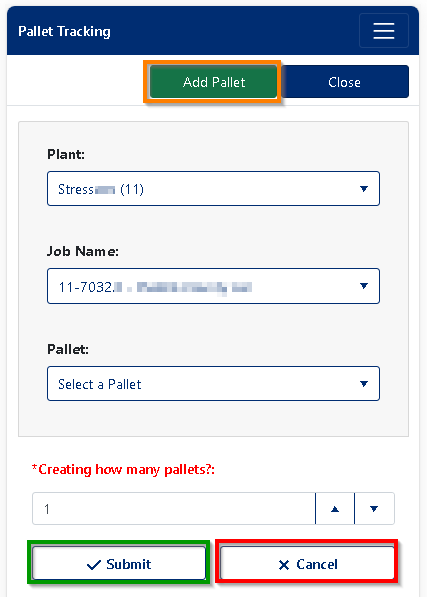
Figure 4
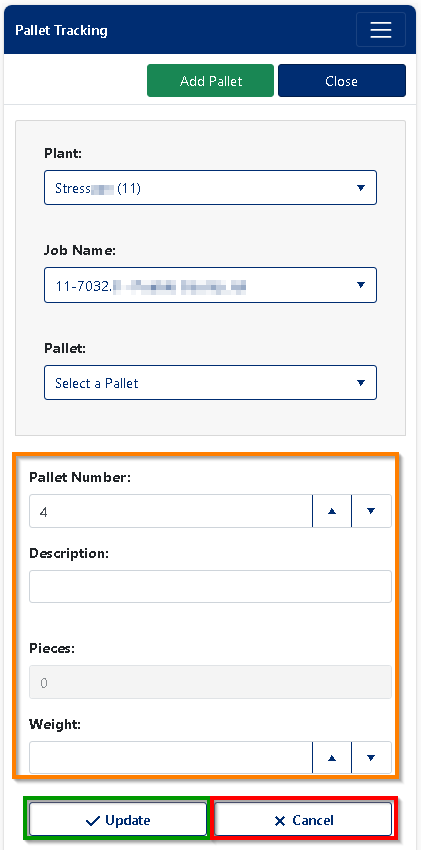
Figure 5
Adding Pallet(s) to a Job:
- Choose the Plant and search for the Job and select it (see Figure 2)
- Once you have chosen the Job, the [Add Pallet] button will appear. (see the Orange box in Figure 4)
- Enter the number of pallets you want to create (see the Blue box in Figure 4).
- Click on the [√ Submit] (see the Green box in Figure 4).
- If the number is one, the section will expand to allow you to enter the Pallet details. (see the Orange box in Figure 5)
- The Pallet Number is auto generated but can be changed to a number between 1 - 9999. (field is Required)
- Enter the Weight of the Pallet in pounds. (Without pieces)
- Enter a Description of the which will help differentiate it from others on the Job.
- Click on the [√ Update] button to save the new Pallet.
- If the number is greater than one, the Pallets will be created using default values which can be edited later.
- If the number is one, the section will expand to allow you to enter the Pallet details. (see the Orange box in Figure 5)
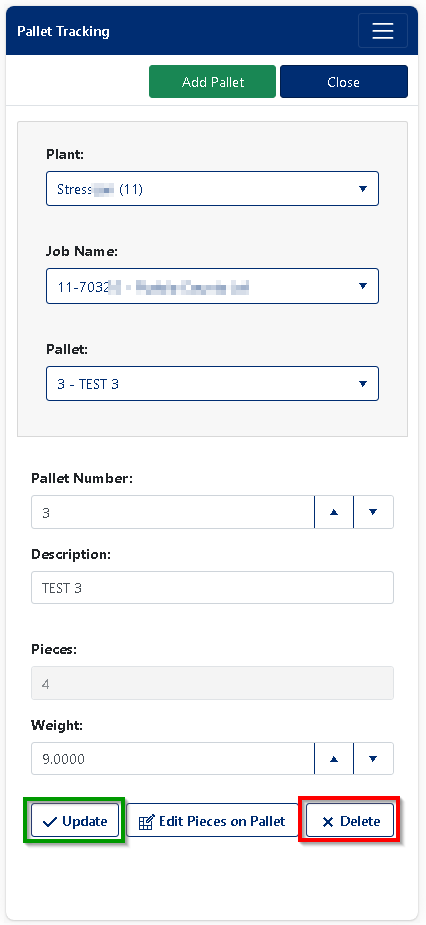
Figure 6
Editing a Jobs Pallet:
- Choose the Plant and search for the Job and select it (see Figure 2)
- Once you have chosen the Job, select the Pallet you need to modify from the drop-down list to load its details. (see the Green box in Figure 3)
- Theirs three required Pallet detail fields, Pallet Number, Description, and the un-loaded pallets Weight.
- You can change the Pallet Number (Must be a non negative number)
- You can change the pallets Description (100-character max)
- You can change the pallets Weight in pounds (Must be a non negative number)
- Click on the [√ Update] button to modify the Job Pallet (see the Green box in Figure 6).
Deleting a Jobs Pallet: Note: Pallets already associated with a load cannot be removed.
- Choose the Plant and search for the Job and select it (see Figure 2)
- Once you have chosen the Job, select the Pallet you need to modify from the drop-down list to load its details. (see the Green box in Figure 3)
- Click on the [X Delete] button to delete the Job Pallet (see the Red box in Figure 6).
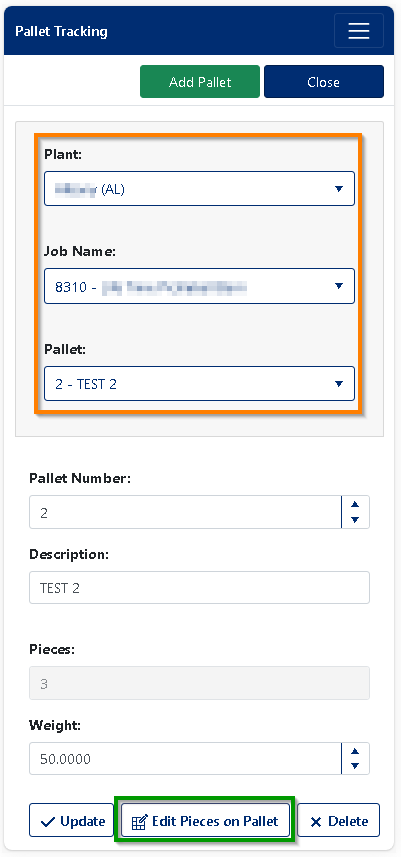
Figure 7
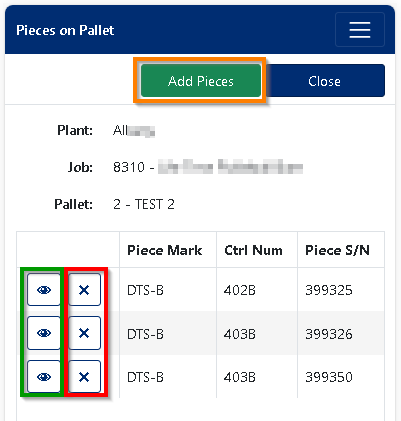
Figure 8
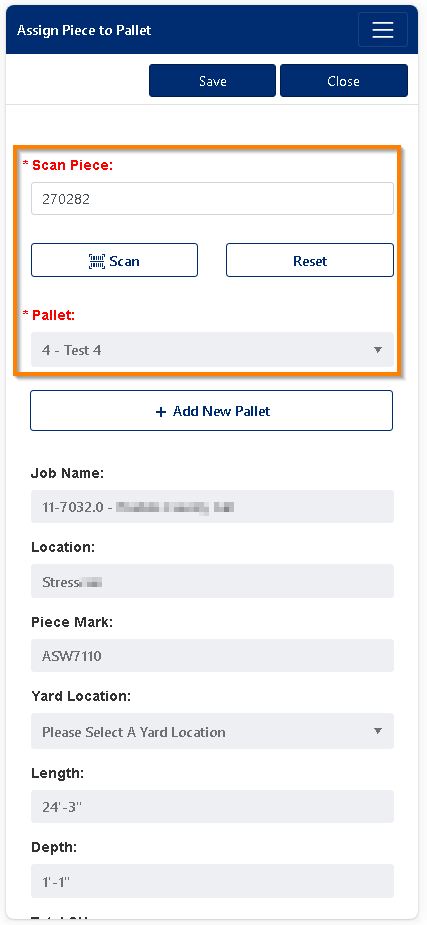 Figure 9
Adding a Piece to a Pallet:
- Choose the Plant and search for the Job and select it (see the Orange box in Figure 7)
- Once you have chosen the Job, select the Pallet you want to edit pieces from the drop-down list to load its details. (see the Orange box in Figure 7)
- Click on the [Edit Pieces on Pallet] button (see the Green box in Figure 7)
- From the Piece to Pallet screen click on the [Add Pieces] button found at the top . (see the Orange box in Figure 8). This will open the Assign Pieces to Pallet screen (see Figure 9)
- From the Assign Pieces to Pallet screen, press on the “Scan” button (see the Orange box in Figure 9) to use your devices camera to capture the piece’s unique Id (Reference: Barcode Scanner) or enter the Piece Id into the Scan Piece input field. (see the Orange box in Figure 9).
If you manually enter the piece’s unique Id, press on the “Please Select a Pallet” for the lookup to begin. . (see the Orange box in Figure 9 ) - Once you have loaded the piece you want to add, click on the [Save] button to add the piece.
Removing Piece(s) from a Pallet:
To remove a piece from the pallet, click on the "X" delete button (Red box in Figure 8) on the row associated to the piece you would like to remove.
Note: Pieces on a Pallet already associated with a load cannot be removed.
Was this article helpful?
That’s Great!
Thank you for your feedback
Sorry! We couldn't be helpful
Thank you for your feedback
Feedback sent
We appreciate your effort and will try to fix the article