Overview
The Cylinder Break Types screen establishes timing schedules between concrete cylinder break testing. The break type configuration sets conditions that trigger cylinder breaks and controls how these breaks appear in the main Cylinder Break Tracking screen.
Accessing the Break Types Screen
Navigation Path: Configuration > Quality Control Setup > Cylinder Break Types (Figure 1).
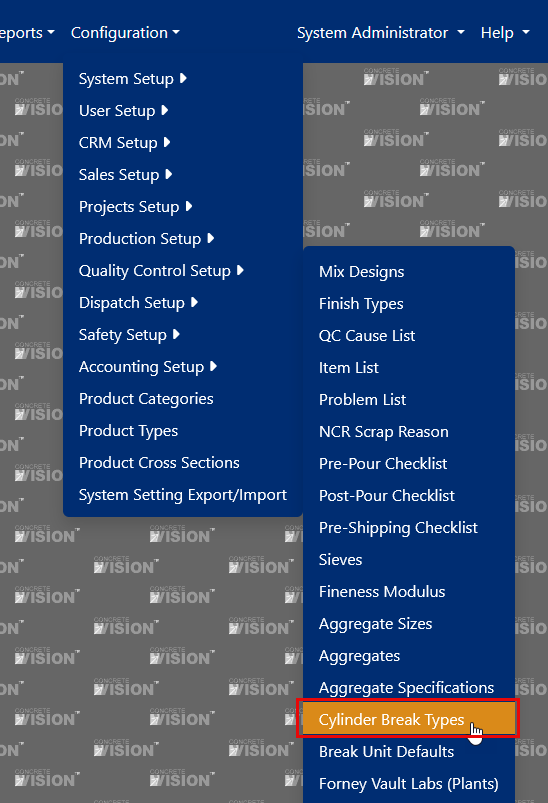
Figure 1
Understanding Break Types Field Definitions
- Name: This mandatory field requires a descriptive identifier that will appear as a column header in the Cylinder Break Tracking screen grid. Common names include identifiers like "3 Day" to indicate testing occurs 3 days post-release.
- Plant: A required selection specifying which plant this break type applies to. Unique break types can be assigned to individual plants or select "All" to apply the configuration across all facilities. Note: Each name-plant combination must be unique (see Figure 5).
- Strength Type: A mandatory choice between "Design" or "Release" strength classifications.
- Include on Report: If checked, indicates a Cylinder Break Type will show on the Cylinder Break Tracking screen grid.
- Show Reminder: If checked, will highlight breaks that are late on the Cylinder Break Tracking screen grid.
- Remind After X Days: Number of days following the pour when reminder notifications should activate.
- Group with Previous: Will group the column on the Cylinder Break Tracking grid with the previous column for showing reminders and averages. This should be applied to breaks of the same type and age. For example, all of the 24 hour breaks should be grouped together. Note: The initial break type in any group should not be grouped with earlier break types.
- Group Average: If checked, an average will be calculated for the break type group and adds a corresponding column to the Cylinder Break Tracking screen grid.
- Group Average Title: The column heading for the group of break types on the Cylinder Break Tracking screen grid.
- Order By: Controls the sequence of break types in the types list and the Cylinder Break Tracking screen grid. Incorrect ordering may interfere with reminder highlighting and group averaging functions.
- Active: Indicates if the break type is active
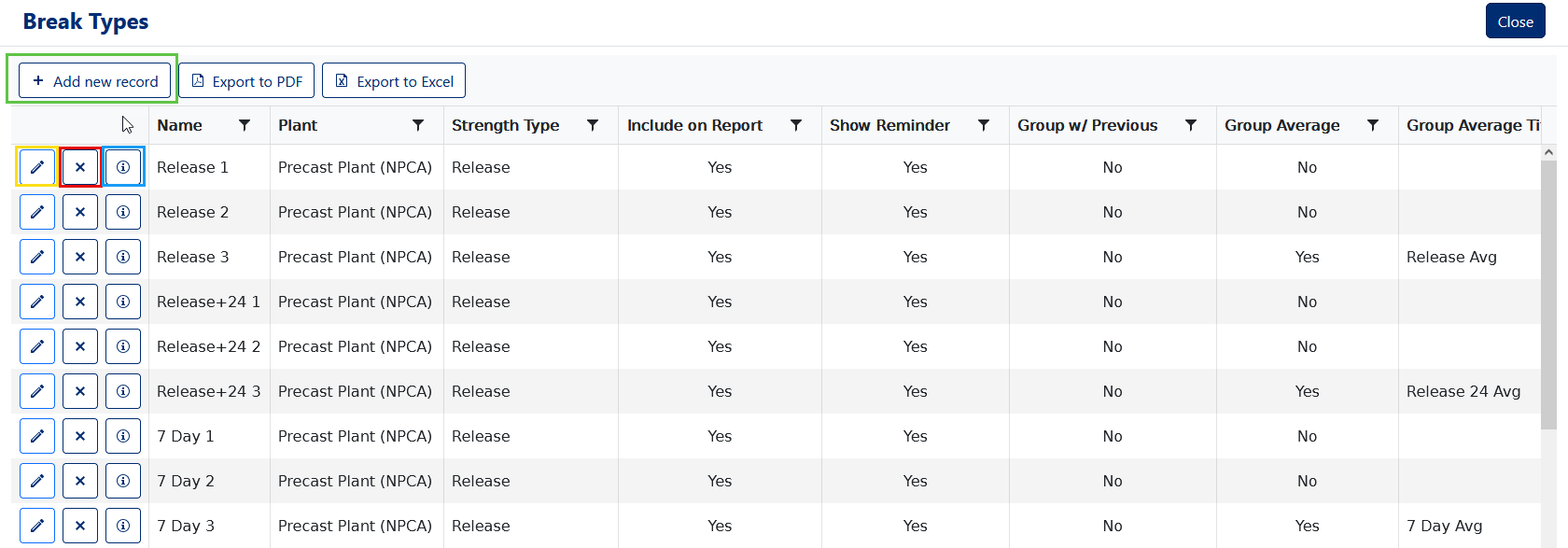
Figure 2
Creating a New Cylinder Break Type
From the Break Types screen (Figure 2):
- Select the [Add new record] button (Green box, Figure 2). The Add New dialog box will appear (Figure 3)
- Input the Cylinder Break Type name (Required)
- Choose the Plant Location (Required)
- Select either Design or Release for Strength Type (Required)
- Decide whether to include in reports
- Configure reminder settings
- Specify the reminder delay in days
- Choose whether to group with the previous column for calculations
- Decide if group averages should be calculated
- Enter the Group Average Title text
- Adjust the Order By value if needed (defaults to next available number)
- Set the active/inactive status
- Click the Save button (Yellow box, Figure 3) to create the break type.
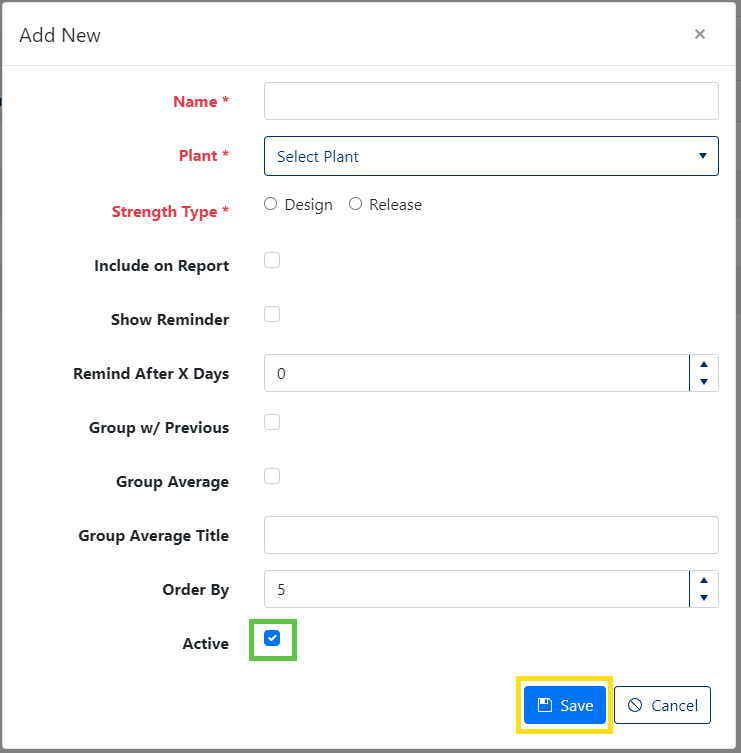
Figure 3
Editing an Existing Cylinder Break Type
From the Break Types screen (Figure 2):
- Click the Edit icon (Yellow box, Figure 2) next to the Cylinder Break Type to modify.
- Update any of the following fields as needed:
- Name (Required)
- Plant Location (Required)
- Strength Type selection
- Report inclusion setting
- Reminder display option
- Reminder timing in days
- Grouping with previous columns
- Group average calculation
- Group average title
- Order sequence
- Active status
- Click the Save button to apply changes.
Viewing Audit Information
To access audit information for any Cylinder Break Type:
- Click the information (i) button next to the relevant entry (Blue box, Figure 2)
- A details window will open showing audit trail information including creation details, modification dates, and user information (Figure 4)
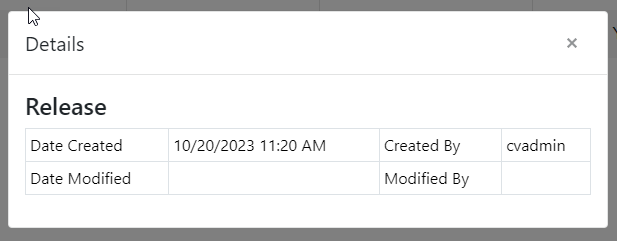
Figure 4
Deleting a Cylinder Break Type
From the Break Types screen (Figure 2):
- Click the Delete icon (Red box, Figure 2) next to the target Cylinder Break Type.
- A confirmation dialog will appear asking "Are you sure you want to delete this record?"
- Click [OK] to proceed with deletion (Figure 5)
Note: Break Types that have been used in actual break tests cannot be deleted from the system. Instead, deactivate these records using the Active checkbox option (Green box, Figure 3).
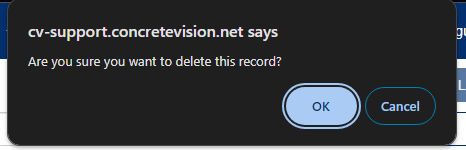
Figure 5
Was this article helpful?
That’s Great!
Thank you for your feedback
Sorry! We couldn't be helpful
Thank you for your feedback
Feedback sent
We appreciate your effort and will try to fix the article