Overview
The Cylinder Compression Pad Log screen (Figure 2) is where you can edit, add, and view Cylinder Compression Pad tests.
Accessing the Screen
Navigate to Quality Control > Cylinder Pad Tests from the main menu (Figure 1).
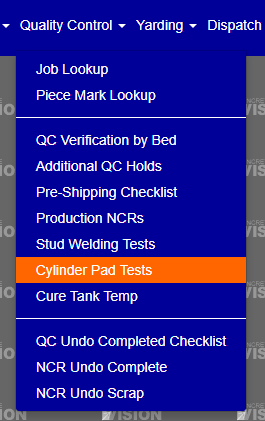
Figure 1
Sort Cylinder Compression Pad Logs
** The currently selected heading to sort by will have the sort by icon next to it ( )
)
- Click any of the headings (see Orange box in Figure 2) to change the table to be sorted by that headings category.
- Click the same heading again to change the sort by function to be descending instead of the default ascending.
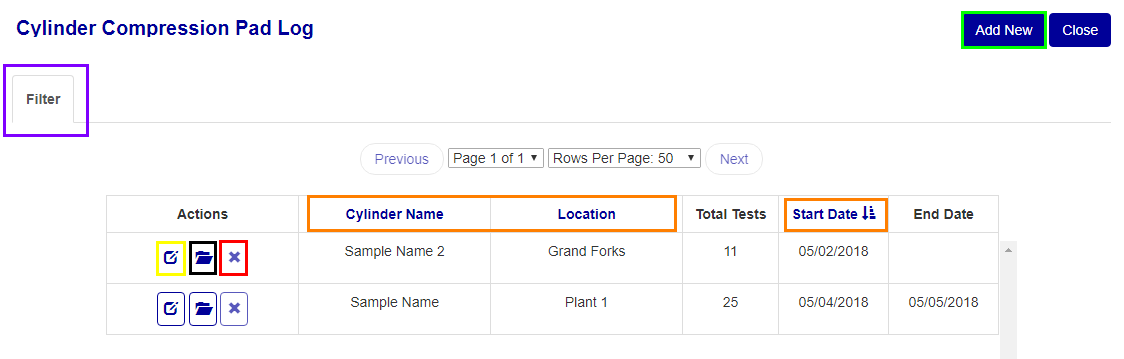
Figure 2
Filter Cylinder Compression Pad Logs
** searching and clearing the filter leaves the current screen, so ensure you have saved all changes you wish to keep before completing one of these actions.
- Click the "Filter" button at the top of the screen (see the Purple box in Figure 2) to open the filter menu (see the Figure 3) to search for specific results
- You can enter, change, and select any of the inputs/items to obtain specific results or fewer.
- To clear/reset a current filter press the "clear" button (see the Red box in Figure 3).
- To re-generate the table using the filter click the "search" button (see the Green box in Figure 3)
- To close/hide the filter press the "Filter" button again (see the Purple box in Figure 3).

Figure 3
Add Cylinder Compression Pad Log
To add a Cylinder Compression Pad Test log, click the "add new" button (see the Green box in Figure 2).
- Select a Location.
- Enter the Cylinder name.
- Select/Enter a Start Date.
- Optional*: Select/Enter the End Date.
- To add the Test Log and migrate to the edit screen of the newly added Test Log click the "save" button (see the Green box in Figure 4).
- To add the Test Log and migrate back to the main Test Log screen click the "save & close" button (see the Red box in Figure 4).
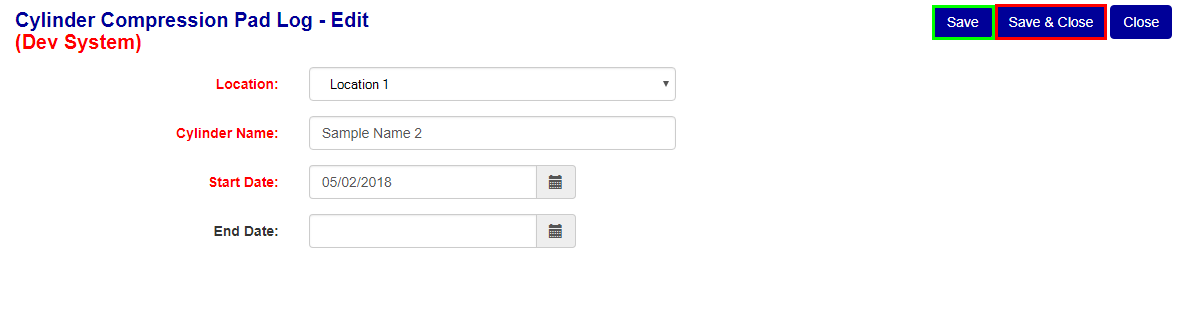
Figure 4
Edit Cylinder Compression Pad Log
To edit Test Log information, migrate to the edit page using the "edit" button (see Yellow box in Figure 2), just update any one of the input values and then select the Save or Save and Close button to save your changes.
Remove Cylinder Compression Pad Log
** You can only delete a Test Log if it is not in use
- Click the "delete" button in the corresponding row of the Item you wish to remove (see Red box in Figure 2).
- Click "OK" in the dialogue box that appears to confirm you wish to delete the record.
Compression Pad Detail List
To add a detail record, click the "add new" button (see the Green box in Figure 5).
- Select/Enter a Test Date
- Enter a Test Qty.
- To add the detail record and migrate to the edit screen of the newly added record click the "save" button (see the Green box in Figure 6).
- To add the detail record and migrate back to the Detail screen click the "save & close" button (see the Red box in Figure 6).
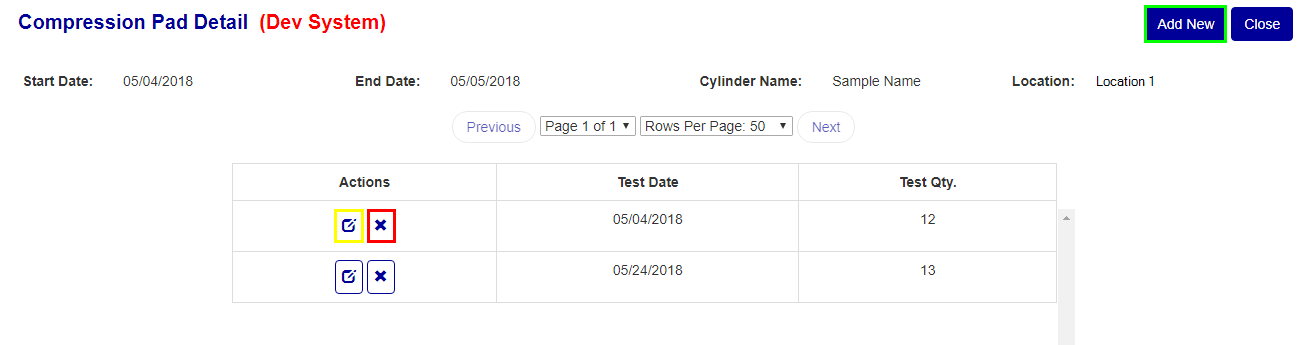
Figure 5

Figure 6
Edit Compression Pad Detail
** If you don't click on either the Save or Save and Close button and navigate off this screen, your changes will be lost.
To edit detail record information, migrate to the edit page using the "edit" button (see Yellow box in Figure 5), just update any one of the input values and then select the Save or Save and Close button to save your changes.
Remove Compression Pad Detail
** You can only delete a detail record if it is not in use
- Click the "delete" button in the corresponding row of the record you wish to remove (Red box in Figure 5).
- Click "OK" in the dialogue box that appears to confirm you wish to delete the record.
Was this article helpful?
That’s Great!
Thank you for your feedback
Sorry! We couldn't be helpful
Thank you for your feedback
Feedback sent
We appreciate your effort and will try to fix the article