Module: Job Itemized Tracking
Location: Configuration > Accounting Setup > Itemized Items
Purpose
The Itemized Items configuration screen defines the standard line items that can be used across jobs for itemized tracking, billing, and reporting. These items drive consistency in how costs, quantities, and revenue are categorized and reported on jobs.
Examples include outsourced engineering, rentals, stock sales, and field services.
Screen Overview
Each row represents a single item that can be selected elsewhere in the Job Itemized Tracking screen.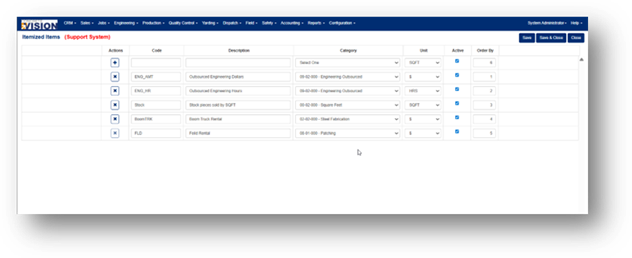
Columns Explained
1. Actions
- + Add (top row)
Creates a new itemized item. - ✖ Delete (row)
Removes the itemized item (only recommended if not in use).
⚠️ Deleting items already used on jobs may impact historical data or reporting.
2. Code
- A short, unique identifier for the item.
- Used internally and in reports.
- Examples:
- ENG_AMT – Outsourced Engineering Dollars
- ENG_HR – Outsourced Engineering Hours
- Stock – Stock pieces sold by SQFT
Best Practices
- Keep codes short and descriptive.
- Avoid spaces or special characters.
- Do not change codes after items are in active use.
3. Description
- The user-friendly name displayed throughout the system.
- Should clearly describe what the item represents.
Examples
- “Outsourced Engineering Dollars”
- “Boom Truck Rental”
- “Field Rental”
4. Category
- Determines how the item is grouped for accounting and reporting.
- Categories typically align with:
- Cost codes
- Accounting buckets
- Operational departments
Examples
- 09-02-000 – Engineering Outsourced
- 02-02-000 – Steel Fabrication
- 00-02-000 – Square Feet
✅ Choose the category carefully—this drives reporting accuracy.
5. Unit
Defines how quantities are measured for this item.
Common Units:
- SQFT – Square Feet
- HRS – Hours
- $ – Dollar Amount
Guidance
- Use $ for lump-sum or cost-only items.
- Use HRS for labor-based tracking.
- Use SQFT or other quantity units for production-based tracking.
6. Active
- Checked = Item is available for use.
- Unchecked = Item is hidden from selection but retained for historical data.
Best Practice
- Deactivate items instead of deleting them when they are no longer needed.
7. Order By
- Controls the display order of items in dropdowns and lists.
- Lower numbers appear first.
Tip
- Group similar items together (e.g., all engineering items in sequence).
Common Configuration Examples
Outsourced Engineering
Code | Description | Unit | Category |
ENG_AMT | Outsourced Engineering Dollars | $ | Engineering Outsourced |
ENG_HR | Outsourced Engineering Hours | HRS | Engineering Outsourced |
Rentals
Code | Description | Unit | Category |
BoomTRK | Boom Truck Rental | $ | Steel Fabrication |
FLD | Field Rental | $ | Patching |
Save Options
- Save
Saves changes and stays on the screen. - Save & Close
Saves changes and exits configuration. - Close
Exits without saving.
Best Practices & Tips
✔ Define itemized items before starting new jobs
✔ Keep naming consistent across departments
✔ Use categories to align with accounting and reporting needs
✔ Deactivate instead of deleting items that were previously used
✔ Review item lists periodically to avoid clutter
Who Should Maintain This Screen
- System Administrators
- Accounting / Finance
- Operations leadership (with admin access)
How to Add a New Itemized Item
- Go to Configuration → Itemized Items
- Click + Add
- Enter a Code (short, unique, no spaces)
- Enter a Description (clear and user-friendly)
- Select a Category (drives reporting/accounting)
- Select a Unit ($, HRS, SQFT, etc.)
- Ensure Active is checked
- Set Order By (controls list order)
- Click Save or Save & Close
Tip: Deactivate old items instead of deleting them to protect historical data.
Was this article helpful?
That’s Great!
Thank you for your feedback
Sorry! We couldn't be helpful
Thank you for your feedback
Feedback sent
We appreciate your effort and will try to fix the article