Overview
The Assign Yard Locations screen allows you to view, filter, and assign yard locations to precast pieces that are currently not on the yard.
Accessing the Screen
To access this screen, navigate to Yarding menu > Assign Yard Locations (see Figure 1).
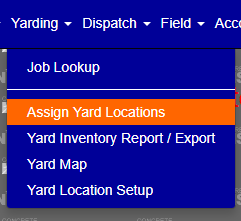
Figure 1
The Assign Yard Locations Screen
The Assign Yard Locations screen (Figure 2) displays a table of pieces not yet assigned to a yard location. From here you can sort the list, apply filters, generate reports, and assign or update yard locations.
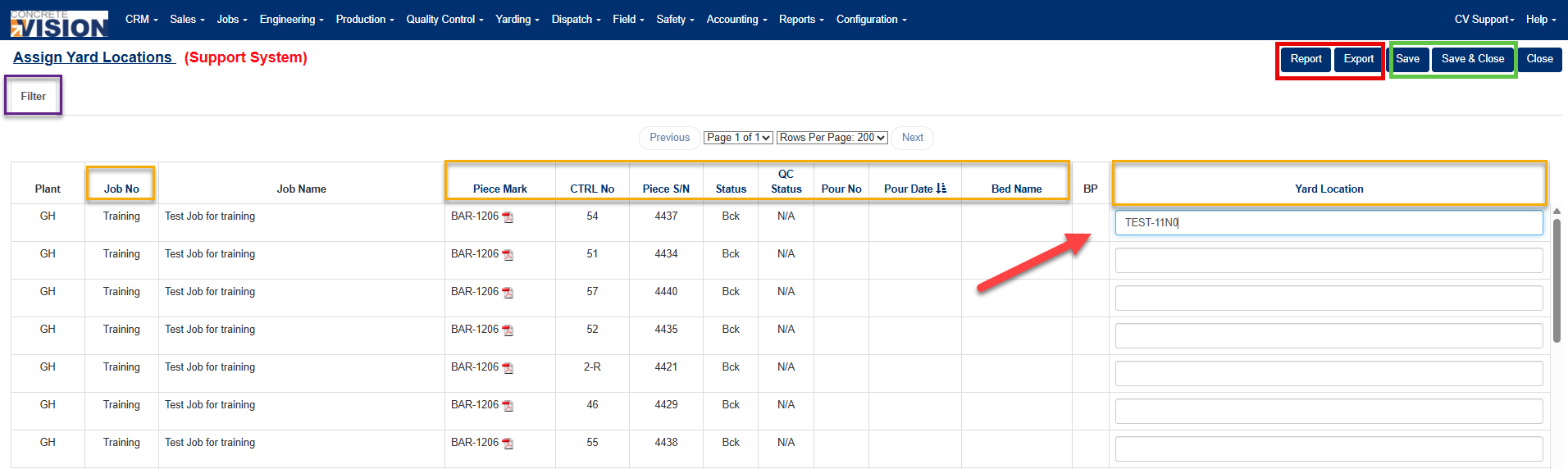
Figure 2
Sorting the Table
The currently active sort column is indicated by a sort icon next to the column heading.
- Click any highlighted column heading (Orange box, Figure 2) to sort the table by that column.
- Click the same heading again to toggle between ascending (default) and descending order.
Filtering the Table
Note: Clicking Search or Clear will refresh the screen. Make sure to save any changes before using these actions, or they will be lost.
- Click the Filter button at the top of the screen (Purple box, Figure 2) to expand the filter panel (Figure 3).
- Enter or select values in any of the available filter fields to narrow your results.
- Click Search (Green box, Figure 3) to apply the filter and refresh the table.
- Click Clear (Red box, Figure 3) to reset all filter fields to their defaults.
- Click the Filter button again (Purple box, Figure 3) to collapse the filter panel.
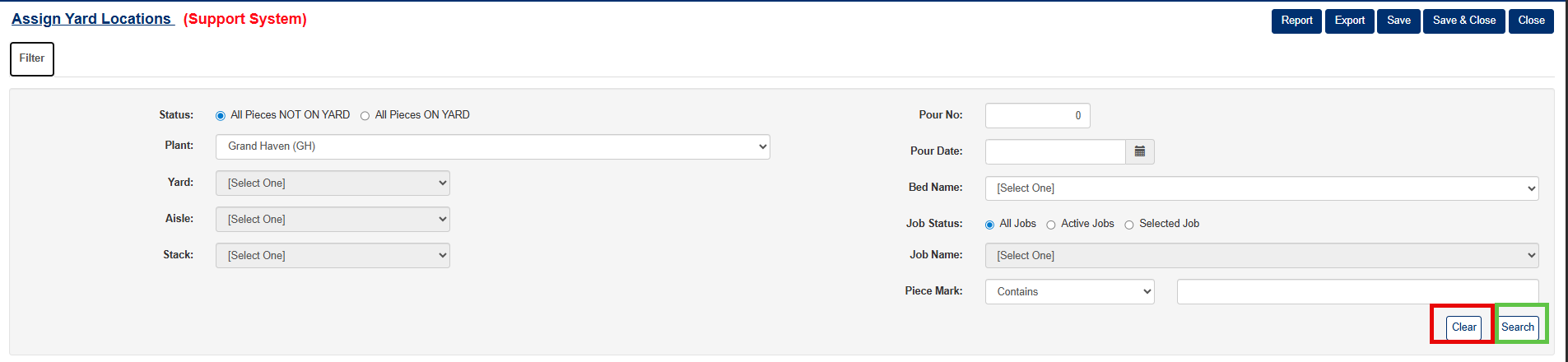
Figure 3
Assigning a Yard Location
Note: If you navigate away from this screen without clicking Save or Save & Close, all unsaved changes will be lost.
- Locate the piece you want to assign using the sort or filter options described above.
- Click into the Yard Location field for that piece and begin typing (Red arrow, Figure 2).
- After entering 3 or more characters, a dropdown list will appear showing all matching yard locations. Select the desired location from the list, or continue typing to narrow it further.
- Click Save to save your changes and remain on the screen, or Save & Close to save and return to the previous screen.
Once saved, the piece will be removed from the Assign Yard Locations screen, as the screen's default only displays pieces that have not yet been assigned to a yard location.
Exporting Assign Yard Locations
Export Options
PDF Export:
- Click the [Export] button (Red Box, Figure 2)
- Generates a comprehensive report showing all Yard Locations
Excel Export:
- Click the [Export] button (Red Box, Figure 2)
- Creates a spreadsheet with all Yard Location data
Was this article helpful?
That’s Great!
Thank you for your feedback
Sorry! We couldn't be helpful
Thank you for your feedback
Feedback sent
We appreciate your effort and will try to fix the article