You access the Yard Inventory Report/Export screen from the Yarding menu, shown below.
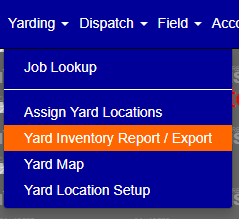
Figure 1
The Yard Inventory Report/Export screen (see Figure 3) is where you can export and view Yard Inventory.
Search for Yard Inventory
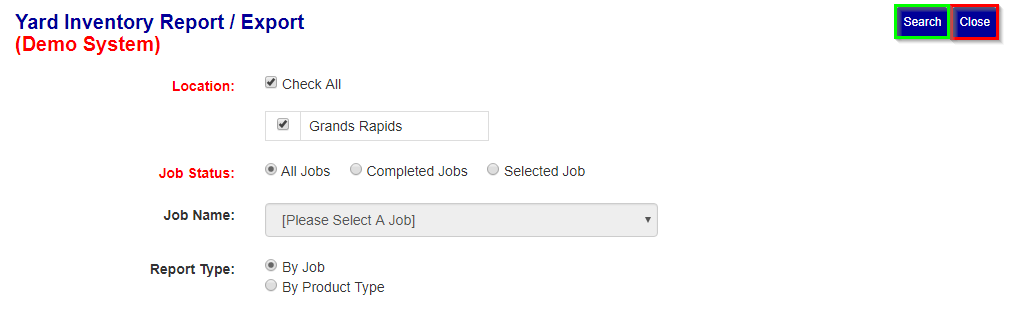
Figure 2
** If you choose "Selected Job" as the status, then you must select a job.
- You must select at least 1 location.
- You must select a job status **.
- If applicable select a job.
- Select a report type.
After selecting the information click the "search" button (see Green box in Figure 2) to go to the view screen where you can then view, export, or open the report for the yard inventory.
Report/Export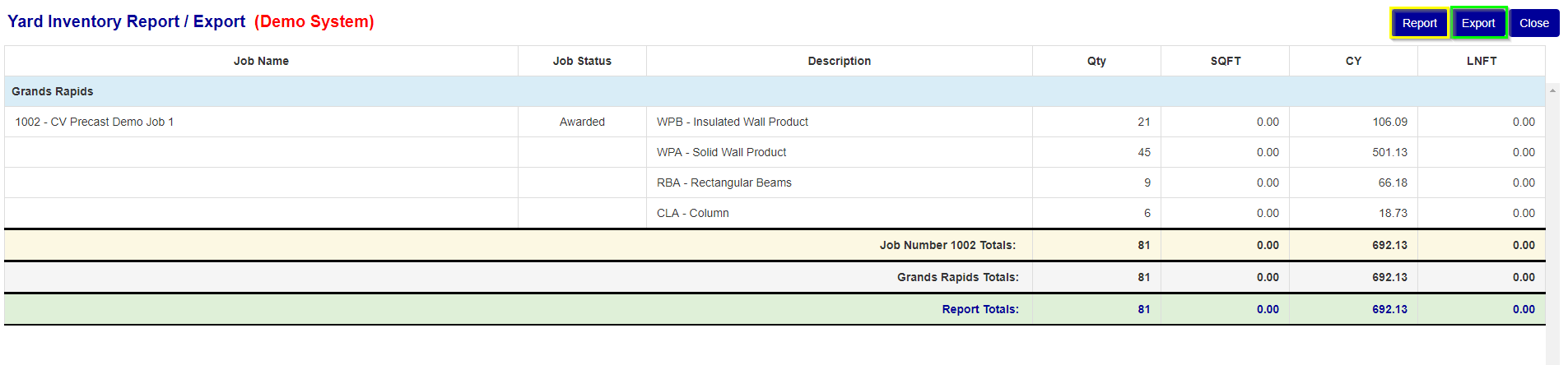
Figure 3
From the view screen (see Figure 3) you can either open the formatted report in a new tab by clicking the "report" button (see Yellow box in Figure 3) or export the report in CSV format by clicking the "export" button (see Green box in Figure 3).
Was this article helpful?
That’s Great!
Thank you for your feedback
Sorry! We couldn't be helpful
Thank you for your feedback
Feedback sent
We appreciate your effort and will try to fix the article