Overview
The Production Days screen lets you define which days each plant is scheduled for production and which days are non-production days (such as weekends, holidays, or planned shutdowns). Non-production days are set per plant, so each location can maintain its own calendar.
The screen is made up of two parts:
- Plant List – Displays all plant locations so you can select the one you want to configure.
- Production Days Calendar – Displays a full-year calendar for the selected plant, where you can mark individual days as production or non-production days.
Note: Changes made on the calendar are saved automatically as soon as you click a day. There is no Save button.
Accessing the Screen
Navigate to Configuration Menu > Production Setup > Production Days Calendar (Figure 1).
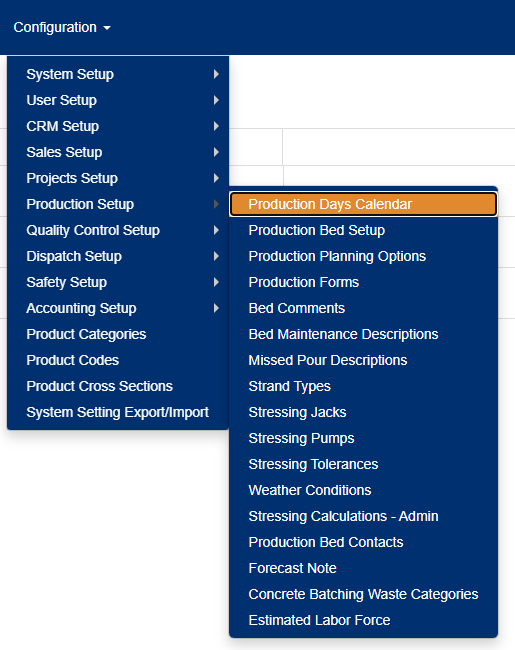
Figure 1
Note: Only locations set up as plants appear on this screen.
Plant List
When the screen opens, a list of all plant locations is displayed.
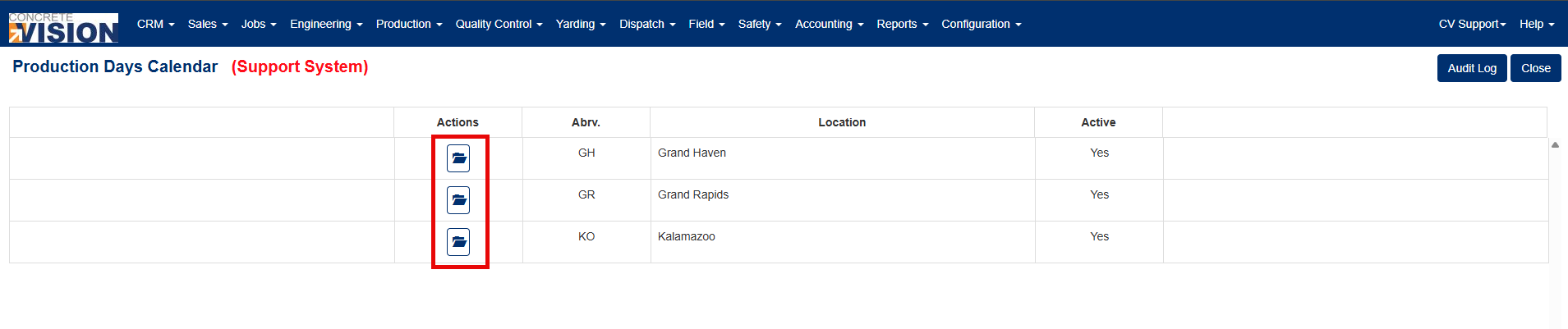
Figure 2
| Column | Description |
|---|---|
| Actions | Contains the View button (folder icon), which opens the Production Days Calendar for that plant. |
| Abbreviation | The plant's abbreviation or location code. |
| Location | The plant's name. |
| Active | Indicates whether the plant is active (Yes) or inactive (No). |
To open a plant's calendar, click the View button next to the plant you want to configure (Red box, Figure 2).
Production Days Calendar
The calendar displays all 12 months of the selected year for the selected plant. The plant's abbreviation and name are shown at the top of the screen, along with a legend identifying non-production days.
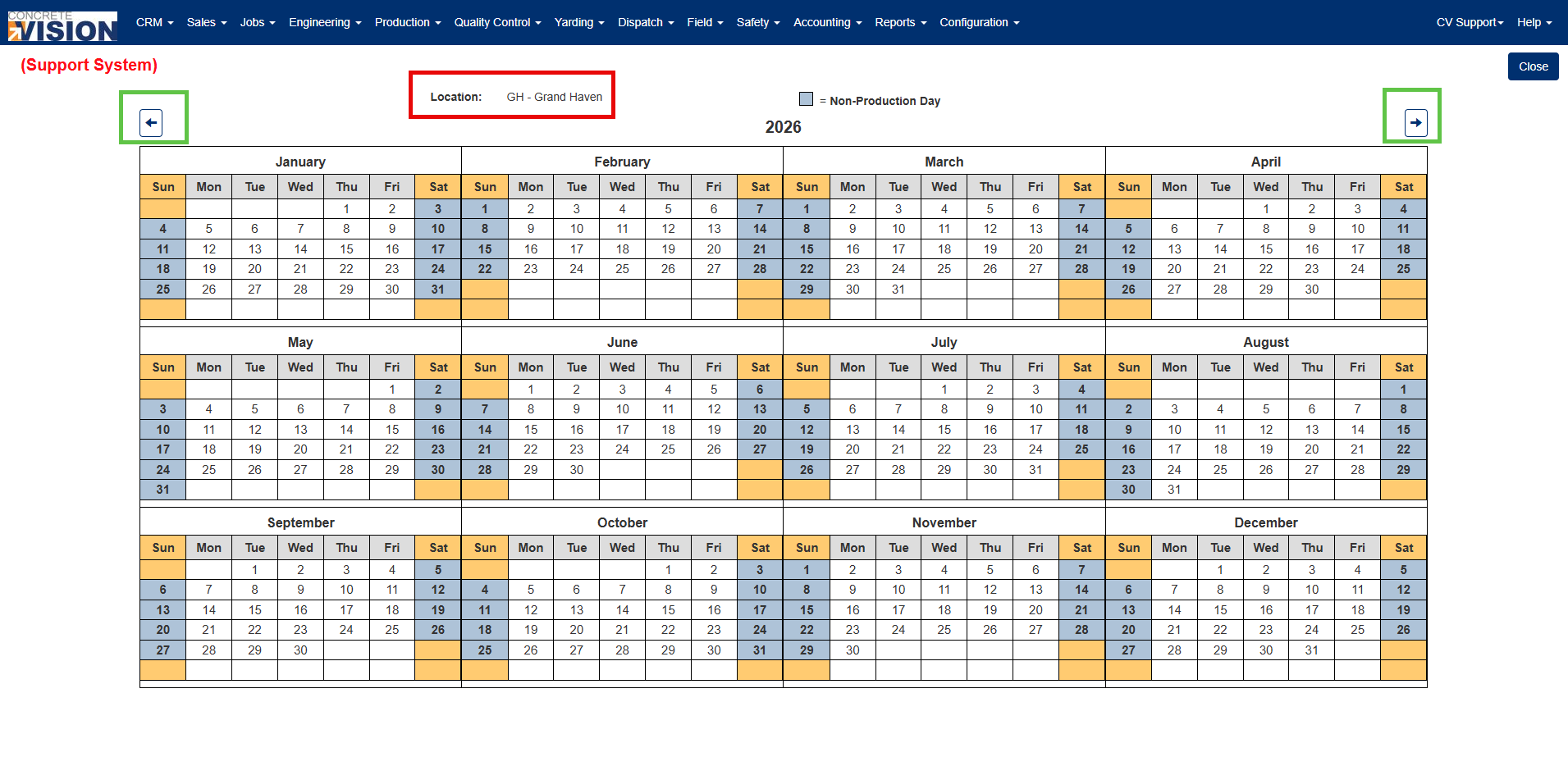
Figure 2
Calendar Colors
| Color | Meaning |
|---|---|
| Blue (bold) | Non-production day. |
| Orange | Saturday or Sunday that is set as a production day. |
| White | Weekday that is set as a production day. |
Note: Saturday and Sunday column headers are always shaded orange to help identify weekends.
Default Non-Production Days
When you open a year on the calendar, Saturdays and Sundays are automatically marked as non-production days for any month that does not already have non-production days set up. You can then adjust these defaults as needed.
Marking Production and Non-Production Days
- From the Plant List, click the View button next to the plant you want to configure.
- Use the arrow buttons on either side of the year to navigate to the year you want to update.
- Click a day to change its status:
- Clicking a production day (white or orange) changes it to a non-production day (blue).
- Clicking a non-production day (blue) changes it back to a production day.
- Repeat for any additional days you want to update.
- When you are finished, click Close to return to the Plant List.
Note: Each change is saved immediately when you click a day. If you are unsure whether a change was saved, close the calendar and reopen it to confirm.
Button Reference
| Button | Location | Description |
|---|---|---|
| View (folder icon) | Plant List | Opens the Production Days Calendar for the selected plant. |
| Close | Plant List | Returns to the Main Menu. |
| Previous Year (left arrow) | Calendar | Displays the previous year's calendar. |
| Next Year (right arrow) | Calendar | Displays the next year's calendar. |
| Close | Calendar | Returns to the Plant List. |
Was this article helpful?
That’s Great!
Thank you for your feedback
Sorry! We couldn't be helpful
Thank you for your feedback
Feedback sent
We appreciate your effort and will try to fix the article