Overview
The Production Forms screen allows you to view, edit, and add Production Forms in the system. This guide walks you through accessing the screen and performing common operations.
Accessing Production Forms
- Navigate to the Configuration menu
- Select Production Setup
- Click on Production Forms
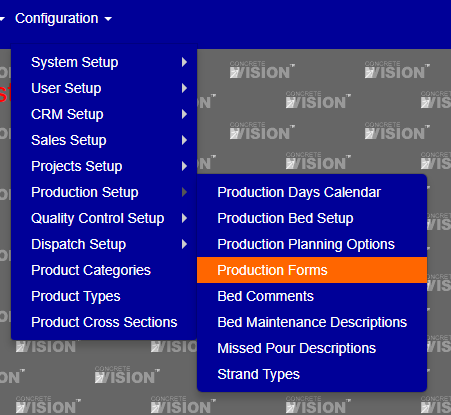 Figure 1
Production Forms Screen
The main Production Forms screen displays all existing forms and provides options to manage them.

Figure 2
Managing Production Forms
Creating a New Production Form
- Select a Plant Location: Click the Edit button for the appropriate Plant Location (Figure 1 - Green box)
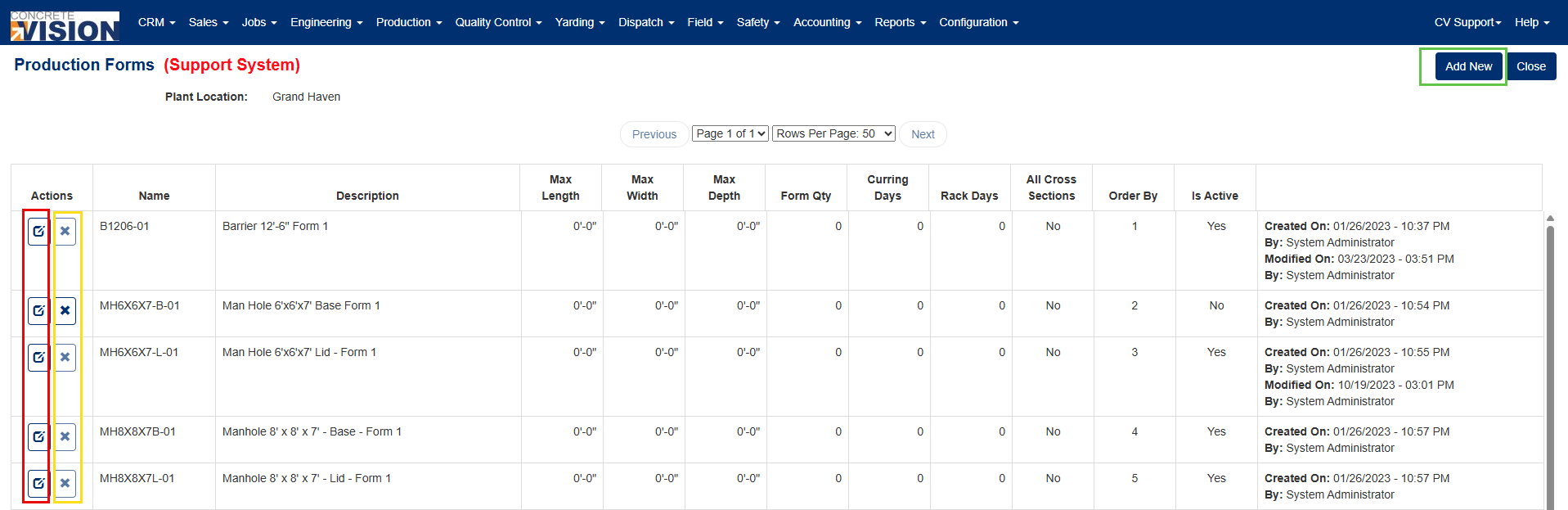 Figure 3
 - Open the Add New Window: Click the [+ Add new] button in the upper right corner (Figure 3 - Green box)
- Enter Form Details:
- Form Name (Required)
- Description (Required)
- Dimensions:
- Max Length
- Max Width
- Max Depth
- Production Parameters:
- Form Quantity
- Curing Days
- Rack Days
- Configuration Options:
- Define for all Cross Sections OR Select specific Cross Section
- Set Active state (On/Off)
- Order By number (for sorting)
- Save the Form:Click either:
- [Save] to save and continue editing.
- [Save & Close] to save and return to the main screen (Figure 4 - Red box)
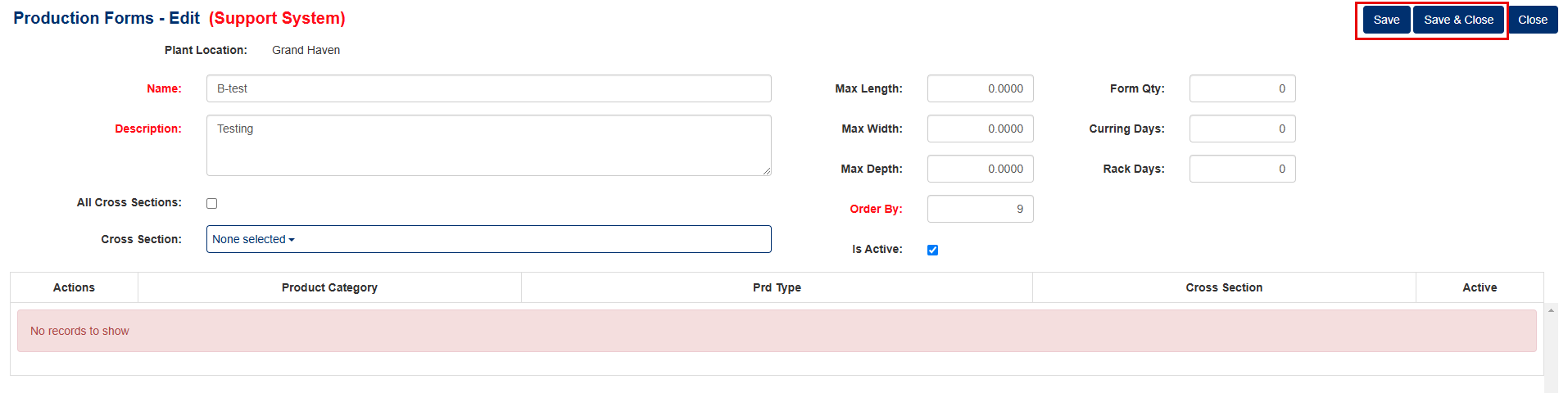
Figure 4
Editing an Existing Production Form
- Open the Edit Window: Click the pencil icon (first icon) to the left of the Production Form you want to modify (Figure 3 - Red box)
- Modify Details: Update any of the following fields:
- Form Name
- Description
- Max Length, Width, and Depth
- Form Quantity
- Curing Days
- Rack Days
- Cross Section settings
- Active state
- Order By number
- Save Changes: Click either [Save] or [Save & Close] (Figure 4 - Red box)
Deleting a Production Form
- Initiate Deletion: Click the [X] button next to the Production Form you wish to delete (Figure 3 - Yellow box)
- Confirm Deletion: When prompted with "Are you sure you want to delete this record?", click [OK] to confirm (Figure 5)
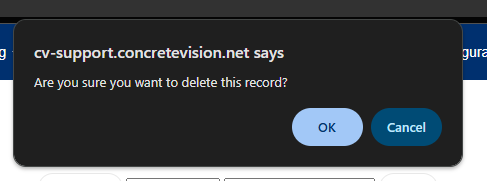
Figure 5
Important Note: Production Forms that are currently in use cannot be deleted from the system.
Was this article helpful?
That’s Great!
Thank you for your feedback
Sorry! We couldn't be helpful
Thank you for your feedback
Feedback sent
We appreciate your effort and will try to fix the article