You can navigate to the Holiday Calendar screen from the Configuration menu, then System Setup sub-menu (Figure 1)
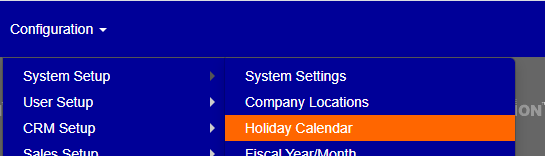
Figure 1
From the main screen you can see the entire calendar year. There are some hints at the top of the screen should you forget how to navigate/edit the calendar. As the instructions say, you can either click on a single date or click and drag across multiple dates, to create an extended holiday. Below you can see 2 separate sample holidays that have been created, 1 on January 4th, and 1 extended holiday on March 21st through March 23rd. Holidays are denoted on the calendar by a colored underline under the date(s) of said Holiday (blue for the first holiday, and green for the second holiday mentioned above). To view the name or entry for the holiday, Hover your mouse over the underlined date and a popup will appear with the name of the holiday (Green box Figure 2).
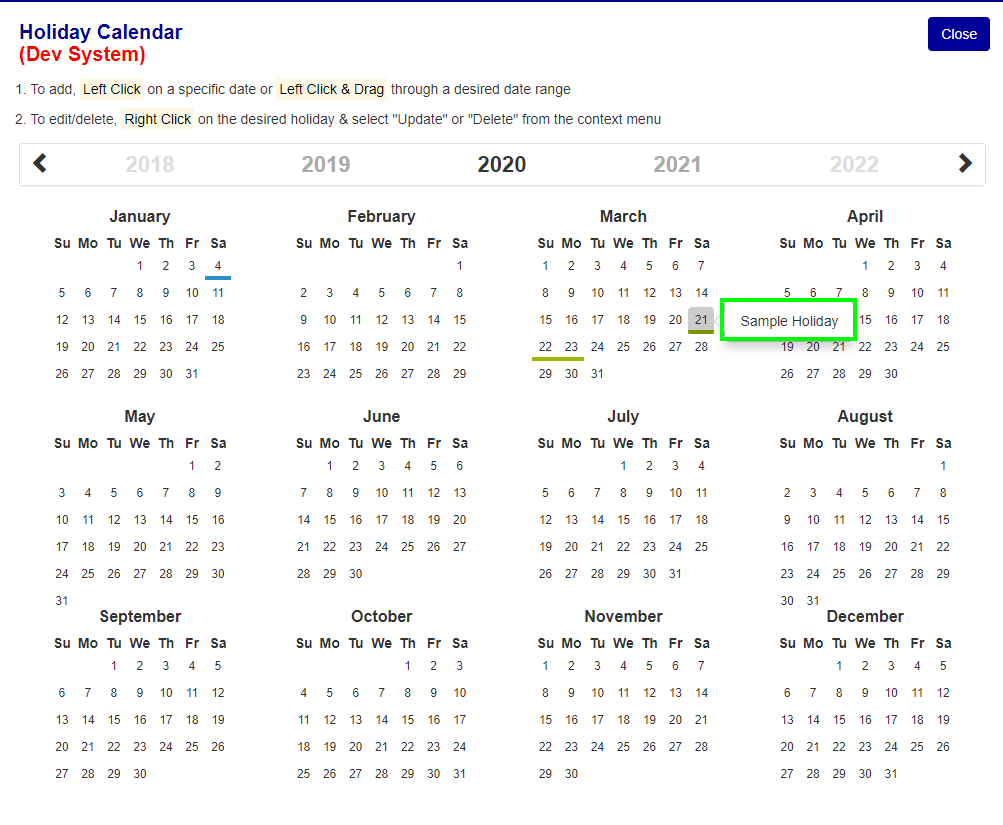
Figure 2
Add a Holiday
To add a holiday, click on a date (or click and drag for extended holidays) and a window will open for you to enter the name and date range of the Holiday (Figure 3). Once the information has been entered in, press the save button on the window (Green Box Figure 3) and the Holiday will appear on the calendar.
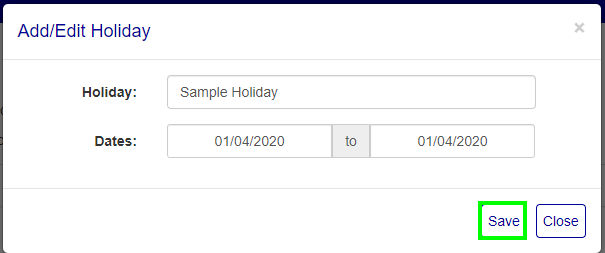
Figure 3
To Edit a Holiday, right click on the underlined date for the holiday, thus opening the options for that date (Figure 4). Select the holiday to remove or edit, and then choose to update or delete it. If you Edit the holiday, the same window as adding a holiday will appear and follow the instructions for adding a holiday.
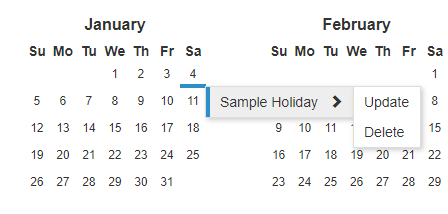
Figure 4
Was this article helpful?
That’s Great!
Thank you for your feedback
Sorry! We couldn't be helpful
Thank you for your feedback
Feedback sent
We appreciate your effort and will try to fix the article