Overview
The Move to Job screen converts a Project/Estimate to a Job.
Accessing Move to Job Screen
Move to Job screen can be accessed from two locations:
From the Sales menu: Navigate to Sales > Move to Job (Figure 1).
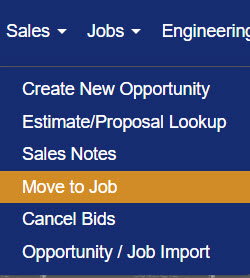
Figure 1
From the Accounting menu: Navigate to Accounting > Move to Job (Figure 2).
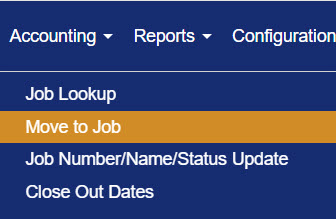
Figure 2
Move to Job Filter
Note: Using the Search or Clear buttons will reload the screen. Ensure you save any changes before performing either of these actions to avoid losing your work.
To filter the list of opportunities displayed on the Move to Job screen accessed via the Sales module:
- Click the Filter button at the top of the screen to expand the filter panel (Red box, Figure 3).
- Enter or adjust any combination of Estimate Number, Job Name, Mfg. Plant, or Sales Person to narrow your results.
- Click Search (Green box, Figure 3) to refresh the table based on your filter criteria.
- Click Clear (Blue box, Figure 3) to reset all filter fields to their defaults.
- Click the Filter button again to collapse the filter panel.
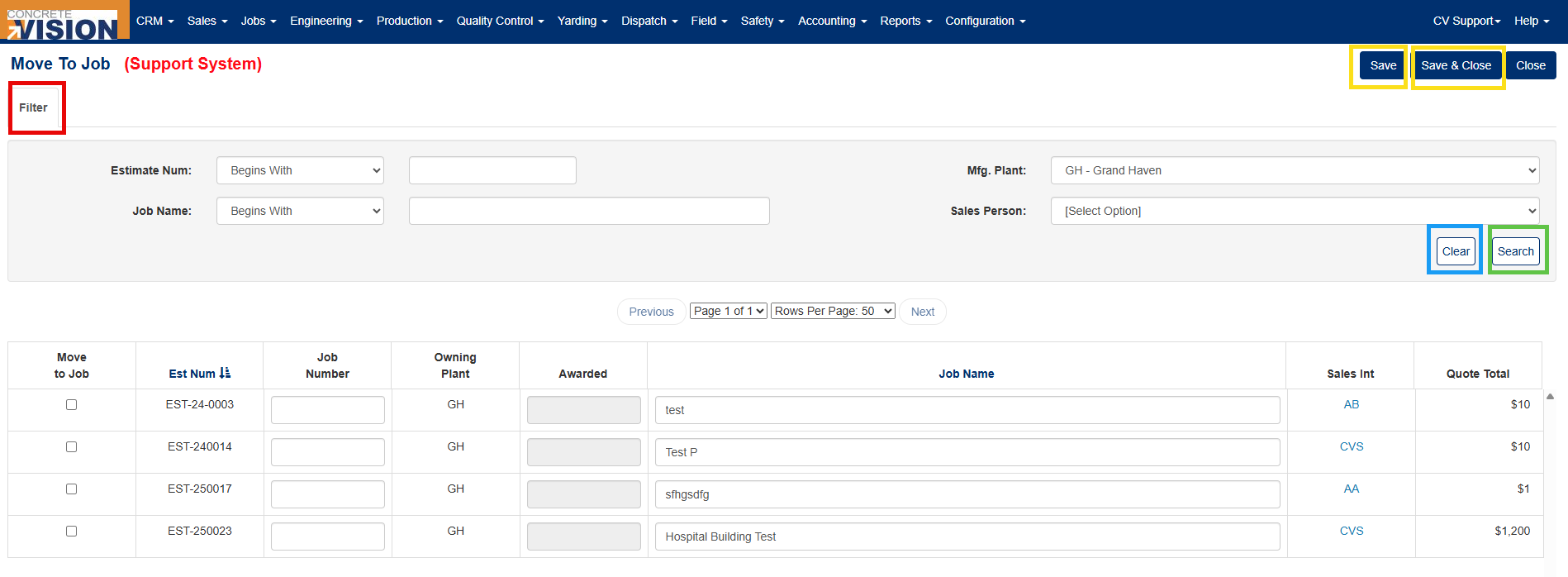
Figure 3
Moving a Job
The Move to Job screen via the Sales module (Figure 4) displays basic information for all opportunities and proposals that match the applied filter. By default, all opportunities are shown.
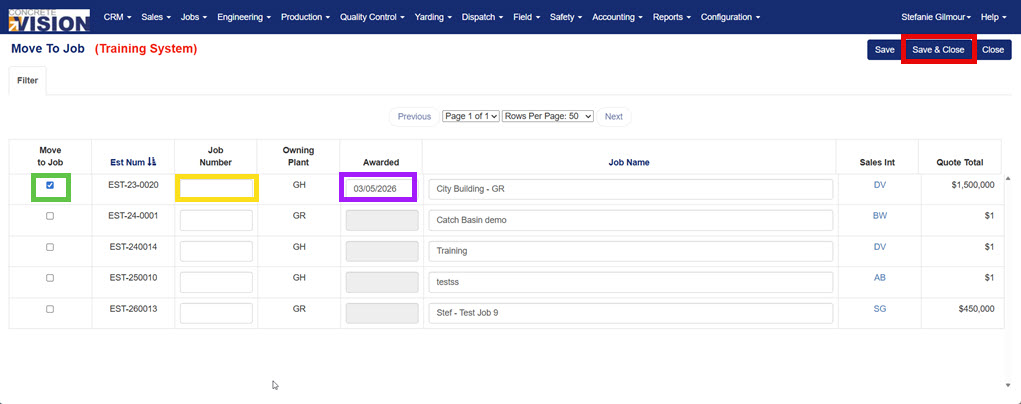
Figure 4
To move an opportunity/project to a job, complete the following steps:
- Check the checkbox in the Move to Job column for the Project/opportunity you wish to move (Green box, Figure 4).
- Enter a new job number in the Job Number field (Yellow box, Figure 4).
- The Owning Plant is locked down to the plant location set during opportunity creation.
- Confirm or update the Awarded Date, which defaults to today's date (Purple box, Figure 4).
- Update the Job Name (defaults to the Project/opportunity name)
- Click Save or Save & Close (Red box, Figure 4) to complete the move.
The Move to Job screen via the Accounting module (Figure 5) displays basic information for all opportunities and proposal.
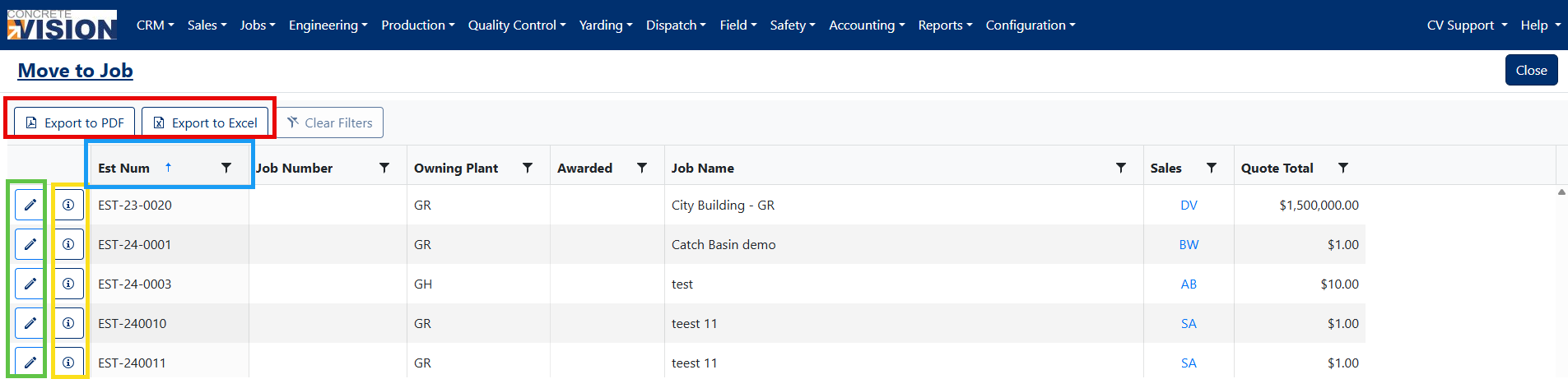
Figure 5
To move an opportunity/project to a Job, complete the following steps:
- Click the edit button (Green box, Figure 5)
- In the edit window, update any of the following fields (Figure 6):
- Job Number: Enter the number number (Required)
- Awarded: Edit the Awarded date, or leave as default (Required)
- Job Name: Edit the Job name as required.
- Click the [Save] button to apply your changes (Red box, Figure 6)
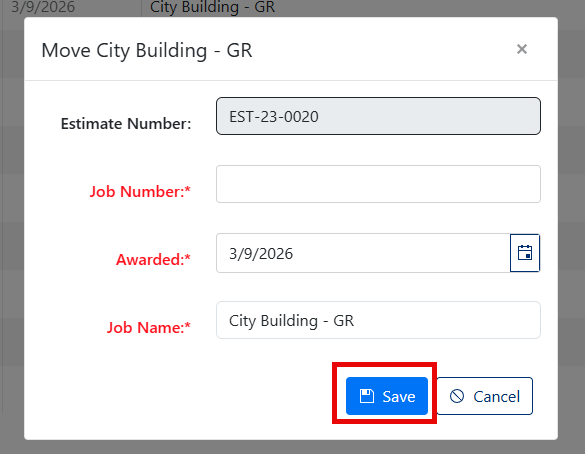
Figure 6
Move to Job Summary Details
Click the information button (Yellow box, Figure 5) to open the Project log, providing details on when the Project was created, who created it, who last modified it, and the corresponding timestamp (Figure 7).
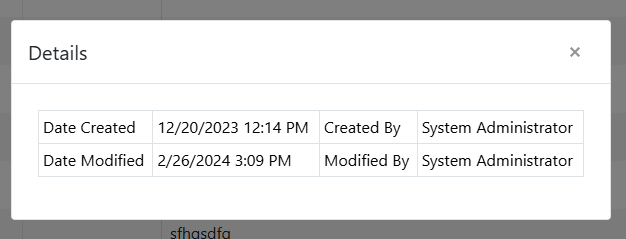
Figure 7
Exporting Projects/Estimates
You can export your Projects/Estimates in two formats:
Export to PDF:
- Click the [Export to PDF] button (Red box, Figure 5)
- A PDF containing the full list of Projects will be generated
Export to Excel:
- Click the [Export to Excel] button (Red box, Figure 5)
- An Excel spreadsheet containing the full list of Projects will be generated
Was this article helpful?
That’s Great!
Thank you for your feedback
Sorry! We couldn't be helpful
Thank you for your feedback
Feedback sent
We appreciate your effort and will try to fix the article