Overview
The Opportunity / Job Import screen allows sales jobs to be imported into Concrete Vision by using an Excel spreadsheet template. The process involves three steps:
- Prepare and import data using the spreadsheet template.
- Verify the imported data for errors.
- Move verified records into Concrete Vision.
Accessing the Opportunity / Job Import Screen
Navigate to Sales > Opportunity /Job Import from the main menu (Figure 1).
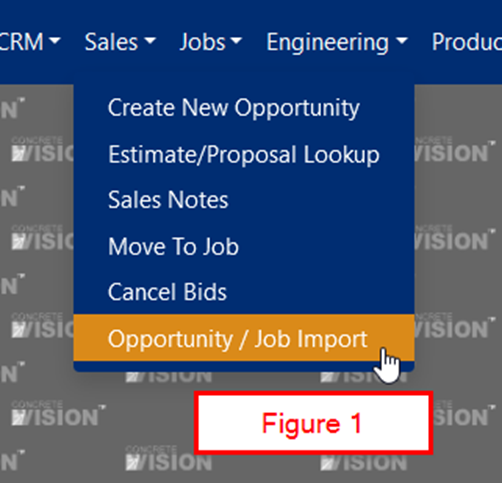
Figure 1
Downloading the Import Template
The Opportunity / Job Import screen provides a download link for the Excel template (Yellow arrow, Figure 1b). Download and complete this template before importing.
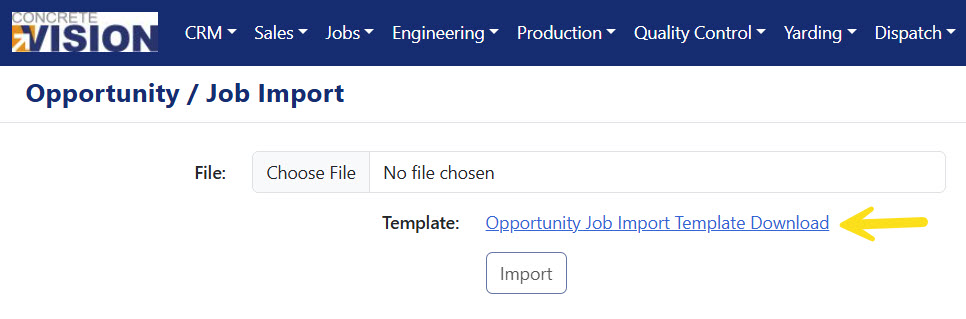
Figure 1b
Completing the Job Import Template
- Click the Opportunity Job Import Template Download link to download the Excel file.
- Fill in the required fields on Data sheet of the template.
NOTE: Field specifications, data types, max lengths, and descriptions are listed on the Definition sheet of the Excel template (Figure 2).
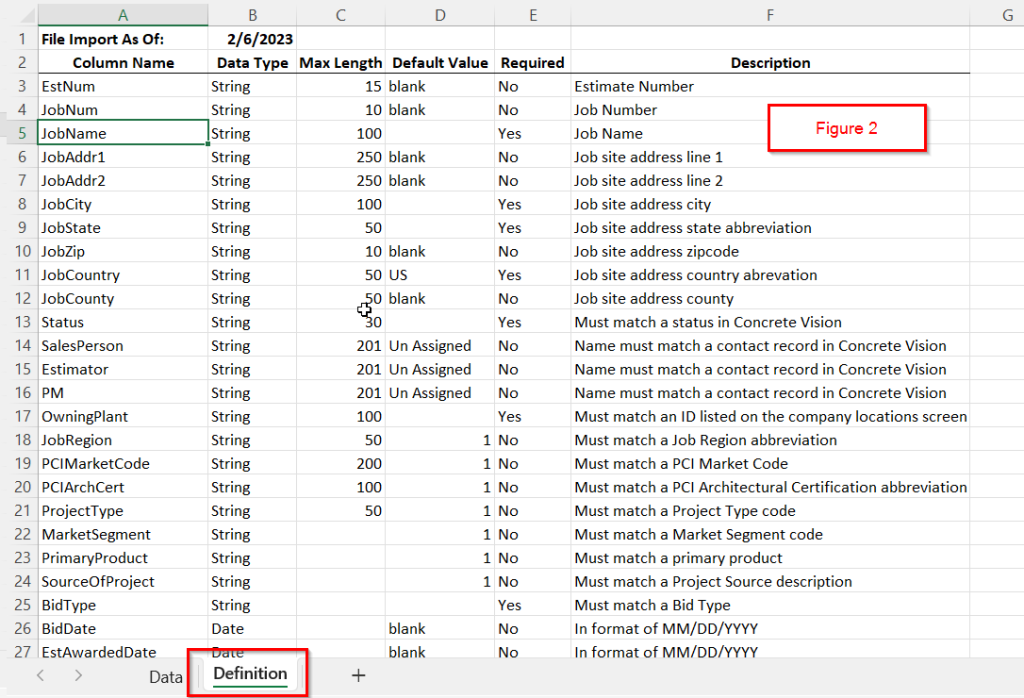
Figure 2
Required Fields
| Column Name | Data Type | Max Length | Default Value | Required | Description |
| JobName | String | 100 | Yes | Job Name | |
| JobCity | String | 100 | Yes | Job site address city | |
| JobState | String | 50 | Yes | Job site address state abbreviation | |
| JobCountry | String | 50 | US | Yes | Job site address country abbreviation |
| Status | String | 30 | Yes | Must match a status in Concrete Vision | |
| OwningPlant | String | 100 | Yes | Must match an ID listed on Config > System Setup > Company Locations | |
| Bid Type | String | 10 | Yes | Must match a Bid Type on Config > Sales Setup > Project Bid Types |
Importing the Template
Once the template is filled in, return to the Opportunity / Job Import screen:
- Click Browse to select the completed template file from your hard drive (Figure 3).
- Click the Import button to begin the import process.
- If any column headers do not match expected field names, a Field Map Error dialog appears. Use the dropdowns to map each misnamed field to its correct name, then click Map Fields. (Figure 4).
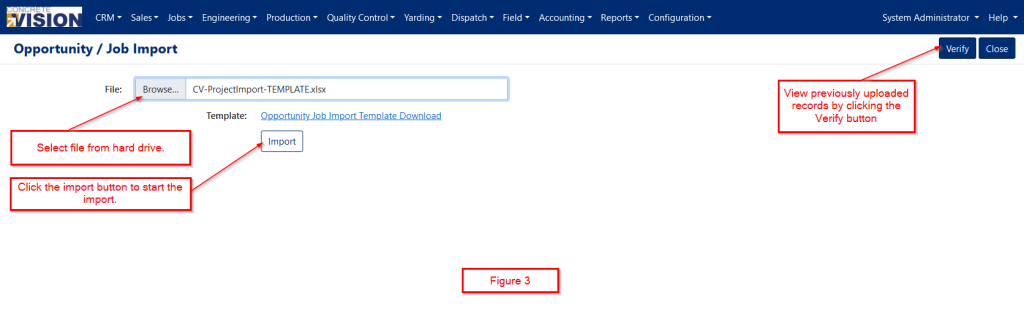
Figure 3
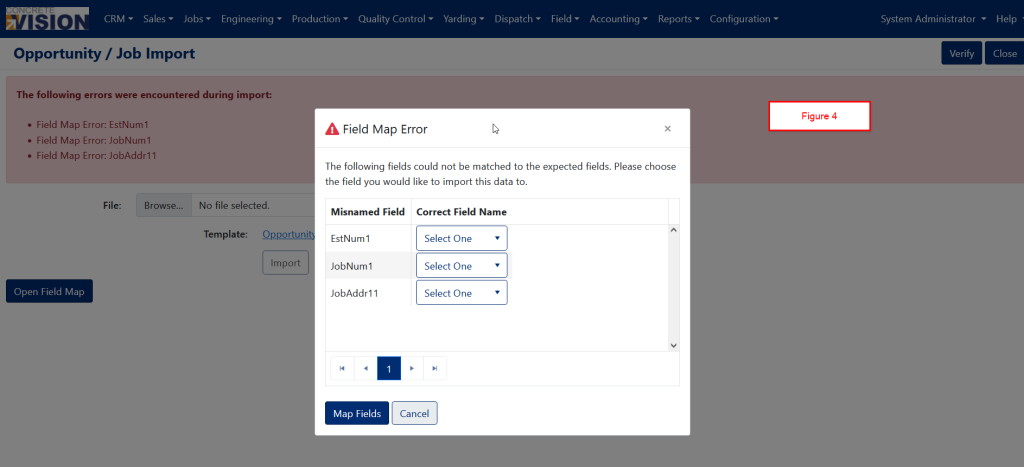
Figure 4
Common Import Errors
Records with errors can’t be moved. You will be warned if any of the uploaded records are duplicated. Some of the error types you might encounter are:
- Lookup Errors: The value entered must match an existing field value in Concrete Vision.
- Validation Error: The field does not match the specification on the Definition sheet (Red box, Figure 2).
- Data Type Error: The field contains the wrong type (for example, a letter where a number is expected).
- Duplicate Error: The job name and job number combination has been repeated in the uploaded file or in previously uploaded, unverified records.
Note: If any uploaded field values exceed the maximum allowed length, they will be truncated without warning. Review the Definition sheet to confirm field lengths before importing.
Correcting Import Errors
Click the Edit icon next to any record in the Verify Opportunity Job Import screen to edit and correct its fields.
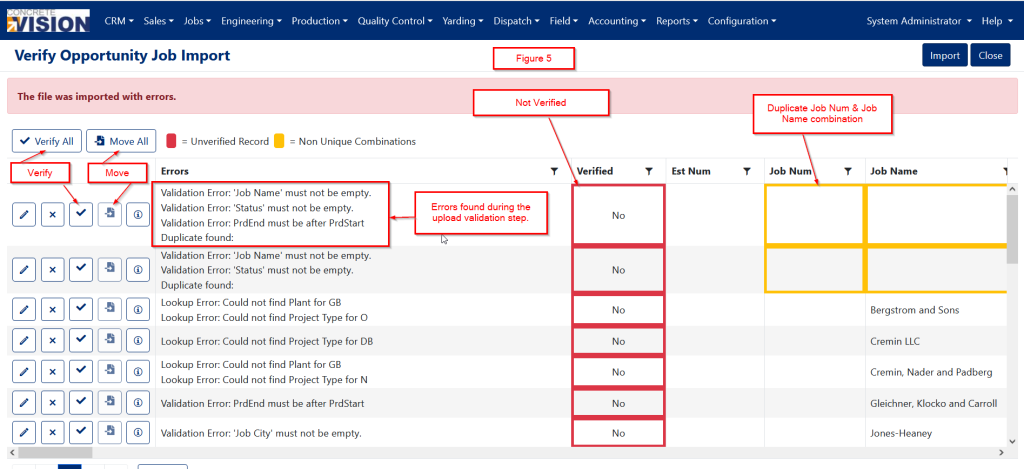
Figure 5
Verifying Imported Data
Imported records must be verified before they can be moved into Concrete Vision
- Click the Checkmark icon next to a record to verify it individually, or click Verify All to verify all records at once (Figure 5).
- Records with unresolved validation errors will not be marked as verified.
- Verified records display "Yes" in the Verified column.
Moving Verified Data
Only verified records can be moved into Concrete Vision.
- Click the Move icon next to a verified record, or click Move All to move all verified records (Figure 5).
During the move process, Concrete Vision applies the following rules:
- Records with a duplicate job number and job name combination will not be moved.
- Contacts (other than Sales Person, Estimator, and Project Manager) that do not already exist will be created automatically.
- If the company associated with a contact does not exist, it will be created automatically..
- If a contact has no associated company, they will be assigned to the "Un Assigned" company.
Was this article helpful?
That’s Great!
Thank you for your feedback
Sorry! We couldn't be helpful
Thank you for your feedback
Feedback sent
We appreciate your effort and will try to fix the article