Overview
The Trucking Rates screen is used to configure per-job hauler rates, including mileage, flat or hourly pricing, fuel surcharges, and detention terms — broken down by plant location and carrier.
Accessing the Trucking Rates Screen
From the main menu bar, go to Jobs > Job Lookup (Figure 1). Alternatively, navigate via Dispatch > Job Lookup.

Figure 1
On the Job Search screen (Figure 2), locate the job you need and click its Edit icon (Green box, Figure 2) to open the Job Information screen
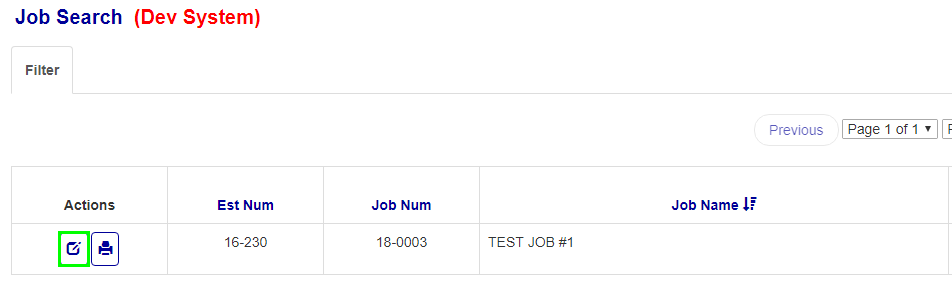
Figure 2
On the Job Information screen of the specific job, click on the Trucking Rates tab in the tab bar at the top (Green box, Figure 3).

Figure 3
Adding a Trucking Rate
To add a new rate on the Trucking Rate screen (Figure 4) fill in the fields in the blank empty row, then click + icon (Yellow box, Figure 4):
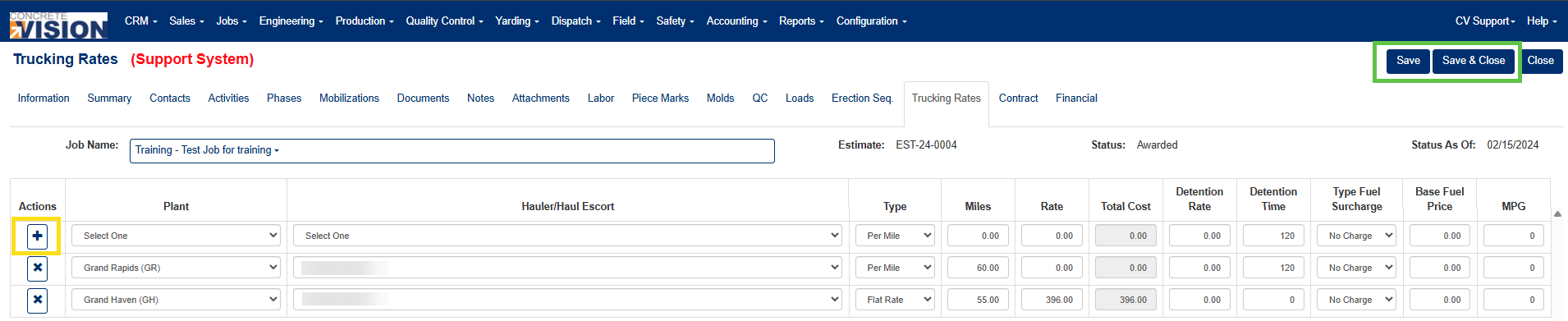
Figure 4
| Field | Description |
| Plant (Required) | The plant location associated with this rate |
| Hauler / Haul Escort (Required) | The carrier or escort company for this rate |
| Type | Pricing method: Per Mile, Flat Rate, or Hourly |
| Miles | Total distance. Must be a non-negative number |
| Rate | The per-unit cost. Must be a non-negative number |
| Total Cost (Auto-calculated) | Equals Rate for flat-rate jobs; otherwise equals Miles × Rate |
| Detention Rate | The rate charged during detention periods |
| Detention Time | The amount of detention time applicable |
| Type Fuel Surcharge | Surcharge method: No Charge, Percentage, Base Differential, or Fixed |
| Base Fuel Price | Reference fuel price used to calculate the surcharge. Must be a non-negative number |
| MPG | Vehicle fuel efficiency used in surcharge calculations. Must be a non-negative number |
Editing Trucking Rates
To edit a row of carrier rates:
- Locate the row you want to update and modify the relevant field(s) directly in the table
- Click Save to apply your changes, or Save & Close to save and return to the main menu (Green box, Figure 4)
Note: You can edit multiple rows at once before saving — all changes are committed together when you click Save.
Deleting a Trucking Rate
To delete a row of carriers rates:
- Click the X Delete icon (Orange box, Figure 5) on the row associated to the rates you would like to delete.
- Click Ok in the confirmation dialog to permanently delete the rate (Figure 6).
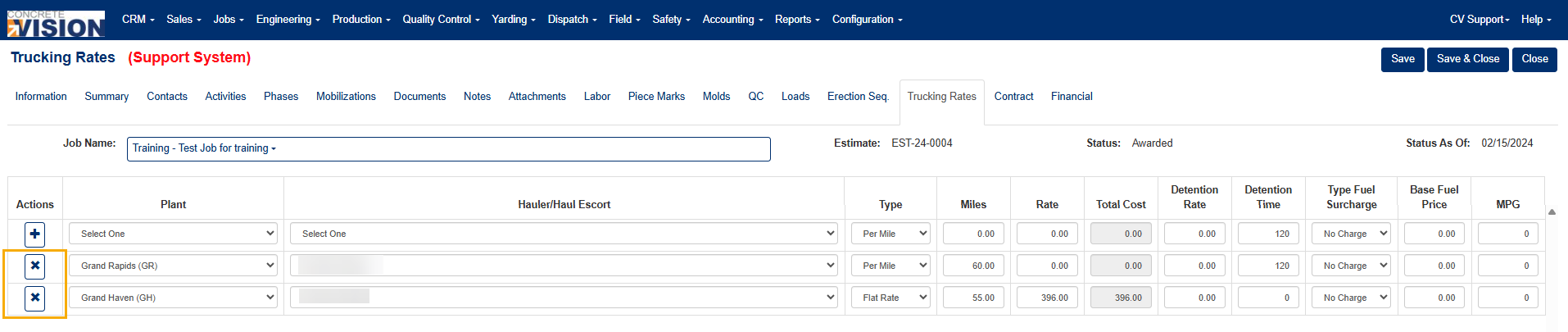
Figure 5

Figure 6
Note: Deletion cannot be undone. Confirm that you have selected the correct row before clicking OK in the dialog
Was this article helpful?
That’s Great!
Thank you for your feedback
Sorry! We couldn't be helpful
Thank you for your feedback
Feedback sent
We appreciate your effort and will try to fix the article