The purpose of the Non Working Days Calendar page is to create Holidays, Non Working Days, and Working Days. These days can be set at the form (bed), plant, or company level. A Non Working Day is a day that under normal circumstances would producing, but is now not and must be shown as unavailable for production calendar. E.g. a plant must shut down entirely due to safety concerns, or a specific bed is out of commission for a day. The opposite is true for working days. A day that normally would not be producing (e.g. Saturday) is now specified as a Working Day.
You access Non Working Days screen via Configuration menu > System Setup > Non Working Days, shown in Figure 1 below.
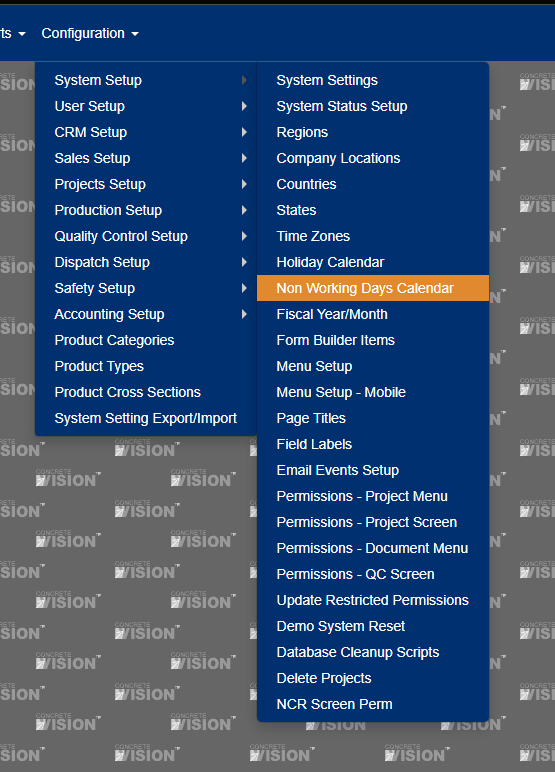
Figure 1
Once there, you will notice calendar (see Figure 2). There is a Locations dropdown where you can filter for Non Working Days specific to a plant or form. There are also toggle arrows that let change the year of the calendar you are viewing.
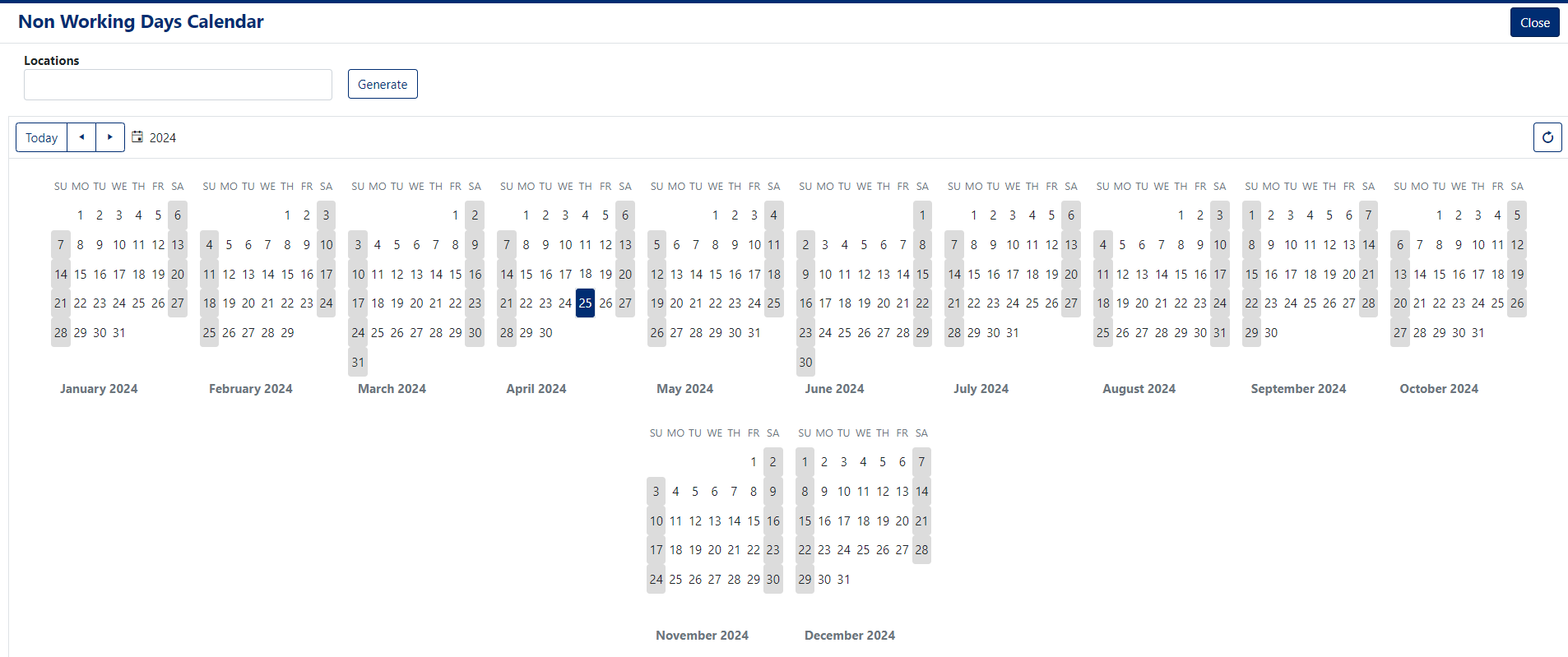
Figure 2
Add New Non Working Day
- Double click on any day in the calendar. For this example, I will pick July 4th 2024 (a Thursday) .
A modal will popup. (see Figure 3)
- Enter the Title of the Holiday (Independence Day), a short description if desired.
- You can also specify Locations that this Holiday is for. Not selecting a location(s) will make it a company wide Holiday.
- You can select the Day Type (Non Working Day, Working Day or Holiday) It defaults to Holiday.
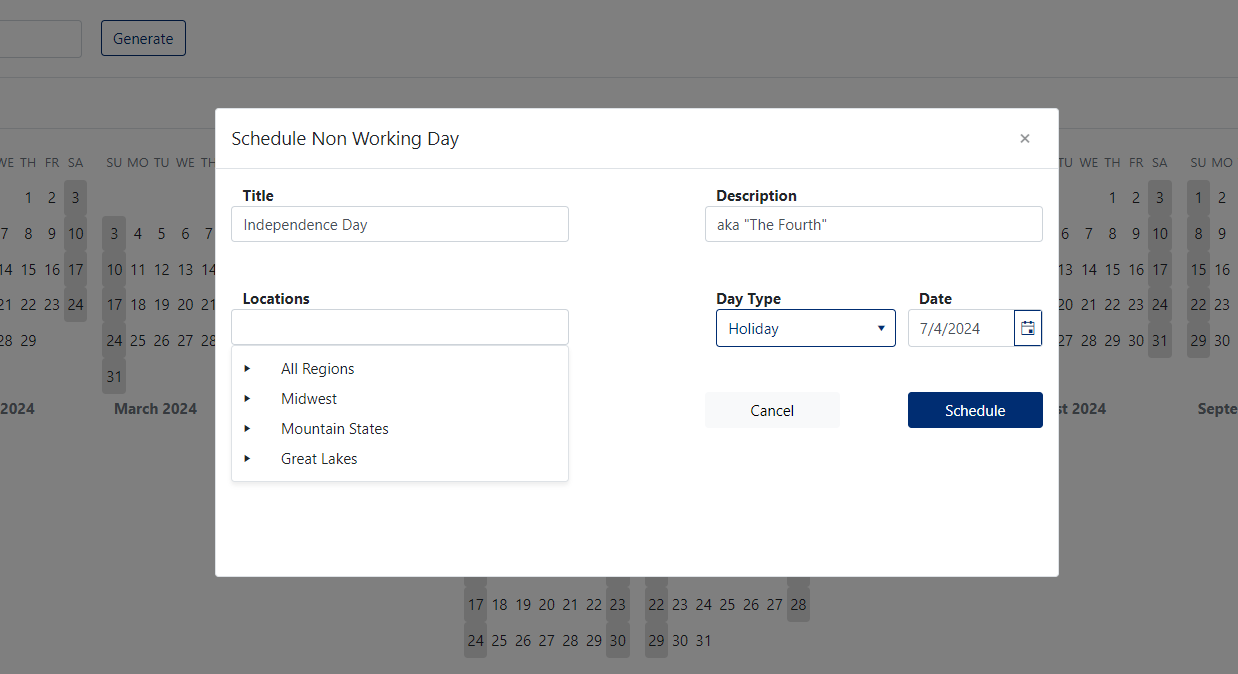
Figure 3
Before we see the outcome, I will schedule a Non Working Day for July 5th, and a Working Day for July 6th. (see Figures 4 & 5)
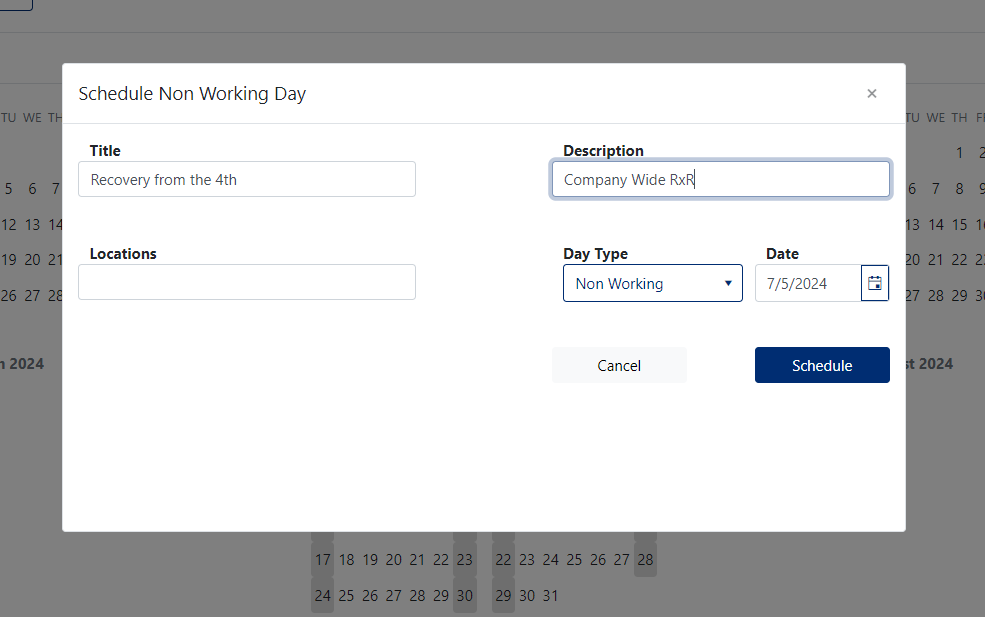
Figure 4
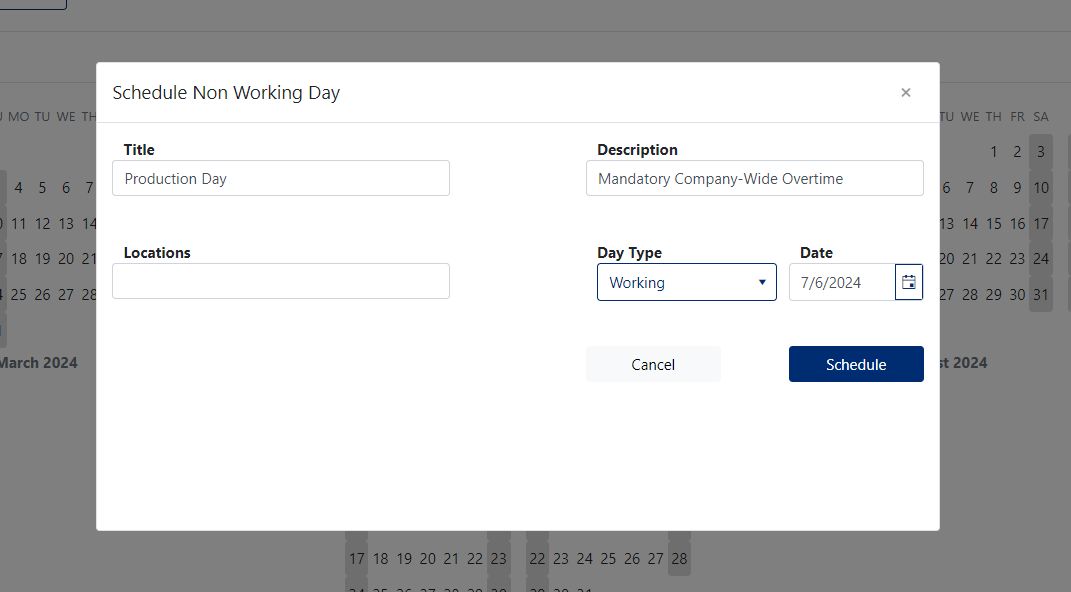
Figure 5
Now looking at the calendar, you will see 3 colored dates. Blue days are Holidays, Red are Non Working Days, and Yellow are Working Days. (see Figure 6)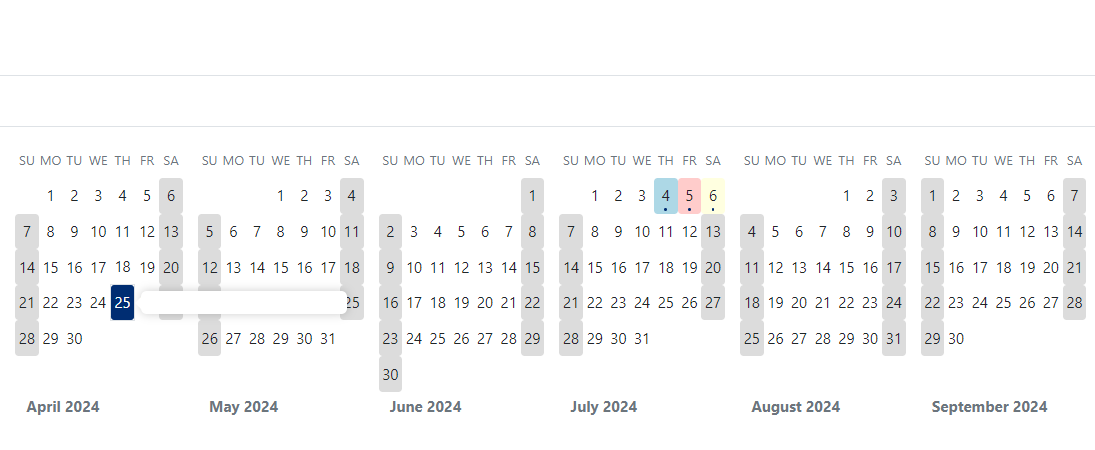
Figure 6
Delete an Event of a day.
- Click on a day, this will show a tooltip (see Figure 7)
- Clicking the 'X' on this tooltip will delete that Holiday (Red box in Figure 7)
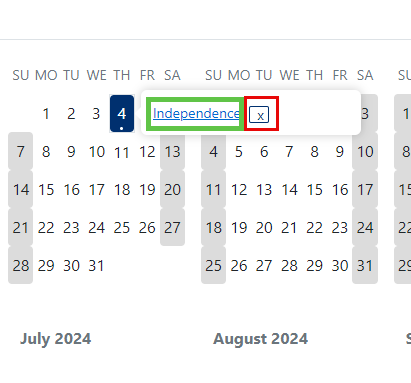
Figure 7
Edit New Non Working Day
- Click on the underlined link, this will open an Edit modal (see Figure 8)
- Edit the Title
- Edit the Description
- Edit the Location
- Edit the Day Type
- Select 'Schedule' to save your changes.
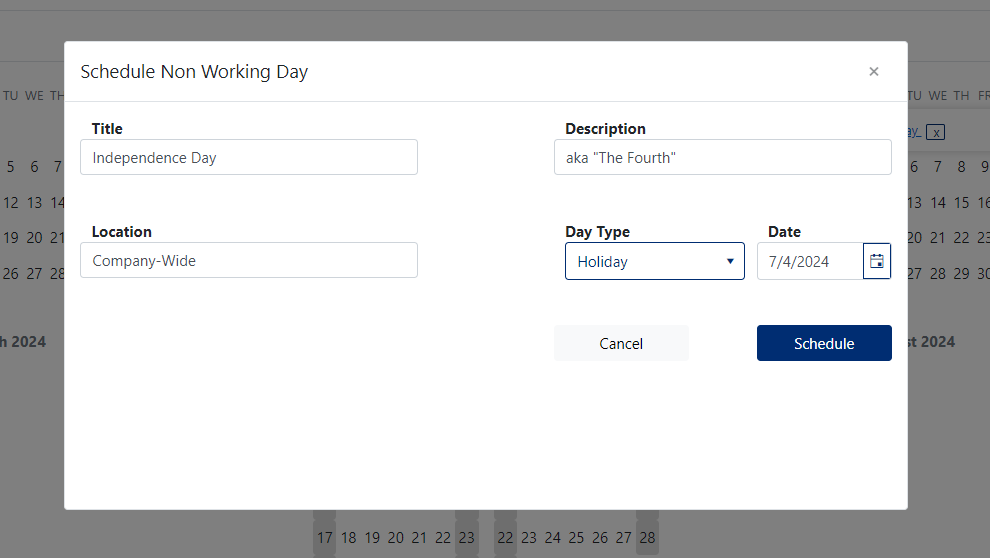
Figure 8
Was this article helpful?
That’s Great!
Thank you for your feedback
Sorry! We couldn't be helpful
Thank you for your feedback
Feedback sent
We appreciate your effort and will try to fix the article