NOTE: The term “Product Type” has been revised to “Product Code” throughout the system. Though this doesn’t affect functionality, we hope to improve user experience with consistency in language.
Updated Article on Product Codes
Overview
Product Types represent the second tier of product organization in Concrete Vision, sitting beneath Product Categories. At this level, two key configurations are defined: whether a piece mark within the product type is stockable (which impacts NCRs), and whether weight verification is required (which affects the Assign Yard Location mobile feature). Product Types are then assigned to the Phases of a job.
Accessing the Screen
Navigate to Configuration > Product Types from the main menu (see Figure 1).
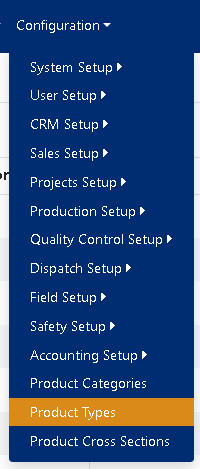 Figure 1
Using the Product Types Screen
The Product Types screen (Figure 2) offers the following functions:
- Add a new product type.
- Edit an existing product type.
- Delete a product type.
- Export the displayed types list to Excel.
- Export the displayed types list as a PDF.
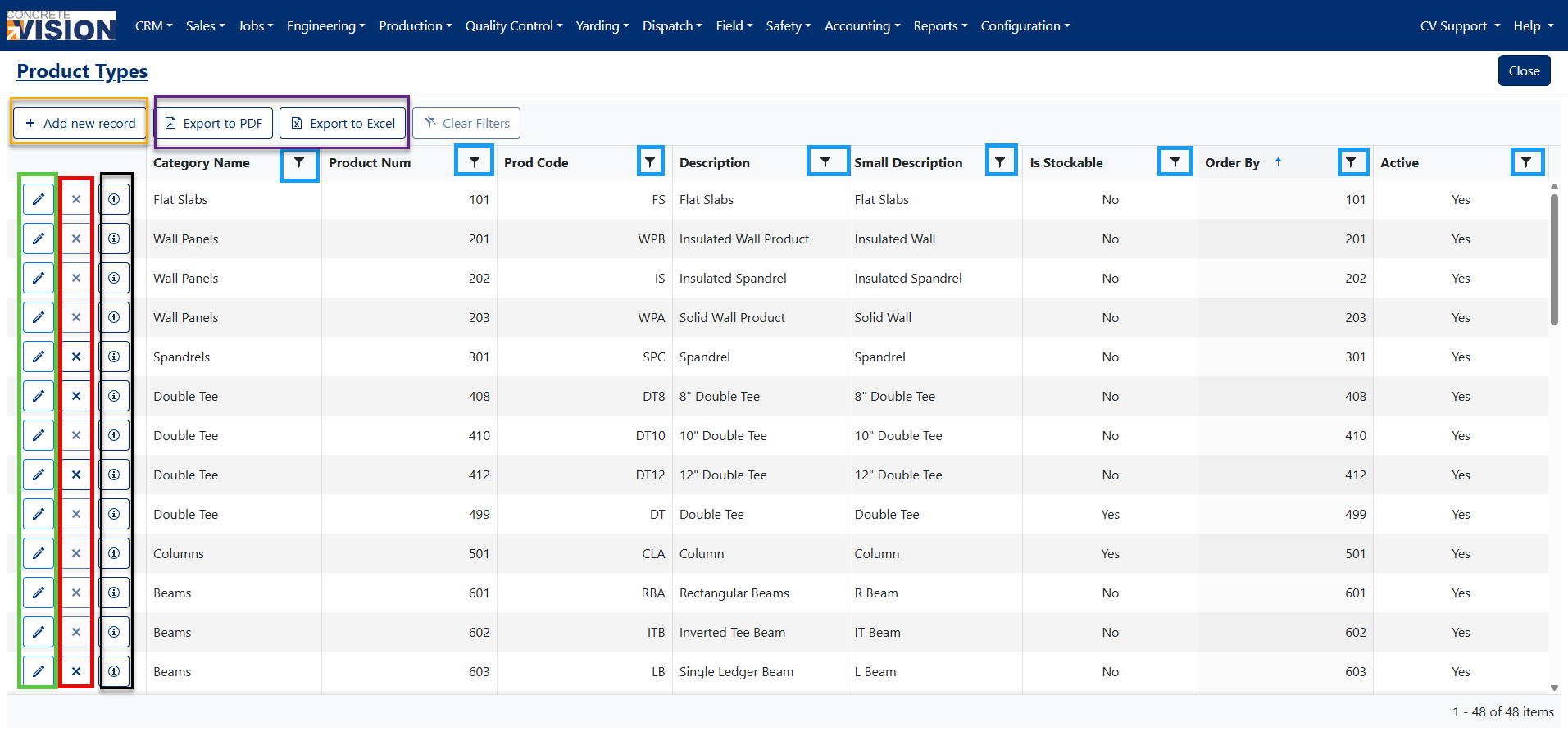
Figure 2
| Column | Description |
|---|---|
| Category Name | Name of the category the type belongs to. |
| Product Num | The product number associated with this product type. |
| Prod Code | The product code associated with this product type. |
| Description | Large description of product type for reports with longer character count. |
| Small Description | Brief description of product type for reports with shorter character count. |
| Is Stockable | Are products within this product type stockable? |
| Order By | Order the product type appears in a list of types. |
| Active | Is the product type active in Concrete Vision? |
NOTE: If a product type is marked as stockable, NCRs will offer a Scrap to Stock option.
Sorting and Filtering the Product Types Screen
To filter data by specific criteria:
- Locate the filter icon - Look for the small funnel icon to the right of any column heading (Blue box, Figure 2)
- Click the filter icon - A dropdown menu will appear with the available filtering options. Keep in mind that the filter conditions vary depending on the column selected.
- Select your criteria - Choose from available values or enter custom search terms (Red box, Figure 3)
- Apply the filter - The table will automatically update to show only matching results
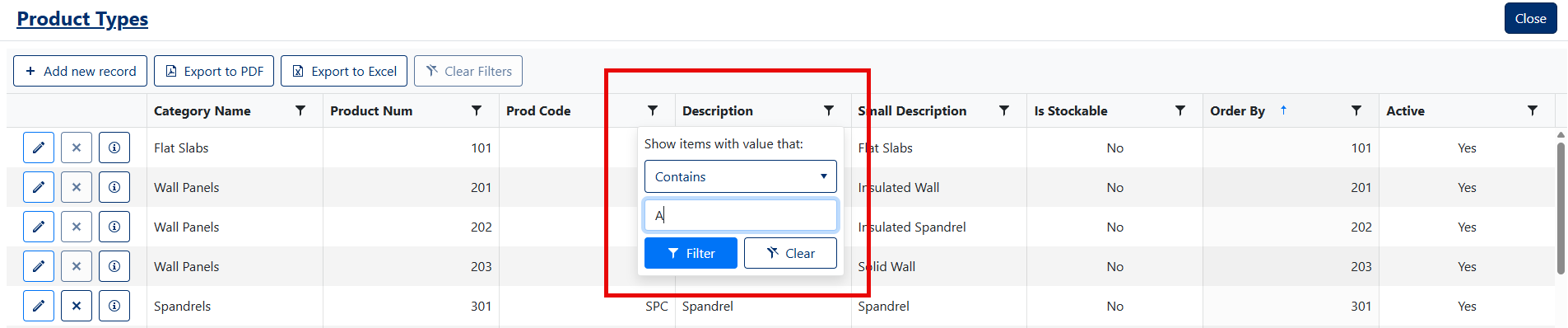
Figure 3
Adding a New Product Type
On the Product Types screen (Figure 2):
- Click the Add New Record button (Orange box, Figure 2) in the top left of the screen.
- In the Add New popup window (Figure 4), complete the fields, dropdown selections, and checkbox options.
- Select the Category Name for the new Product Type. (Required)
- Enter the Product Code for the new Product Type. (Required, Unique. Max length 10)
- Enter the Small Description for the new Product Type. (Required, Unique. Max length 50)
- Enter the Description for the new Product Type. (Required, Unique. Max length 100)
- Enter a Design Mark Prefix (Optional. Max length 50)
- Enter a Prd Code for Phases (Optional, Unique. Max length 50)
- Enter any/all other needed product dimensions and specifications.
- Set the new Product Type as Active or Inactive.
- Click the Save button (Green box, Figure 4).
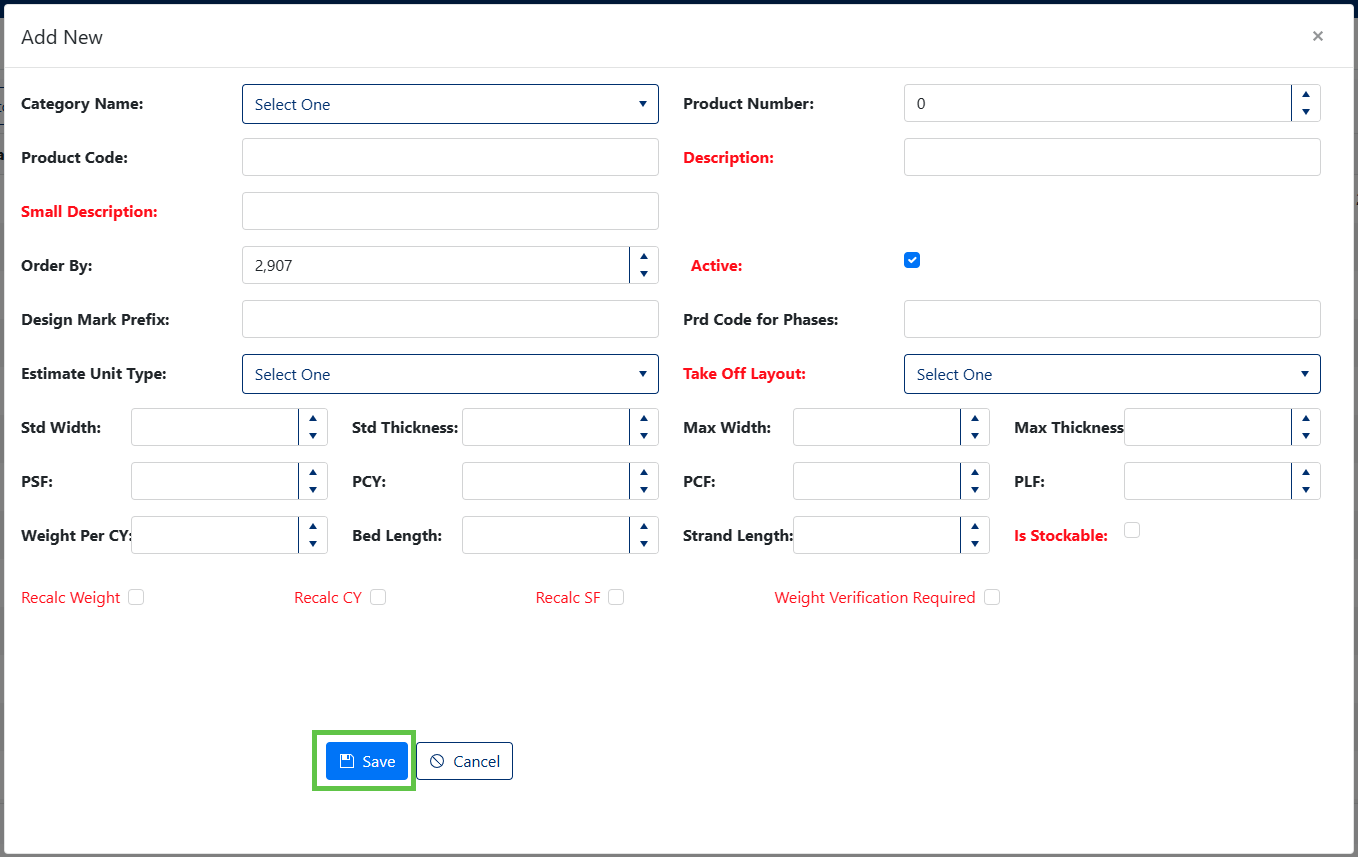 Figure 4
Editing a Product Type
On the Product Types screen (Figure 2):
- Click the Edit icon (Green box, Figure 2) next to the product category to edit.
- In the Edit Item popup window, revise type settings as needed.
- Click the Save button (Red box, Figure 5)
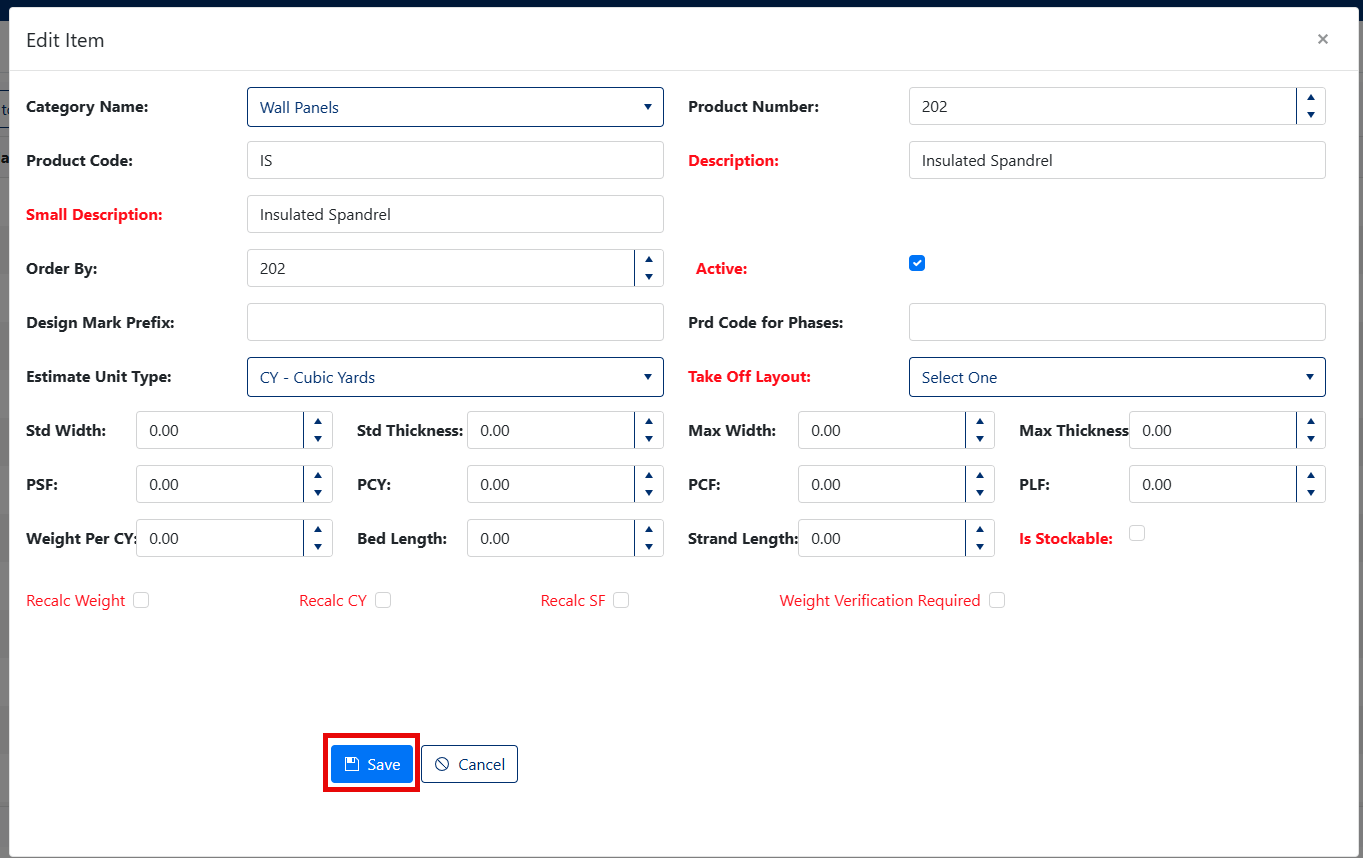
Figure 5
Deleting a Product Type
On the Product Types screen (Figure 2):
- Click the X icon (Red box, Figure 2) next to the product category to delete.
- In the confirmation popup (Figure 6), click the Ok button.
Note: Product types in use cannot be deleted. Instead of deleting a product type, it is recommended the type be set to Inactive by unchecking the Active checkbox.
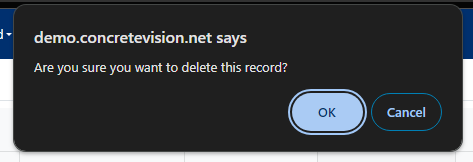
Figure 6
Audit Information
Tracking Changes
Click the info icon (i) next to any Product Type to view: (Black box, Figure 2)
- Who created the record and when (Figure 7)
- Who last modified the record and when
- Complete change history for accountability
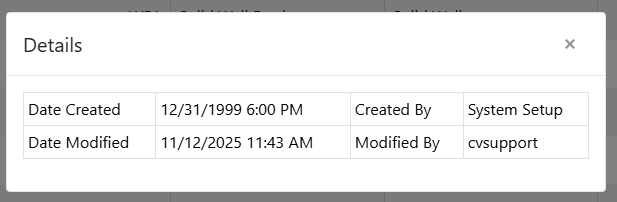
Figure 7
Export Product Type List to Excel
On the Product Type screen (Figure 2):
- Sort the Type list using the headings in the table (Blue box, Figure 2).
- Click the Export for PDF button (Purple box, Figure 2).
Export Product Type List as a PDF
On the Product Type screen (Figure 2):
- Sort the Type list using the headings in the table (Blue box, Figure 2).
- Click the Export for Excel button (Purple box, Figure 2).
Was this article helpful?
That’s Great!
Thank you for your feedback
Sorry! We couldn't be helpful
Thank you for your feedback
Feedback sent
We appreciate your effort and will try to fix the article