Overview
The Product Cross Section screen is where cross sections are assigned to piece marks. In Concrete Vision, a bed's pouring capabilities at the plant level are determined by its active cross sections. All piece marks require a unique cross section.
Accessing the Screen
Navigate to Configuration > Product Cross Sections from the main menu (Figure 1).
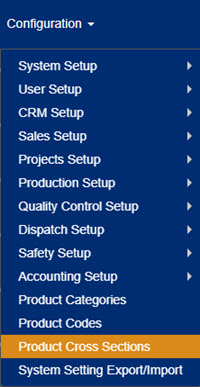
Figure 1
Using the Product Cross Sections Screen
The Product Cross Sections screen (Figure 2) offers the following functions:
- View product codes assigned to specific plant locations.
- View product cross sections assigned to those product codes.
- Add a product cross section.
- Edit an existing cross section.
- Delete a cross section.

Figure 2
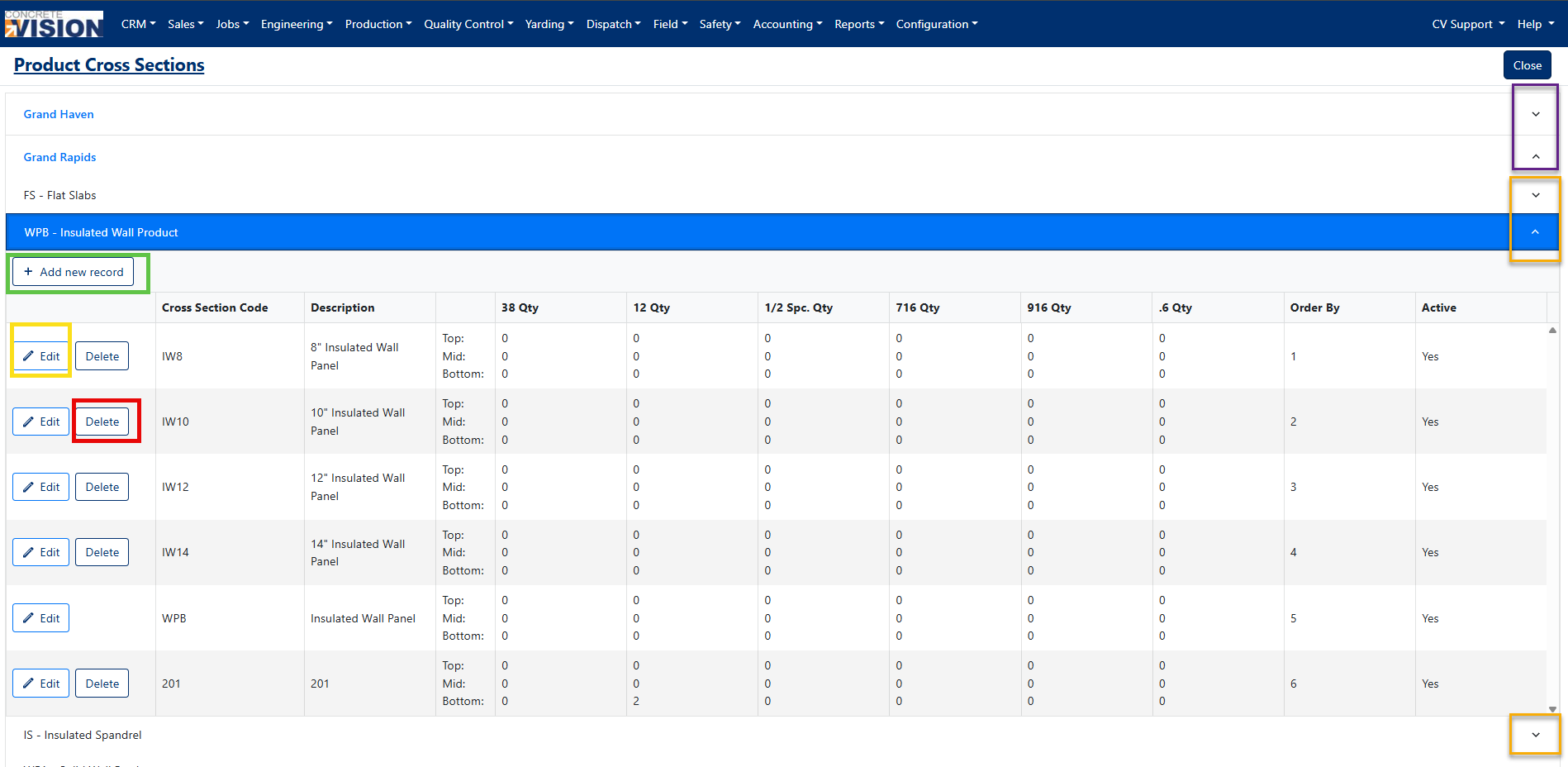
Figure 3
Viewing Cross Sections
The home page displays plants only. To view Product Codes and Cross Sections, you will need to expand each level using the "⌄" icon (Purple box, Figure 2).
- To view the Product Codes assigned to a plant, click the "⌄" icon next to the desired plant (Purple box, Figure 3).
- To view the Cross Sections assigned to a Product Code, click the "⌄" icon next to the desired Product Code (Orange box, Figure 3).
- To collapse an expanded item, click the "^" icon (Orange box, Figure 3).
Adding a New Product Cross Section
On the Product Cross Sections screen (Figure 3):
- Click the Add New Record button (Green box, Figure 3).
- In the Create Cross Section popup window (Figure 4), enter a unique Cross Section Code.
- Enter a Description.
- Enter or change the Order By.
- Mark the product code as Active or inactive.
- Enter a Bottom, Mid and Top 3/8 qty.
- Enter a Bottom, Mid and Top 1/2 qty.
- Enter a Bottom, Mid and Top 1/2 special qty.
- Enter a Bottom, Mid and Top 7/16 qty.
- Enter a Bottom, Mid and Top 9/16 qty.
- Enter a Bottom, Mid and Top .6 qty.
- Attach a file to the Cross section by selecting Select Files button, if needed (Green box, Figure 4).
- Click the Create button (Red box, Figure 4).
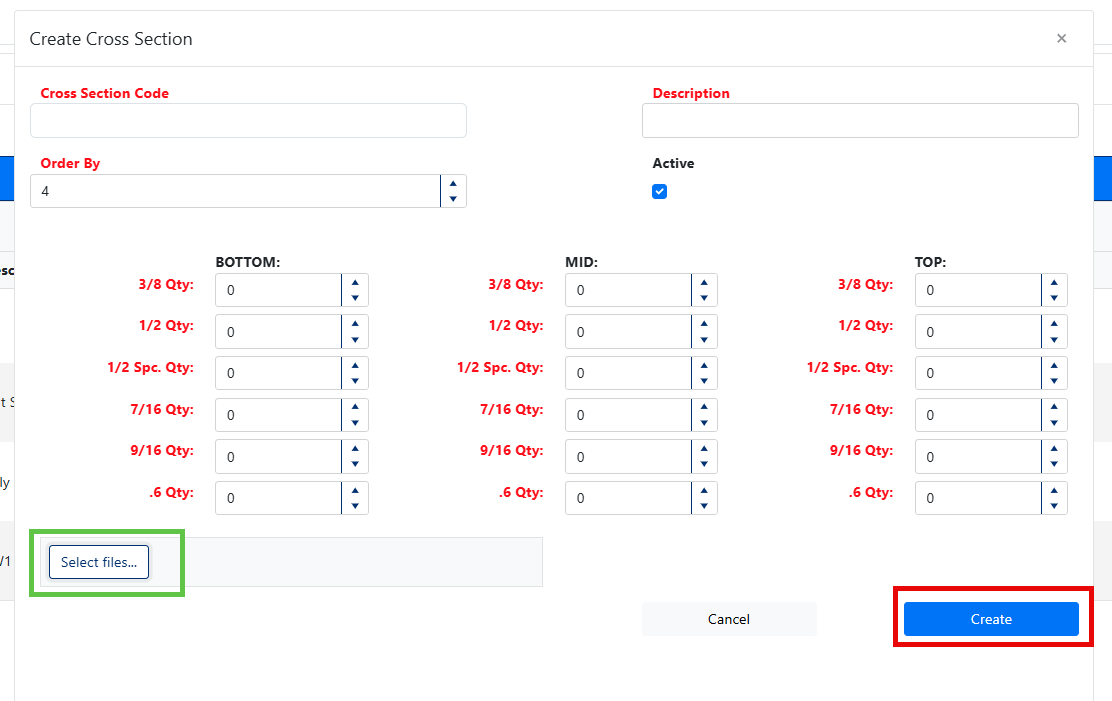
Figure 4
Editing a Product Cross Section
On the Product Cross Sections screen (Figure 4):
- Click on the Edit button (Yellow box, Figure 3) next to the Product Cross Section you wish to edit.
- The cross section will open in a new screen (Figure 5).
- Make any necessary changes to the Product Cross Section details.
- Click on the Save button or Save & Close button (Green box, Figure 5) in the top right corner of the screen to apply your changes.
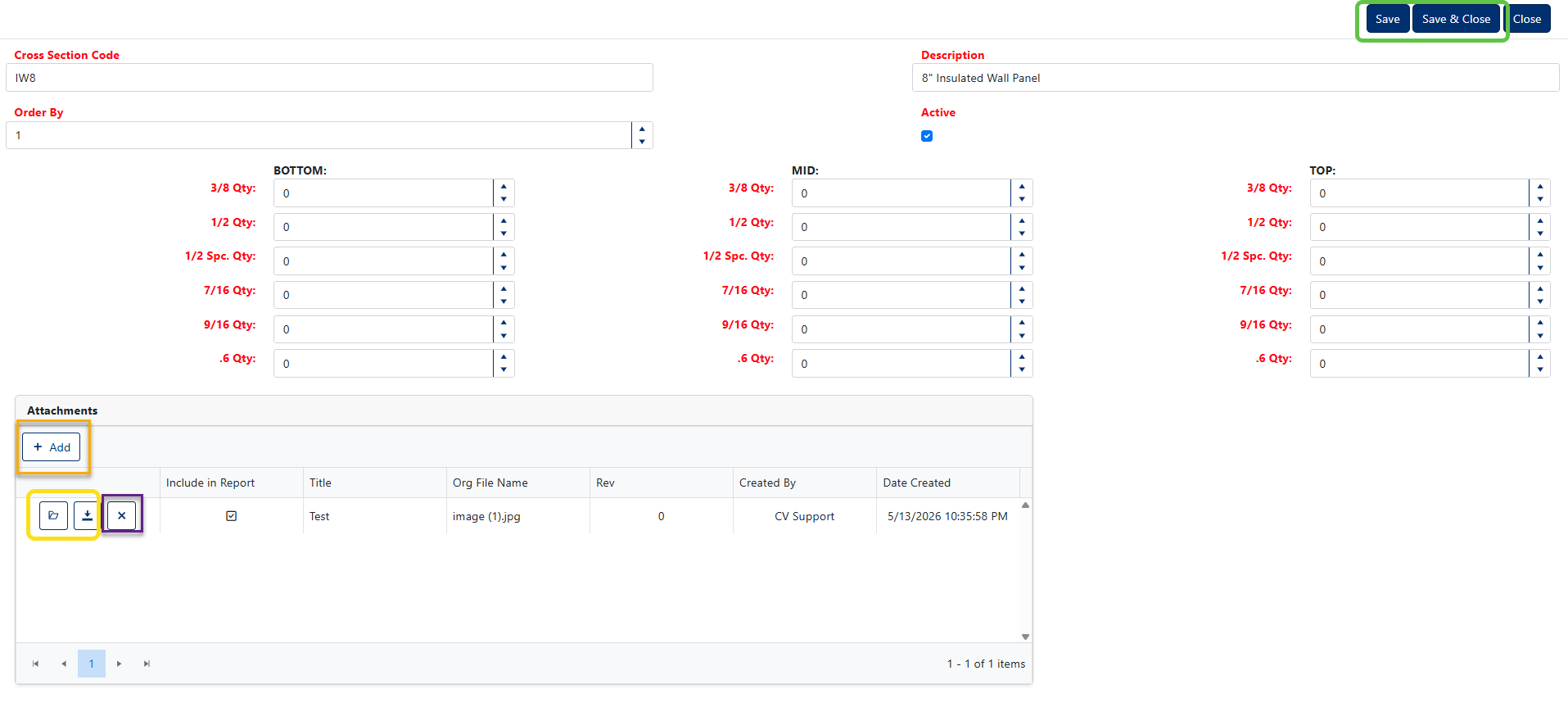
Figure 5
Attachments
Any attachments linked to the current cross section are displayed at the bottom of the edit screen. To add an attachment:
- Click the Add button (Orange box, Figure 5).
- In the Add Attachment popup, enter a title in the Title field (Figure 6).
- Select the file using the Choose File button.
- Click the Update button (Figure 6) to confirm.
- To download or view an attachment, click the corresponding button (Yellow box, Figure 5).
- To delete an attachment, click the X icon (Purple box, Figure 5) on the row of the attachment you wish to remove.
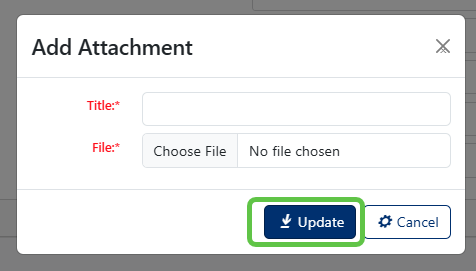
Figure 6
Deleting a Cross Section
On the Product Cross Sections screen (Figure 3):
- Click the Delete Button (Red box, Figure 3) next to the product cross section to delete.
- A confirmation button will appear within the record's action column — click it to confirm the deletion (Green box, Figure 7).
Note: Product cross sections in use cannot be deleted. Instead of deleting a product cross section, it is recommended the cross section be set to Inactive by unchecking the Active checkbox.
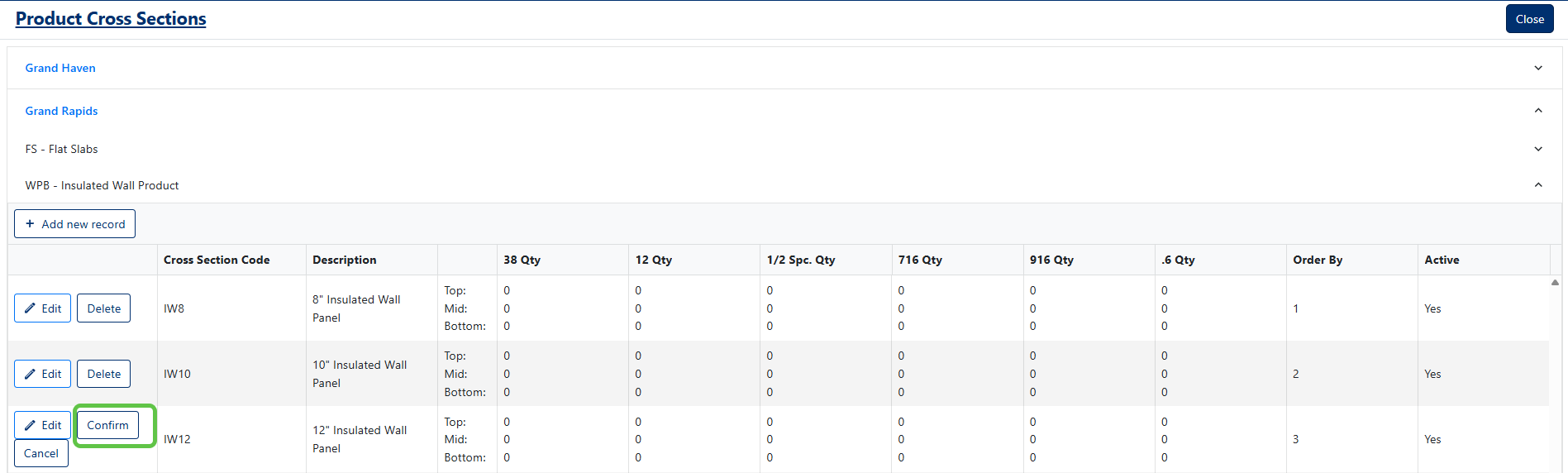
Figure 7
Was this article helpful?
That’s Great!
Thank you for your feedback
Sorry! We couldn't be helpful
Thank you for your feedback
Feedback sent
We appreciate your effort and will try to fix the article