Overview
Piece Mark Templates allow you to standardize and streamline the creation of precast concrete elements by defining reusable templates with material specifications, dimensions, and other production details.
Accessing Piece Mark Templates
Navigate to Accounting > Piece Mark Templates in the main menu to access the Piece Mark Templates management interface.
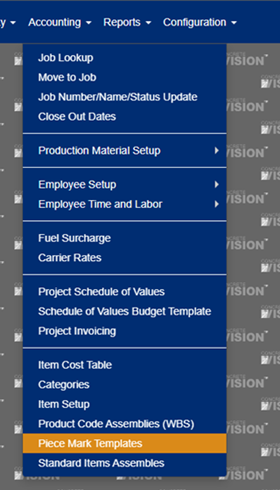
Figure 1
Managing Templates
Viewing Existing Templates
The Piece Mark Templates List screen displays all your current templates in a searchable table format. From this screen, you can:
- View template details including dimensions, product category, and location
- Search and filter templates using the search functionality
- Access actions for editing, copying, or managing templates
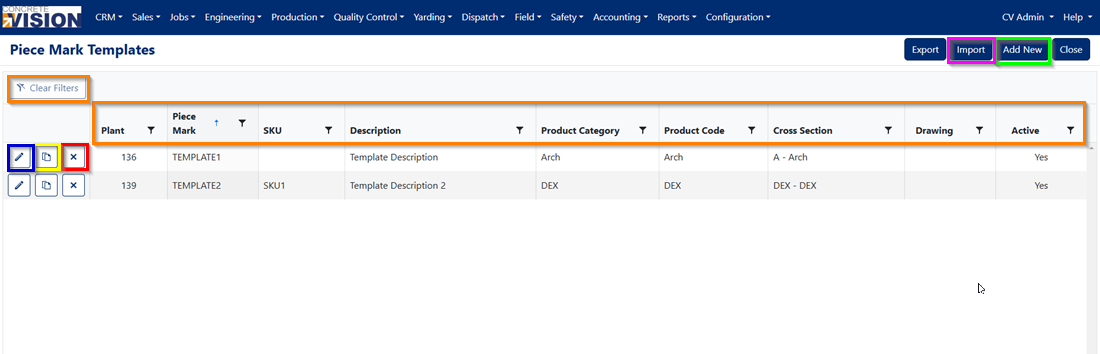
Figure 2
Creating a New Template
To create a new Piece Mark Template:
- Click the Add New button from the templates list (Green box, Figure 2)
- Complete the template information form with the following details:
Required Fields
- Description: Unique identifier for the template
- Location: Production or storage location
- Production Category: Type classification for production planning
- Product Code: Standard product identification code
- Cross Section: Cross-sectional specification
Optional Fields
- Active: Toggle to enable/disable template (checked by default)
- File: Upload piece mark drawings or documentation
- Note: Additional notes or specifications
- Rev: Revision number
- Rev Text: Revision description
- Rev Date: Date of last revision
- Return Legs: Specific measurement details
- Dimensions: Length, Width, Depth, Weight
- Concrete Specifications: Struct CY, Arch CY, Struct SF, Arch SF
- Release Information: Release Str, 28 Day Release
- Bracing Details: Brace Type, Brace Qty
- Additional Work Items: Add Work 1-6 (customizable fields)
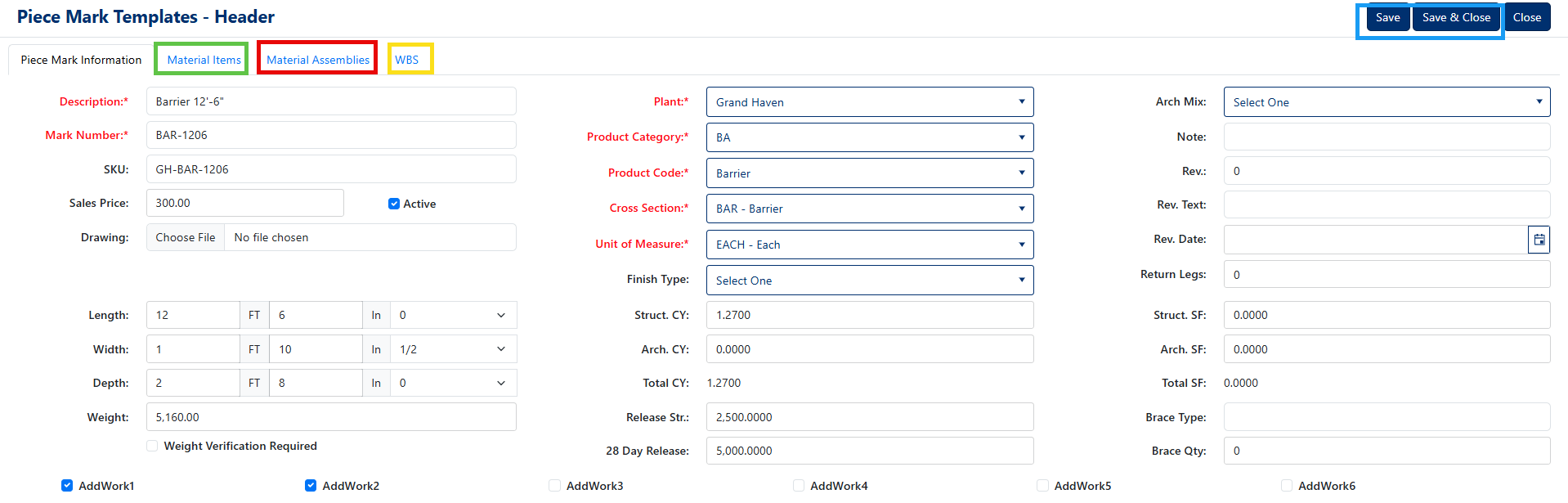
Figure 3
Editing Existing Templates
To modify an existing template:
- Locate the template in the list
- Click the Edit button for the desired template (Blue box, Figure 2)
- Update the necessary fields
- Save your changes (Blue box, Figure 3)
The edit form contains the same fields as the creation form, allowing you to modify any aspect of the template.
Working with Materials
Material Items Tab
The Material Items tab allows you to specify individual materials required for the piece mark template.

Figure 4
Adding Material Items
- Navigate to the Material Items tab (Green box, Figure 3)
- Click Add New (Red box, Figure 4)
- Complete the material details:
- Category: Select from dropdown (required)
- Material Item: Specific material identifier
- Quantity: Required amount
- Dim Length: Material dimension length
- Click Save to save new Material Item (Green box, Figure 5)
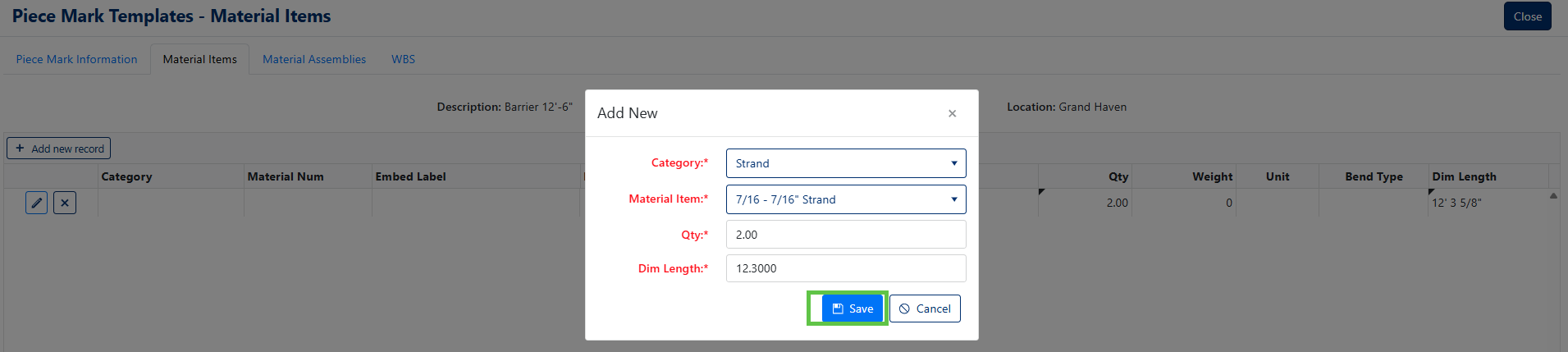
Figure 5
Editing Existing Material Items
To modify an existing Material Item:
- Locate the Material Item in the list
- Click the Edit button for the desired Item (Blue box, Figure 2)
- Update the necessary fields
- Save your changes (Green box, Figure 6)
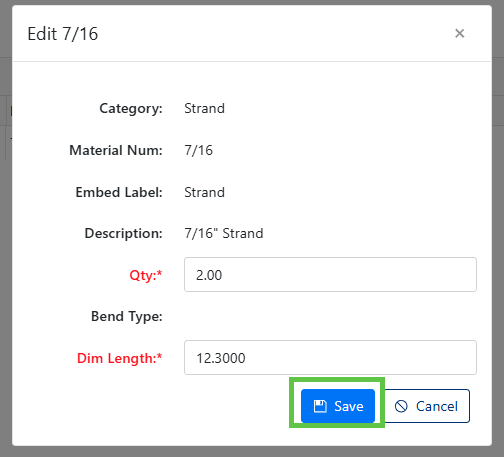
Figure 6
Removing Material Items
To delete existing material items:
- Locate the material in the list
- Click the Delete button next to the item (Yellow box, Figure 2)
- Confirm the deletion
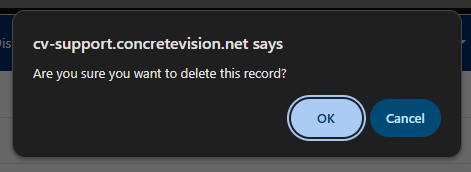
Figure 7
Material Assemblies Tab
The Material Assemblies tab manages pre-configured groups of materials that work together as assemblies.
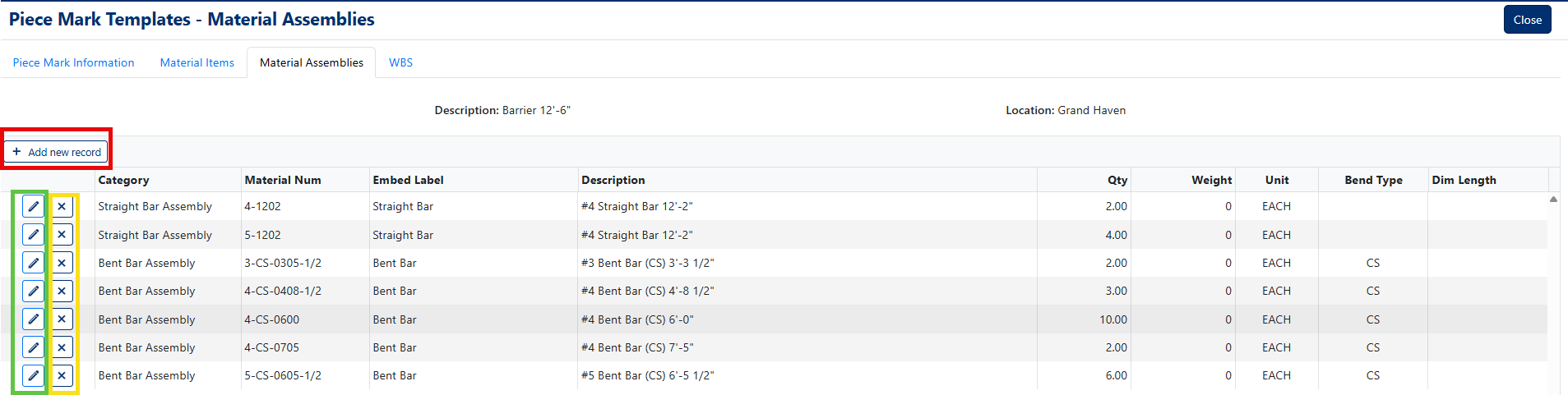
Figure 8
Adding Material Assemblies
- Click the Material Assemblies tab
- Click Add New (Red box, Figure 8)
- Specify assembly details:
- Category: Assembly classification (required)
- Description: Assembly name/description (required)
- Quantity: Number of assemblies needed
- Weight: Total assembly weight
- Unit: Unit of measure
- Base Type: Assembly classification
- Qty Length: Dimensional quantity
- Click Save to save new Material Item (Green box, Figure 9)
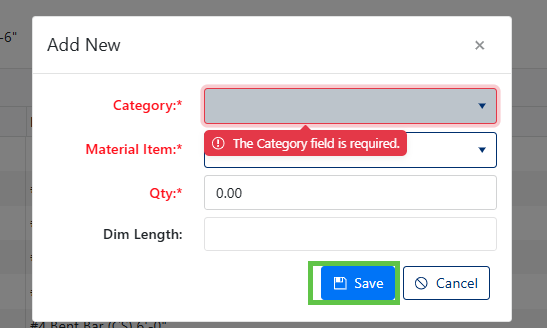
Figure 9
Editing Existing Material Assemblies
To modify an existing Material Assembly:
- Locate the Material Assembly in the list
- Click the Edit button for the desired Material Assembly (Green box, Figure 8)
- Update the necessary fields
- Save your changes (Blue box, Figure 10)
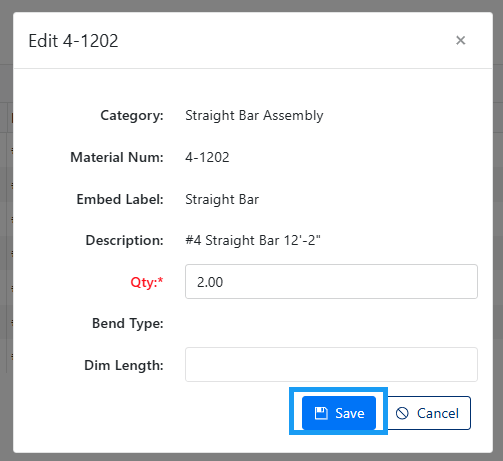
Figure 10
Removing Material Assemblies
To delete existing material Assembly:
- Locate the material assembly in the list
- Click the Delete button next to the item (Yellow box, Figure 8)
- Confirm the deletion (Figure 11)
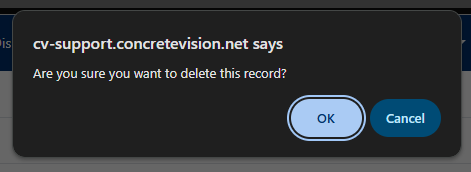
Figure 11
Product Code Assemblies
The Product Code Assemblies tab allows you to specify individual Product Code required for the piece mark template.

Figure 12
Adding Product Code Assemblies
- Click the WBS tab
- Click Add New (Red box, Figure 8)
- Specify WBS details
- Click Save to save new Product Code Assembly (Green box, Figure 13)
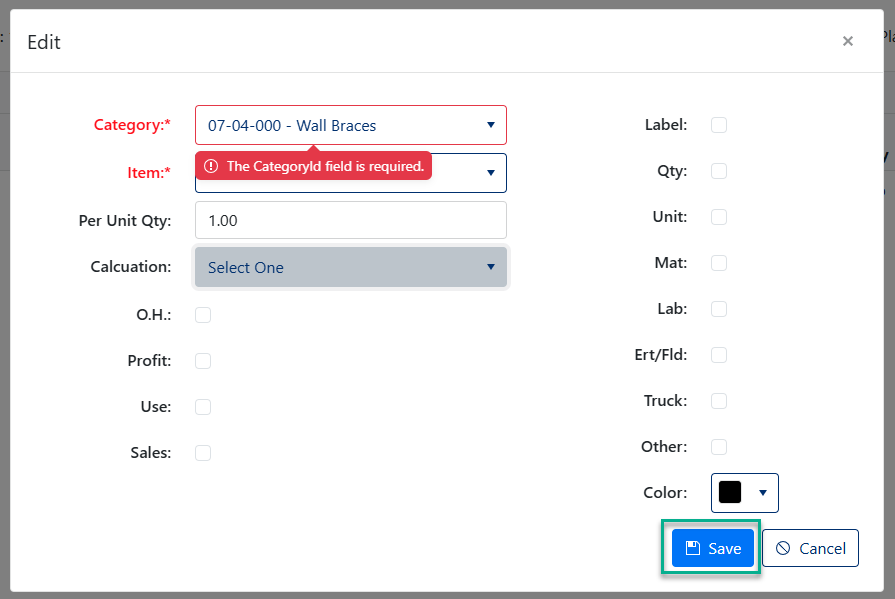
Figure 13
Editing Existing Product Code Assemblies
To modify an existing Product Code Assembly:
- Locate the Product Code in the list
- Click the Edit button for the desired Product Code (Green box, Figure 12)
- Update the necessary fields
- Save your changes (Green box, Figure 13)
Removing Product Code Assemblies
To delete existing Product Code:
- Locate the Product Code Assembly in the list
- Click the Delete button next to the item (Purple box, Figure 12)
- Confirm the deletion (Figure 14)
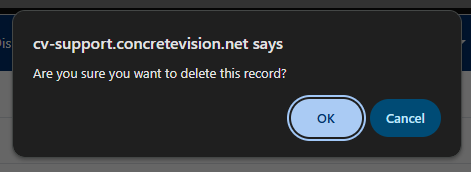
Figure 14
Copying Templates
To duplicate an existing template:
- From the templates list, locate the template you want to copy
- Click the Copy button next to the template (Yellow box, Figure 2)
- The system will create a duplicate template that you can then modify as needed
This feature is particularly useful when creating similar templates or when you want to use an existing template as a starting point for a new one.
Was this article helpful?
That’s Great!
Thank you for your feedback
Sorry! We couldn't be helpful
Thank you for your feedback
Feedback sent
We appreciate your effort and will try to fix the article