Overview
Behavioral Based Safety Observations (BBSOs) are recorded observations to improve worker safety and reduce risk. BBSOs typically involve managers and other appointed observers watching tasks and operations while making notes and suggestions to improve safety. The Behavioral Based Observations screen acts as a place where these observations can be reported.
Note: You need to have a Safety team setup or at least 1 person setup for the Safety Module to work correctly.
Accessing the Screen
Navigate to Safety > Behavioral Based Observations from the main menu (Figure 1).

Figure 1
Using the Behavioral Based Observations Screen
Observation reports are entered into the blank form on the Behavioral Based Observations screen (Figures 2,3 & 4).
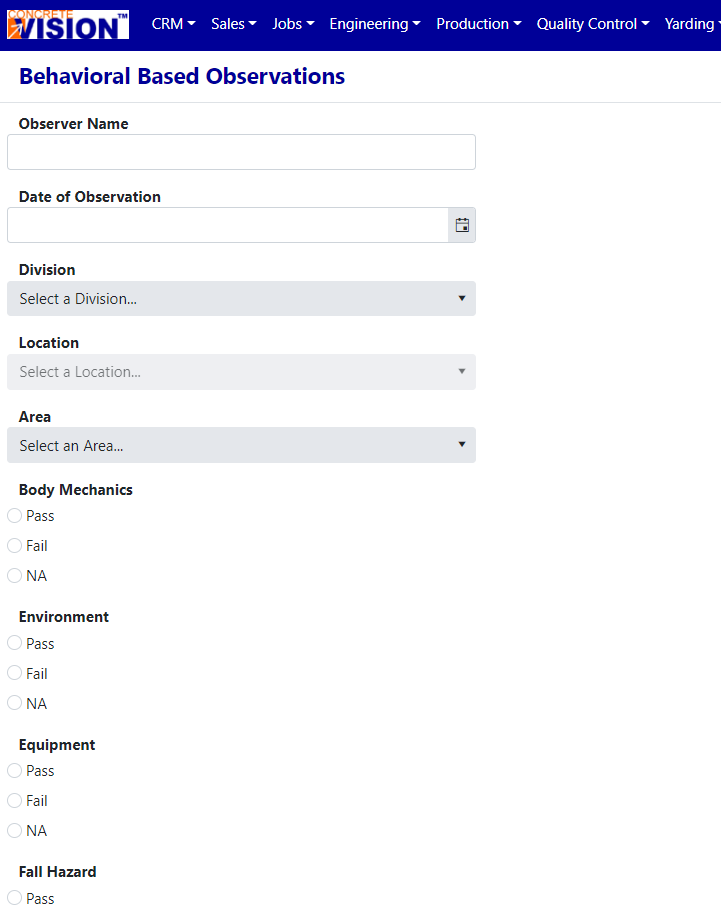
Figure 2
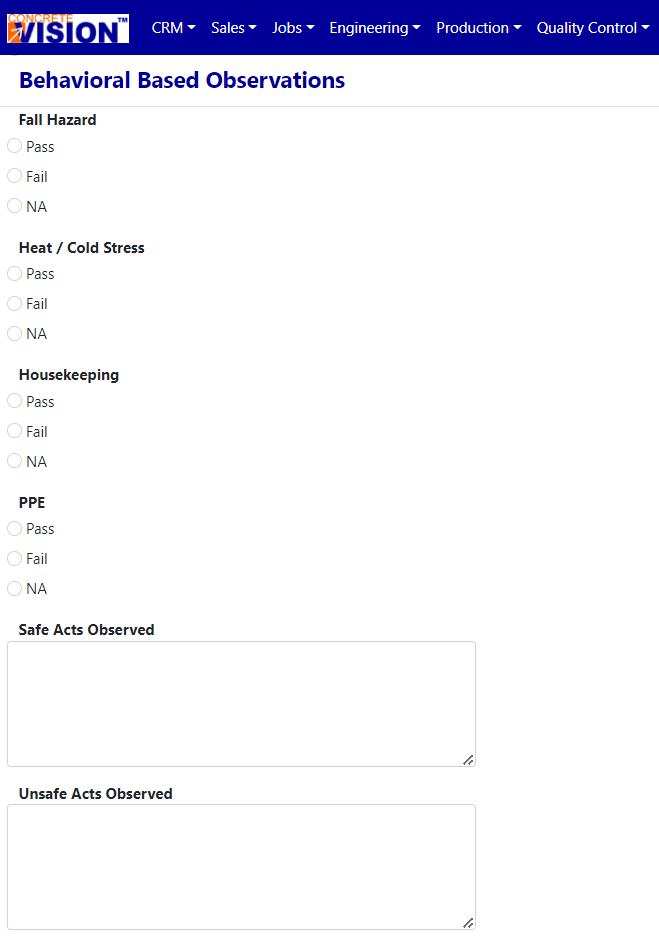
Figure 3
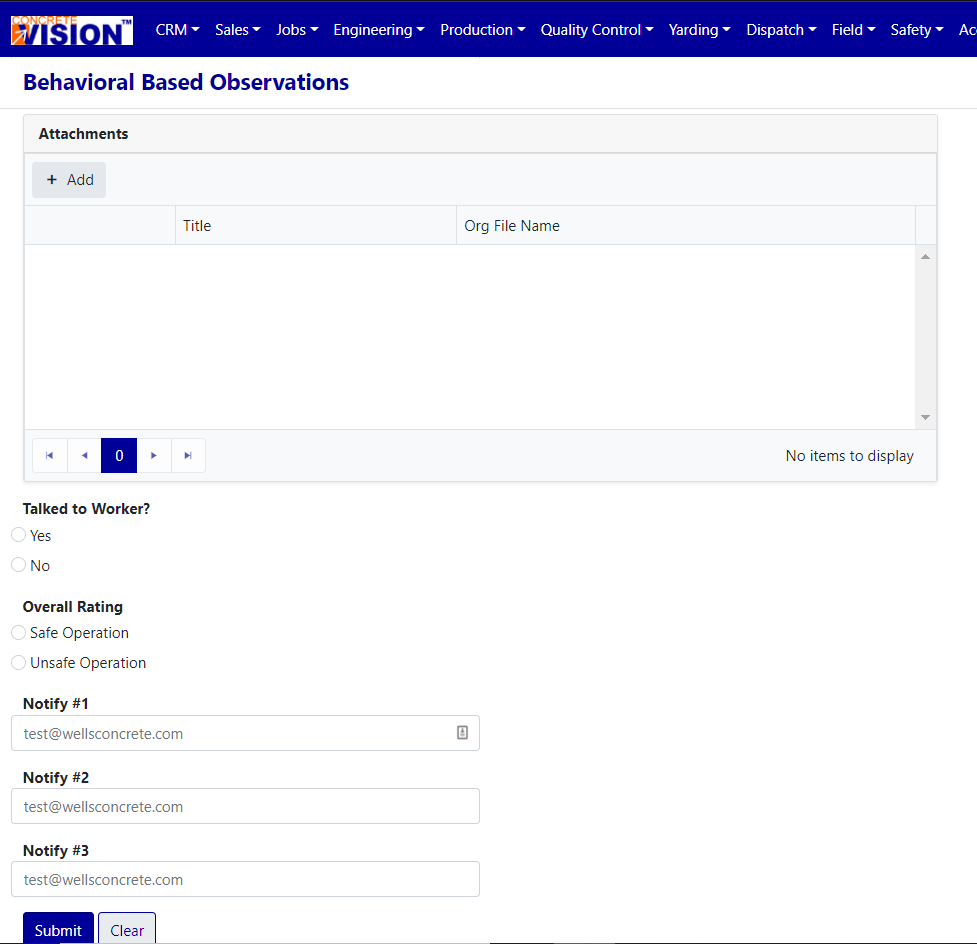
Figure 4
Create a New Behavioral Based Safety Observation
From the Behavioral Based Observations screen:
- Fill out the form.
- Click the Submit button.
- Wait half a second for the form to validate. A green success message will display.
- After a successful submission, the same page, with a new blank form will load (to expedite use-cases where multiple forms are needed).
Note: If the form does not validate, the page will scroll to the top and list which fields were invalid and need fixing.
Date of Observation
Click the Date of Observation dropdown to display a calendar. Scroll by month or even year to select the date (Red box in Figure 5).
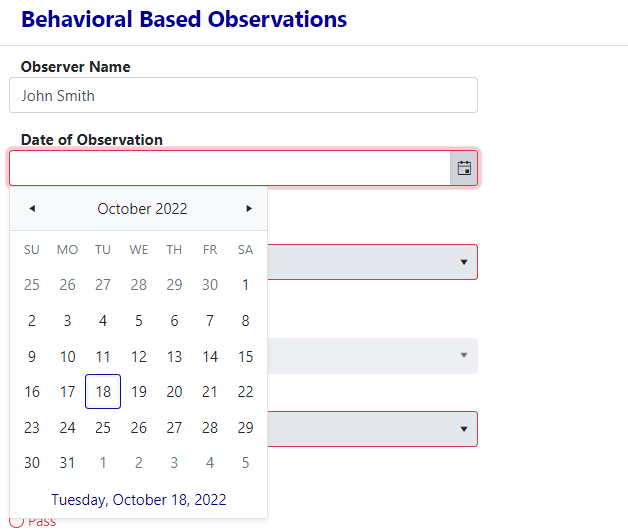
Figure 5
Division & Location
A selection on the Division dropdown (Figure 6) must be made before a selection on the Location dropdown can be made (Figure 7).
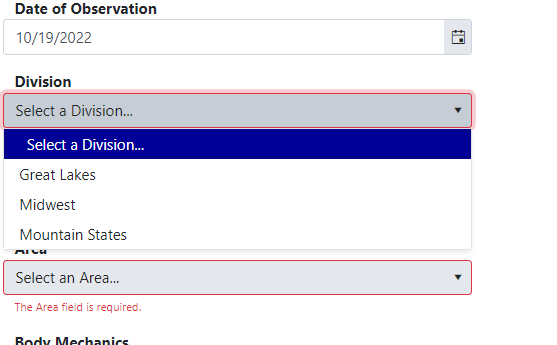
Figure 6
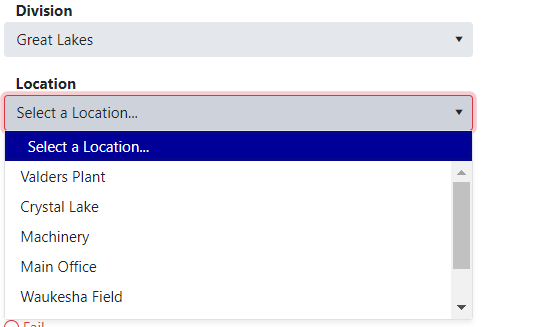
Figure 7
Attachments
The Attachment field will let you add attachments to the BBO (Figure 8).
 will open the attachment in a separate browser window.
 will download the attachment.
 will delete the attachment.
 will open a dialog to upload a new attachment. You can rename the file. (Figure 9).


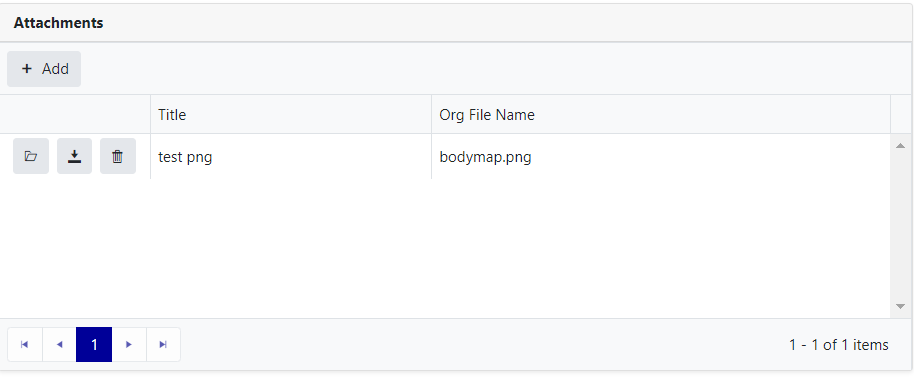
Figure 8
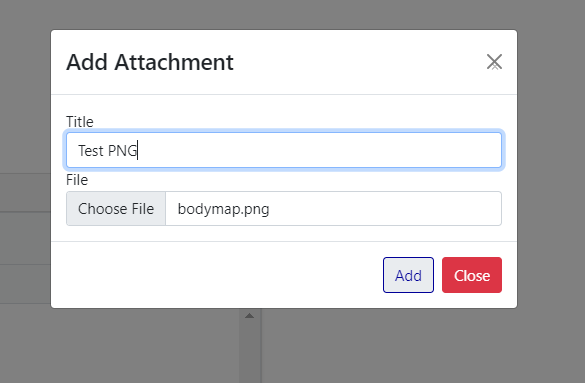
Figure 9
Notify Safety Team Contact
You can select 2 contacts from the list to receive a notification email that a BBO has been filled out. Also, you can type in an email for the third email. (Figure 10).
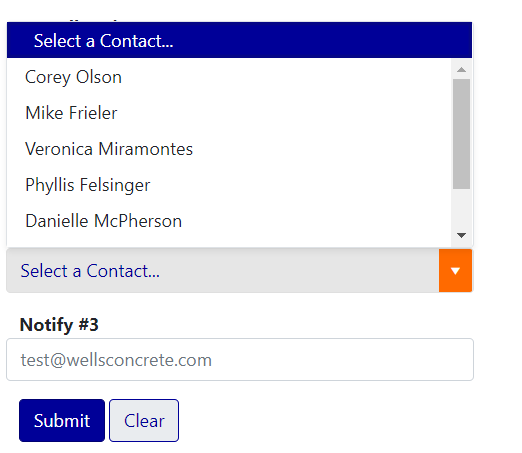
Figure 10
Adding or Removing Contacts
To add or remove contacts from the contact dropdown, visit Configuration > CRM Setup > Contact Dropdown Setup. Edit the Safety Team role (Figure 11).
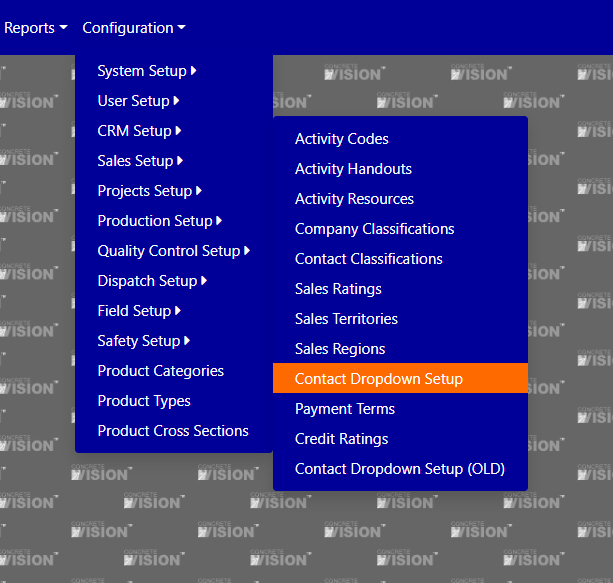
Figure 11
Was this article helpful?
That’s Great!
Thank you for your feedback
Sorry! We couldn't be helpful
Thank you for your feedback
Feedback sent
We appreciate your effort and will try to fix the article