Overview
Observation Topics are custom labels of dropdown fields that can be added to the Behavioral Based Observations screen. Topic Options are custom options assigned to an observation topic dropdown field.
Accessing the Screen
Navigate to Configuration > Safety Setup > Observation Topics from the main menu (Figure 1).
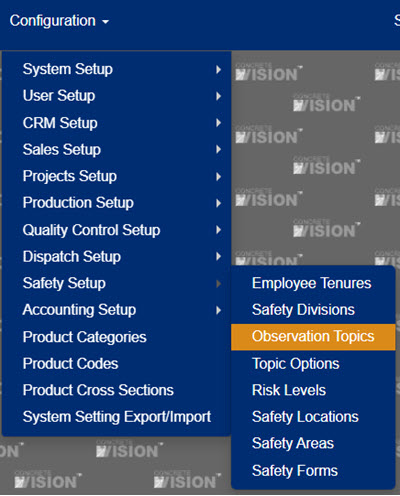
Figure 1
Adding a New Observation Topic
From the Observation Topics screen (Figure 2):
- Click the Add New Record button (green box in Figure 2). An Add New popup window (Figure 3) will appear.
- Enter a Description for the new observation topic.
- Check the box to make the topic active in CV.
- Select the Order By number to determine display order in the safety form.
- Click the Save button in the Add New window (Figure 3).
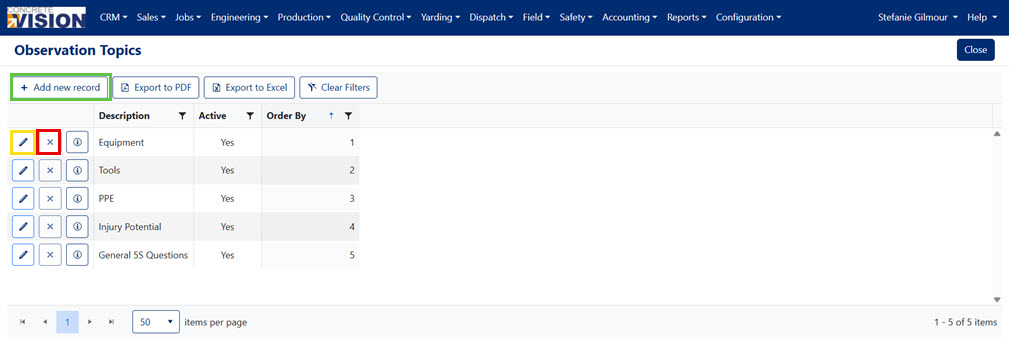
Figure 2
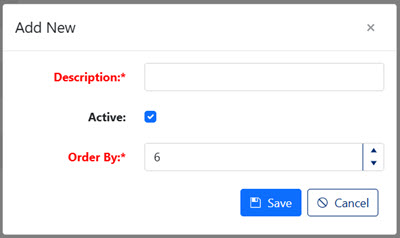
Figure 3
Editing an Observation Topic
From the Observation Topics screen (Figure 2):
- Click the Edit icon (yellow box in Figure 2) next to the topic. An Edit popup window will appear.
- Make any needed edits.
- Click the Save button.
Deleting an Observation Topic
From the Observation Topics screen (Figure 2):
- Click the Delete icon (red box in Figure 2) next to the topic.
- Confirm deletion by clicking the Okay button.
Note: An observation topic cannot be deleted if it is being used in a safety form.
Was this article helpful?
That’s Great!
Thank you for your feedback
Sorry! We couldn't be helpful
Thank you for your feedback
Feedback sent
We appreciate your effort and will try to fix the article