Overview
The Stressing Jacks screen is part of the configuration needed in Concrete Vision to complete Stressing Calculations on production beds.
Accessing the Screen
Navigate to Configuration > Production Setup > Stressing Jacks from the main menu (Figure 1).
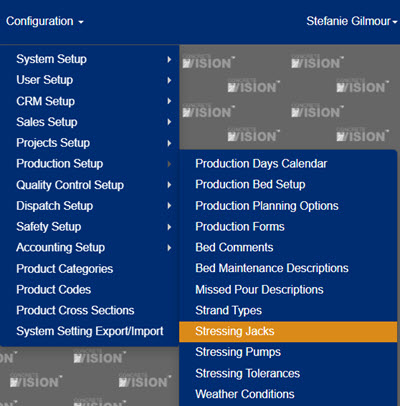
Figure 1
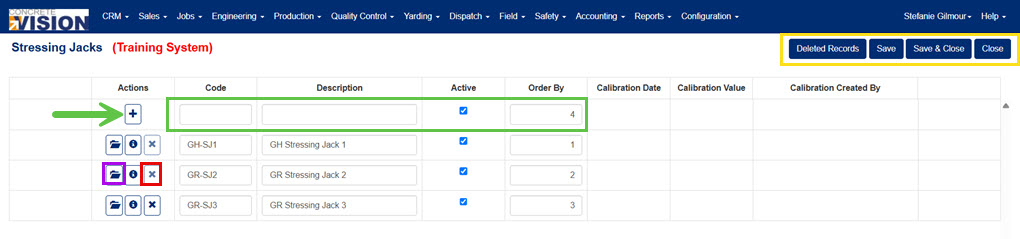
Figure 2
Understanding the Stressing Jacks Fields
- Code: a unique 10 character code for each stressing jack.
- Description: the full description of each stressing jack.
- Active: a checkbox that indicates if the stressing jack is active or not, if not active it will not show up on any screens.
- Order By: used to sort how the stressing jacks will be shown on screens.
Add a Stressing Jack
From the Stressing Jacks screen (Figure 2):
- Fill in the top row (green box in Figure 2) of the stressing jacks table.
- Click the “+” button (green arrow in Figure 2) to add the new Stressing Jack.
Edit a Stressing Jack
From the Stressing Jacks screen (Figure 2):
- Change the values on the row of the stressing jack to edit.
- Click the Save button (yellow box Figure 2) to save info and remain on the screen or the Save & Close button (yellow box Figure 2) to save info and close the screen.
Delete a Stressing Jack
From the Stressing Jacks screen (Figure 2):
- Click the Delete icon (red box in Figure 2) of the corresponding row of the stressing jack to delete.
- Click Okay to confirm deletion.
Note: Stressing Jacks can not be deleted if associated with any stressing calculations.
Stressing Jack Calibration
From the Stressing Jacks screen (Figure 2):
- Click on the Open icon (purple box in Figure 2) of the corresponding row. A Stressing Jack Calibration pop up window will display.
- Fill in the blank fields, Calibration Date and Calibration Value (yellow box in Figure 3).
- Click the “+” button (yellow arrow in Figure 3).
- Click the Close button (red box in Figure 3) to exit back to the Stressing Jacks screen.
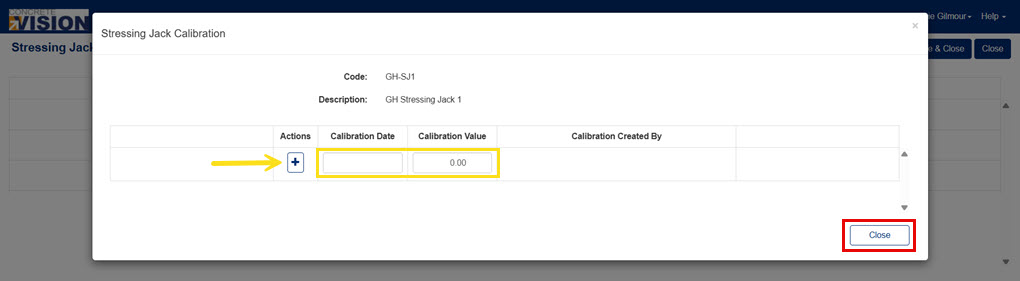
Figure 3
Was this article helpful?
That’s Great!
Thank you for your feedback
Sorry! We couldn't be helpful
Thank you for your feedback
Feedback sent
We appreciate your effort and will try to fix the article