Overview
The Strand Types screen (Figure 3) holds data on the different types of strand used in prestressed concrete pieces. Values entered in the fields typically comes from the PCI Design Handbook and are assigned during the Production scheduling of plant beds (Figure 2).
Accessing the Screen
Navigate to Configuration > Production Setup > Strand Types from the main menu (Figure 1).
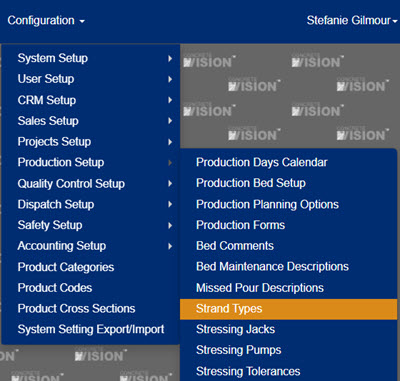
Figure 1
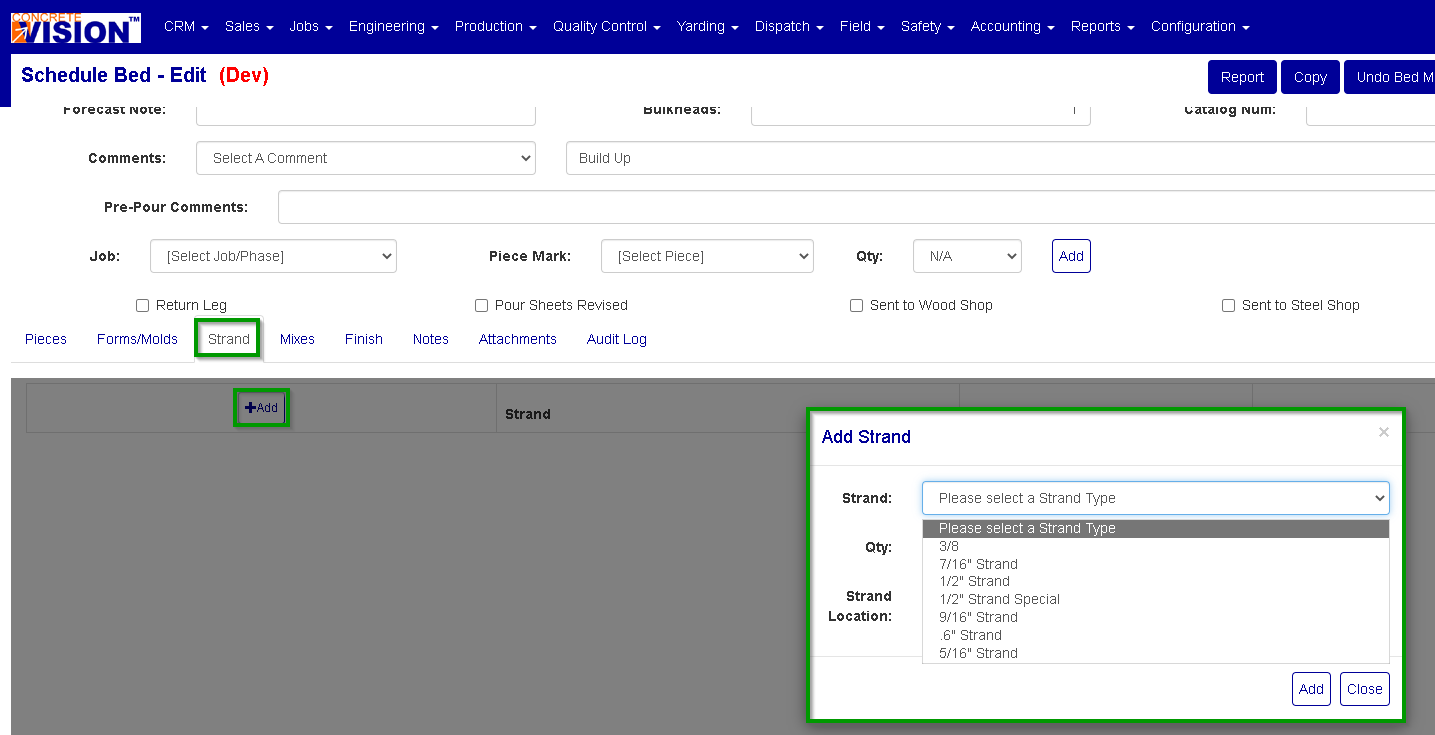
Figure 2
Using the Strand Types Screen
The Strand Types screen (Figure 3) allows adding, editing, and deleting of strand sypes.
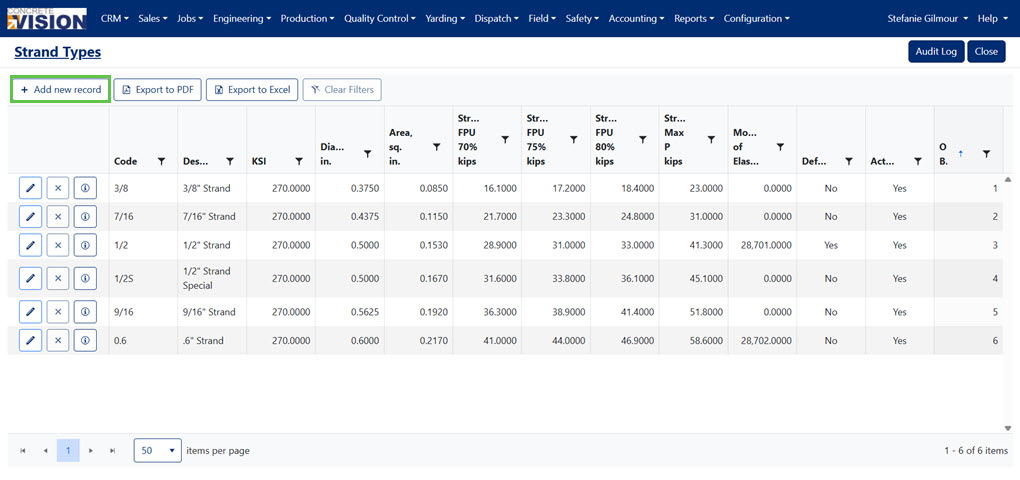
Figure 3
Add a Strand Type
Exact specification for strand types should be provided by the manufacturer with your strand order. To add a new strand type to Concrete Vision from the Strand Types screen (Figure 3):
- Click the Add new record button (Green box in Figure 3). This will open the Add New dialog window (Figure 4).
- Enter a Description.
- Enter the Code as a unique 4 character code.
- Enter the KSI is the type of strand.
- Enter the Diameter, in. is the strand diameter in inches.
- Enter the Area, sq. in.
- Enter the Strand Max P kips.
- Enter the Strand FPU 70% kips.
- Enter the Strand FPU 75% kips.
- Enter the Strand FPU 80% kips.
- Enter the Modulus of Elasticity.
- Default Value is a checkbox that indicates that this strand type should be the default selection in drop downs on screens.
- Active is a checkbox that indicates if this strand type is active or not, if not active it will not show up on any screens.
- Enter or Change the Order By.
- Click the Update button on the Add New dialog (green box in Figure 4).
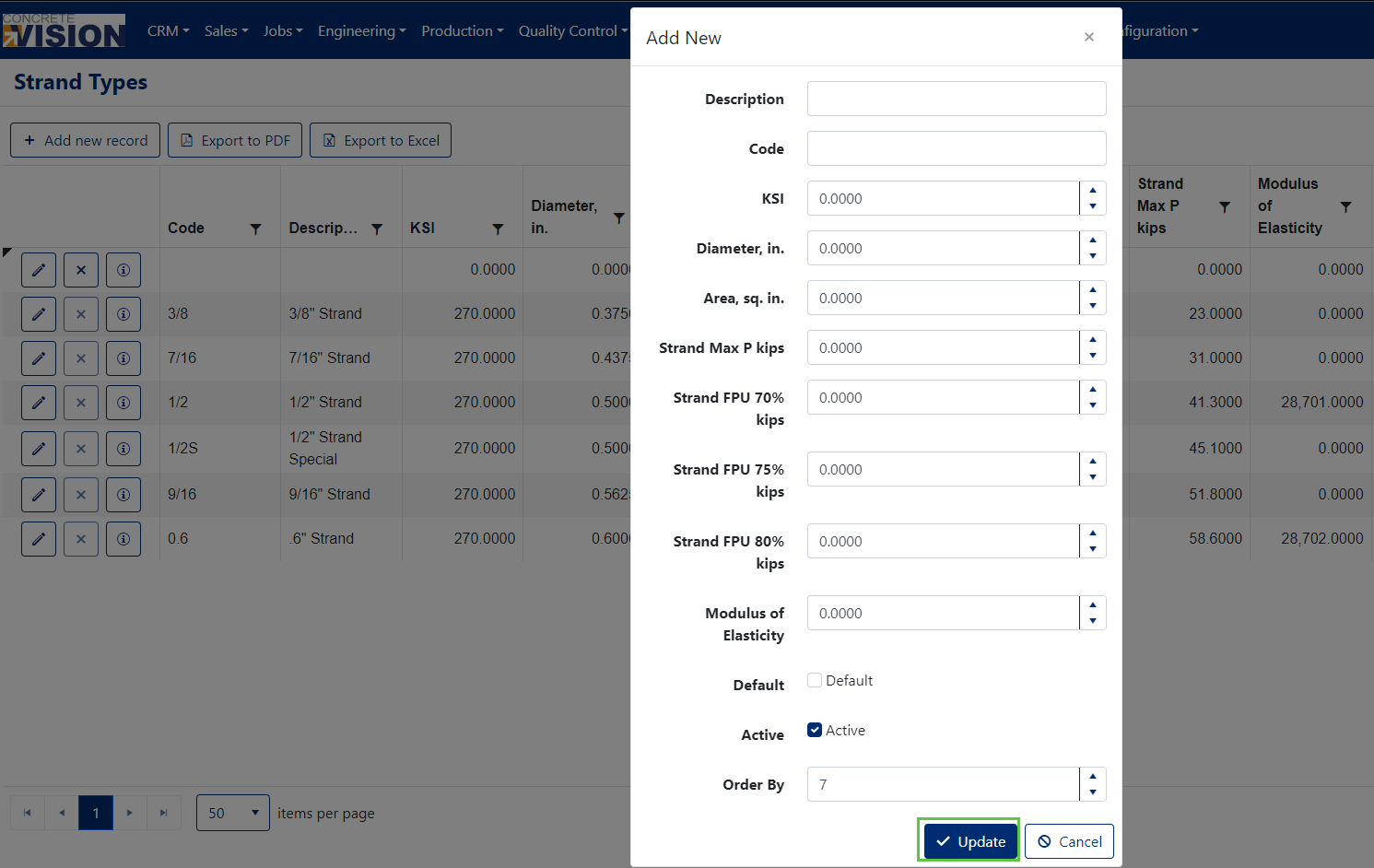
Figure 4
Edit a Strand Type
From the Strand Types screen (Figure 3):
- Click the Edit icon (green box in Figure 5) to the left of the strand type to modify. This will open the edit dialog window (Figure 6).
- Edit any values as needed.
- Click the Update button (green box in Figure 6).
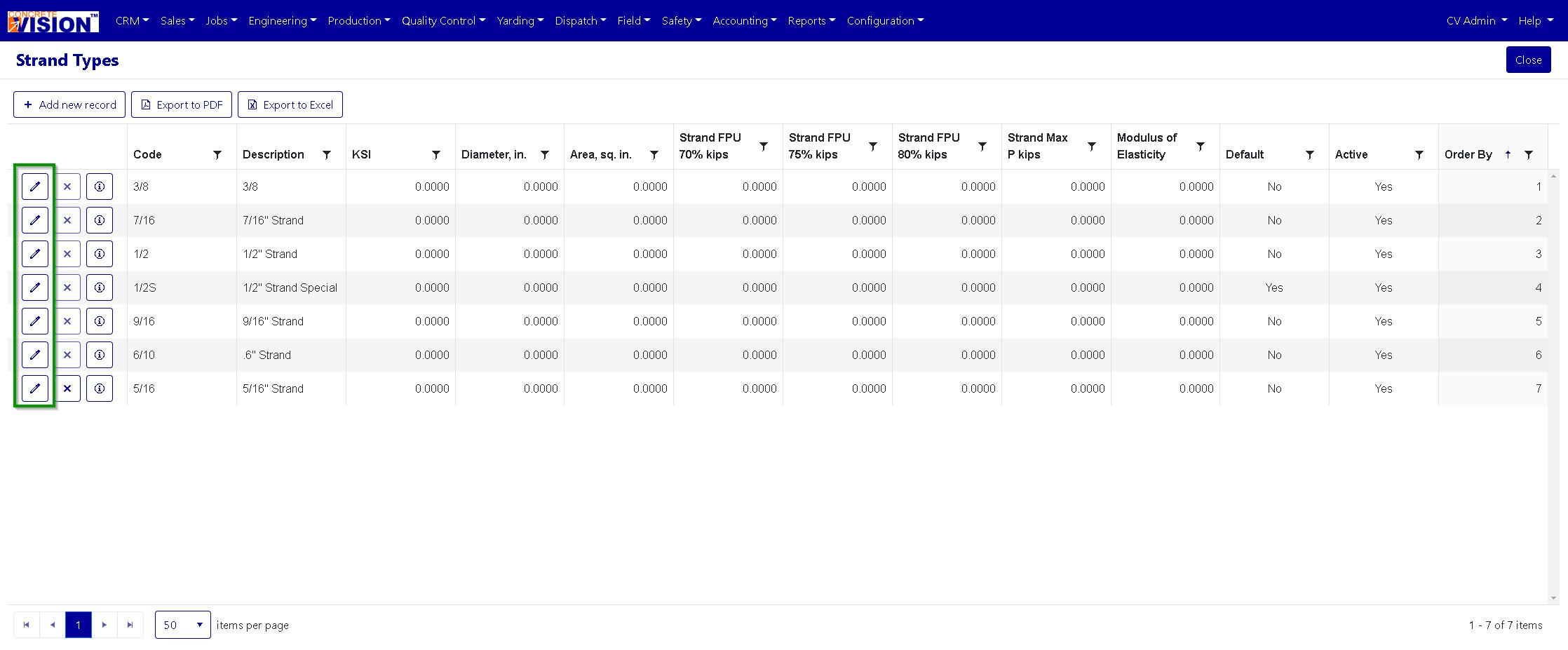
Figure 5
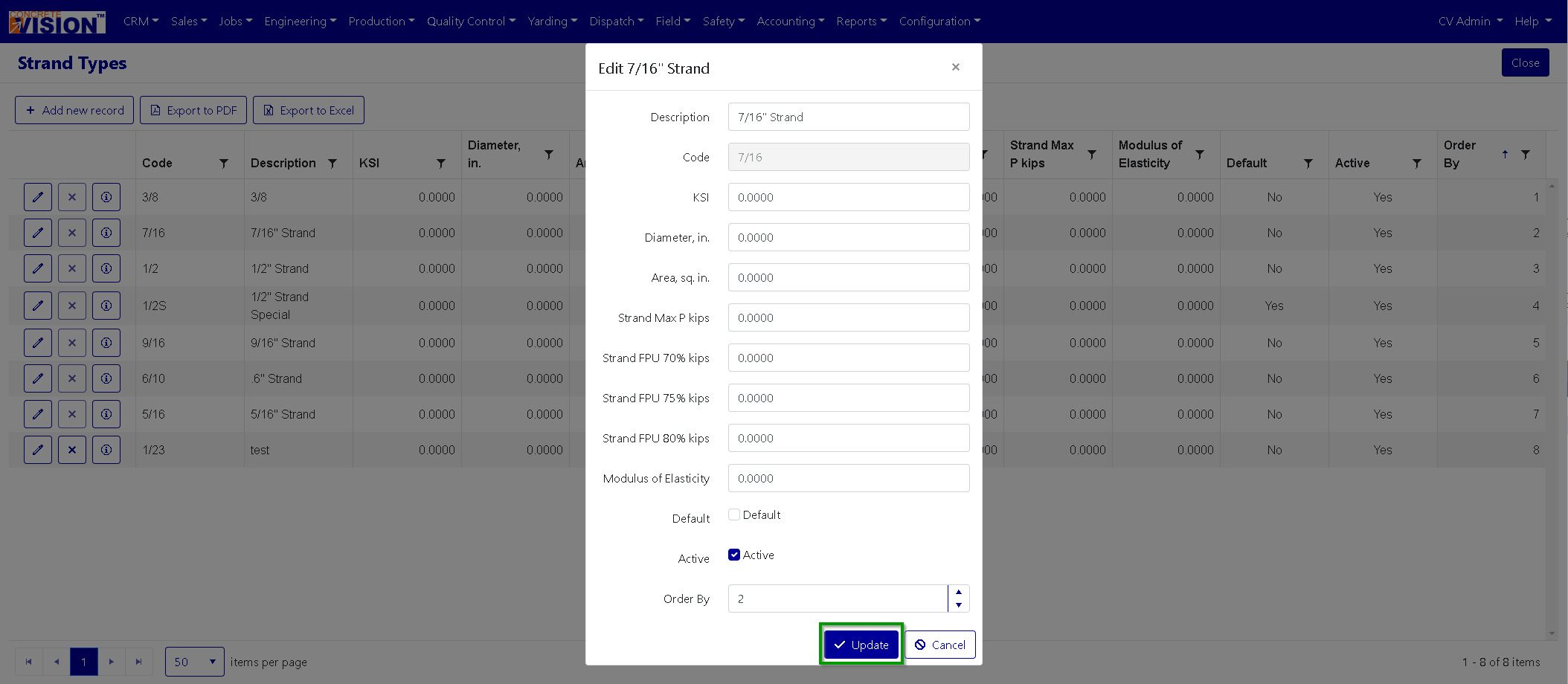
Figure 6
Delete Strand Type
From the Strand Types screen (Figure 3):
- Click the Delete icon (Red box Figure 7) of the corresponding row of the strand type to delete.
- Click Okay to confirm deletion of strand type.
Note: Strand Types cannot be deleted if associated with any beds.
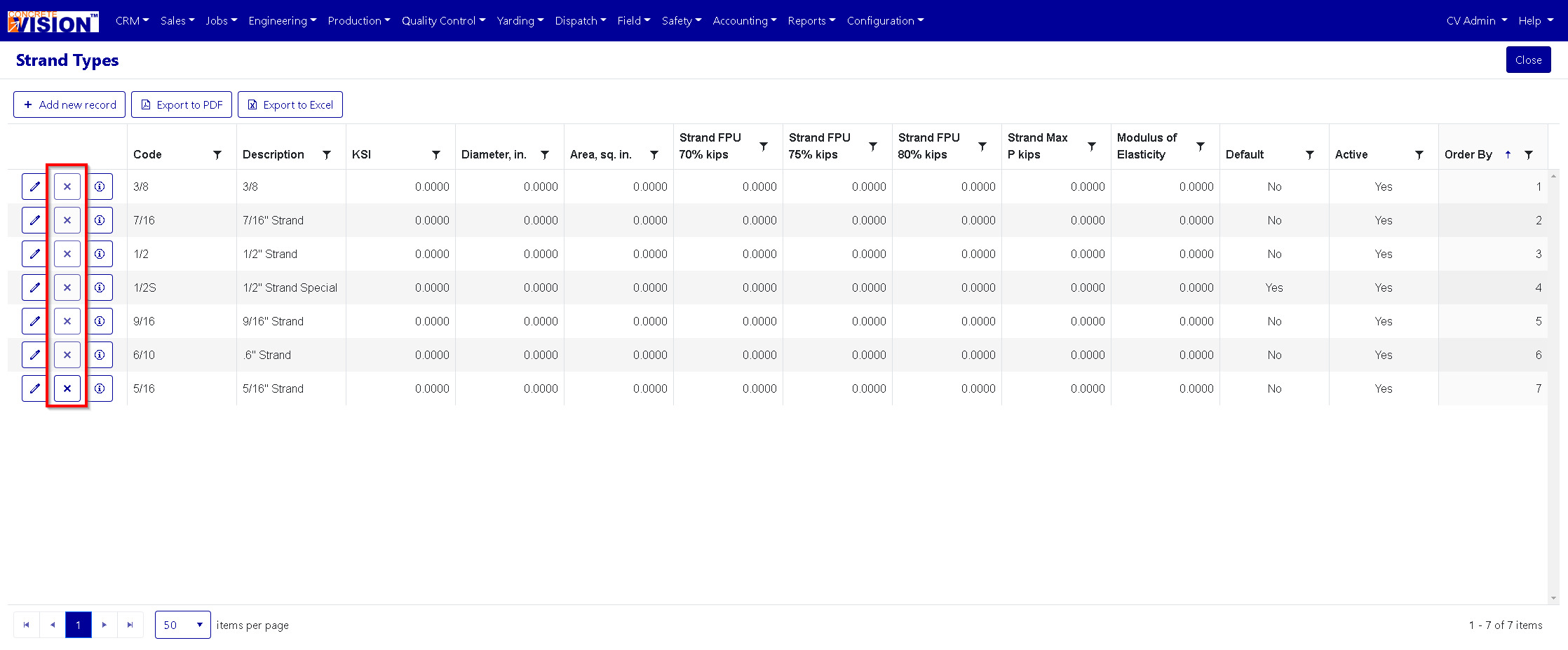
Figure 7
Was this article helpful?
That’s Great!
Thank you for your feedback
Sorry! We couldn't be helpful
Thank you for your feedback
Feedback sent
We appreciate your effort and will try to fix the article