Overview
The Carrier Rates screen defines and manages shipping carrier rates. Use these specified carrier rates to keep an eye on market developments and potential cost-saving opportunities.
Accessing the Screen
To get to the Carrier Rates screen, navigate to Accounting > Carrier Rates from the main menu (Figure 1).
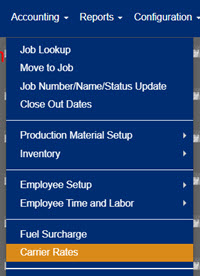
Figure 1
Using the Carrier Rates Screen
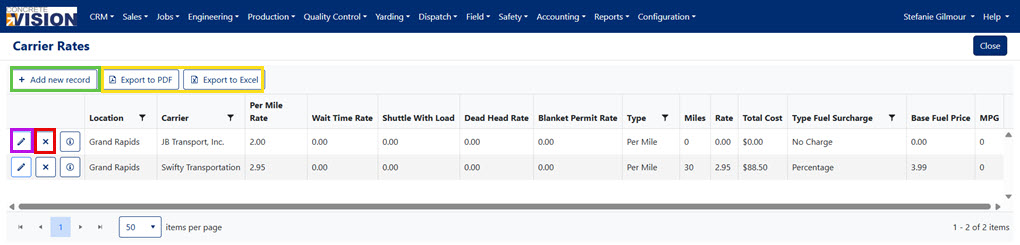
Figure 2
Adding New Carrier Rates
From the Carrier Rates screen (Figure 2):
- Click the Add New Record button (green box in Figure 2). A popup window will appear (Figure 3).
- Select a Location from the dropdown.
- Select a Carrier from the dropdown (Must select one)
- Per Mile Rate (Must be a non negative number)
- Wait Time Rate (Must be a non negative number)
- Shuttle Time Rate (Must be a non negative number)
- Dead Head Rate (Must be a non negative number)
- Blanket Permit Rate (Must be a non negative number)
- Select a rate Type from the dropdown.
- Miles (Must be non negative number)
- Rate (Must be non negative number)
- Type Fuel Charge
- Base Fuel Base (Must be non negative number)
- MPG (Must be non negative number)
- Click the Save button to add the new Carrier Rate.
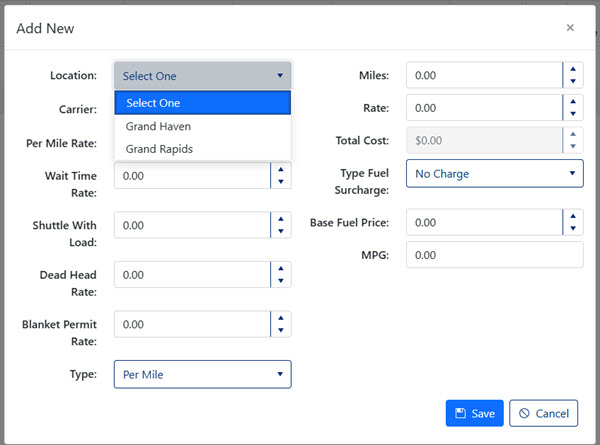
Figure 3
Edit Carrier Rates
From the Carrier Rates screen:
- Click the Edit button to the left the carrier rate to edit (purple box in Figure 2). An Edit Item window will appear (Figure 4).
- You can change the Per Mile Rate (Must be a non negative number)
- You can change the Wait Time Rate (Must be a non negative number)
- You can change the Shuttle Time Rate (Must be a non negative number)
- You can change the Dead Head Rate (Must be a non negative number)
- You can change the Blanket Permit Rate (Must be a non negative number)
- You can select a new Type
- You can change the Miles (Must be non negative number)
- You can change the Rate (Must be non negative number)
- You can select a new Type Fuel Charge
- You can change the Base Fuel Base (Must be non negative number)
- You can change the MPG (Must be non negative number)
- Click the Save button to add the new Carrier Rate.
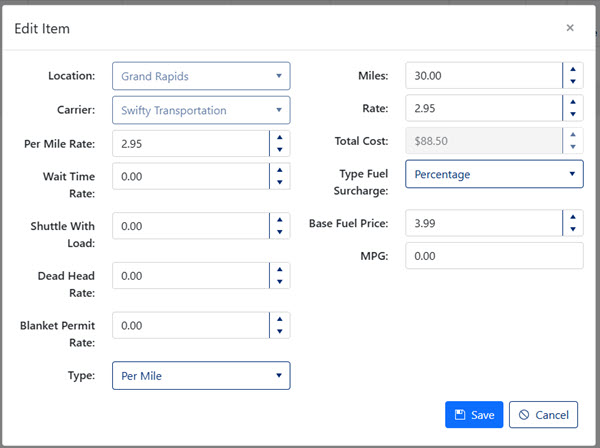 Figure 4
Delete Carrier Rates
From the Carrier Rates screen:
- Click on the Delete icon (red box in Figure 2) on the row associated to the rates to delete.
- Confirm you would like to delete the rates.
Export Carrier Rates
The carrier rates table can be exported (yellow box in Figure 2) from Concrete Vision.
- Click the Export to PDF button to download a pdf of the table.
- Click the Export to Excel button to download an Excel file of the table.
Was this article helpful?
That’s Great!
Thank you for your feedback
Sorry! We couldn't be helpful
Thank you for your feedback
Feedback sent
We appreciate your effort and will try to fix the article