To get to the Carrier Rates screen, use the Accounting tab on the main menu at the top of the screen, then click on Carrier Rates (Figure 1 below).
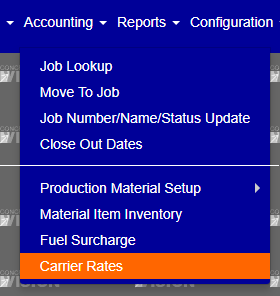
Figure 1
Adding Carrier Rates
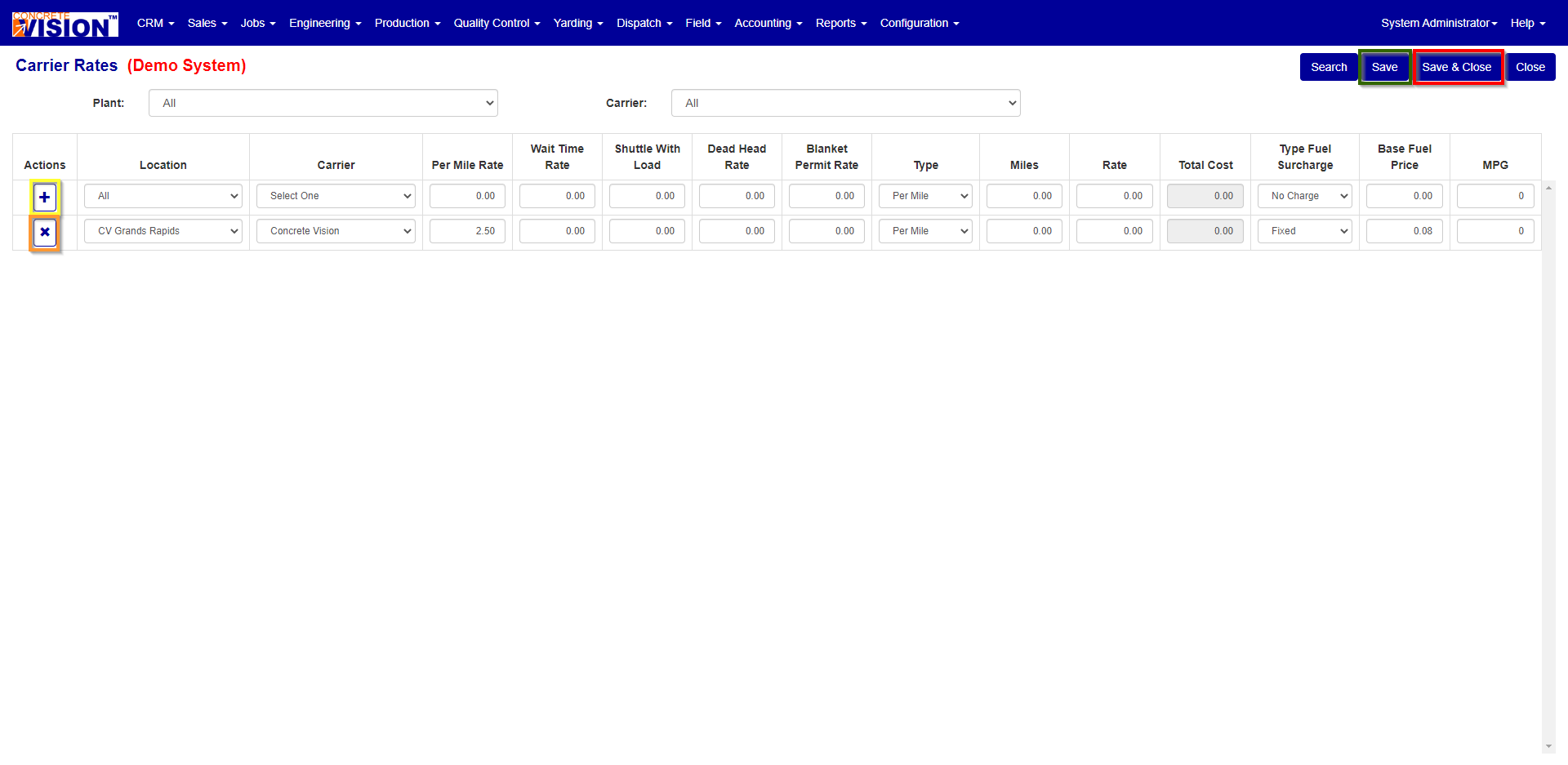
Figure 2
To add a new Carrier Rates, fill in the applicable items on the top row of the screen:
- Location
- Carrier (Must select one)
- Per Mile Rate (Must be a non negative number)
- Wait Time Rate (Must be a non negative number)
- Shuttle Time Rate (Must be a non negative number)
- Dead Head Rate (Must be a non negative number)
- Blanket Permit Rate (Must be a non negative number)
- Type
- Miles (Must be non negative number)
- Rate (Must be non negative number)
- Type Fuel Charge
- Base Fuel Base (Must be non negative number)
- MPG (Must be non negative number)
After filling in all fields to be added, click the "+" button (Yellow box in Figure 2) to add the carrier rates.
Edit Carrier Rates
To edit carrier rates change the field(s) corresponding to the row(s) you wish to adjust, then click the "Save" button (Green box in Figure 2) to save and return to the screen or the "Save & Close" button (Red box in Figure 2) to save and return to the main menu.
Delete Carrier Rates
To delete a carriers rates, click on the "X" delete button (Orange box in Figure 2) on the row associated to the rates you would like to delete and confirm you would like to delete the rates.
Was this article helpful?
That’s Great!
Thank you for your feedback
Sorry! We couldn't be helpful
Thank you for your feedback
Feedback sent
We appreciate your effort and will try to fix the article