Employment Types screen is used to create and manage employee employment types within CV.
To access the Employment Types screen, go to Accounting menu > Employee Types (see Figure 1)
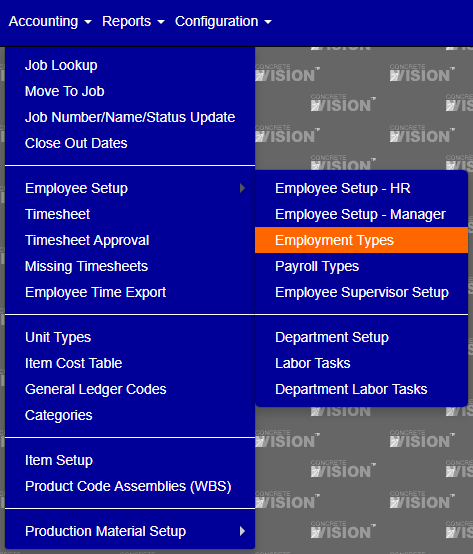
Figure 1
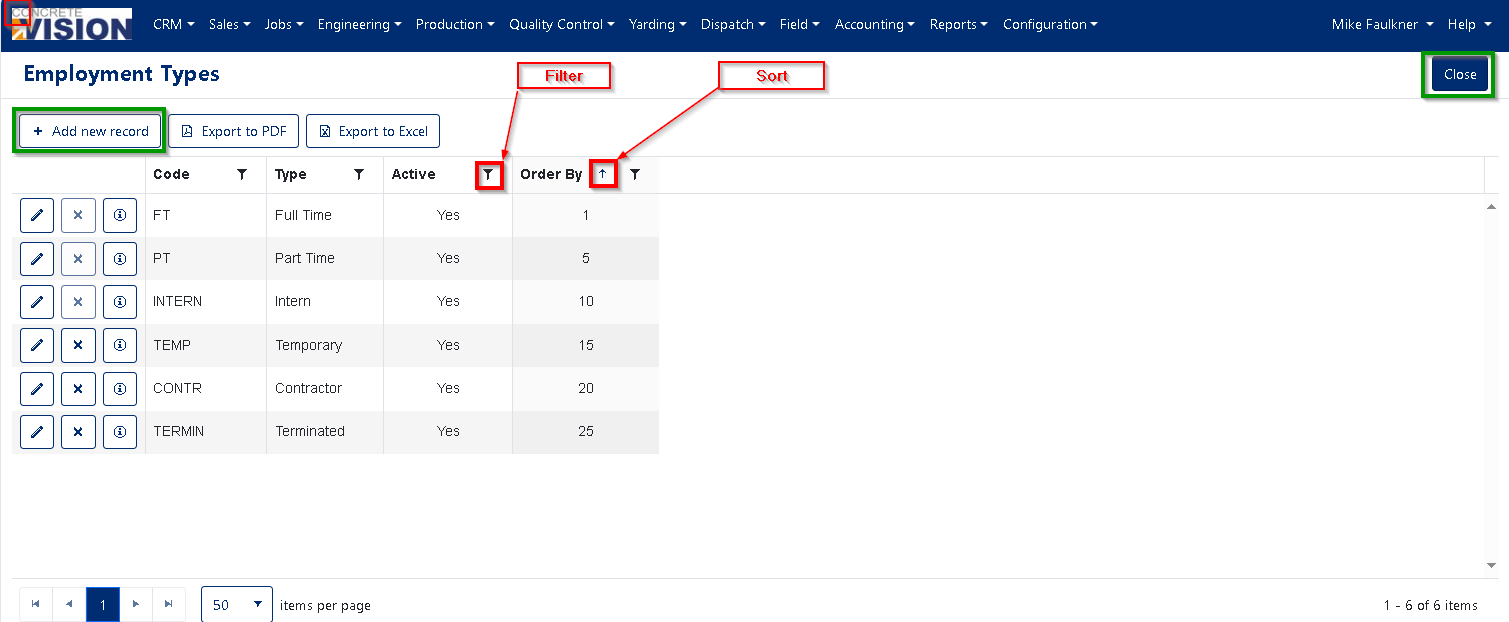
Figure 2
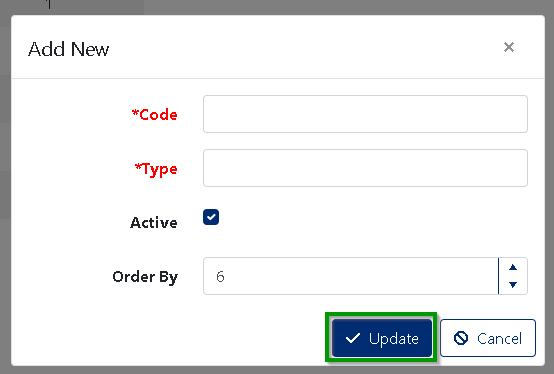
Figure 3
Adding a Employment Type
- Click on the [Add new record] (Orange Box see Figure 2)
- The Add New modal will open (Figure 3).
- Enter the Code. [Required to have text, Max-length 6 character]
- Enter the Type. [Required to have text]
- Set the Active state.
- Enter an Order By if needed.
- Click the [Update] (Green Box Figure 3) to save this information.
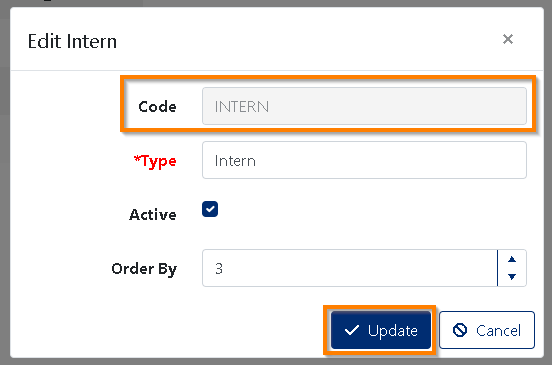
Figure 4
Editing an Employment Type
- Click on the item you need to edit. (Pen Icon to the left of the Employment Type Figure 2).
- The Edit modal will open (Figure 4).
- You can modify the Code. [Employment Type codes that are already in use cannot be modified]
- You can modify the Type. [Required to have text]
- You can modify the Active state.
- You can modify the Order By.
- Click the [Update] (Figure 4) to save the updated information.
** Employment Type codes that are already in use cannot be modified or deleted
Delete Employment Type
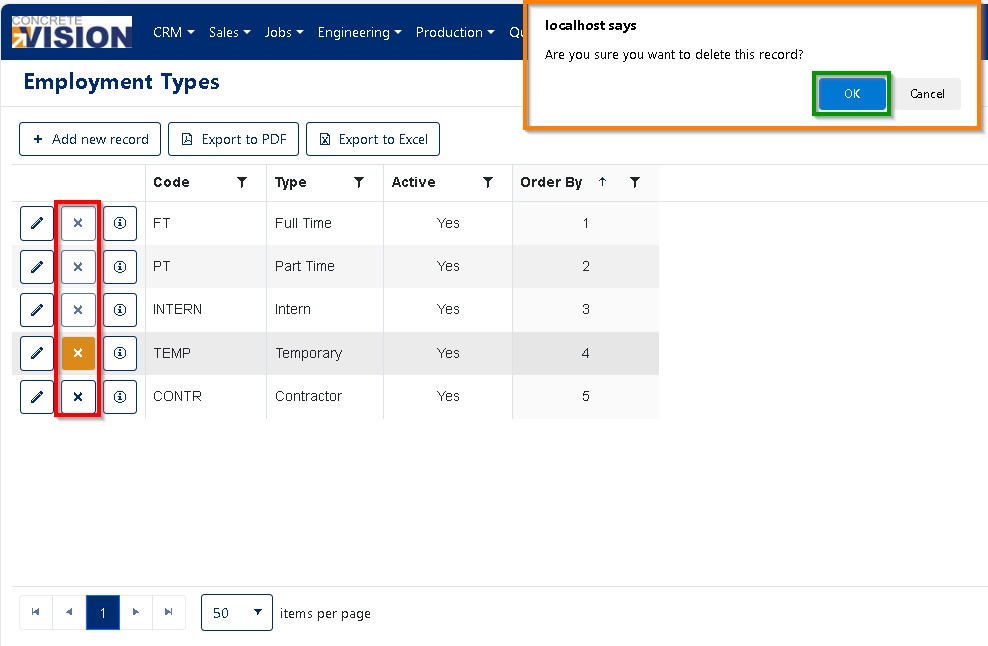
Figure 5
To delete an Employment Type item, just click on the delete button of the Employment Type item (Red Box to the left of the Employment Type items name (Red Box) in Figure 5) you wish to delete, you will be prompted to confirm (Orange Box in Figure 5).
Was this article helpful?
That’s Great!
Thank you for your feedback
Sorry! We couldn't be helpful
Thank you for your feedback
Feedback sent
We appreciate your effort and will try to fix the article