You access the Payroll Types screen from the Accounting menu > Employee Setup menu > Payroll Types (see Figure 1)
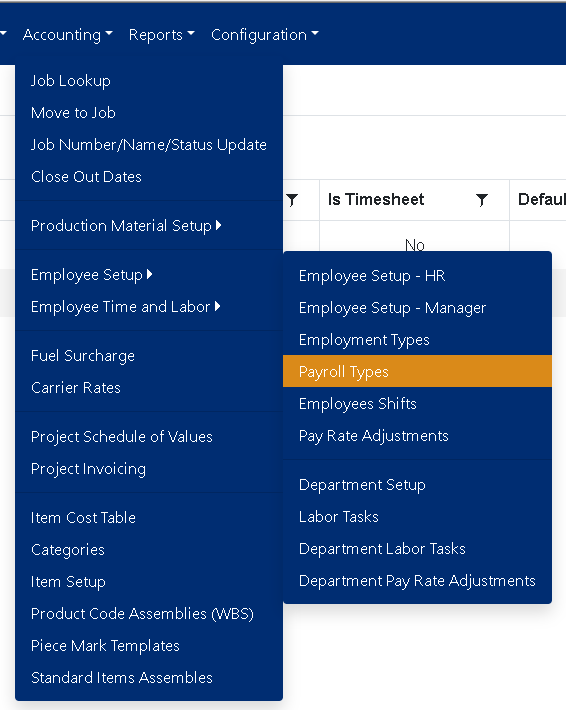
Figure 1
The Payroll Types screen (see Figure 2) is where you can add, edit, view, and sort Payroll Types.

Figure 2
Sorting and filtering Payroll Types
- Click any of the headings(blue box in Figure 2) to change the sort by that headings category.
- Click the same heading again to change the sort by function to be descending instead of the default ascending.
- To filter the results, click the filter icon next to the heading category (blue box in Figure 2) to open the filtering options box.
- Clicking the “Clear Filters” button will remove all filters and restore the results.
Add Payroll Type
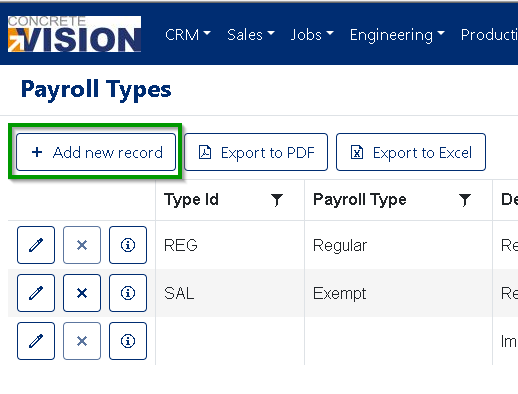 Figure 3
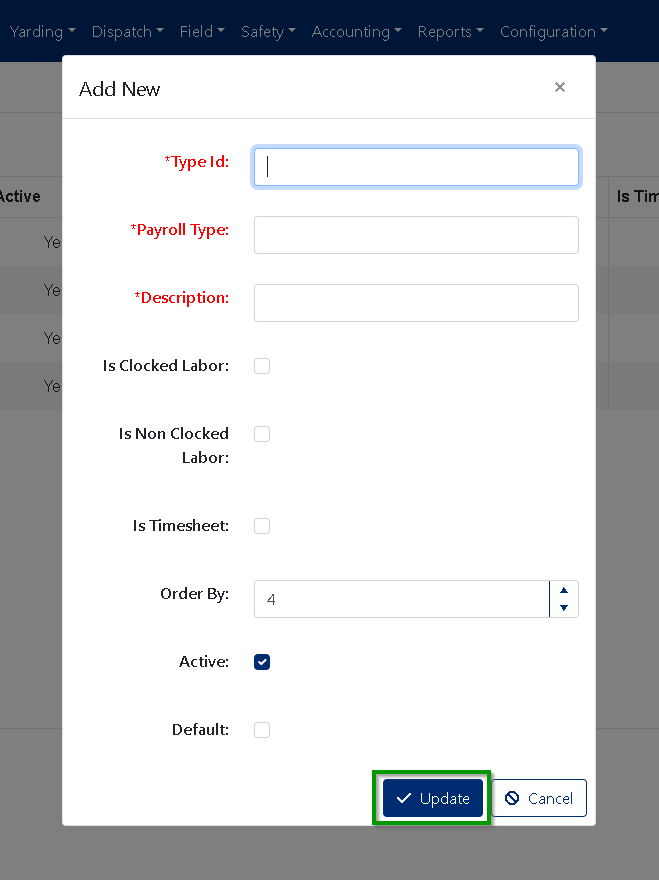
Figure 4
To add a new Payroll Type, click the "Add new record" button on the main Payroll Type screen (see the Green box in Figure 3):
- Enter a Type Id. (Requires a value with a maximum of 25 characters)
- Enter a Payroll Type. (Requires a value with a maximum of 50 characters)
- Enter a Description. (Requires a value with a maximum of 250 characters)
- Mark the Payroll Type as Clocked Labor
- Mark the Payroll Type as Non-Clocked Labor
- Mark the Payroll Type as having a Timesheet
- Enter or change the order by.
- You can mark the payroll type as active or inactive.
- Mark the Payroll Type as the Default.
- To add the new Payroll Type, click the "[ √ Update ]" button on the edit window(see the Green box in Figure 4).
Edit Payroll Type

Figure 5
- Click on the edit button in the corresponding row of the Payroll Type you need to edit. (see the Green box in Figure 2) The Edit modal will open (Figure 5).
- You can modify the Name. [Default values names cannot be edited]
- You can modify the Type Id. (Requires a value with a maximum of 25 characters)
- You can modify the Payroll Type. (Requires a value with a maximum of 50 characters)
- You can modify the Description. (Requires a value with a maximum of 250 characters)
- Mark the Payroll Type as Clocked Labor
- Mark the Payroll Type as Non-Clocked Labor
- Mark the Payroll Type as having a Timesheet
- Change the order by.
- You can mark the payroll type as active or inactive. (Only if the Payroll Type is not the Default or was not imported)
- Mark the Payroll Type as the Default.
- Click the [Update] (Green Box Figure 5) to save the updated information.
Delete Payroll Type
** You can only delete a Payroll Type if it is not in use or imported
- Click the Delete button in the corresponding row of the Payroll Type you wish to remove (see Red box in Figure 2).
- Click "OK" in the dialogue box that appears to confirm you wish to delete the record.
Was this article helpful?
That’s Great!
Thank you for your feedback
Sorry! We couldn't be helpful
Thank you for your feedback
Feedback sent
We appreciate your effort and will try to fix the article