You access the Employee Setup - HR from the Accounting > Employee Setup menu, shown below.
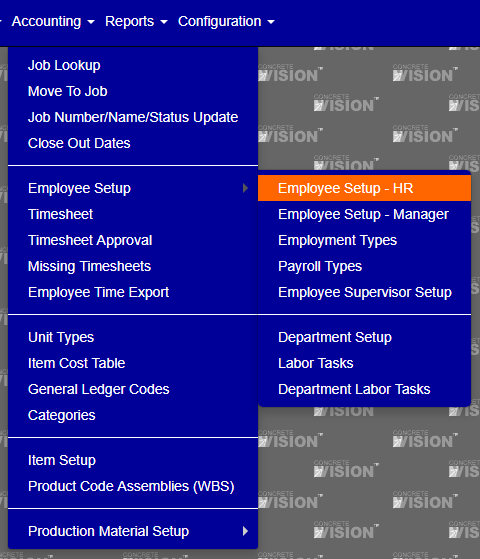
Figure 1
The Employee Setup screen (see Figure 2) is where you can add, edit and delete Employee Information.
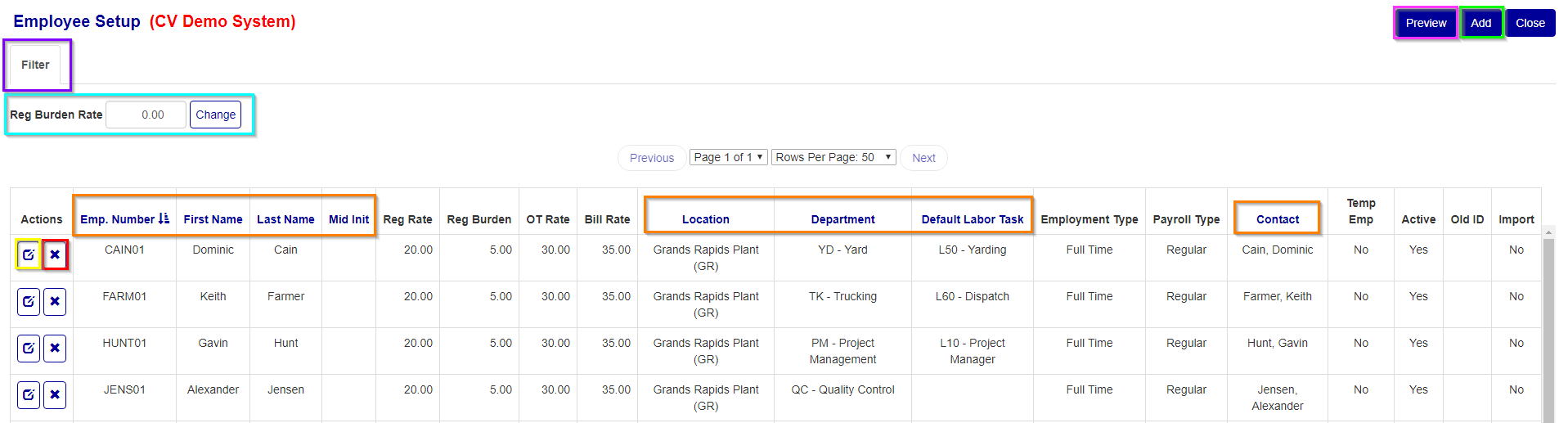
Figure 2
Sort Employee Information
** The currently selected heading to sort by will have the sort by icon next to it ( )
)
- Click any of the headings (see Orange box in Figure 2) to change the table to be sorted by that headings category.
- Click the same heading again to change the sort by function to be descending instead of the default ascending.
Filter Employee Information

Figure 3
** searching and clearing the filter leaves the current screen, so ensure you have saved all changes you wish to keep before completing one of these actions.
- Click the "Filter" button at the top of the screen (see the Purple box in Figure 2) to open the filter menu (see the Figure 3) to search for specific results
- You can enter, change, and select any of the inputs/items to obtain specific results or fewer.
- To clear/reset a current filter press the "clear" button (see the Red box in Figure 3).
- To re-generate the table using the filter click the "search" button (see the Green box in Figure 3)
- To close/hide the filter press the "Filter" button again (see the Purple box in Figure 3).
Add Employee
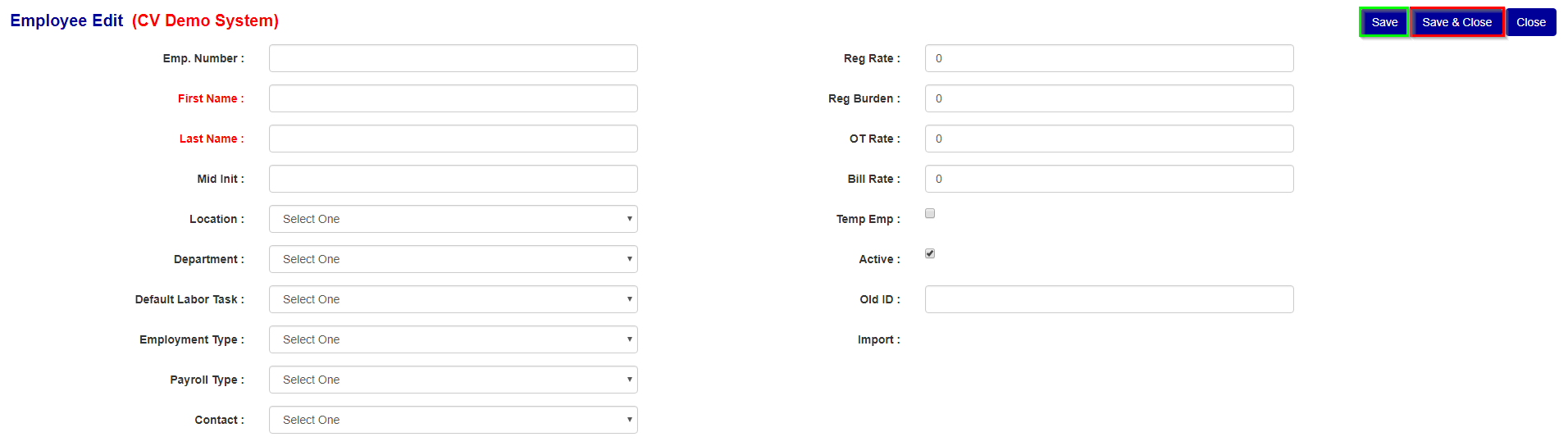
Figure 4
To add a new employee, click the "add" button on the main labor task screen (see the Green box in Figure 2):
- You can enter an employee number.
- Enter a first name.
- Enter a last name.
- You can enter a middle initial.
- You can select a location.
- You can select a department.
- You can select a default labor task.
- You can select a employment type.
- You can select a payroll type.
- You can select a contact.
- You can enter a regular rate.
- You can enter a regular burden rate.
- You can enter an overtime rate .
- You can enter a bill rate.
- You can mark whether or not the employee is temporary.
- You can mark the employee as active or not.
- You can enter an old id .
- Click the "Save" button to add the new Employee and move to the edit screen of the new employee. (see the Green box in Figure 4)
- Click the "Save & Close" button to add the new Employee and move to the main screen. (see the Red box in Figure 4)
Edit Employee
** If you don't click on either the Save or Save and Close button and navigate off this screen, your changes will be lost.
To edit Employee information, migrate to the edit page using the "edit" button (see Yellow box in Figure 2), just update any one of the input values and then select the Save or Save and Close button to save your changes.
Delete Employee
** You can only delete employees that are not assigned.
- Click the "delete" button in the corresponding row of the employee you wish to remove (see Red box in Figure 2).
- Click "OK" in the dialogue box that appears to confirm you wish to delete the record
Adjust Reg Burden Rate
You can adjust every employees regular burden rate as a percentage of their regular rate
- Enter the percent in the burden rate box (see Teal box in Figure 2).
- Press the "change" button.
- Confirm on dialogue box that the percent is as intended then press ok.
Open Employee Report
Press the "Preview" button (see Pink box in Figure 2) to open a new screen/tab with the report of all the employee information.
Was this article helpful?
That’s Great!
Thank you for your feedback
Sorry! We couldn't be helpful
Thank you for your feedback
Feedback sent
We appreciate your effort and will try to fix the article