You access the Time Sheet Approval screen from the Accounting > Employee Time and Labor sub-menu, shown below.
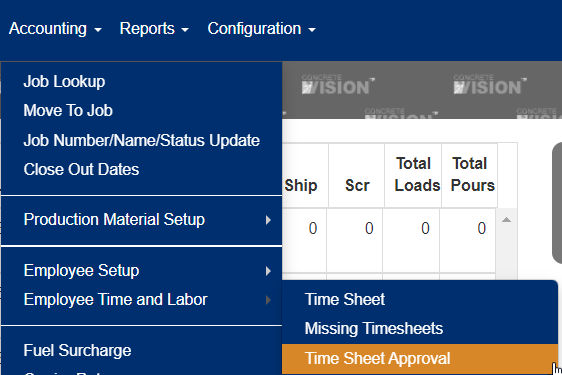
Figure 1
The Timesheet Approval screen (see Figure 2) is where you can reject or approve time sheets submitted by employees.
Inspect/View Timesheet

Figure 2
To inspect/view an employees submitted time sheet, click the corresponding "edit" button (see Yellow box in Figure 2) to the time sheet you want to view.
You can get a detailed view of the time sheet by clicking on the blue heading of the associated job (see Orange box in Figure 3).
After opening the detailed view you can view comments associated the time submitted by hovering over the job (see Purple box in Figure 3).
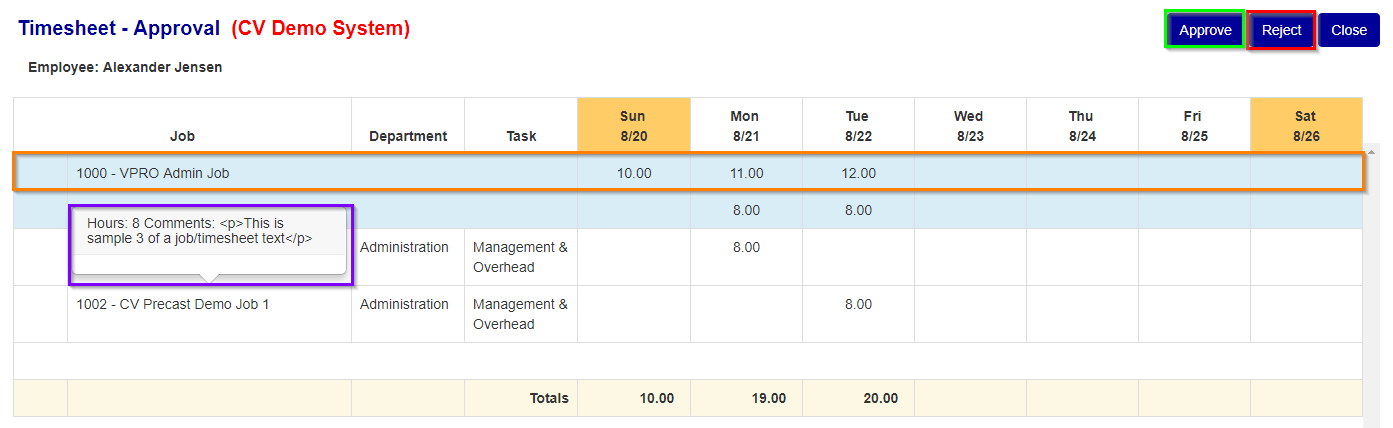
Figure 3
Approve Timesheet
To approve a submitted timesheet click the "approve" button (see Green box in Figure 3), then click the "ok" button on the dialogue box confirming the approval.
Reject Timesheet
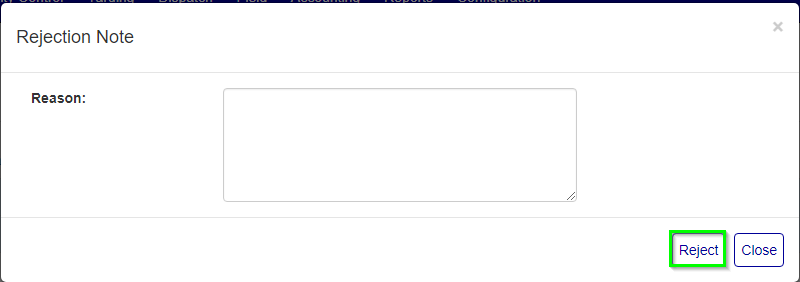
Figure 4
To reject a submitted timesheet click the "reject" button (see Red box in Figure 3), then enter a reason in the text box for rejecting the timesheet. To submit the rejection with the reason click the "reject" button in the modal window (see Green box in Figure 4).
Was this article helpful?
That’s Great!
Thank you for your feedback
Sorry! We couldn't be helpful
Thank you for your feedback
Feedback sent
We appreciate your effort and will try to fix the article