Overview
The Move Contacts screen is used to move a contact from one company to another within the CRM.
Accessing the Screen
Navigate to CRM > Move Contacts from the main menu (Figure 1).
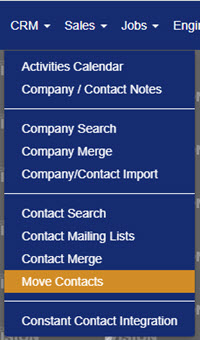
Figure 1
Using the Move Contacts Screen
The Move Contacts screen will not display records (Figure 2) until contacts are added.
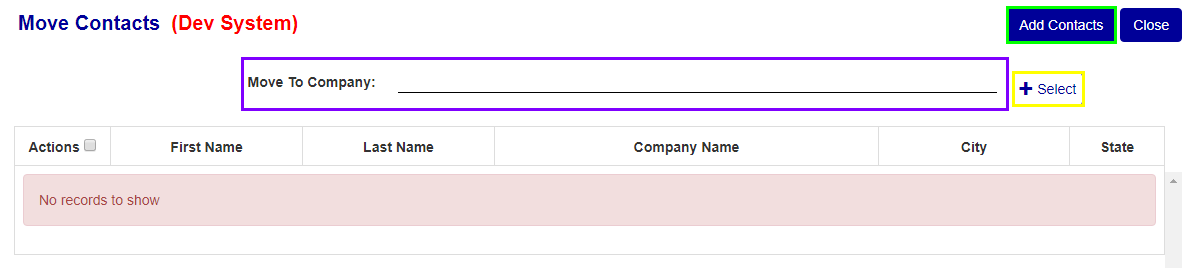
Figure 2
Step 1: Add Contact(s) to the Move Contacts Screen
Moving contacts from one company to another is a two-step process. First, contacts must be added to the Move Contacts screen.
- Click the Add Contacts button (green box in Figure 2). The Contact Search screen (Figure 3) will load.
- Search for the contacts to add to the Move Contacts screen.
- Mark the checkbox (yellow box in Figure 5) beside every corresponding contact to move.
- Click the Add Contact button (green box in Figure 3) to add them to the Move Contacts screen.
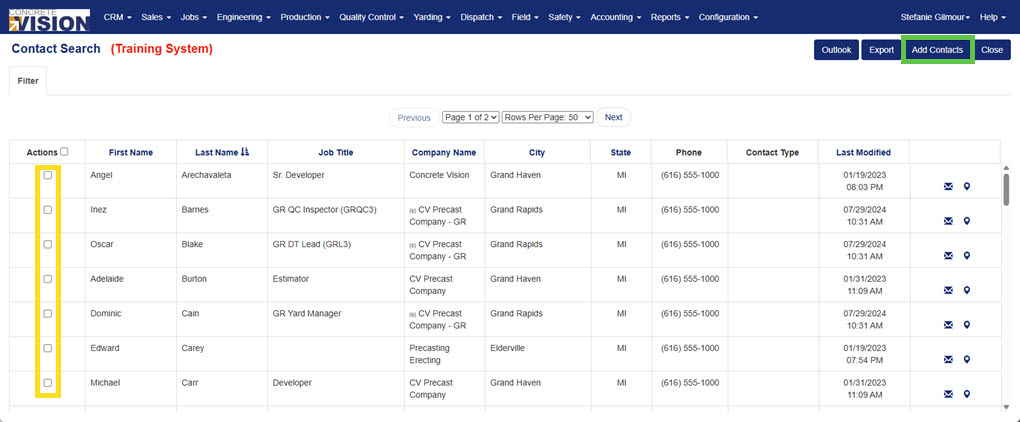
Figure 3
Step 2: Move Selected Contact(s)
Next, select a company to move those contacts to.
- Click the + Select Button (yellow box in Figure 2) to open the company selector.
- In the Move To Company popup window (Figure 4), type the first 3 characters of the company's name (yellow box in Figure 4), and it will appear if it is in the CRM.
- Click on the company name to select it.
- Click the Save button (green box in Figure 5).
- After all contacts meant to be move are listed on the Move Contacts screen, and a company has been chosen, click the Move button (green box in Figure 5) to initiate the moving of the selected contacts.
NOTE: To remove any contact from the list to move, mark the checkbox beside the contact and then click the Remove button (Figure 5).
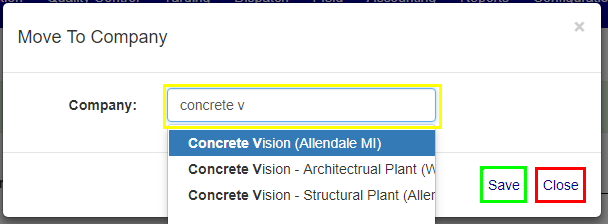
Figure 4

Figure 5
Using the Contact Search Screen
Sort/Order By on the Contact Search Screen
On the Contact Search screen, the column headings can be used to quickly locate a contact.
- Click a column heading (orange box in Figure 5) to sort the table by that heading. The sort by icon next to it (
 ).
). - Click the same heading again to change the sort by function from ascending to descending.

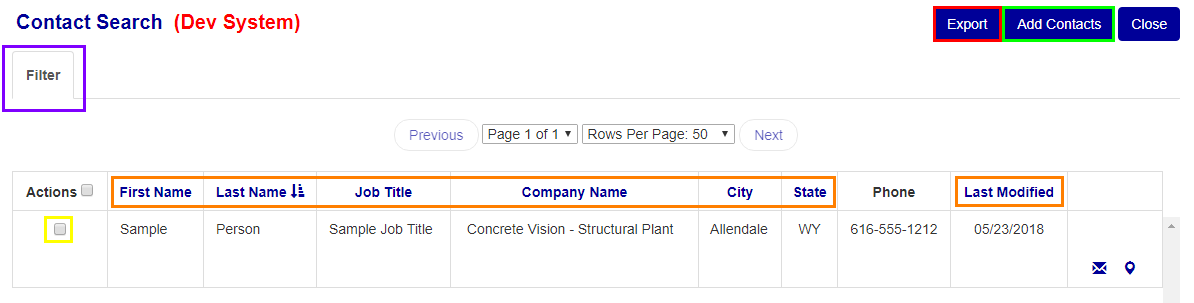
Figure 6
Filter for Contact Search Screen
The Contact Search screen filter is another way to quickly locate a contact from the list.
- Click the Filter tab (purple box in Figure 6) to open the Filter menu (Figure 7).
- Enter, change, and select any of the inputs/items to search for specific results or fewer.
- To re-generate the table using the filter, click the Search button (green box in Figure 7).
NOTE: Searching and clearing the filter leaves the current screen, so save all changes before completing one of these actions.
Additional filter functions include:
- To clear/reset a current filter press the Clear button (red box in Figure 7).
- To close/hide the filter press the Filter tab again (purple box in Figure 7).
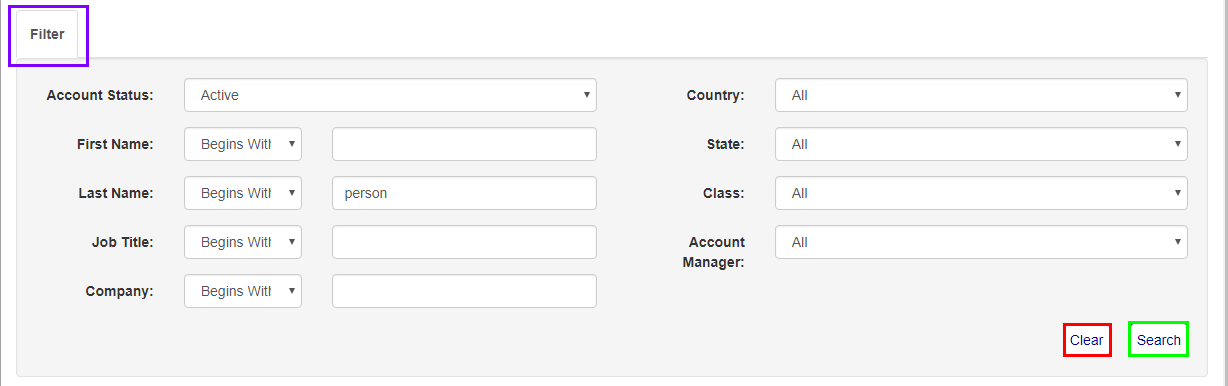
Figure 7
Was this article helpful?
That’s Great!
Thank you for your feedback
Sorry! We couldn't be helpful
Thank you for your feedback
Feedback sent
We appreciate your effort and will try to fix the article