Overview
The User Settings page is where you can manage and edit your personal CRM Contact information used in the software. These fields include your name, address, signatures, etc. Changes made to the data on this page will be reflected on your CRM Contact page.
Accessing User Settings
- Navigate to your name in the menu bar.
- Select User Settings
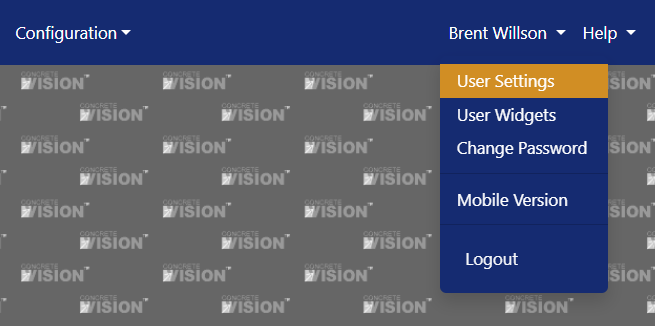
Figure 1
Editing User Settings
Here you must enter all required information (required fields are denoted by a RED label followed by an asterisk (Figures 2 & 3).
You can copy the company street and mailing address to your contact record using the check boxes (Figure 2 yellow box). You can also copy the company address to the mailing address if desired. That option is disabled if Copy From Company Mailing Address is selected (Figure 2 orange box).
You must click Save or Save & Close to save any changes (Figure 2 blue box). If you make changes and click Close without saving, you will be reminded to save with a popup notification (Figure 4)
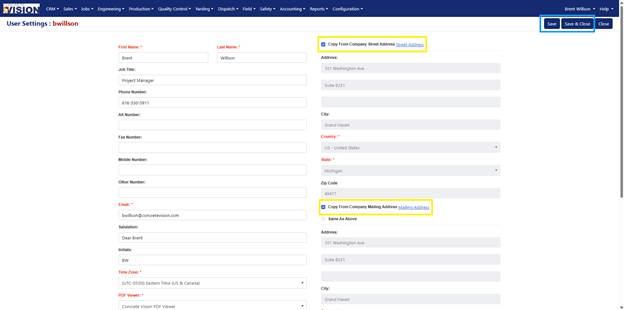
Figure 2
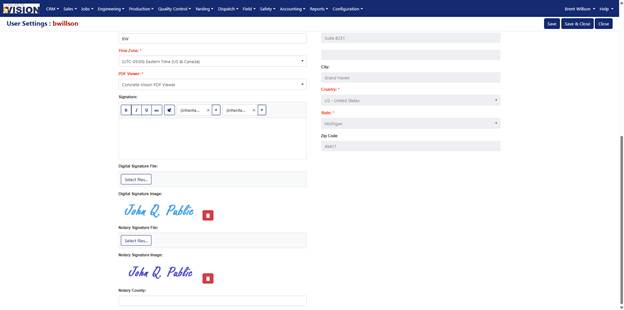
Figure 3

Figure 4
Was this article helpful?
That’s Great!
Thank you for your feedback
Sorry! We couldn't be helpful
Thank you for your feedback
Feedback sent
We appreciate your effort and will try to fix the article