The Page Titles module allows you to customize screen titles throughout your application, as well as export and import title configurations for backup or bulk changes.
Important: Backup Before Changes
Always export a copy of your current Page Titles before making changes. This serves as a backup in case you need to restore the original settings.
Accessing Page Titles
Navigate to: Configuration → System Setup → Page Titles
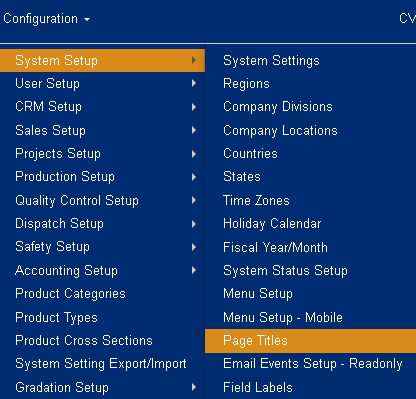
Figure 1
This opens the main Page Titles screen showing all parent menu items and their associated titles.
Managing Page Titles
Viewing Page Titles
The main screen displays a hierarchical view of your menu structure with:
- Parent menu items in the left column
- Associated page titles and details
- Action buttons for editing and management
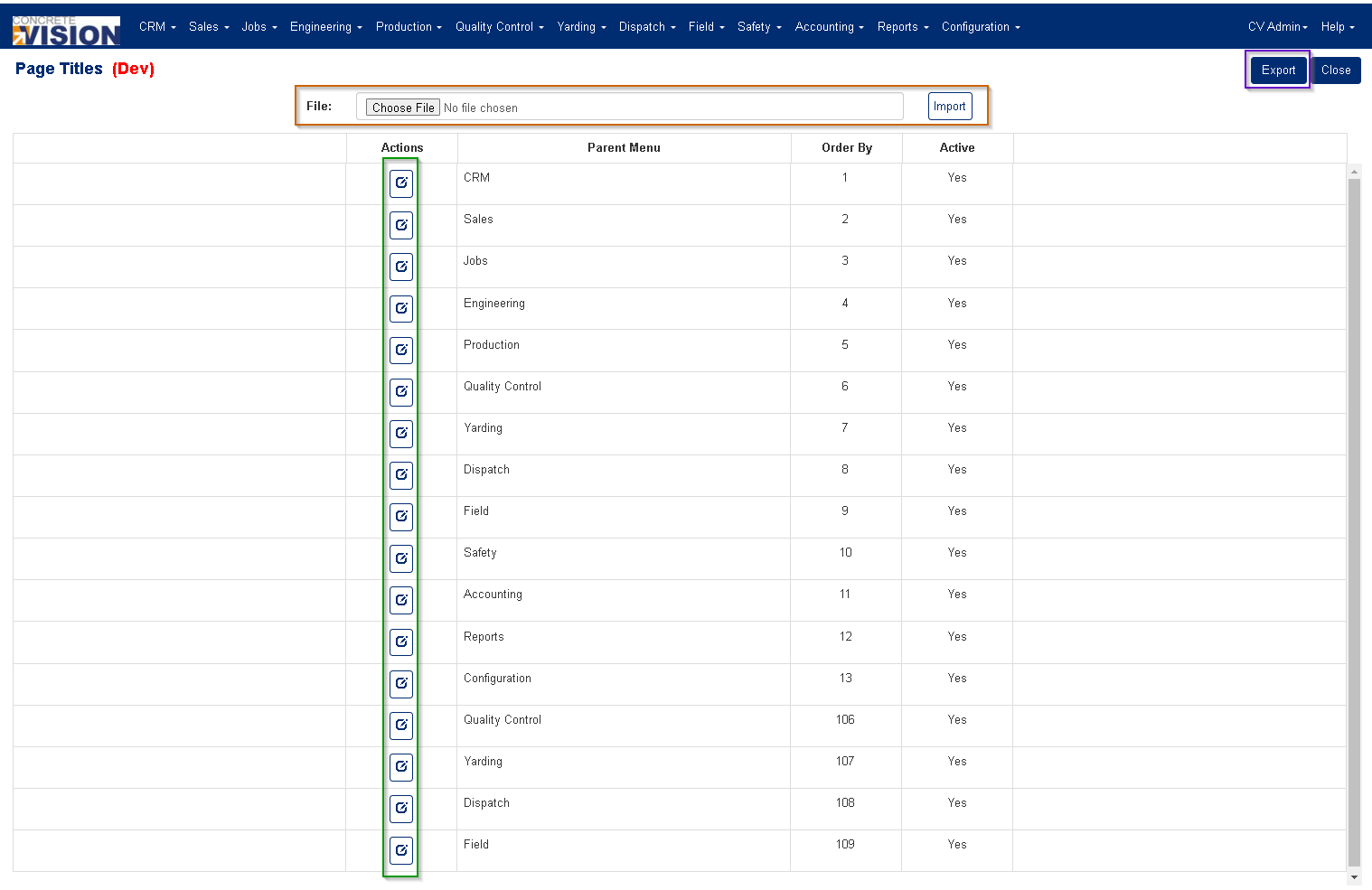
Figure 2
Editing Page Titles
Step 1: Navigate to the desired page title
- Locate the parent menu item you want to modify
- Click one of the Edit buttons next to the parent menu item (Green box, Figure 2)
Step 2: Make your changes
- On the Page Titles - Edit screen, find the specific page title item to modify (Orange box, Figure 3)
- Click in the text input box and make your changes
- Multiple titles can be edited on the same screen
Step 3: Save your changes
- Click Save to save and continue editing
- Click Save & Close to save and return to the main screen (Green box, Figure 3)
⚠️ Important: Changes are not saved automatically. You must click a save button before leaving the screen or your changes will be lost.
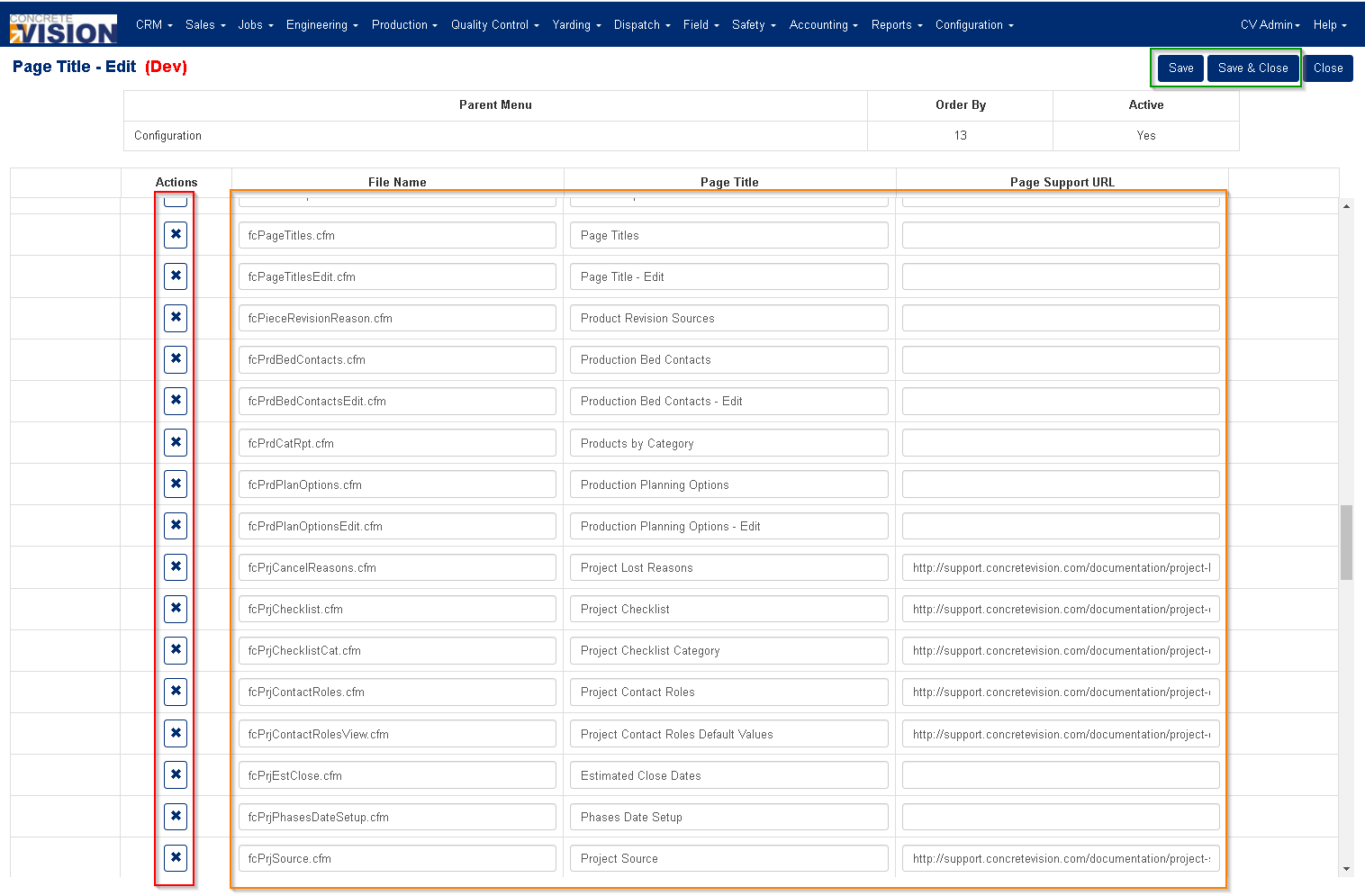
Figure 3
Deleting Page Titles
To delete a page title:
- Click the [X] button next to the page title you want to remove
- Confirm deletion by clicking OK in the confirmation dialog
⚠️ Caution: Deleting a page title permanently removes it from Concrete Vision's menu system.
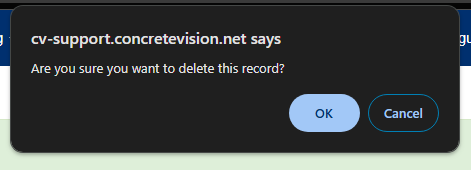
Figure 4
Import and Export Functions
Exporting Page Titles
To create a backup or template:
- Click the Export button on the main Page Titles screen (Purple box, Figure 2)
- Save the generated Excel file to your preferred location
The exported file includes:
- Menu Parent
- File Name
- Page Title
- Original Page Title
- Page Support URL
Importing Page Titles
To bulk update page titles:
Step 1: Prepare your import file
- Export the current Page Titles (this ensures you have all required items) (Purple box, Figure 2)
- Open the exported Excel file
- Make your desired changes
- Save the file with a new name to preserve the original
Step 2: Import the updated file
- On the main Page Titles screen, use the Import file control
- Select your edited Excel file
- Click the Import button (Orange box, Figure 2)
⚠️ Critical Warning: The import process overwrites ALL page titles. Your import file must include every page title you want to keep, not just the ones you're changing. Missing items will be deleted from the system.
Was this article helpful?
That’s Great!
Thank you for your feedback
Sorry! We couldn't be helpful
Thank you for your feedback
Feedback sent
We appreciate your effort and will try to fix the article