Overview
Standard Material Assemblies allow you to group multiple material items together as reusable templates for production pieces and jobs. These assemblies streamline your workflow by providing pre-configured combinations of materials with predefined quantities, specifications, and costs.
Accessing Material Assemblies
Navigate to Accounting → Production Material Setup → Material Assemblies
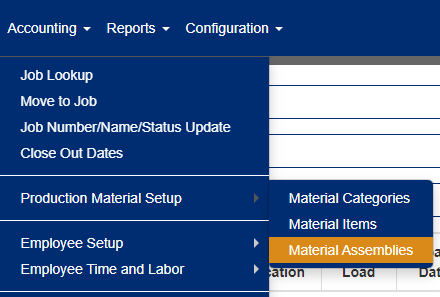
Figure 1
Understanding the Interface
Assembly Actions
- Edit - Modify existing assemblies (Blue box, Figure 2)
- Create - Add new standard assemblies (Green box, Figure 2)
- Copy - Duplicate existing assemblies (Teal box, Figure 2)
- Delete - Remove assemblies (Red box, Figure 2)
- Update Cost/Weight - Recalculate totals (yellow "Update Cost/Weight" button)
- Export - Download filtered list (Purple box, Figure 2)
- Import - Upload assembly data (Gray box, Figure 2)
*Note: Delete is disabled for assemblies currently linked to production pieces or jobs.
Assembly Types
- Production - Piece-level assemblies for individual production items
- CIP (Cast in Place) - Job-level assemblies for on-site work
- Erection - Job-level assemblies for installation work
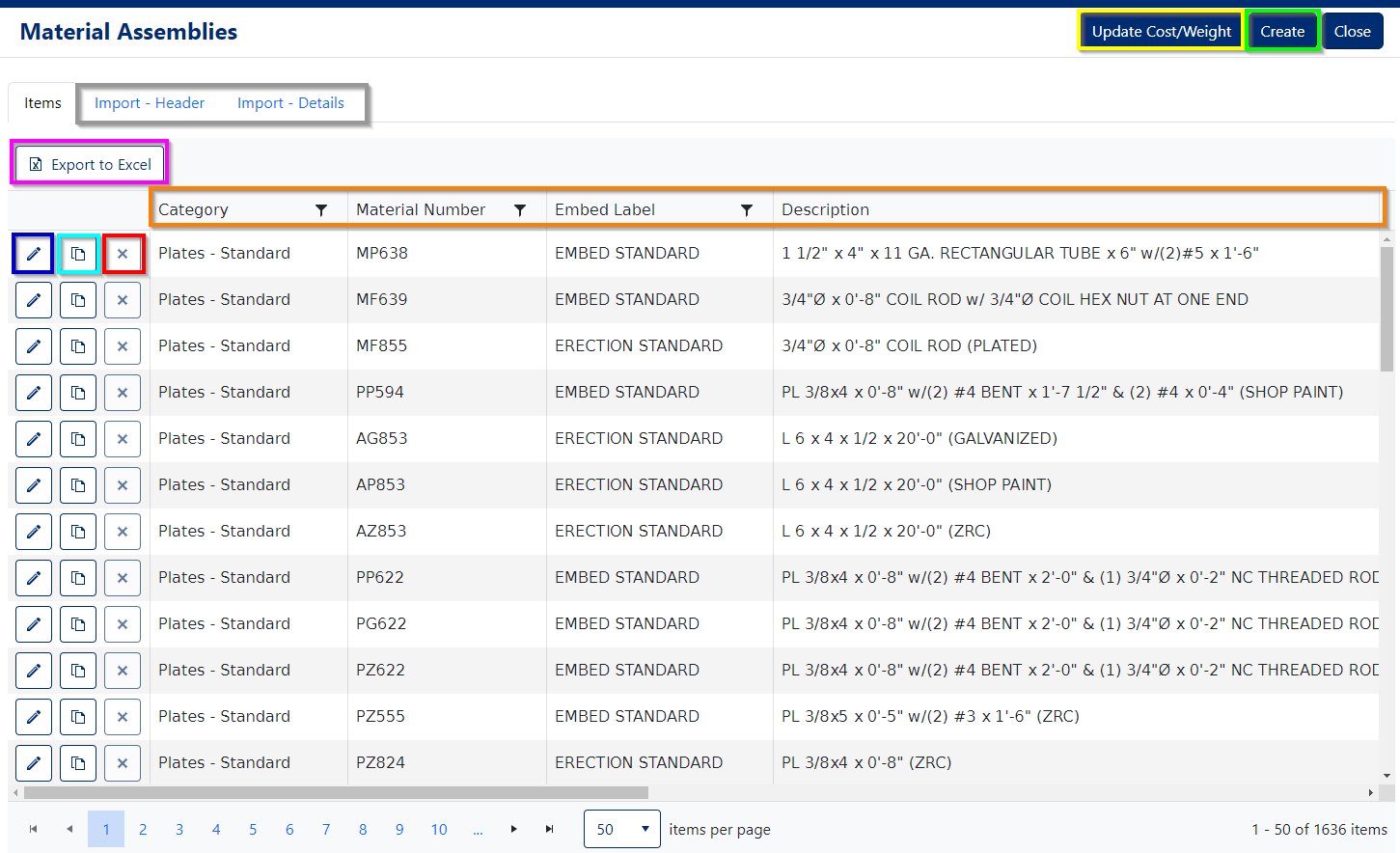
Figure 2
Managing Material Assemblies
Viewing and Organizing Assemblies
The Materials Assemblies List displays all your standard assemblies in a sortable, filterable table.
To organize your view:
- Sort - Click any column header to sort by that field
- Filter - Click the filter icon next to column headers to narrow results
- Search - Use the search functionality to find specific assemblies
Creating and Editing Assemblies
Basic Assembly Information
When creating or editing an assembly, you'll configure:
- Category - Classification for organization
- Material ID - Unique identifier
- Embed Label - Display name
- Description - Detailed explanation
- Assembly Type - Production, CIP, and/or Erection
- Unit Conversion - Measurement specifications
- Purchase Unit - Ordering specifications
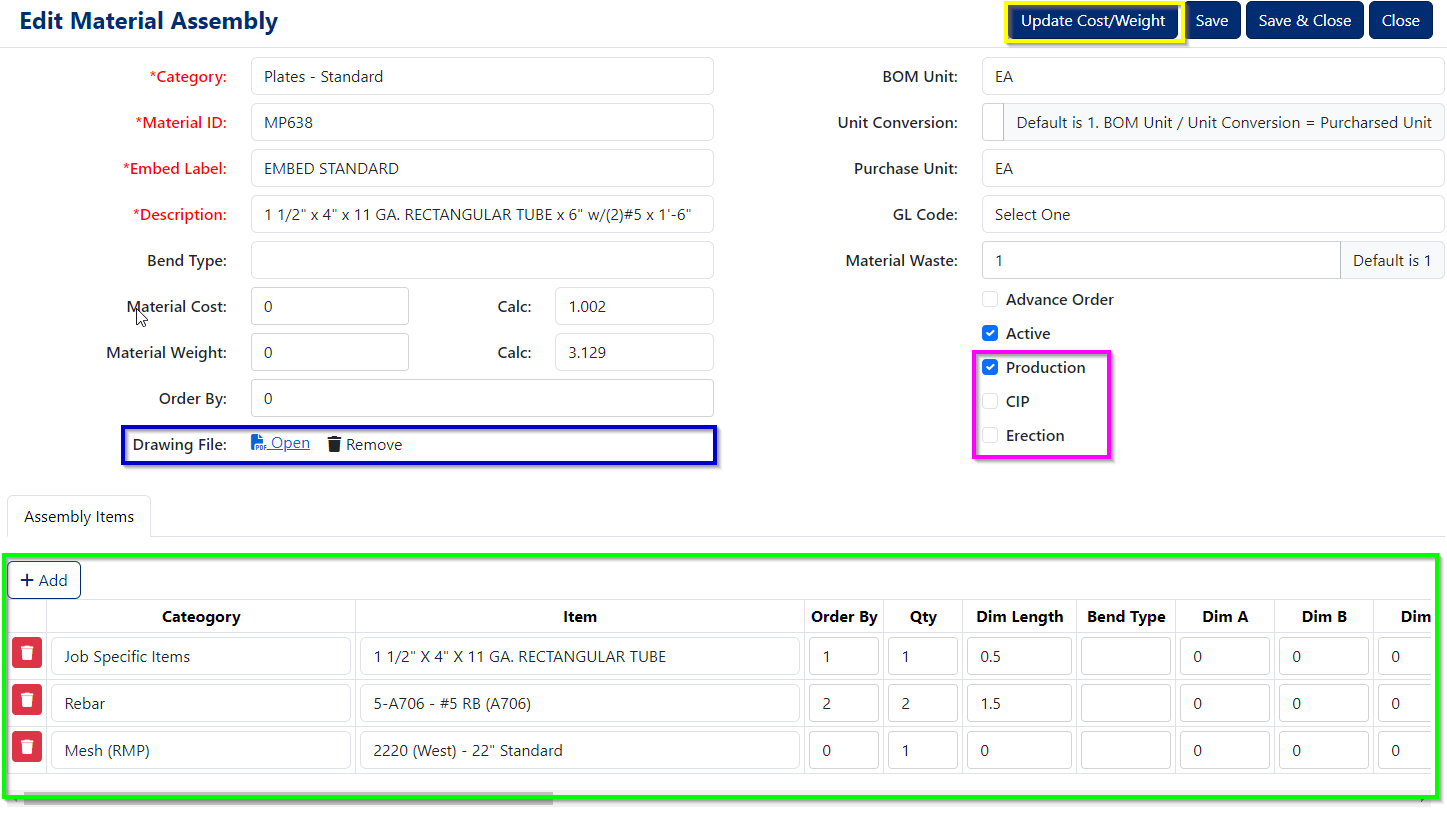
Figure 3
Sub-Assembly Components
The heart of any assembly is its component materials. In the Sub-Assembly Components section:
To add components:
- Click the "Add" button (Figure 3)
- Select the Material item
- Enter the quantity needed
- Set bend type, dimensions, and length values as appropriate
To remove components:
- Click the red trash icon next to any component (Figure 3)
- Component will be marked for deletion when you save the assembly
Assembly Drawings
Attach PDF drawings to assemblies for easy reference throughout the system:
- With existing drawing: Use "Open" to view or "Remove" to delete (Blue box, Figure 3)
- Without drawing: Use the file input control to upload a PDF (Red box, Figure 4)
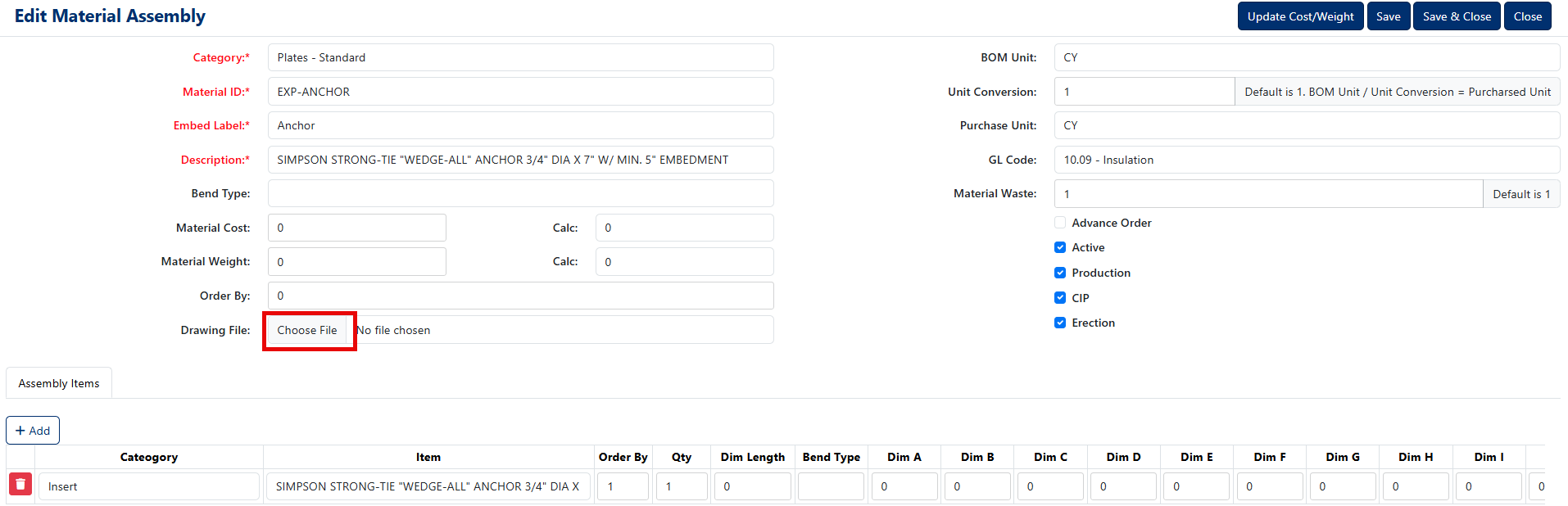
Figure 4
Updating Cost and Weight
Keep your assemblies current by recalculating totals based on component changes:
- Click "Update Cost/Weight" from either the list view or edit screen
- Confirm the update when prompted
- The system calculates new totals based on current sub-component values
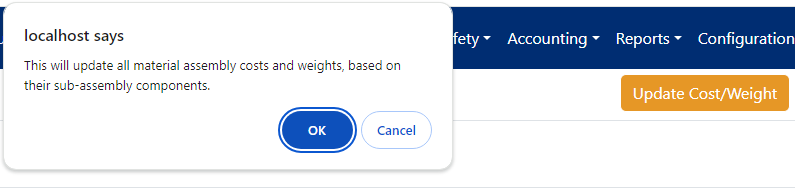
Figure 5
Import and Export Operations
Exporting Assemblies
Export your filtered assembly list for backup or sharing:
- Apply desired filters to the assemblies list
- Click the "Export" button (Purple box, Figure 4)
- The export file contains two worksheets:
- Header - Main assembly information (Blue box, Figure 6)
- Details - Sub-component specifications (Green box, Figure 6)
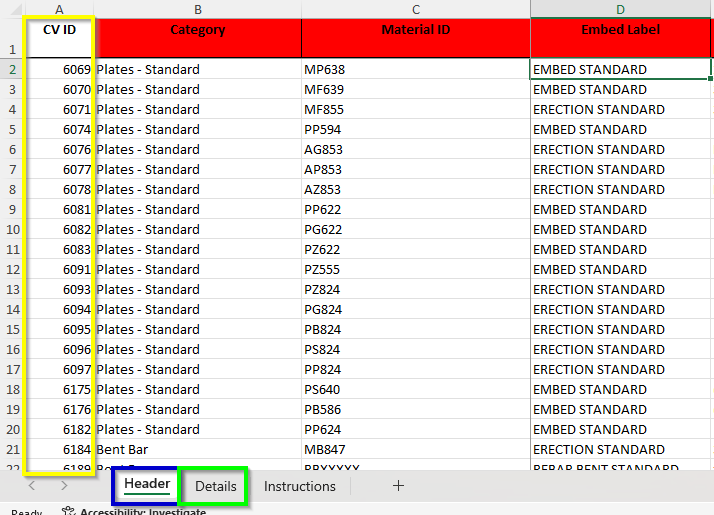
Figure 6
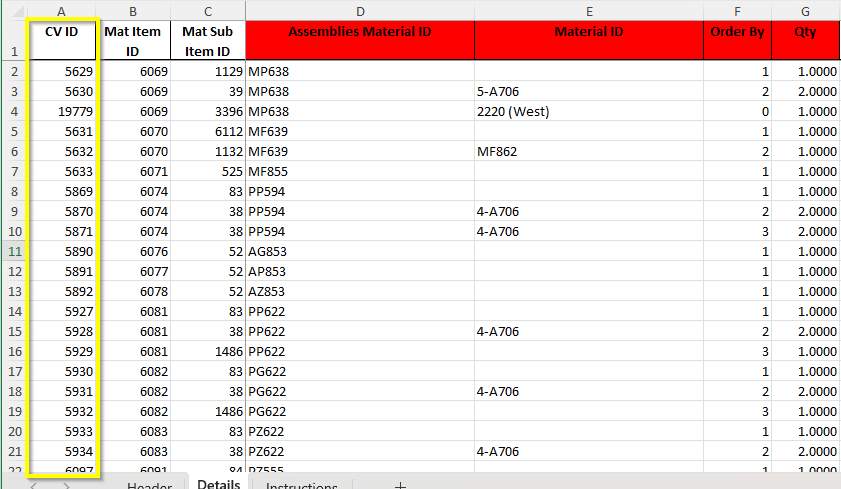
Figure 7
Importing Assemblies
Import new or updated assemblies using the export template format:
Select import type: (Gray box, Figure 2)
- "Import - Header" for main assembly data
- "Import - Details" for sub-component data
Upload your file:
- Must match the export template format
- See "Instructions" tab in export file for field specifications (Figure 6)
Review uploaded data:
- Red highlighting = Unverified items requiring attention
- Yellow highlighting = Duplicate material IDs detected
Process the import:
- Edit individual items (Blue box, Figure 8)
- Verify data accuracy (Green box, Figure 8)
- Move verified items to library (Orange box, Figure 8)
- Delete unwanted items (Red box, Figure 8)
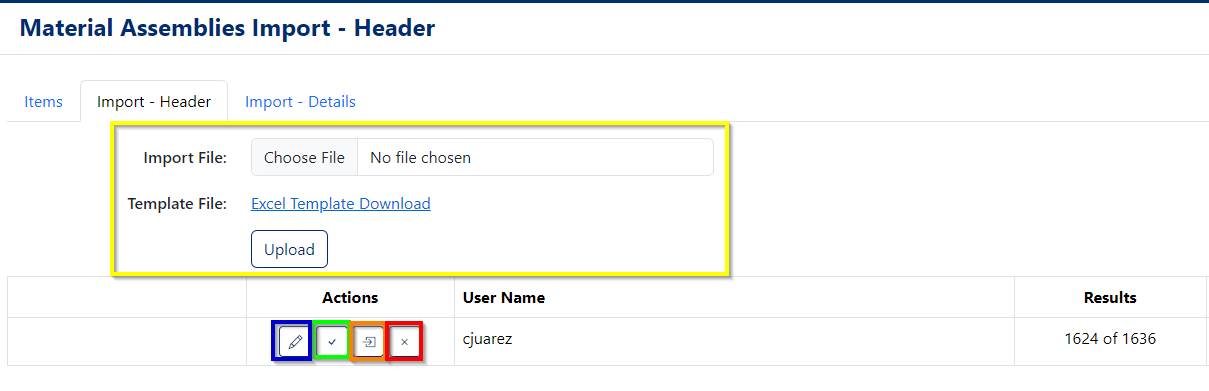
Figure 8
Important Import Notes
CV ID Column Rules:
- Existing assemblies: Keep the pre-filled CV ID to update correctly
- New assemblies: Set CV ID to 0 (zero) to create new items
- Never change existing CV IDs to prevent updating wrong assemblies
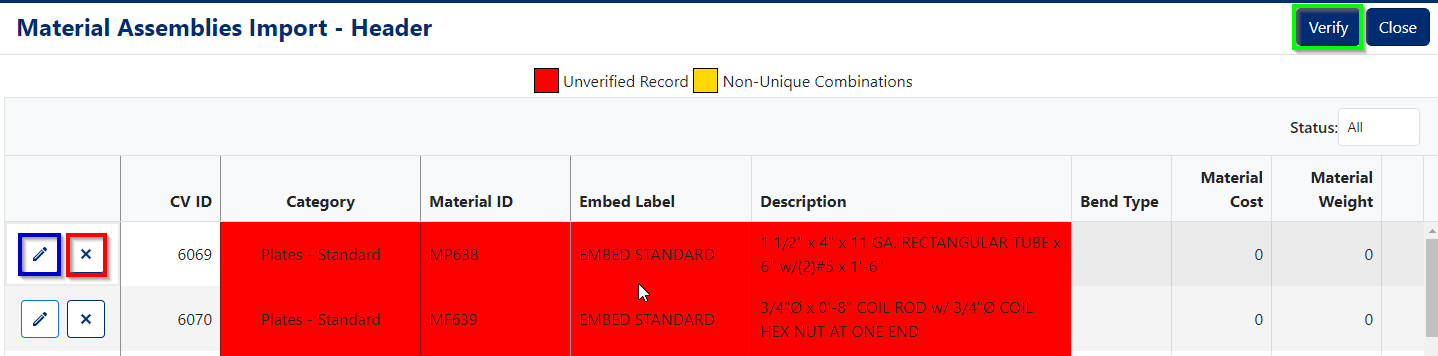
Figure 9
From the edit screen, you can edit individual line items by clicking on the pencil icon (Blue box, Figure 8) or delete the line item by clicking on the delete icon (Red box, Figure 9). The edit screen also allows you to verify the uploaded material data using the green box at the top of the screen (Green box, Figure 9).
Once material information is verified, it can be "moved" (imported into the standard material items library) by using the "move" icon (Orange box, Figure 7). This process will update an existing material assembly information if the "CV ID" points to a valid material assembly id, or it will create a new material assembly if the value is 0 (zero).
Best Practices
Organization Tips
- Use consistent naming conventions for easy searching
- Leverage categories to group related assemblies
- Regularly update cost/weight calculations to maintain accuracy
Assembly Design
- Keep component lists focused and purposeful
- Include detailed descriptions for complex assemblies
- Attach drawings for visual reference when helpful
Data Management
- Export assemblies regularly for backup purposes
- Verify imported data carefully before moving to library
- Test new assemblies on sample pieces before full deployment
Was this article helpful?
That’s Great!
Thank you for your feedback
Sorry! We couldn't be helpful
Thank you for your feedback
Feedback sent
We appreciate your effort and will try to fix the article