Overview
The Production Piece Marks Delete screen allows you to remove/delete pieces that are currently in backlog status.
Accessing Production Piece Delete Screen
Navigate to Enginnering menu > Production Piece Delete in the main menu to access the Production Piece Delete interface. (Figure 1)
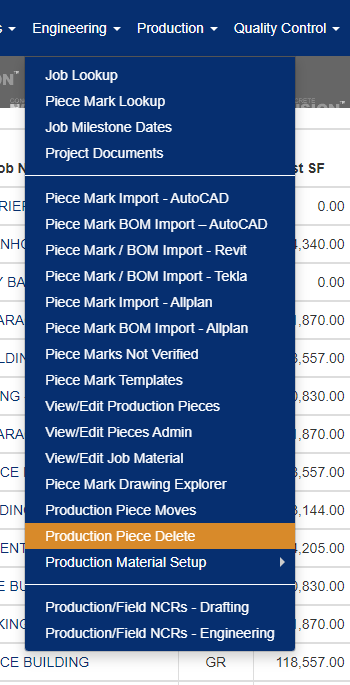
Figure 1
Selecting Your Job and Phase
Begin by selecting the Job Name from the dropdown menu to display all pieces associated with that job (Figure 2). Next, choose the appropriate Phase Name for your selection (Figure 3).
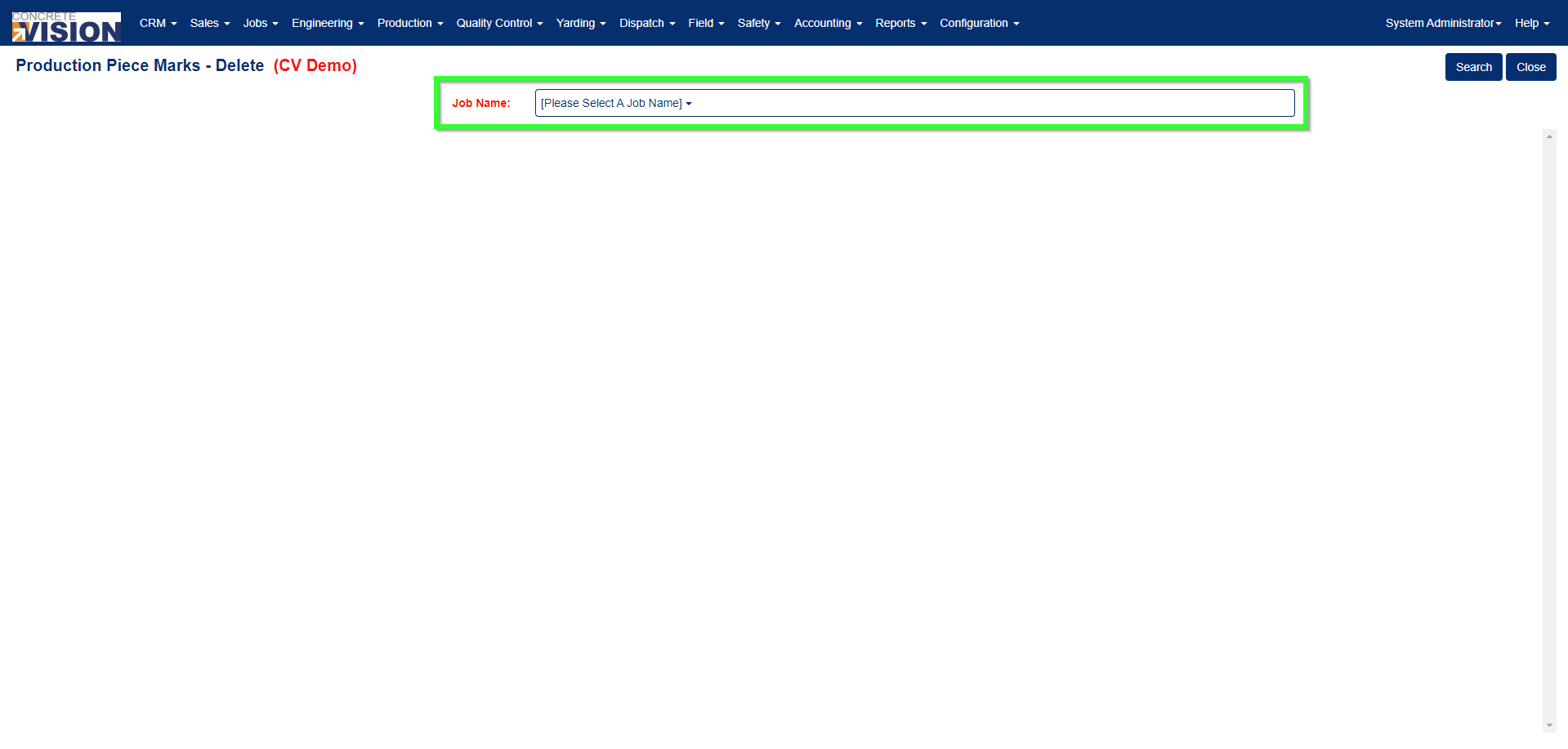
Figure 2
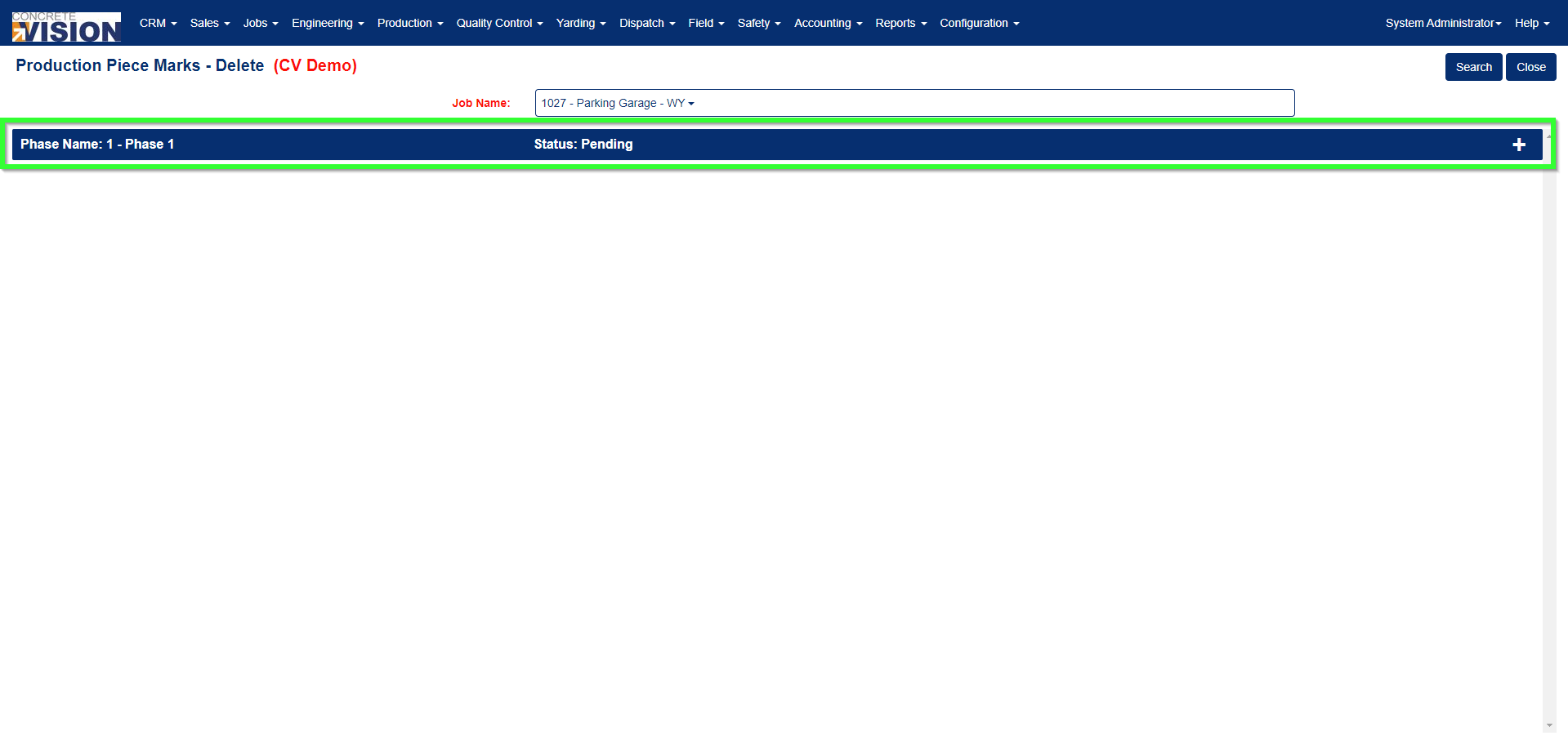
Figure 3
Filtering by Location and Product Code
Narrow your search by selecting the desired Location and Product Code (Figure 4). This will display only the pieces matching your criteria.
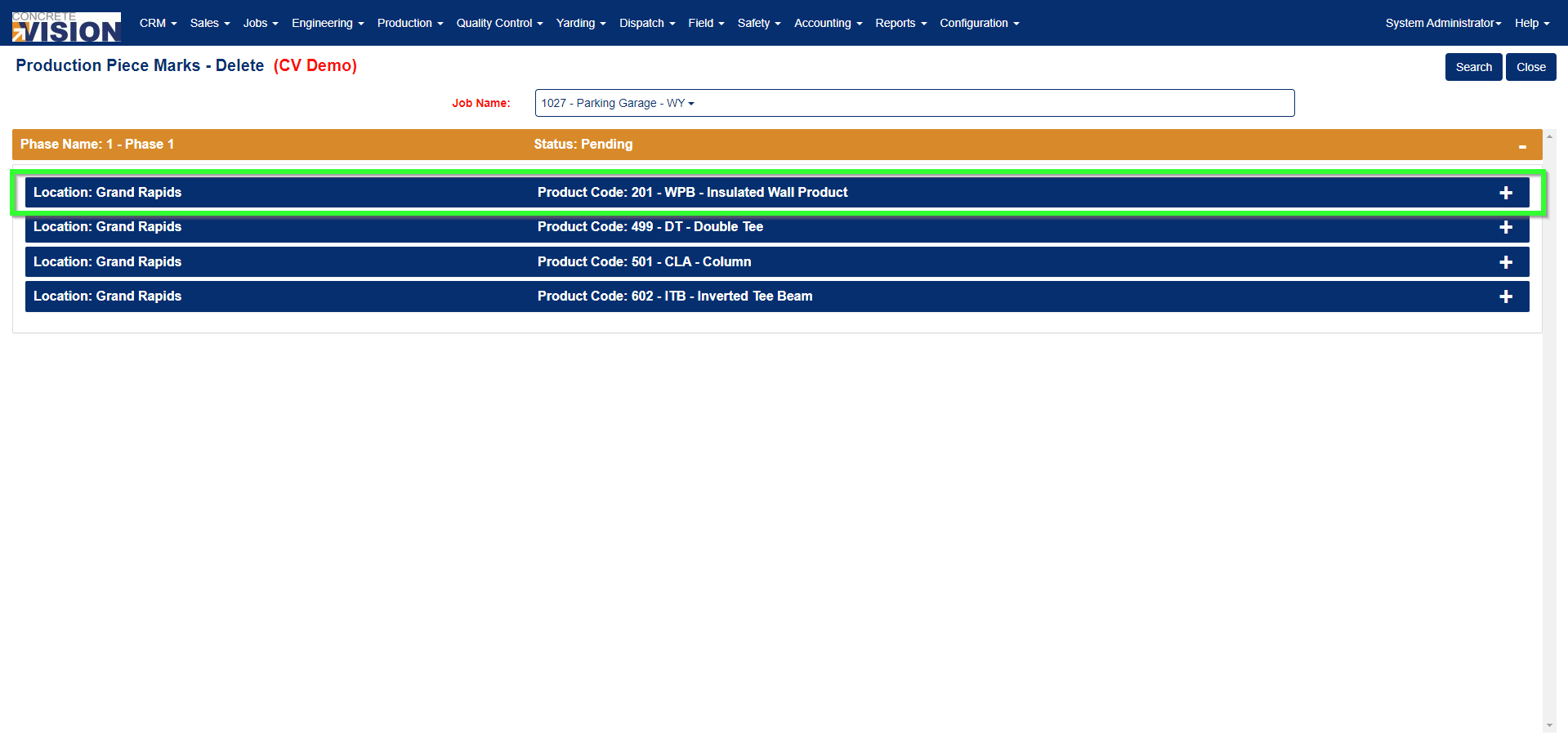
Figure 4
Deleting Individual Pieces
The Delete button becomes active when the Quantity of Pieces matches the Number of Pieces in Backlog (Figure 5). This ensures you can only delete pieces when all quantities are accounted for in the backlog status.
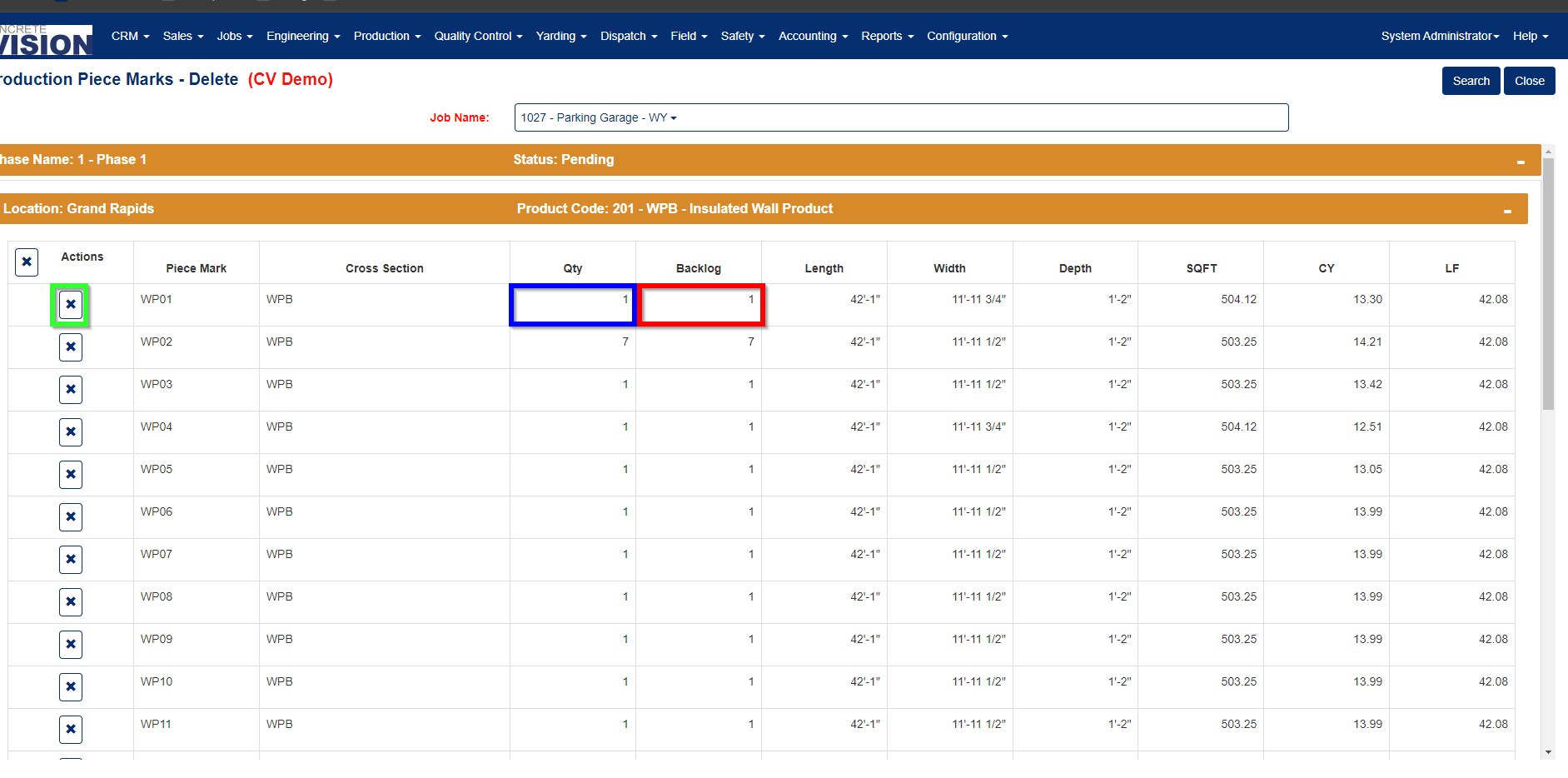
Figure 5
Deleting an Entire Product Code
To delete all pieces under a specific product code at once, use the Delete Product Code button (Figure 6). This option only becomes active when every piece under that product code is in backlog status, preventing accidental deletion of active pieces.
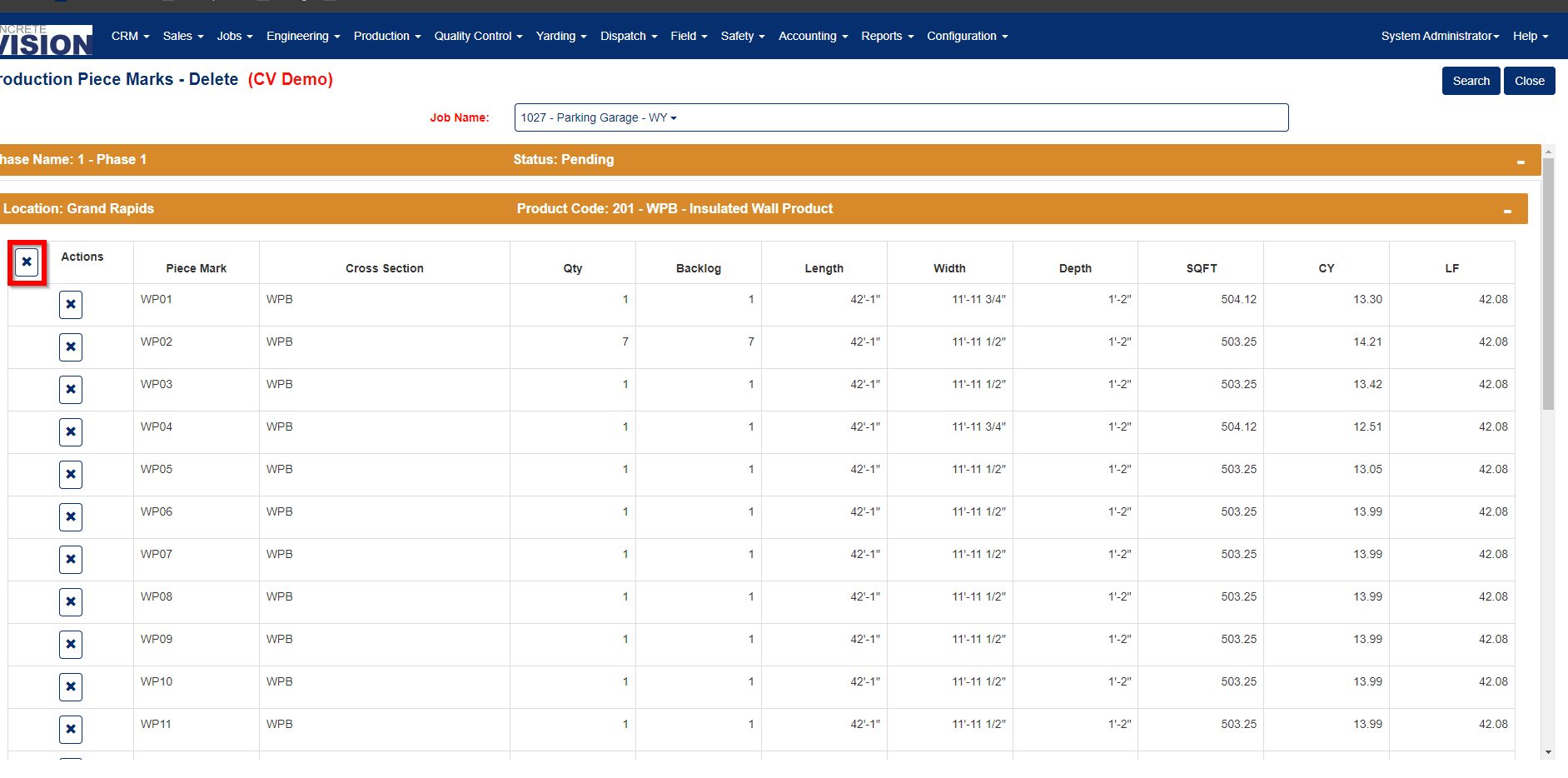
Figure 6
Note:
- Both deletion options include built-in safeguards to ensure you only delete pieces that are eligible for removal based on their backlog status.
- If you have backlog pieces on loads, this will remove those pieces and not update the load audit log.
Was this article helpful?
That’s Great!
Thank you for your feedback
Sorry! We couldn't be helpful
Thank you for your feedback
Feedback sent
We appreciate your effort and will try to fix the article