The Field Labels configuration tool within Concrete Vision allows you to easily modify and customize labels associated with various elements throughout Concrete Vision. These labels are categorized into three types: Field Labels, Column Labels, and general Labels. By simply modifying the existing label and clicking one of the Save buttons at the top, your changes will be reflected immediately wherever the label is used ensuring consistency and clarity to your users.
To access the Field Labels screen, use the Configuration tab on the main menu at the top of the screen, then click on the sub-menu System Setup followed by clicking Field Labels (see Figure 1 below).
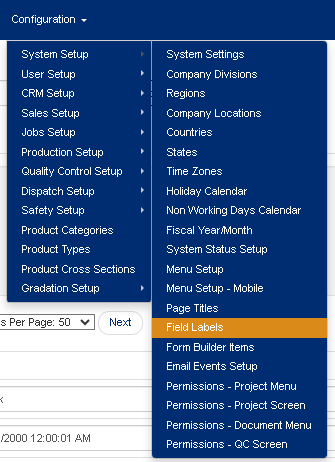
Figure 1
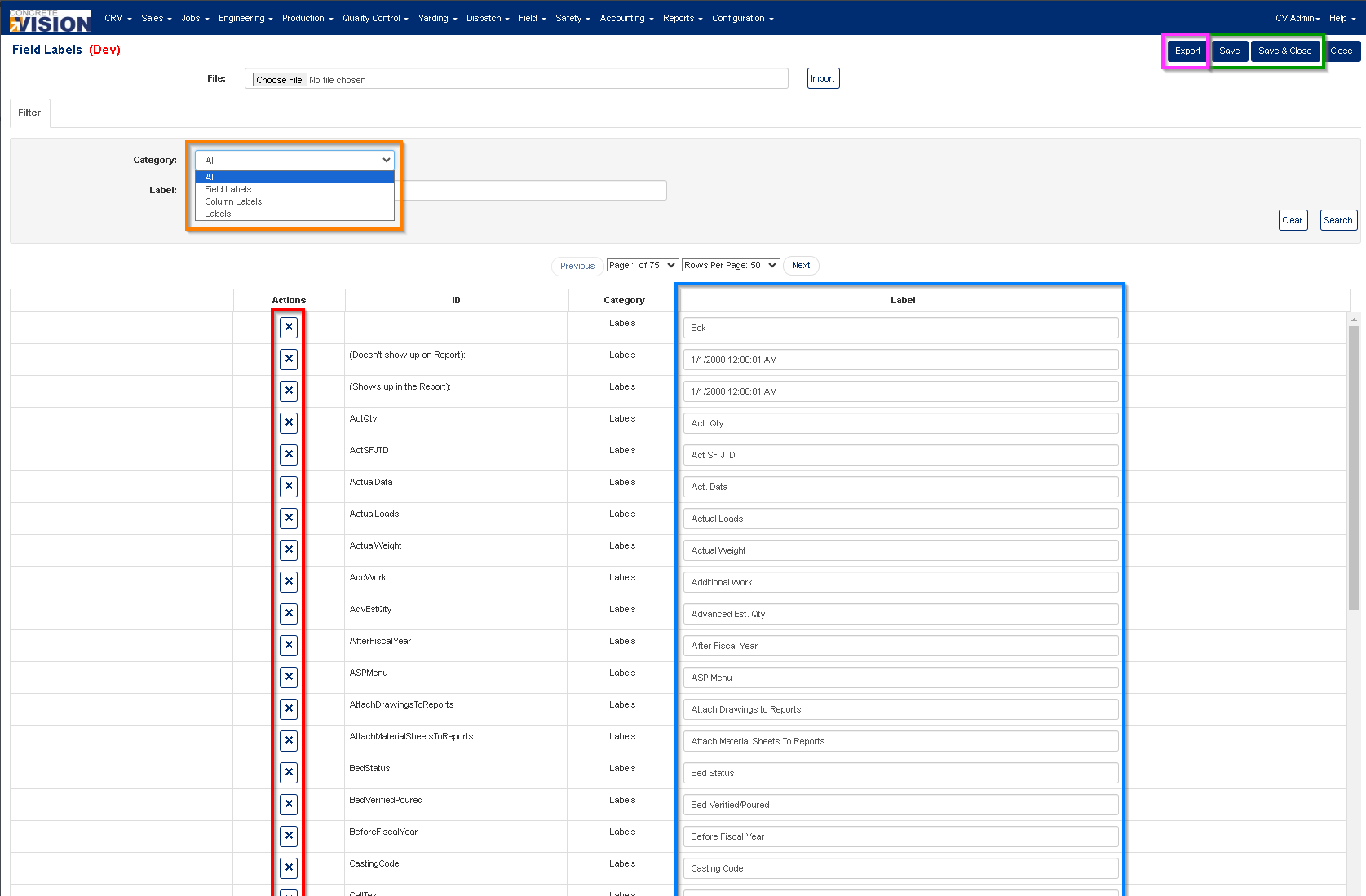
Figure 2
Filtering the Field Labels
- Click on the Filter tab at the top of the screen to open the filtering box.
- To filter the results:
- Use the Category (Orange box in Figure 2) options box and select the Category of the Field label you want to modify
- Use the Label name search beneath the Category options box to search based on the current label name.
Managing the Field Labels:
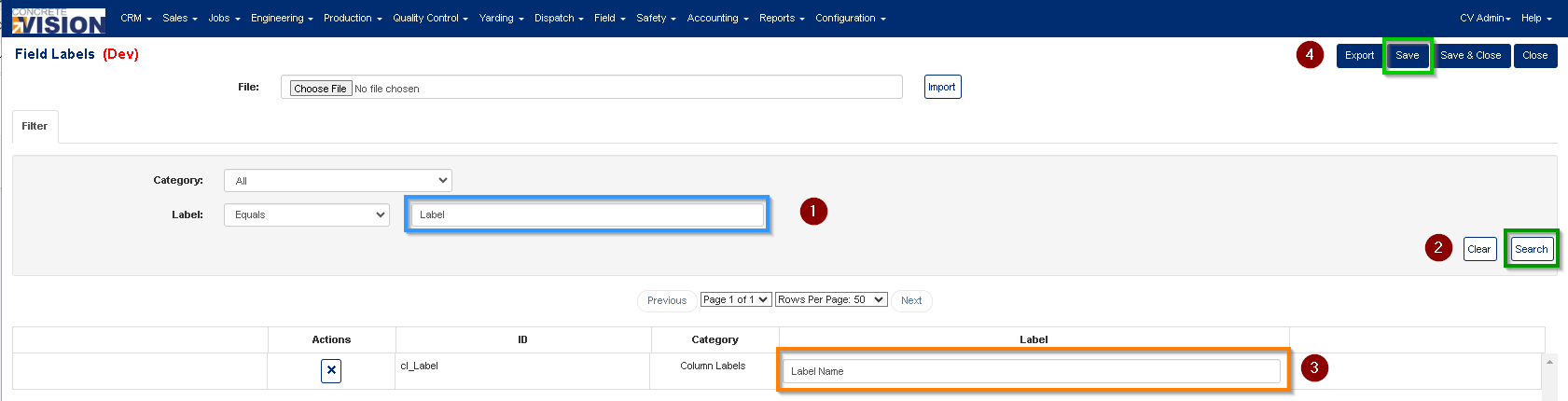
Figure 3
Changing a current Field Label:
- Enter the current label into the Filter > Label input box (see Figure 3 item 1).
- Click on the Search button (see Figure 3 item 2) to filter the results.
- Modify the label (see Figure 3 item 3, Max length 25)
- Click on the Save or Save & Close button for the change to take effect.
Note: Leaving the page without clicking on one of the Save buttons will result in losing your changes.
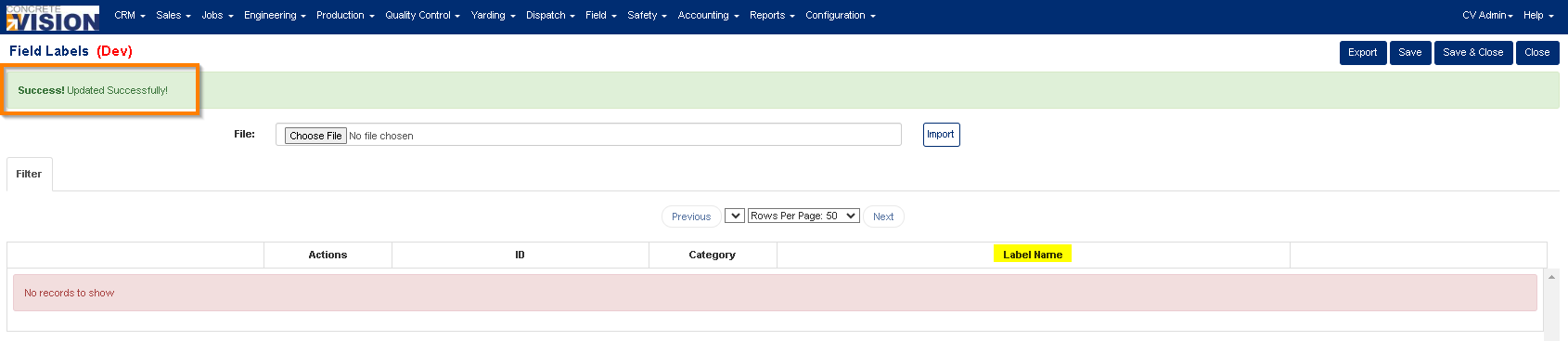
Result:
Exporting Field Labels:
- Click on the Export button located near the top right of the screen (see Figure 2 pink) to export all Field Labels to a excel spreadsheet.
Importing Field Labels:
Note: An exported file can be used as a template spreadsheet.
- Use the file upload located at top to find the excel spreadsheet containing the Field Labels you want to import.
- Click on the Import button to start the import.
Deleting a Field Label:
Note: Once a Field Label is deleted you will need to contact support to restore it if you don't have a backup export file.
Recommendation: Never delete a Field Label as it will cause any element using that label to appear blank/empty.
- Click on the [ X ] delete button (red box in Figure 2) to the left of the corresponding Field Label.
- This will open a confirmation window where you will be asked "Are you sure you want to delete this record?" click [OK] to allow the deletion.
Was this article helpful?
That’s Great!
Thank you for your feedback
Sorry! We couldn't be helpful
Thank you for your feedback
Feedback sent
We appreciate your effort and will try to fix the article