You can navigate to the Company Locations screen to view and edit company Location information from the Configuration menu, then System Setup sub-menu (Figure 1)
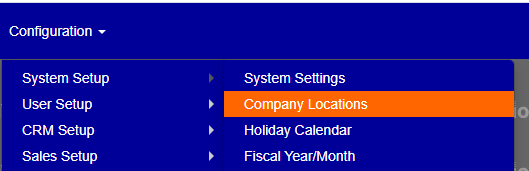
Figure 1
From the Company Locations screen (Figure 2), you can edit and view a companies primary location as well as add or edit other locations.
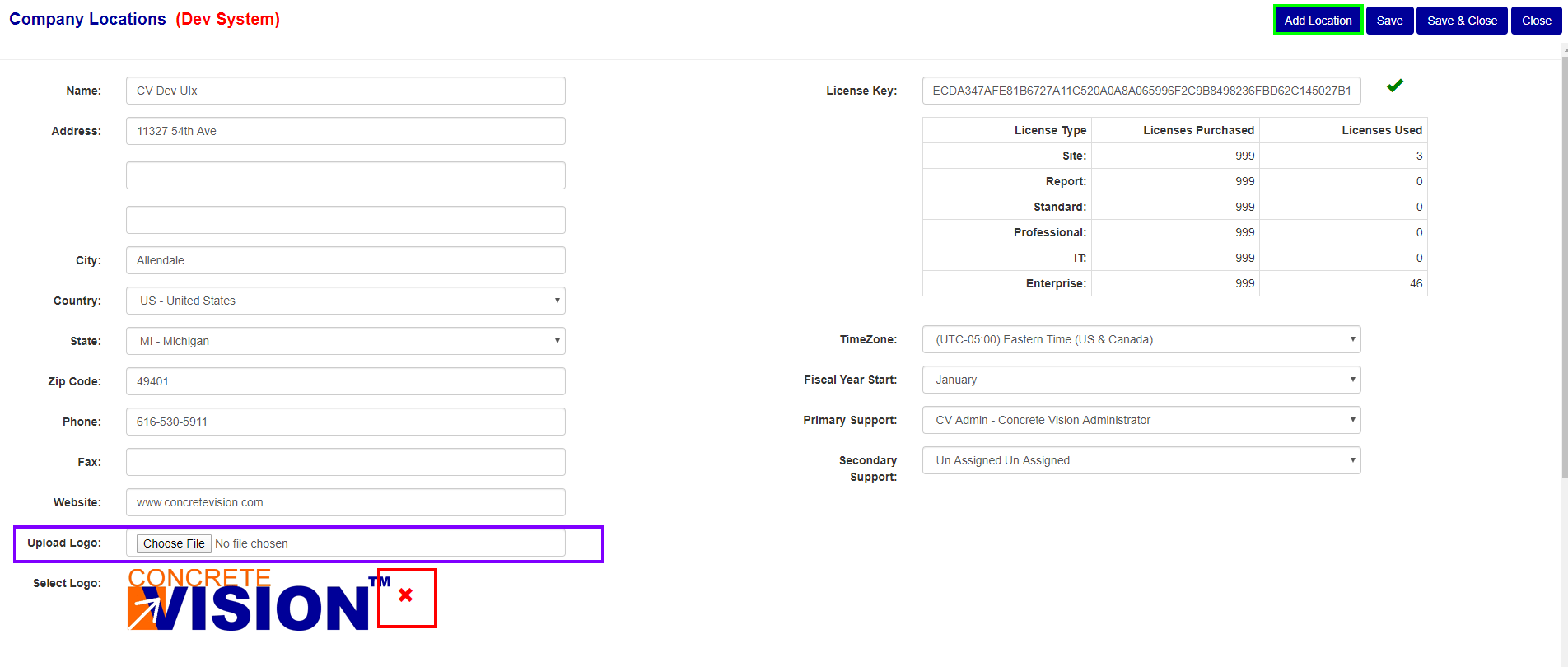
Figure 2
Upload a New Logo
Using the Upload Logo feature (Purple box Figure 2) will automatically replace the current logo with the selected picture. To do so, press the Choose File button and this will open the computers default file browser where you can select the new logo. Once the new logo is selected, press the Save or Save & Close button at the top of the screen and the old logo will be replaced with the selected logo.
Change Logo to Existing Logo
If you want to change the current logo to a logo that has already been uploaded, you first must remove the old logo using the red “x” next to the logo (Red box Figure 2). After removing the old logo, you will see a blue page icon next to the empty select logo line (Green box Figure 3). Pressing this icon will open a window where you can select a previously uploaded logo (Purple box Figure 3). Once the logo has been selected, just use the Save or Save & Close buttons at the top of the screen.

Figure 3
Add a New Location
To add a new location, press the Add Location button (Green box Figure 2). This will open the edit screen (Figure 5) for the new location. Fill out the required fields (listed below) and as much of the non-required fields as you wish. The icon next to the select logo field works the same as above. Once required and other fields have been filled out, use the Save or Save & Close button at the top of the screen to save the information.
Required Fields are as follows:
-Company Name
-Address
-City
-Phone Number
-Company (CRM)
-Location Weight
-Plant OH

Figure 4
Edit Location
To edit a locations information, click the edit button next to the corresponding location (Yellow box Figure 4). This will open the edit screen for the location. Ensure that all required fields (listed above) are filled out before pressing the Save or Save & Close buttons.
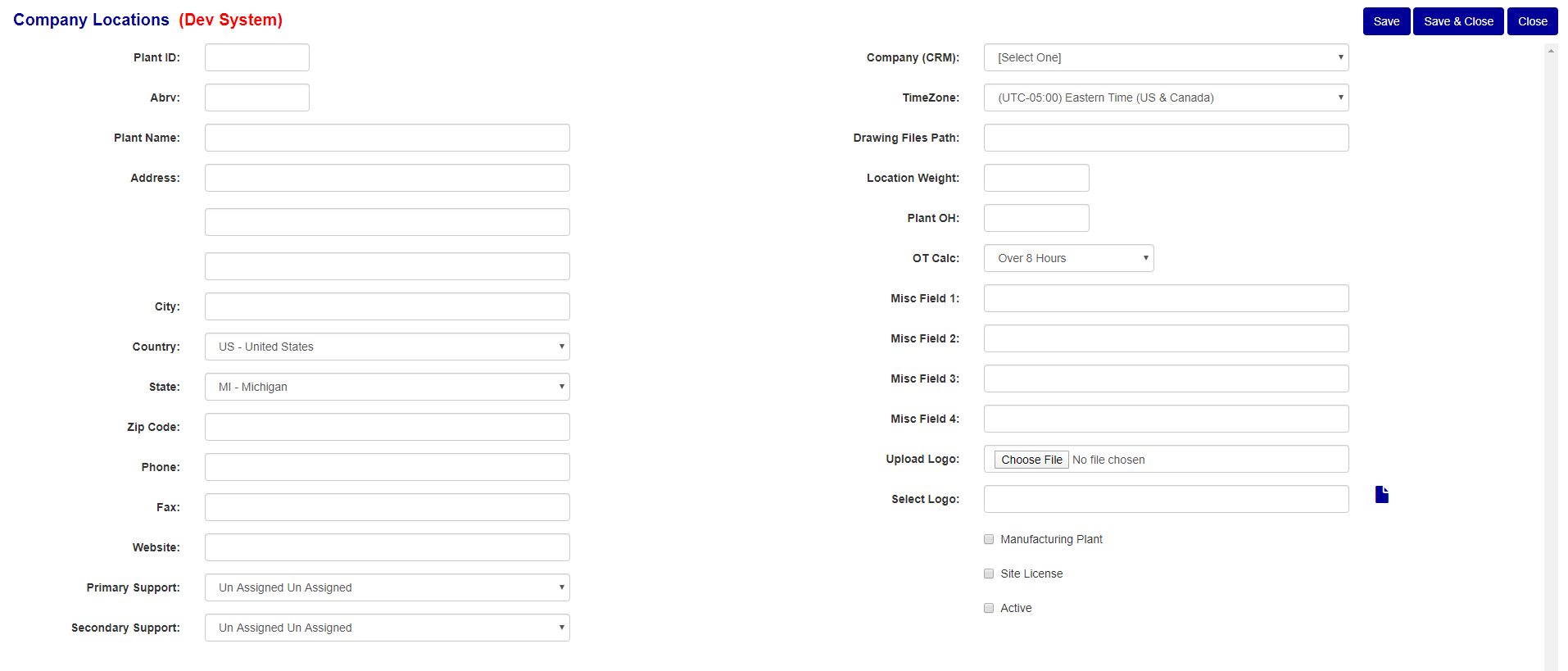
Figure 5
Was this article helpful?
That’s Great!
Thank you for your feedback
Sorry! We couldn't be helpful
Thank you for your feedback
Feedback sent
We appreciate your effort and will try to fix the article