Overview
Quote types allow users to define specific layouts and line items for quotes created in the Sales module.
Accessing the Quote Types Screen
Navigate to Configuration > Sales Setup > Quote Types from the main menu (Figure 1).
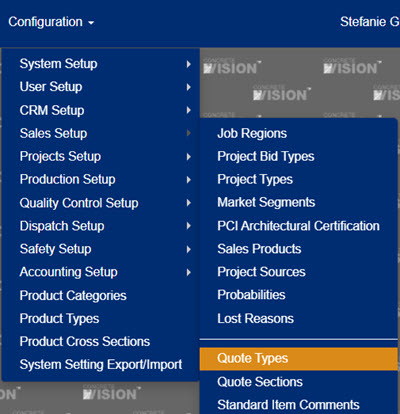
Figure 1
Using the Quote Types Screen
The Quote Types screen (Figure 2) is where quote types can be added, edited, and deleted.
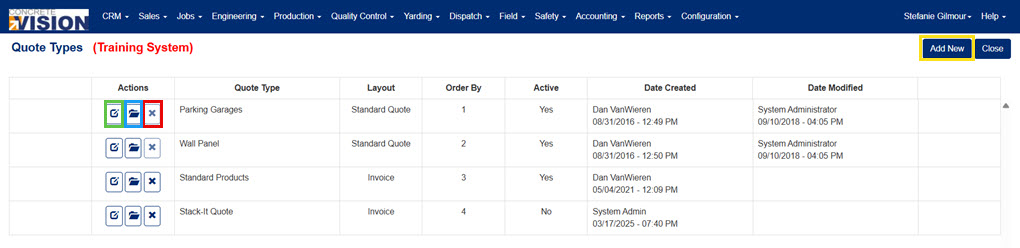
Figure 2
Add a Quote Type
- Click on the Add New button (yellow box in Figure 2). The Quote Types screen (Figure 3) will open.
- Enter a type.
- Select a layout from the dropdown.
- Enter an order by.
- Mark the Active checkbox to make the quote type available.
- Click the Save button to save this information or click the Save & Close button to save this information and return to the main screen.

Figure 3
Edit a Quote Type
- Click the Edit icon (green box in Figure 2) next to the quote type to edit. The Quote Types screen will open with the quote type's details (Figure 4).
- Make any needed edits.
- Click the Save button to save this information or click the Save & Close button to save this information and return to the main screen.

Figure 4
Select Line Items for a Quote Type
- Click the Folder icon (blue box in Figure 2) to the left of the quote type. The Quote Types - Line Items screen will load (Figure 5).
- Mark the checkbox to the left of the line item (green box in Figure 5) to include in the quote type.
- Mark the Page Break checkbox (blue box in Figure 5) if the item should be on a new page.
- Set the Order By number (yellow box in Figure 5) to organize the checked line items in the desired order.
- Click the Save button to save changes or the Save & Close button to save changes and return to the previous screen.
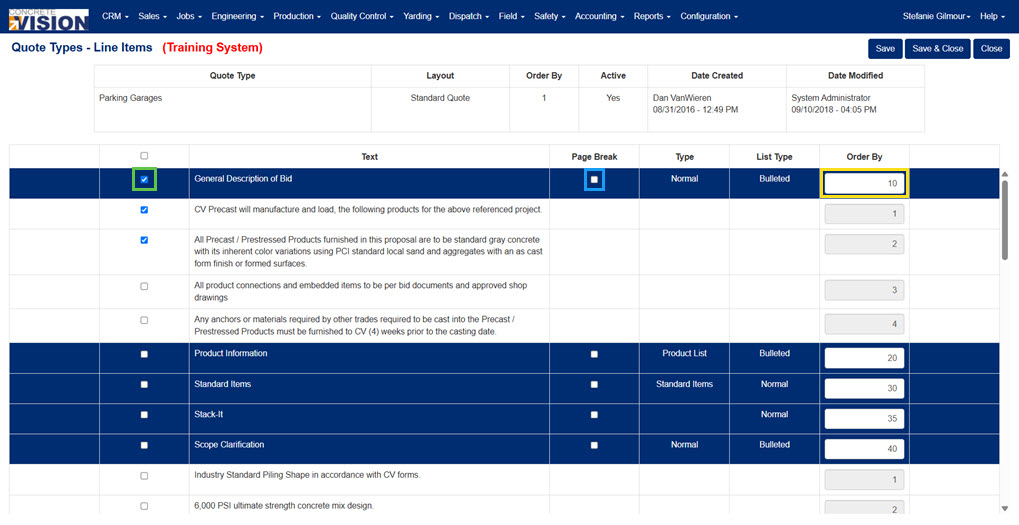
Figure 5
Delete a Quote Type
- Click on the Delete icon (red box in Figure 2) beside the quote types.
- Click the OK button in the popup window.
Note: Quote Types with details assigned to it cannot be deleted. If the Quote Type has details assigned to it, the delete button will be disabled.
Was this article helpful?
That’s Great!
Thank you for your feedback
Sorry! We couldn't be helpful
Thank you for your feedback
Feedback sent
We appreciate your effort and will try to fix the article