The Sales Products is where you set up items that show in the Primary Product drop down when creating a new opportunity.
You access Sales Products from Configuration > Sales Setup > Sales Products, shown below.
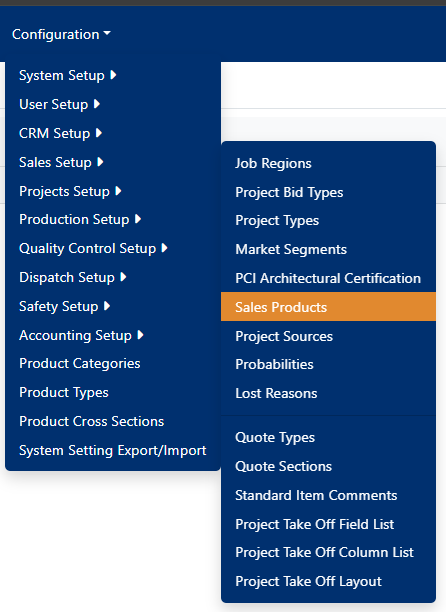
Figure 1
The Sales Products screen (see Figure 1) is where you can view and edit Sales Product items.
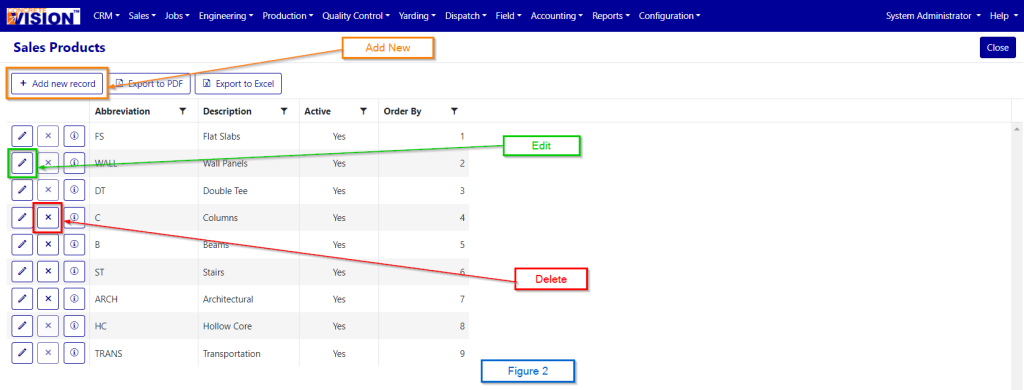 Figure 2
Add Sales Product
- Click on the Add (Orange Box top left screen). The Add screen (shown below Figure 3) will open.
- Enter a description.
- Check Active if the product is active.
- Enter an order by.
- Click the “Update" button to save this information and go back to the main screen.
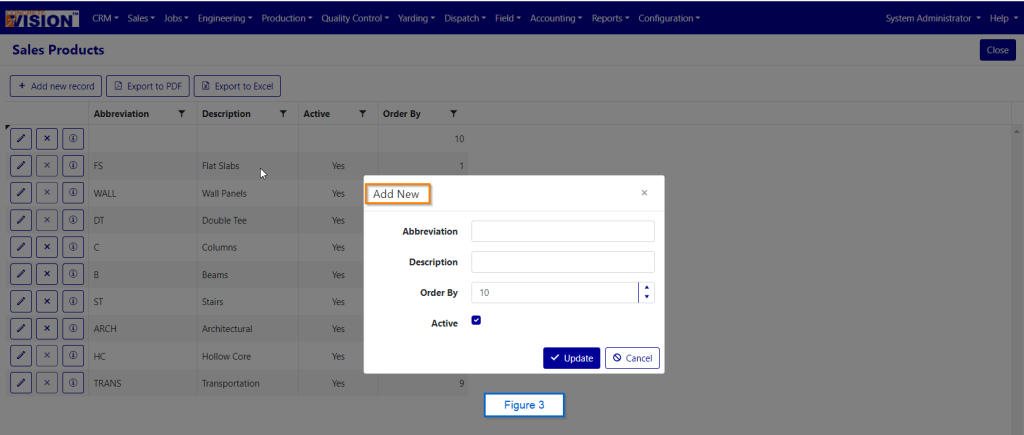 Figure 3
Edit Sales Products
- Click on the pencil icon (Green Box see Figure 2).
- You can modify the description.
- You can modify the order by.
- You can activate or deactivate the item.
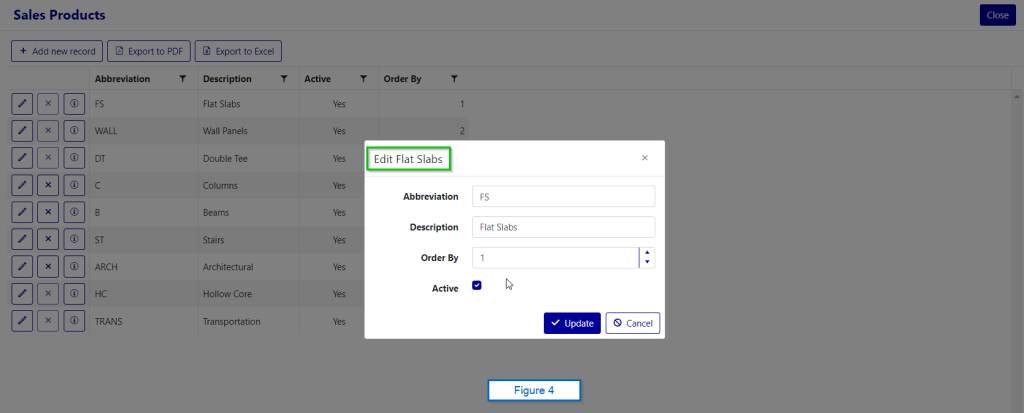 Figure 4
Delete Sales Product
To delete a Sales Product, just click on the delete button of the Sales Products (Red Box to the right of the Edit Button (Green Box) in Figure 2) you wish to delete. You can only delete a Sales Product that does not currently have any details assigned to it. If the Sales Product has details assigned to it, the delete button will be disabled (Figure 5). After clicking the Delete icon, you will be prompted to confirm that you want to delete the record (Figure 6).
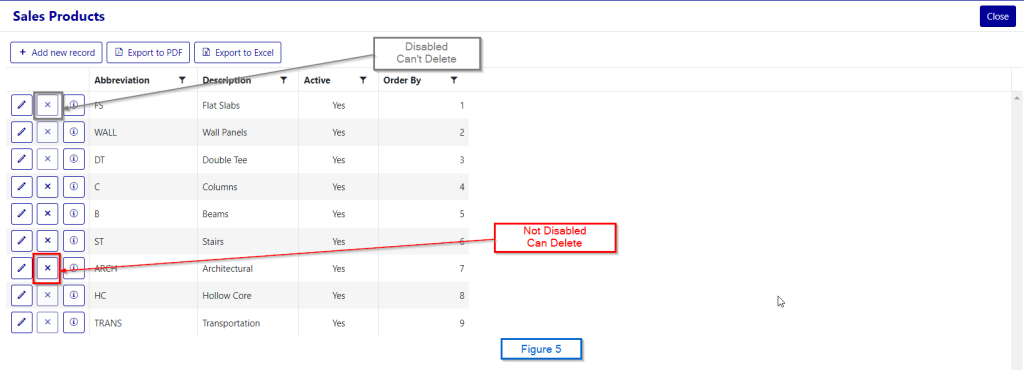 Figure 5
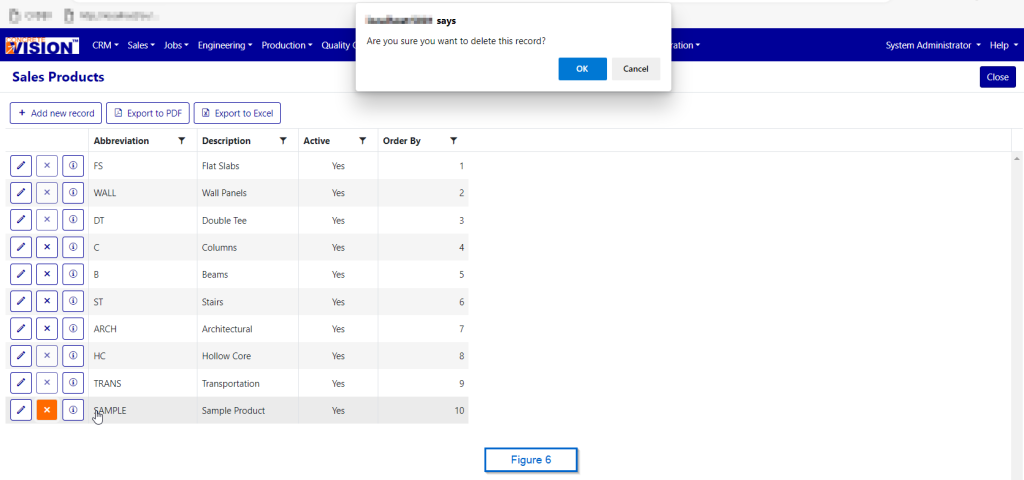 Figure 6
Was this article helpful?
That’s Great!
Thank you for your feedback
Sorry! We couldn't be helpful
Thank you for your feedback
Feedback sent
We appreciate your effort and will try to fix the article