You access the QC Problems from the Configuration > Quality Control Setup menu, shown below (see Figure 1)
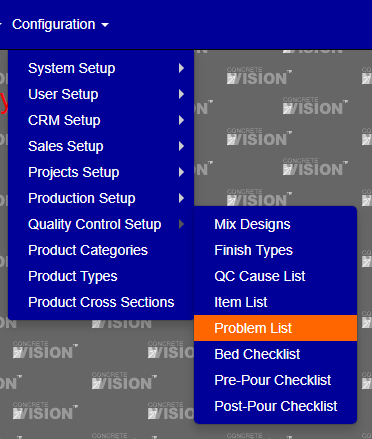
Figure 1
The QC Problems screen (see Figure 2) is where you can add and edit QC Problems.
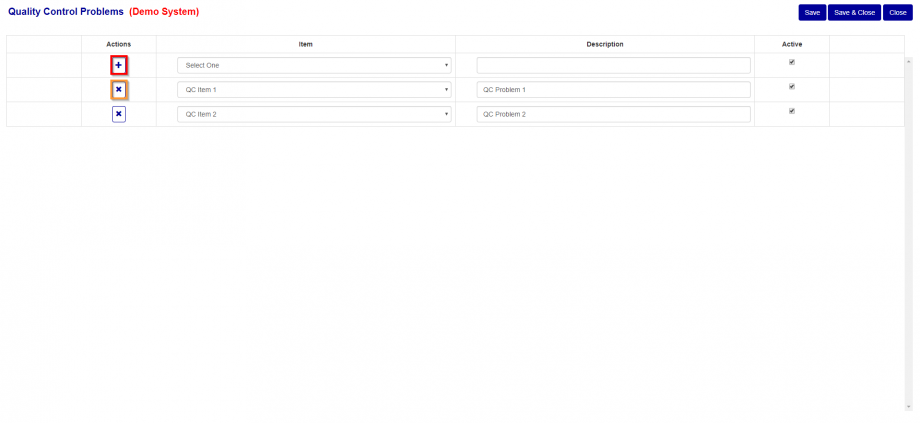
Figure 2
Add QC Problem
To add new Problem (Red Box in Figure 2):
- Select an Item from dropdown.
- Enter an description.
Edit QC Problem
To edit an QC Problem, just update any one of the column values and then select the “Save” or” Save & Close” button to save your changes. If you don’t click on either the “Save” or “Save & Close” button and navigate off this screen, your changes will be lost.
Delete QC Problem
To delete an QC Problem, just click on the X button under Actions of the QC Problem you wish to delete. You can only delete QC Problem that are not currently assigned to an NCR. If an QC Problem is assigned to an NCR, the delete button will be disabled.
Was this article helpful?
That’s Great!
Thank you for your feedback
Sorry! We couldn't be helpful
Thank you for your feedback
Feedback sent
We appreciate your effort and will try to fix the article