To get to the add pieces to stock screen, use the "Production > Add to Stock" menu option, as shown below: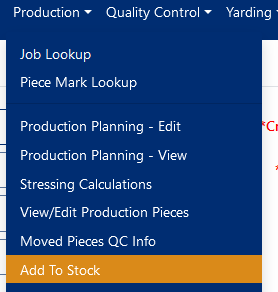
This screen will allow you to add backlog pieces to any stock job. To create a piece, first fill out all the required fields (denoted in red in Figure 1), along with the desired piece mark quantity, and piece attributes such as length, width, depth, etc.
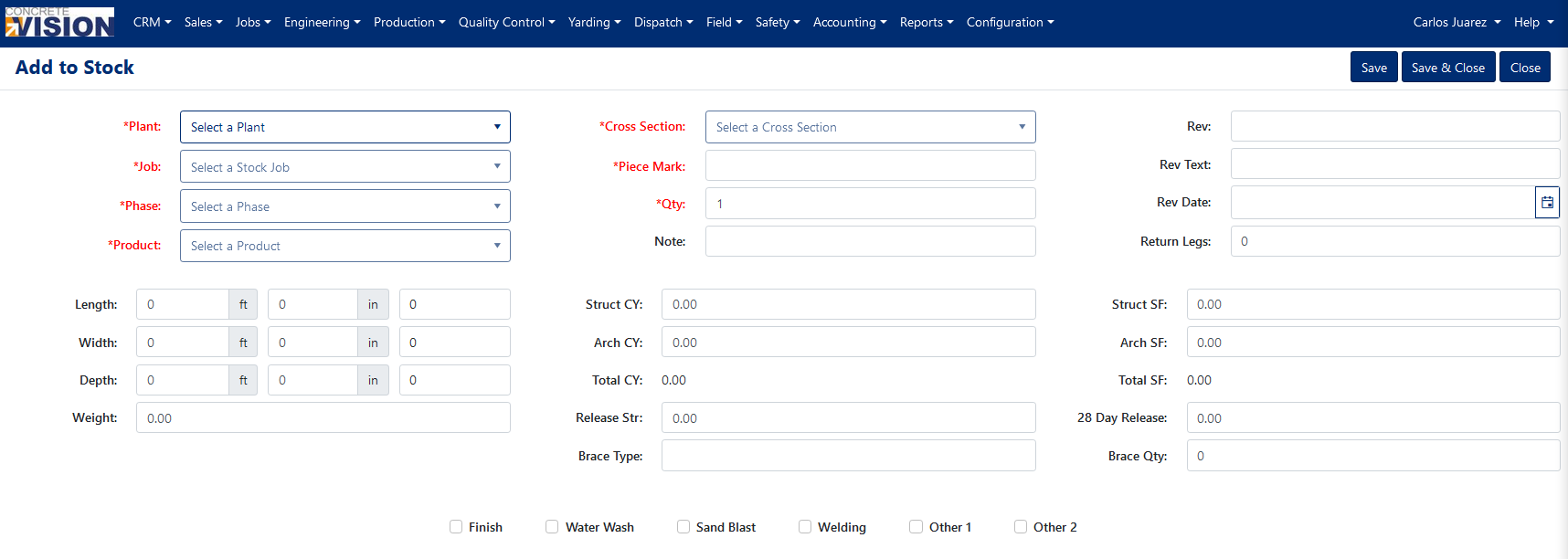
Figure 1
Clicking "Save" or "Save & Close" will add the piece to the selected stock job, provided that the entered data passes validation.
Was this article helpful?
That’s Great!
Thank you for your feedback
Sorry! We couldn't be helpful
Thank you for your feedback
Feedback sent
We appreciate your effort and will try to fix the article