Overview
Standard Item Comments allow you to create and manage predefined comments that can be quickly inserted when creating project quotes. Once configured, these comments become available in dropdown lists when adding stock items to project quotes.
Accessing Standard Item Comments
You can access the Standard Item Comments configuration screen through:
- Click on the Configuration menu
- Select Sales Setup
- Click on Standard Item Comments
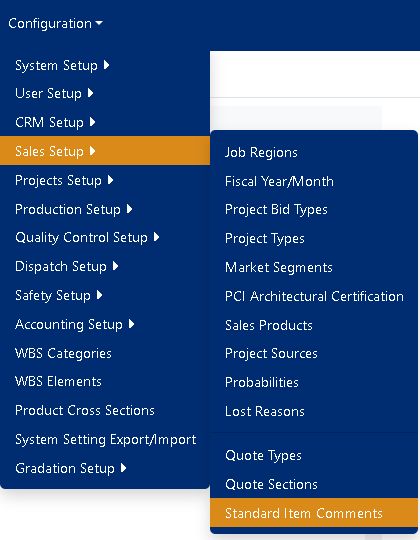
Figure 1
Managing Standard Item Comments
Viewing Existing Comments
The main screen displays all your configured standard item comments with their descriptions, content, active status, and display order.
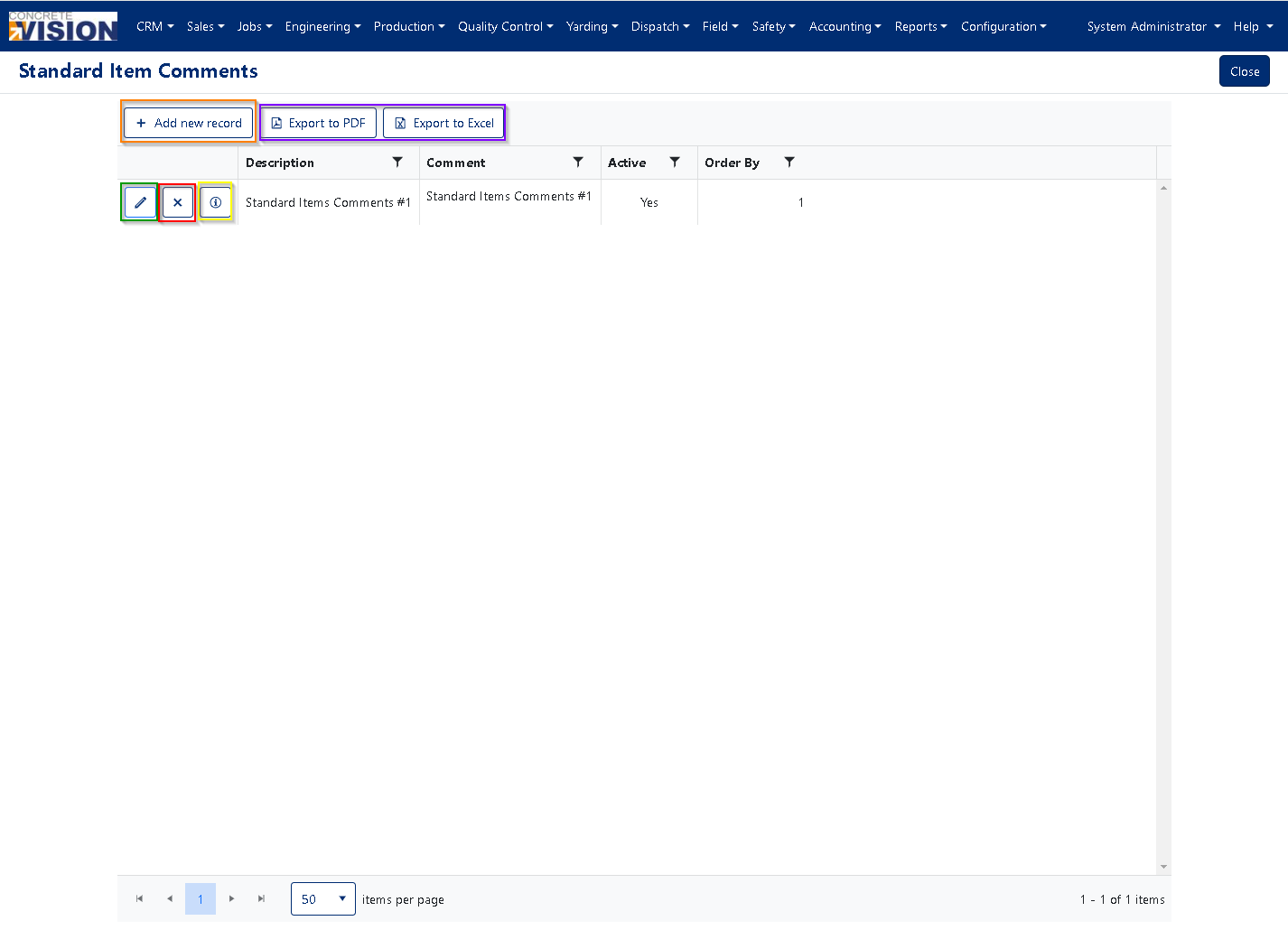
Figure 2
Creating a New Standard Item Comment
Follow these steps to add a new standard item comment:
- Open the Add New Window:
- Click the [+ Add new record] button in the top left of the screen (Figure 2 - orange outline)
- Enter Details:
- Description: Enter a clear, concise name for the comment (Maximum length: 250 characters)
- Comment: Enter the full text of your comment. Use the formatting toolbar to apply styling as needed
- Active: Check this box to make the comment available for use in quotes
- Order By: Enter a number to determine where this comment appears in dropdown lists (lower numbers appear first)
- Save the Comment:
- Click the Save button to create your new standard item comment (Figure 3 - Green outline)
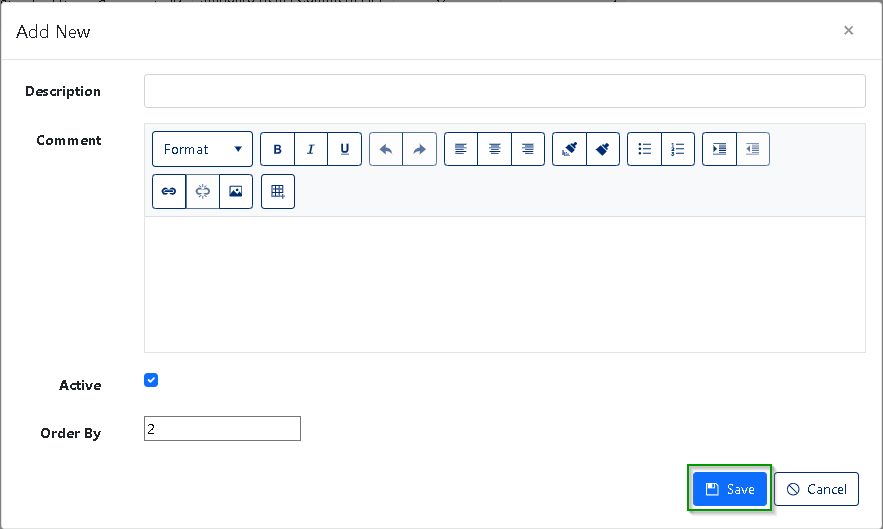
Figure 3
Comment Formatting Options
The Comment field includes a toolbar with text formatting options:
- Format dropdown: Select predefined text formats
- B: Bold text
- I: Italic text
- U: Underline text
- Alignment options: Left, center, right, or justify text
- List options: Bulleted or numbered lists
- Indentation controls: Increase or decrease text indentation
Editing a Standard Item Comment
To modify an existing comment:
- Open the Edit Window:
- Click the pencil icon (first icon) to the left of the comment you want to edit (Figure 2 - Green outline)
- Update Details:
- Modify the Description (Maximum length: 250 characters)
- Edit the Comment text as needed
- Change the Active status if required
- Adjust the Order By number to change its position in lists
- Save Changes:
- Click the Save button to apply your changes (Figure 4 - Orange outline)
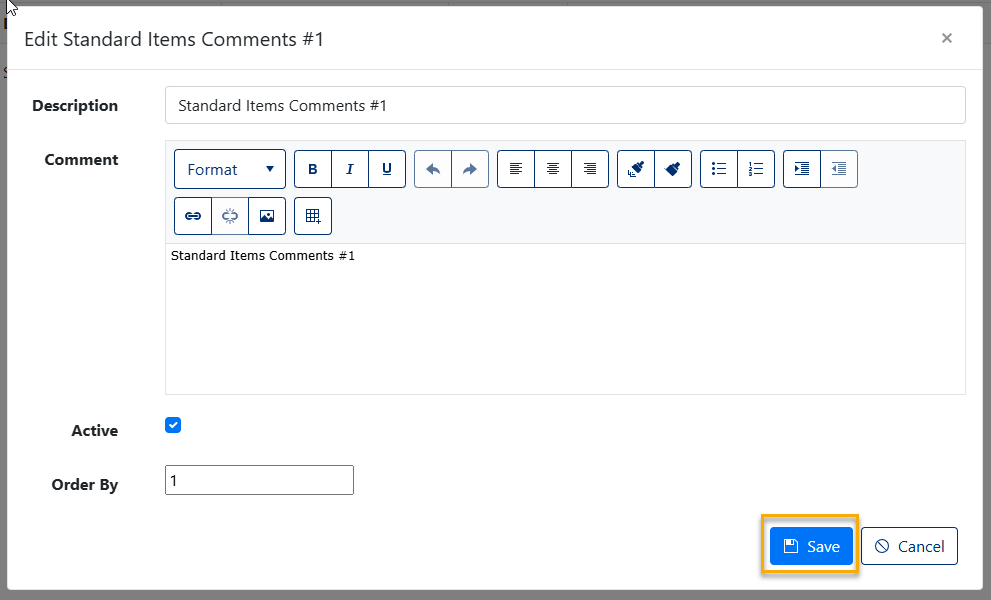
Figure 4
Deleting a Standard Item Comment
To remove a comment that's no longer needed:
- Click the [X] button (Figure 2 - red outline) next to the comment you want to delete
- A confirmation dialog will appear asking "Are you sure you want to delete this record?"
- Click OK to confirm deletion or Cancel to keep the comment
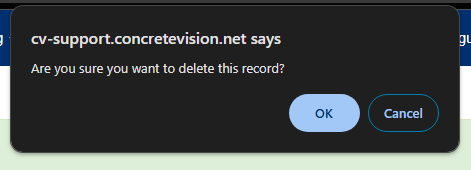
Figure 5
Exporting Standard Item Comments
You can export your comments list in two formats:
- Export to PDF:
- Click the [Export to PDF] button to create a PDF document containing all your standard item comments (Figure 2 - Purple outline)
- Export to Excel:
- Click the [Export to Excel] button to generate an Excel spreadsheet with all your standard item comments (Figure 2 - Purple outline)
Using Standard Item Comments in Project Quotes
Once configured, your standard item comments will be available when adding stock items to project quotes:
- When creating or editing a project quote, add a stock item
- In the item details, you'll see a dropdown list for comments
- Select the appropriate standard comment from the list
- The predefined text will be automatically inserted into the quote
Was this article helpful?
That’s Great!
Thank you for your feedback
Sorry! We couldn't be helpful
Thank you for your feedback
Feedback sent
We appreciate your effort and will try to fix the article