Overview
The Pre-Shipping Checklist screen ensures all required inspection items are completed before a piece can be shipped. This includes items from the Pre-Shipping Checklist as well as any incomplete items carried over from the Post Pour Checklist.
Accessing the Pre-Shipping Checklist
Navigate to Quality Control > Pre-Shipping Checklist (Figure 1).
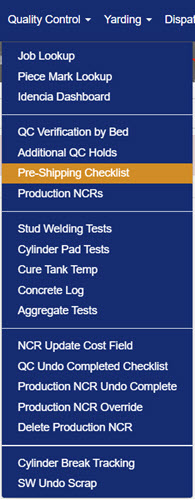
Figure 1
Pre-Shipping Checklist Screen
The main screen (Figure 2) displays all pieces associated with the selected job, along with key details such as Plant, Job No., Piece Mark, CTRL No., Piece S/N, NCR No., Status, Yard Location, Cast No., Cast Date, Bed Name, BP, Load No., Load Date, and checklist Status.
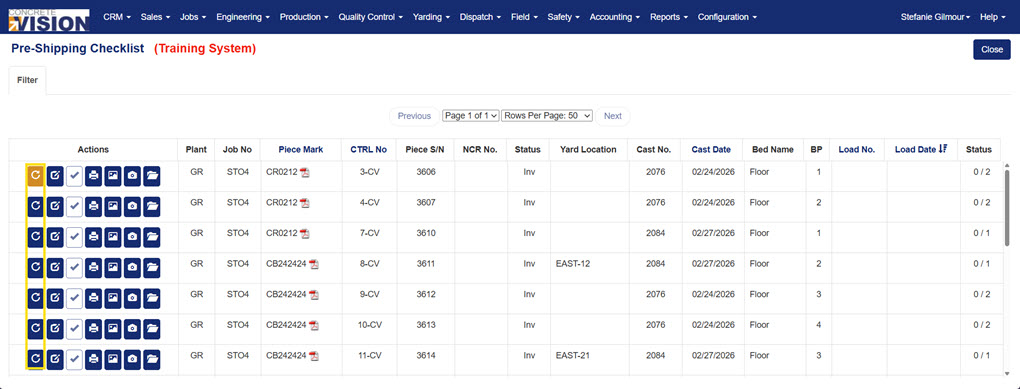
Figure 2
Step-by-Step Instructions
Step 1: Create a Pre-Shipping Checklist
If the Edit button is disabled for a piece, the Pre-Shipping Checklist has not yet been created for that piece.
- Click the Refresh/Create button (Yellow box, Figure 2) to generate the checklist for that piece.
Tip: You must create the checklist before you can edit it.
Step 2: Open a Checklist for Editing
Once the checklist has been created, locate the piece you want to review and click the Edit button (Green box, Figure 3).
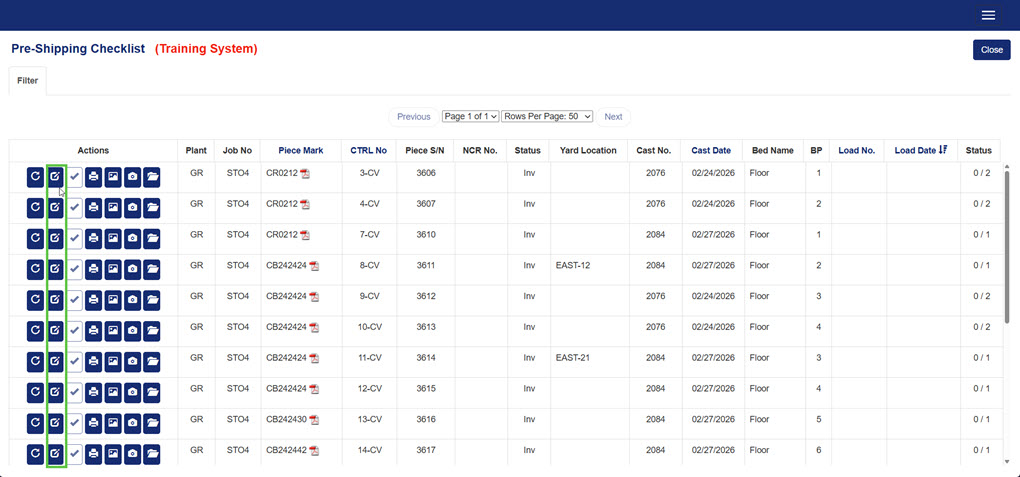 Figure 3
Step 3: Set Checklist Item Statuses
The Edit screen (Figure 4) displays each checklist item in a row with five status columns. Select the appropriate status for each item:
| Status | Description |
|---|---|
| Unchecked | Item has not yet been reviewed |
| NA | Item does not apply to this piece |
| Pass | Item has passed inspection |
| Fail | Item has NOT passed inspection |
| Fixed | A previously failed item has been corrected |
To attach a photo to a checklist item, click the Picture button (Black box, Figure 4).
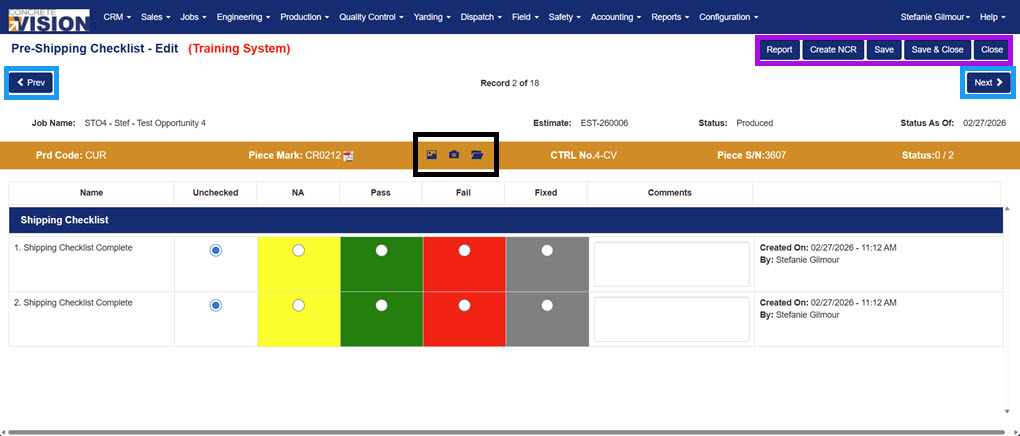
Figure 4
Step 4: Save Your Changes
After updating checklist item statuses, save your work using one of the following options (Purple box, Figure 4):
- Save – Saves changes and remains on the current record.
- Save & Close – Saves changes and returns to the checklist screen.
- Prev / Next – Saves changes and navigates to the previous or next piece record.
Note: The Prev and Next buttons (Blue box, Figure 4) navigate through all pieces currently displayed on the Pre-Shipping Checklist screen.
Step 5: Mark the Checklist as Complete
After all items have been reviewed and saved, return to the main Pre-Shipping Checklist screen (Figure 5).
- Click the Checkmark button (Green box, Figure 5) next to the piece whose checklist is fully complete.
- When prompted (Figure 6), click OK to confirm completion.
The piece's Status column will update to reflect the completed checklist (e.g., 2/2).
To exit the screen, click the Close button (Purple box, Figure 5).
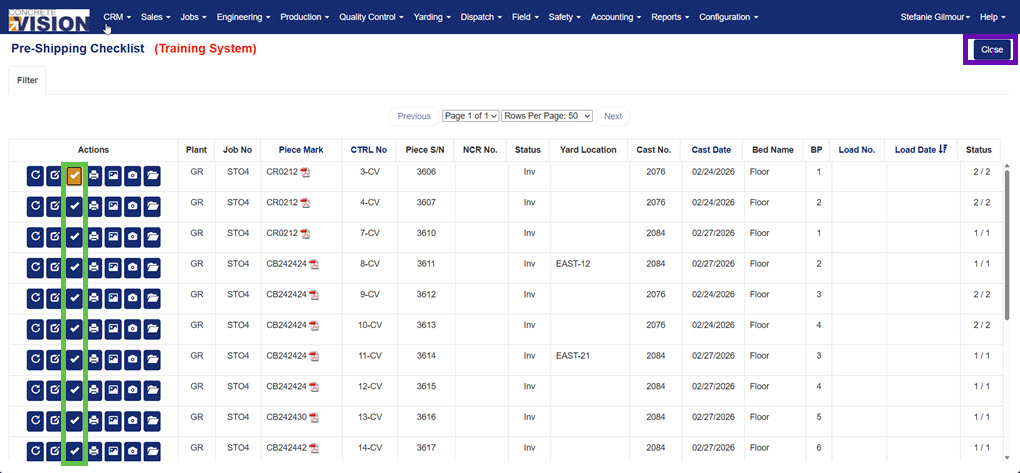
Figure 5
 Figure 6
Search and Filter Options
Click the Filter bar at the top of the screen to expand the search and filter panel (Figure 7).
| Filter Field | Description |
|---|---|
| Load Start Date | Filter pieces by the start of their load date range |
| Load End Date | Filter pieces by the end of their load date range |
| Plant(required) | Filter by plant location |
| Load No. | Filter by a specific load number range (From / To) |
| Job Name(required) | Filter by job name |
| Status | Filter by checklist status: Started, Completed, or All |
| Piece Mark | Filter by piece mark using a search method (see below) |
| Piece Status | Filter by piece status: Inventory, Shipped, or All |
Piece Mark search methods:
- Begins With – Returns piece marks starting with the entered text
- Contains – Returns piece marks containing the entered text anywhere
- Equals – Returns exact matches only
- Ends With – Returns piece marks ending with the entered text
Note: Plant and Job Name are required fields when using the search and filter function.
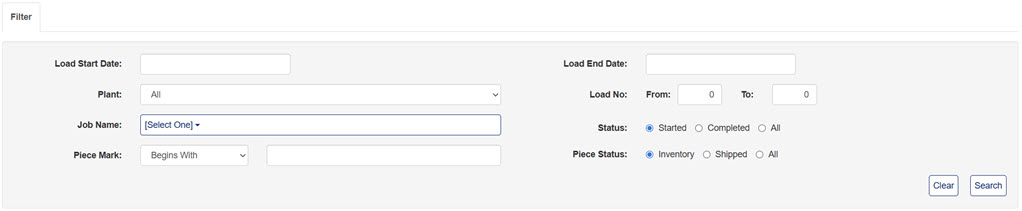 Figure 7
Was this article helpful?
That’s Great!
Thank you for your feedback
Sorry! We couldn't be helpful
Thank you for your feedback
Feedback sent
We appreciate your effort and will try to fix the article