Overview
The Project Checklist Items screen displays a list of all checklist items where you can view, edit, add, or delete items as needed.
Accessing the Project Checklist Items
You can access Project Checklist Items by navigating to Configuration menu > Projects Setup > Project Checklist Items (see Figure 1).
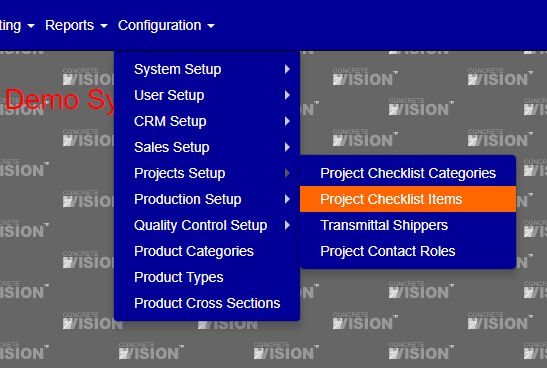
Figure 1
Viewing Project Checklist Items
The main screen (Figure 2) displays your checklist items in a table format with the following columns:
- Actions: Edit and delete buttons for each item
- Category: The grouping category for the item
- Description: Details about the checklist item
- Order By: The numerical order in which items appear
- Indent: Whether the item is indented in the checklist
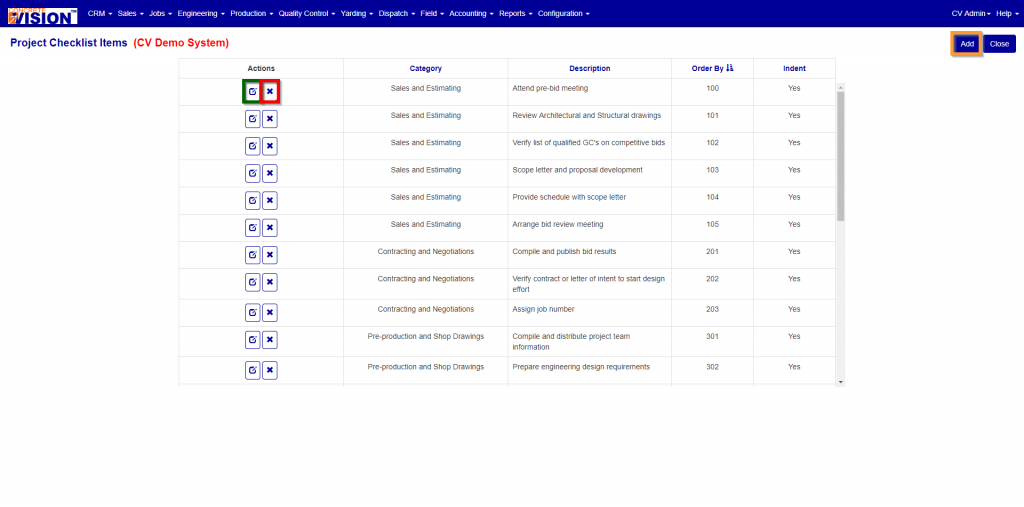
Figure 2
Adding Project Checklist Items
To create a new checklist item:
- Click the Add button (orange box, Figure 2)
- The Add/Edit screen will open (see Figure 3)
- Select a Category from the dropdown menu
- Enter a Description for the checklist item
- Enter an Order By number to set the item's position in the list
- Click Add to save and return to the main screen
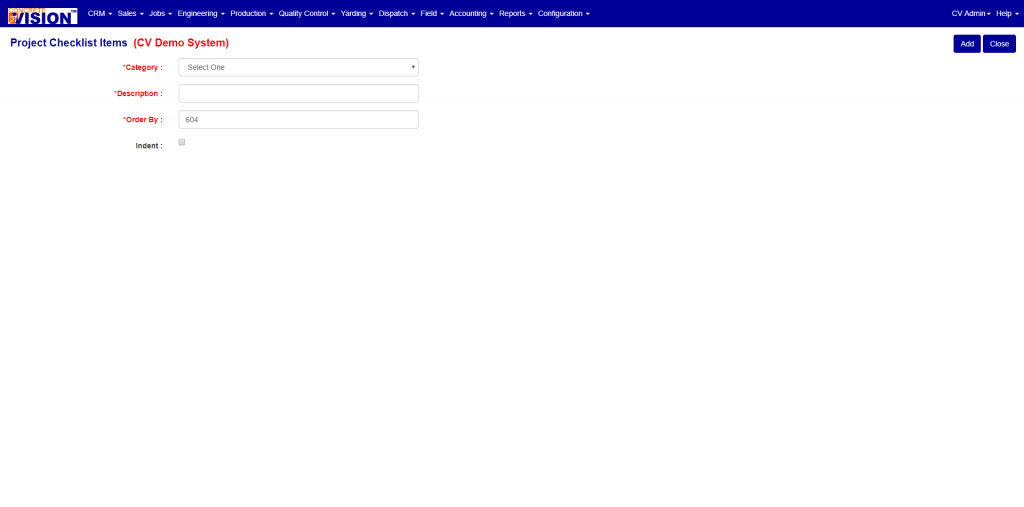
Figure 3
Editing Project Checklist Items
To modify an existing checklist item:
Click the Edit button (green box, Figure 2) next to the item you want to change
The Edit screen will open (Figure 4) where you can:
- Modify the category
- Modify the description
- Modify the order by number
- Select whether to indent the item
Click Save or Save and Close to preserve your changes
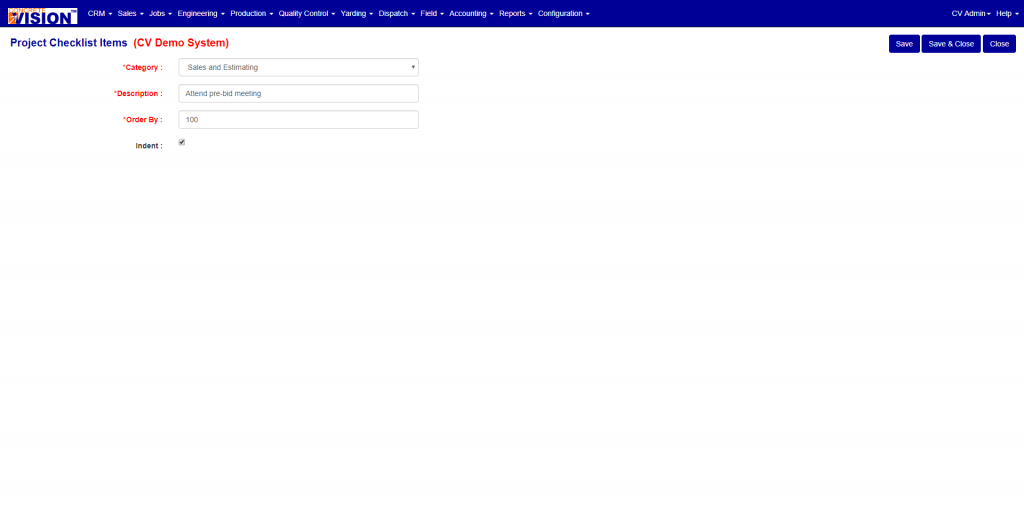
Figure 4
Note: If you navigate away from the Edit screen without clicking Save or Save and Close, all changes will be lost.
Deleting Project Checklist Items
To remove a checklist item:
- Click the 'X' Delete button (Red box, Figure 2)
- Confirm the deletion when prompted (Figure 6)
Note: You can only delete checklist items that have no details assigned to them. If an item has associated details, the delete button will be disabled.
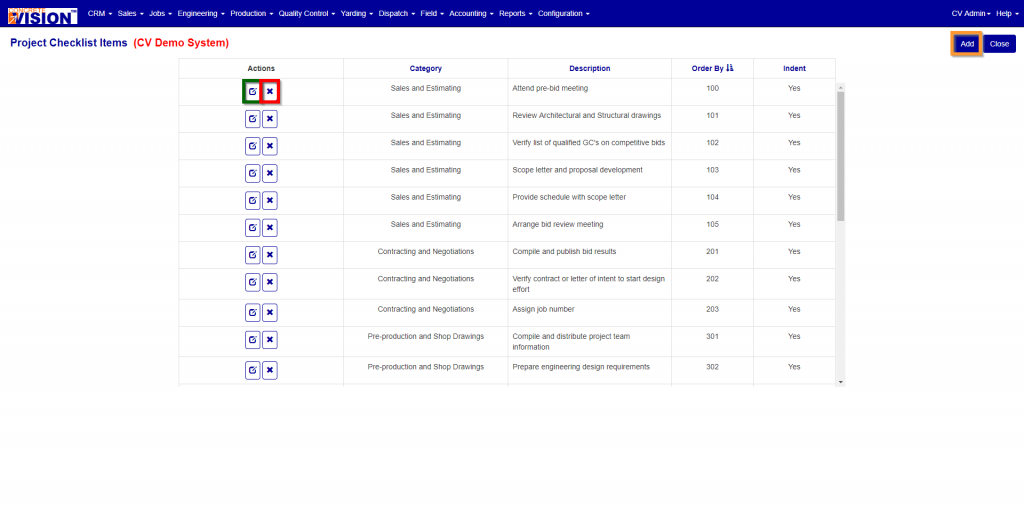
Figure 5
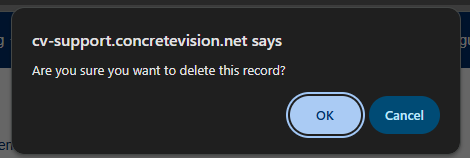
Figure 6