The QC Piece Status Report will display all pieces in the scheduled or inventory status by job.
You can view QC Piece Status information using the QC Piece Status screen (Fig. 1)
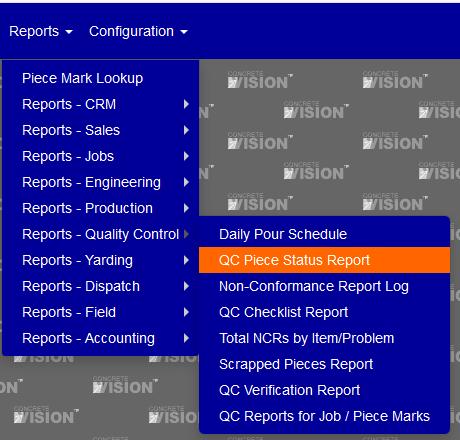
Fig. 1
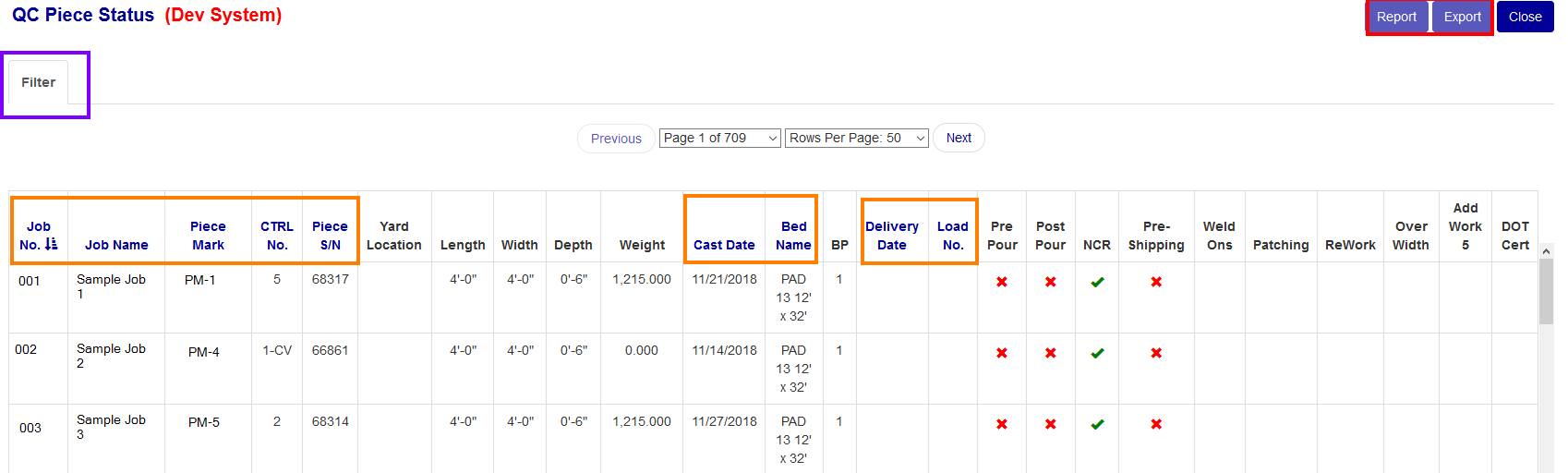
Fig. 2
When you first open the page, you will not be able to use the “Report” or “Export” Buttons (Red box Fig. 2) until you use the filter (Purple box Fig. 2) to narrow down the values using the plant selector.
Sorting
** The currently selected heading to sort by will have the sort by icon next to it ()
** Sorting on the Delivery date will sort by Actual Delivery Date before Estimated Delivery Date.
- Click any of the blue headings (see Orange box in Fig. 2) to change the table to be sorted by that headings category.
- Click the same heading again to change the sort by function to be descending instead of the default ascending.
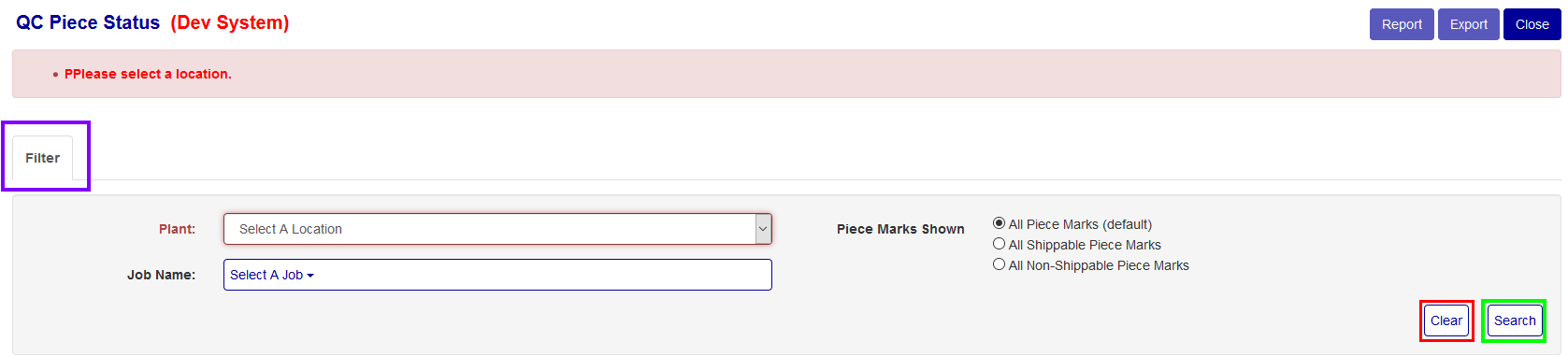
Fig. 3
Filter
Click the "Filter" button at the top of the screen (see the Purple box in Fig. 2) to open the filter menu.
- You can enter, change, and select any of the inputs/items to obtain specific results or fewer.
- To clear/reset a current filter press the "clear" button (see the Red box in Fig. 3).
- To re-generate the table using the filter click the "search" button (see the Green box in Fig. 3)
- To close/hide the filter press the "Filter" button again (see the Purple box in Fig. 3).
After Filter
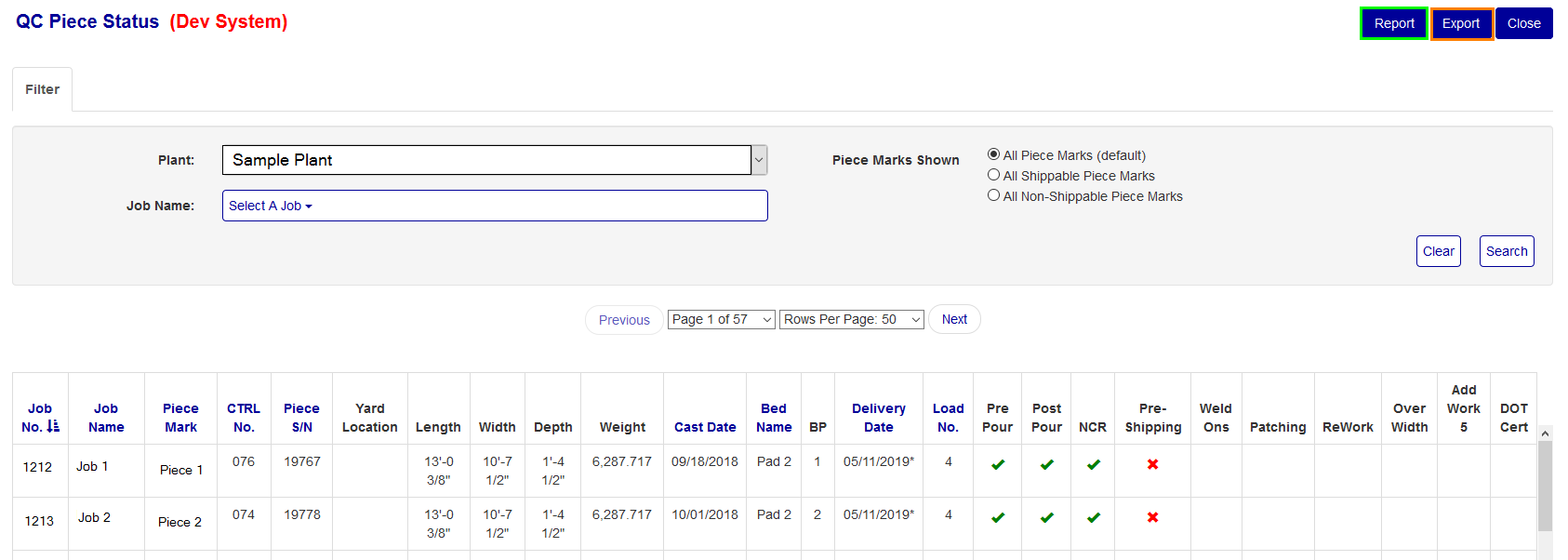
Fig. 4
After you have used the filter, you can now use the “Report” Button (Green box Fig. 4) and “Export” Button (Orange box Fig. 4)
Was this article helpful?
That’s Great!
Thank you for your feedback
Sorry! We couldn't be helpful
Thank you for your feedback
Feedback sent
We appreciate your effort and will try to fix the article