Using the Sales Notes screen, you can easily view all Sales notes or filter for specific notes based on: An Opportunity Name, A Date Range, or A Note Creator. You can access this screen from the main Sales menu tab.
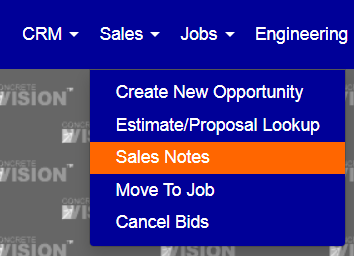
Fig. 1.
By default, there are no filters selected for the screen, so when you first visit the screen all noted will be listed in order from newest to oldest.
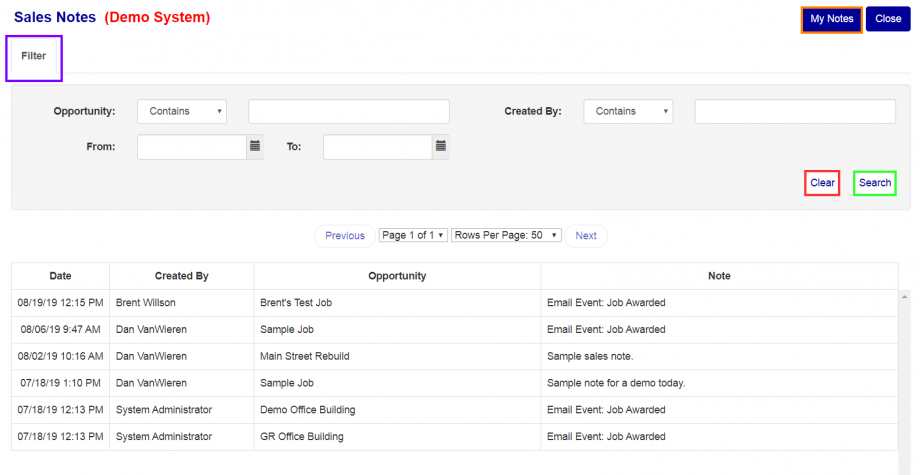
Fig. 2.
Filter
To easily filter to Sales Notes where you are the creator, just use the “My Notes” button (Orange Box Fig. 2) and the page will fill in the necessary filter where you are the creator.
To customize the Sales Notes you see, you can edit the filter parameters to see specific Sales Notes by using the Filter dropdown (Purple Box Fig. 2).
Once all Filter parameters have been filled out, press the “Search” button (Green Box in Fig. 2) to apply the filter, or the “Clear” button (Red Box in Fig. 2) to remove all Filter Parameters.
Was this article helpful?
That’s Great!
Thank you for your feedback
Sorry! We couldn't be helpful
Thank you for your feedback
Feedback sent
We appreciate your effort and will try to fix the article