Overview
Safety Forms - Supervisor Report screens are created for every Safety Form created. The Supervisor Report screens are used to view Safety Forms which employees have submitted for review. You will be able review, export and resend submitted forms from the Safety Forms - Supervisor Report screens.
Refer: Configuration / Safety Setup / Safety Forms
Note: You need to have a Safety team setup or at least 1 person setup for the Safety Module to work correctly.
Accessing the Screen
When a custom safety form is created, a Supervisor Report screen (example in Figure 2) of that safety form is also created and added to the Safety Module dropdown menu. To access the Supervisor Report screen, navigate to the Safety Module from the main menu. The Supervisor Report screen will appear in the menu, labeled <Name of Your Report> - Supervisor Report (Figure 1).
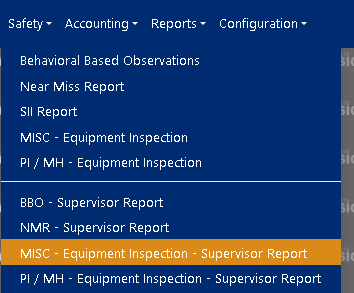
Figure 1
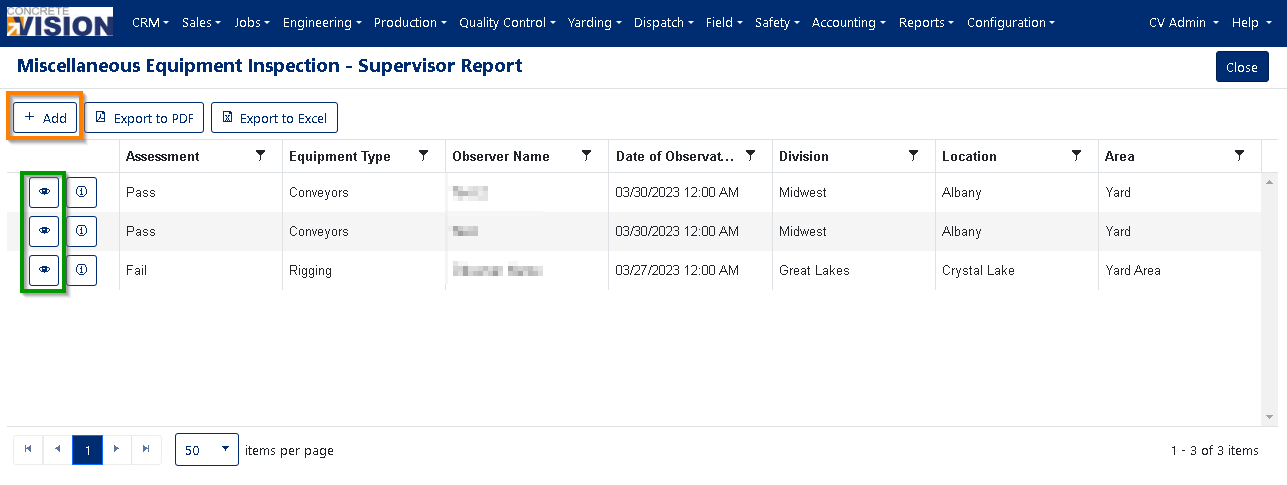
Figure 2
Add a Safety Form Submission
From any safety report's Supervisor Report screen (Figure 2):
- Click on the [+ Add] button (orange box in Figure 2) to load a blank safety form.
- Fill out form.
- Click the Submit button.
View Safety Form Submissions
To view a submitted safety form on the Supervisor Report screen (Figure 2):
- Click on the View icon (green box in Figure 2) to the left of the submitted safety form.
Export Safety Form Submissions
To export a safety form with any uploaded attachments, from the Supervisor Reports screen (Figure 2):
- Click on the View icon (green box in Figure 2). The safety form submission will display.
- Click on the Export button (orange box in Figure 3) at the top left of the page.
Note: The browser may prompt to allow multiple downloads. Please click Allow so that the export can succeed.
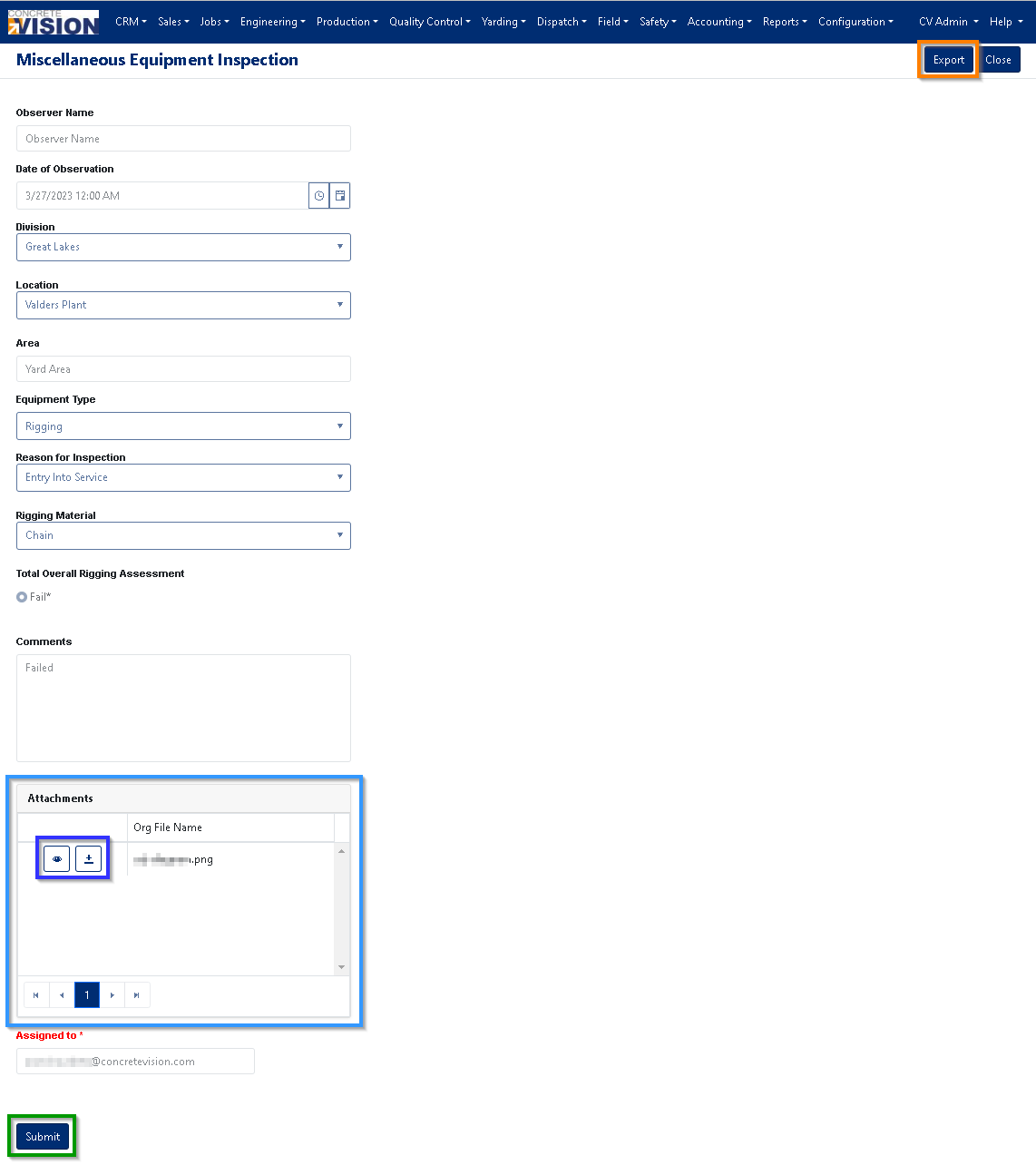
Figure 3 (Only submitted items are ever shown)
Download/View Attachments from a Submitted Safety Form
To view one of the attachments, from the Supervisor Reports screen (Figure 2):
- Click on the View icon (green box in Figure 2). The safety form submission will display.
- Click on the on the View icon (first icon, purple box in Figure 3).
Note: The viewer will open in a new window or tab.
To download one of the attachments, from the Supervisor Reports screen (Figure 2):
- Click on the View icon (green box in Figure 2). The safety form submission will display.
- Click on the on the Download icon (second icon, purple box in Figure 3).
Note: Your browser may prompt you to allow the download.
Resend a Submitted Safety Form
To Resend a Safety Form with any uploaded attachments, from the Supervisor Reports screen (Figure 2):
- Click on the View icon (green box in Figure 2). The safety form submission will display.
- Click on the Submit button (green box in Figure 3) at the bottom of the page.
Note: Emails may be delayed due to possible queuing.
Was this article helpful?
That’s Great!
Thank you for your feedback
Sorry! We couldn't be helpful
Thank you for your feedback
Feedback sent
We appreciate your effort and will try to fix the article