Overview
Quote Sections organize groups of Quote Line Items (custom text lines) into sections which can then be selected to create different Quote Types in Concrete Vision. Quote Sections and Quote Line Items are managed through the Quote Sections screen.
Accessing the Quote Sections Screen
Navigate to Configuration > Sales Setup > Quote Sections from the main menu (Figure 1).
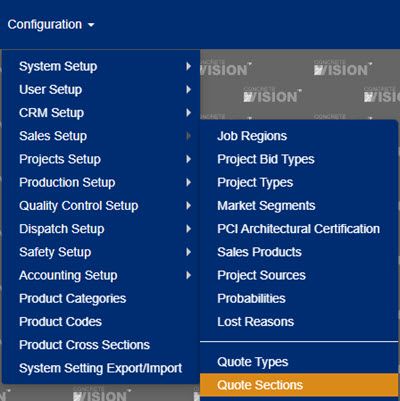
Figure 1
Using the Quote Sections Screen
The Quote Sections screen (Figure 2) is where a quote section can be added, edited, or deleted.
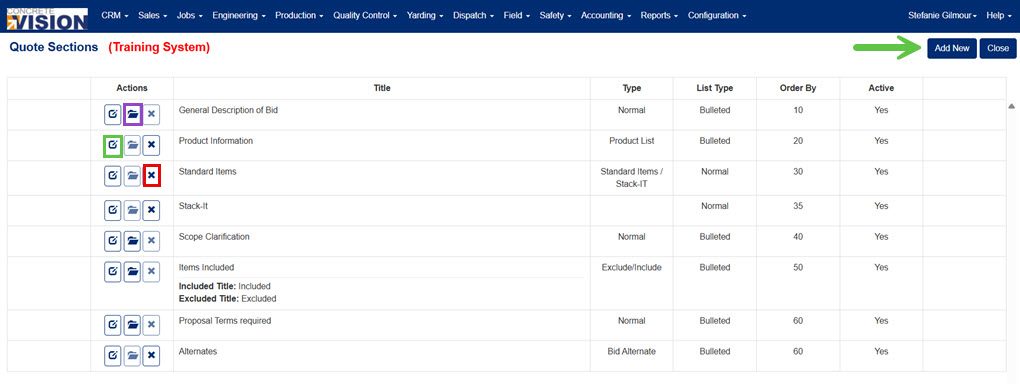
Figure 2
Add a Quote Section
From the Quote Sections screen (Figure 2):
- Click on the Add New button (green arrow in Figure 2). The Quote Sections - Add/Edit screen (Figure 3) will open.
- Enter a name for the section.
- Choose to display or not display the section title on the bid / proposal.
- Select what type of quote section to create:
- Normal: a regular type of section.
- Include/Exclude: a special section to allow you to include/excluded line items. The following fields appear (dotted purple line in Figure 3) only if this option is selected.
- Enter an included title.
- Enter an excluded title.
- Product List
- Standard Items
- Bid Alternate
- Select a list type from the dropdown to set the display style of the list.
- Choose to display or not display the section on the bid / proposal.
- Choose to lock or unlock the section from editing while creating the bid / proposal.
- Enter an order by to determine the display order of the section.
- Click the Save button (yellow box in Figure 3). An Info tab and Header / Footer tab will appear (purple arrow in Figure 4).
- To add custom text for the Header or Footer of the bid / proposal, click the Header/Footer tab. The Proposal Sections - Line Items screen will appear (Figure 4).
- Add custom text in the text window.
- Make selections for where the text should display (header or footer), if the text is Active in CV, and what order it should display in (purple box in Figure 4).
- Click the Plus icon (purple arrow in Figure 4).
- Click the Save button (yellow box in Figure 4) to save and view the information or click the Save & Close button (green box in Figure 4) to save the information and return to the Quote Sections screen.
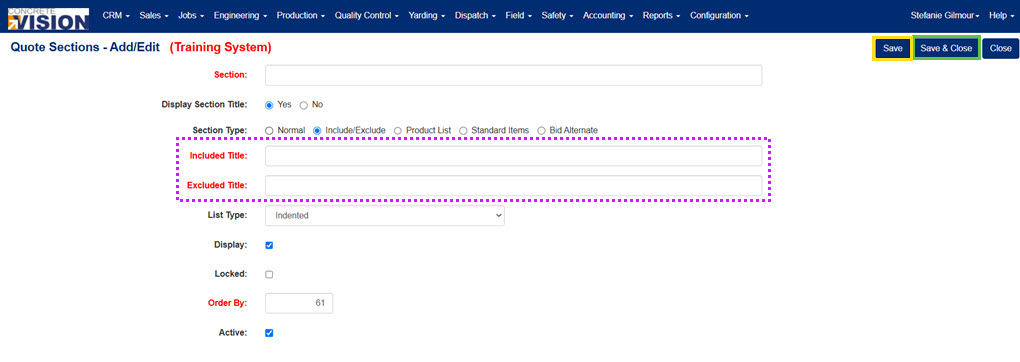
Figure 3
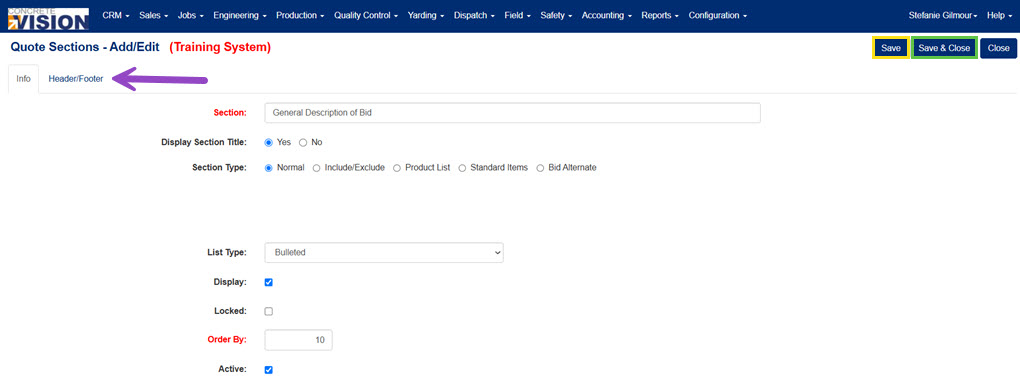
Figure 4
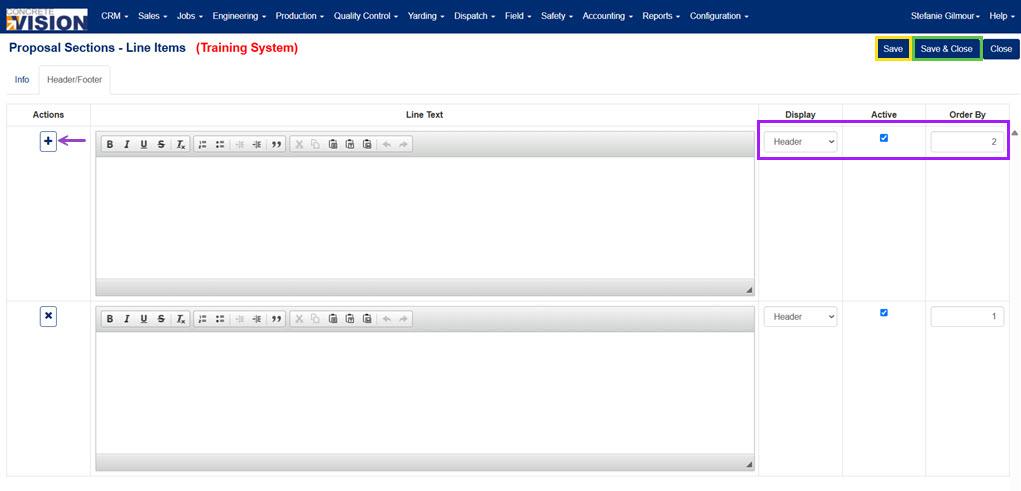
Figure 5
Edit a Quote Section
From the Quote Sections screen (Figure 2):
- Click the Edit icon (green box in Figure 2) beside the quote section to edit.
- Modify any of the fields or selections as needed on the Info tab and Header / Footer tab.
- Click the Save button (yellow box in Figure 3) to save and view the information or click the Save & Close button (green box in Figure 3) to save the information and go back to the main screen.
Delete a Quote Section
From the Quote Sections screen (Figure 2):
- Click on the Delete icon (red box in Figure 2) of the Quote Section to delete.
- Click the OK button on the popup window to confirm deletion.
Note: Only a Quote Sections that does not currently have any details assigned to it can be deleted. If details are assigned to it, the delete button will be disabled.
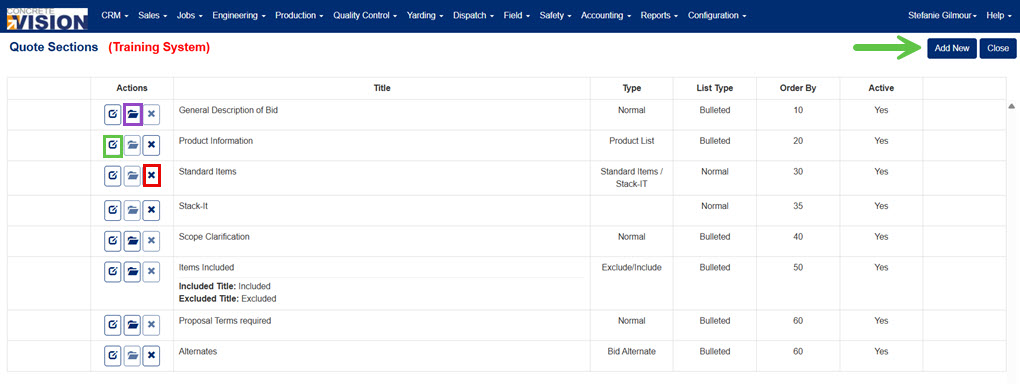
Figure 6
Add a Quote Line Item
Custom text, treated as quote line items, can be added to quote sections and included in a bid / proposal in Concrete Vision. To add a quote line Item to a quote section, begin at the Quote Sections screen (Figure 6):
- Click on the Folder icon (purple box in Figure 6) beside the quote section to view its line items. The Quote Line Items screen will load (Figure 7).
- Click on the Add New button (yellow arrow in Figure 7). The Quote Line Items - Add/Edit screen will load (Figure 8).
- Enter custom text in the text window.
- To the right side of the screen, enter an order by to determine display order (red box in Figure 8).
- Check box if the line item should be displayed.
- Check box if the line item should be locked from editing in the bid / proposal.
- Check box if the line item should be active in Concrete Vision.
- Click the Save button (yellow box in Figure 8) to save and view the information or click the Save & Close button (green box in Figure 8) to save the information and return to the Quote Line Items screen (Figure 7).
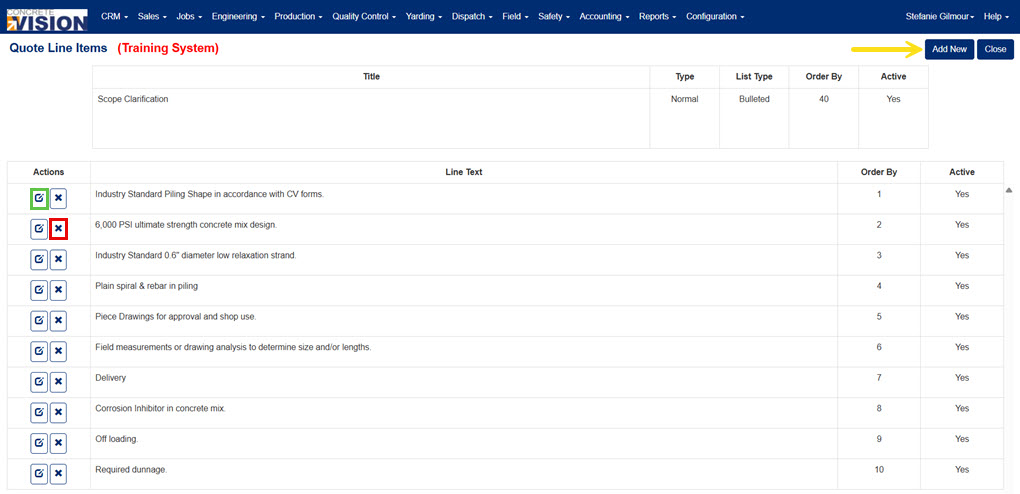
Figure 7
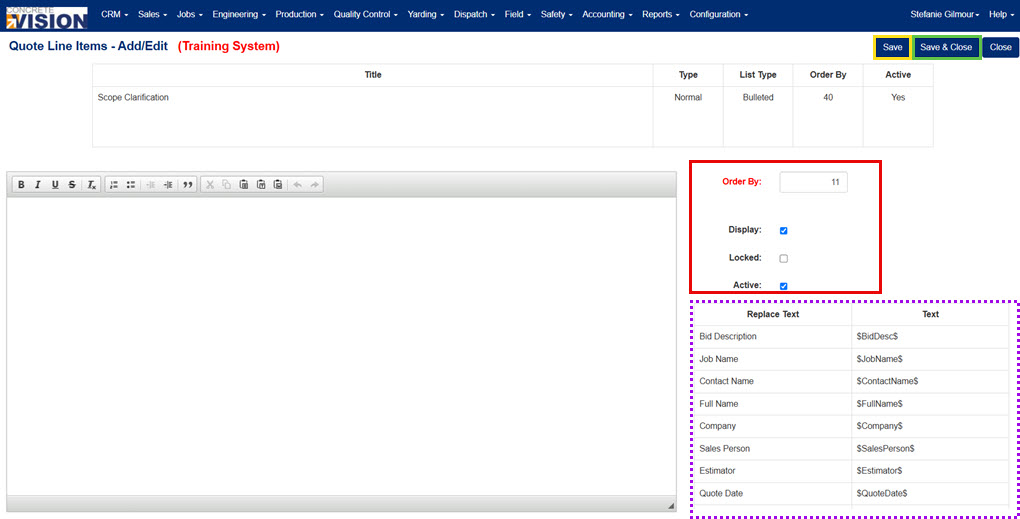
Figure 8
Edit a Quote Line Item
To edit a quote line item, begin at the Quote Sections screen (Figure 6):
- Click on the Folder icon (purple box in Figure 6) beside the quote section to view its line items. The Quote Line Items - Add/Edit screen will load (Figure 7).
- Click on the Edit icon (green box in Figure 7) beside the quote line item that requires editing. The Quote Line Items - Add/Edit screen will load (Figure 8).
- Edit any content or text.
- Click the Save button (yellow box in Figure 8) to save and view the information or click the Save & Close button (green box in Figure 8) to save the information and return to the Quote Line Items screen (Figure 7).
Delete a Quote Line Item
To delete a quote line item, begin at the Quote Sections screen (Figure 6):
- Click on the Folder icon (purple box in Figure 6) beside the quote section to view its line items. The Quote Line Items - Add/Edit screen will load (Figure 7).
- Click on the Delete icon (red box in Figure 7) beside the quote line item to delete.
- Click the Okay button in the popup window to confirm deletion of the quote line item.
Understanding Template Variables in Quote Line Items
At the right side of the Quote Line Items - Add/Edit screen, there are template variables (purple dotted line box in Figure 8) available to use in the text field. When placed in the text field, these variables will pull in custom text from the sales opportunity.
Was this article helpful?
That’s Great!
Thank you for your feedback
Sorry! We couldn't be helpful
Thank you for your feedback
Feedback sent
We appreciate your effort and will try to fix the article